

Overview: In this blog page, we are going to discuss how you can create Ventoy bootable USB in just a few simple steps. We shall also discuss how you can create multi bootable USB from ISO with Ventoy, its limitations, and professional way to convert and manage ISO files.
Ventoy is an open-source software that helps users to create multi-boot USB drives with more than one operating system. While using Ventoy, the user does not have to format the USB device each time when you want to add another ISO image to it. You will just have to install Ventoy once in your USB and insert the necessary ISO files in it.
Reasons to Make Bootable USB with Ventoy
Go through these common factors to create Ventoy bootable USB. It saves time for the users, as you don’t have to write the USB drive each time when adding a new ISO file.
- Keep all your Windows, Linux, and other OS ISO files in the same USB drive
- You can store various bootable OS images and then choose whichever image is necessary from the start menu
- In order to prepare recovery ISO files for system repair
- Add or delete ISO files without having to create a bootable USB all over again
- Users can store ISO files bigger than 4GB without FAT32 single file sizes restrictions
- Utilize your free space to store other files
How to Create Bootable USB Using Ventoy? Full Steps
You can use Ventoy to make your USB device ready for booting various ISO images. All you will require is your USB flash drive, the Ventoy installer, and your ISO files. Before following the steps, make sure that you have:
- A USB stick with sufficient storage space
- A computer running on either Windows or Linux operating system
- Ventoy’s latest installation package
- Check & Download your ISO files
- Backup all your USB data
Note: Ventoy installation process will erase the existing data from the selected USB. It is important to back up your files.
Step 1. Download & Install Ventoy on Your USB Drive
1. First, navigate to the official Ventoy website and download the most recent installer package.
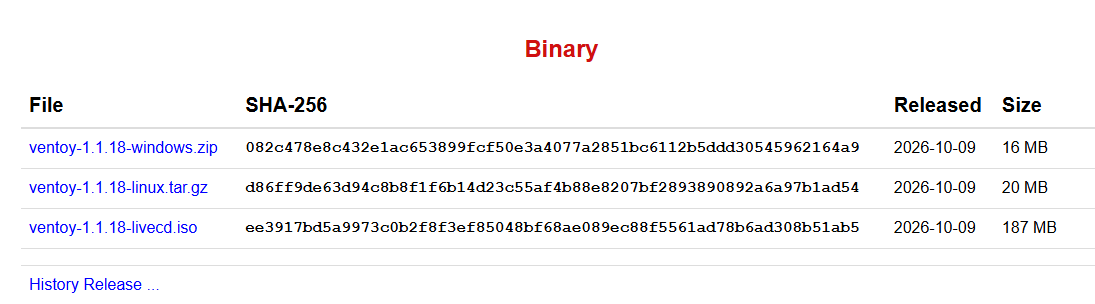
2. Unpack the downloaded ZIP archive to your computer into a folder
3. Insert the USB flash drive into your computer
4. Now, access the Ventoy unpacked folder
5. Open the Ventoy2Disk.exe file
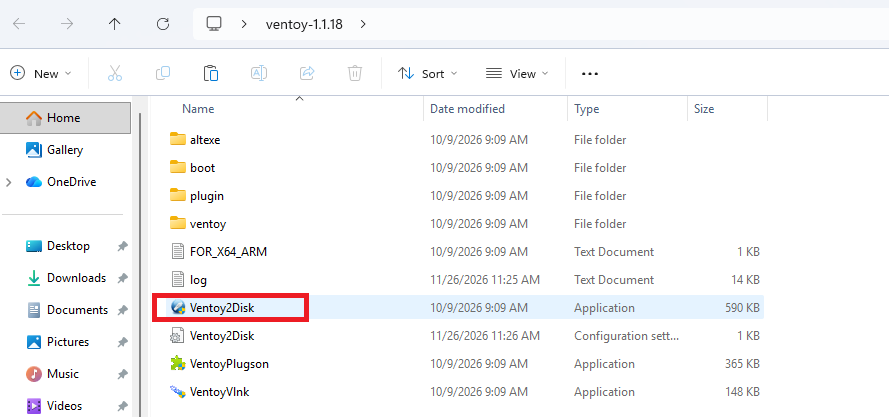
6. The Ventoy2Disk.exe will show you the list of available USB drives
7. Now, choose the right USB drive by selecting it from the Device dropdown list
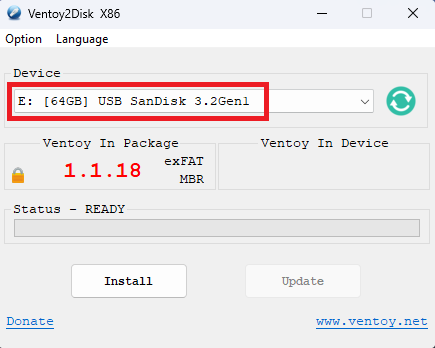
8. Check the capacity of the USB drive and its name
9. Now, click on the Install button
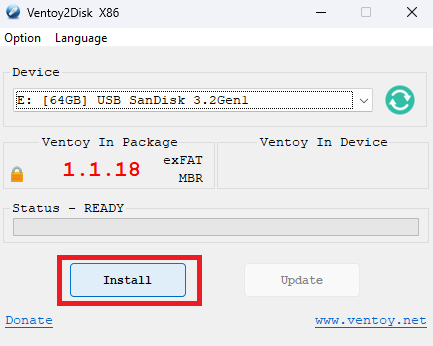
10. Accept the warning messages and wait for the process to complete
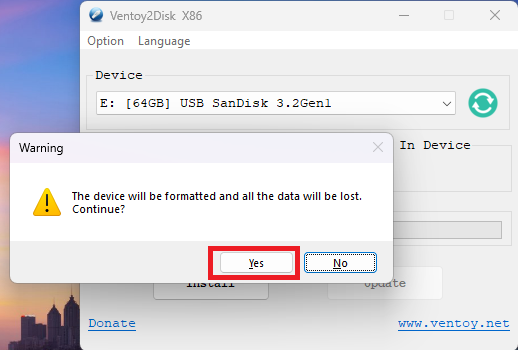
11. After it’s done, Ventoy will be installed on your USB drive
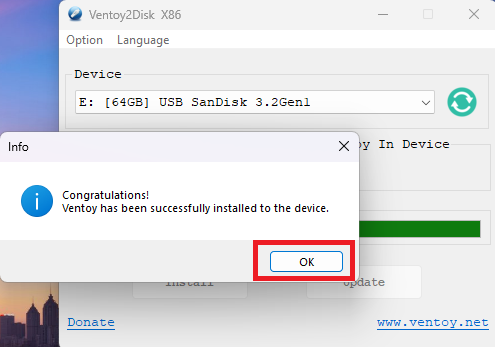
Step 2. Copy ISO Files Into Ventoy USB Drive
After installation of Ventoy, you will have to add the OS images that you wish to boot from.
1. Firstly, launch File Explorer on your Windows PC
2. Navigate to the newly created Ventoy USB drive
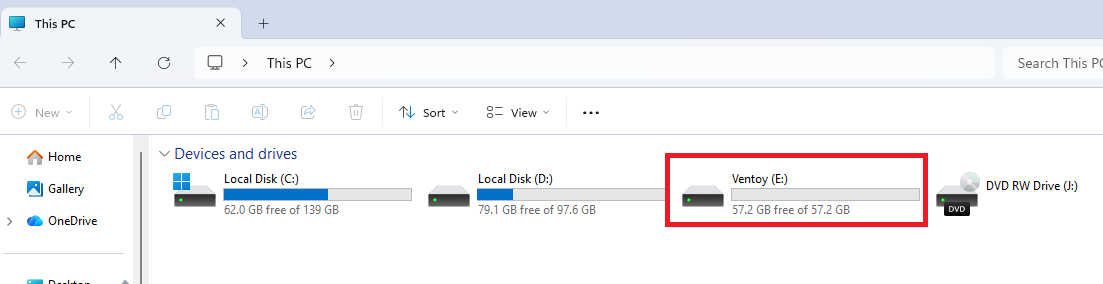
3. There, you can access the main Ventoy partition
4. Now, copy your backup ISO files and paste to your Ventoy drive
5. It is possible to create folders for your various ISO images
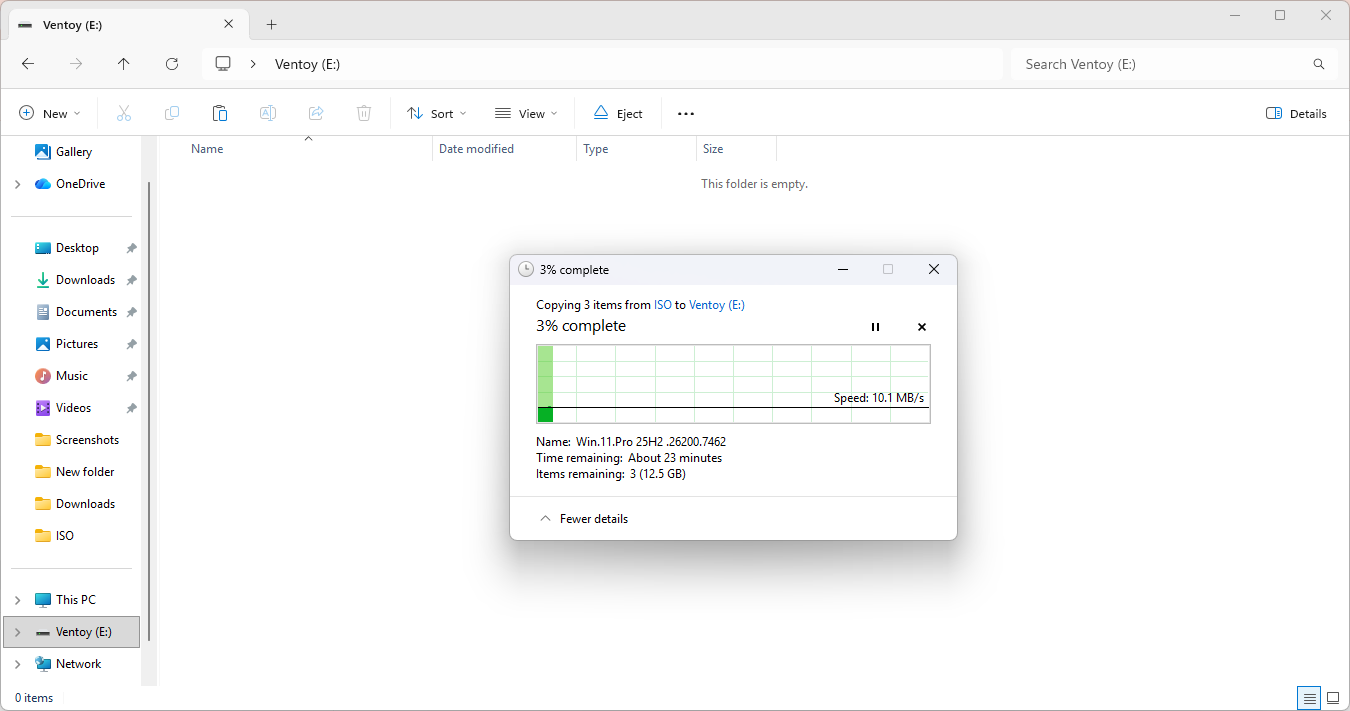
The ISO files do not have to be unpacked, since Ventoy will be able to find the compatible image files on the drive.
Step 3. Create MultiBoot USB with Ventoy
One of the major advantages of using Ventoy is that it allows booting from several images from a single USB stick.
- Firstly, connect the Ventoy USB drive to your PC
- Go to the Ventoy main partition
- You can separate folders for various OS, as per your requirement
- Now, just copy the Windows & Linux ISO files and paste it into the USB drive
- Users have the option to add recovery and diagnostic images too
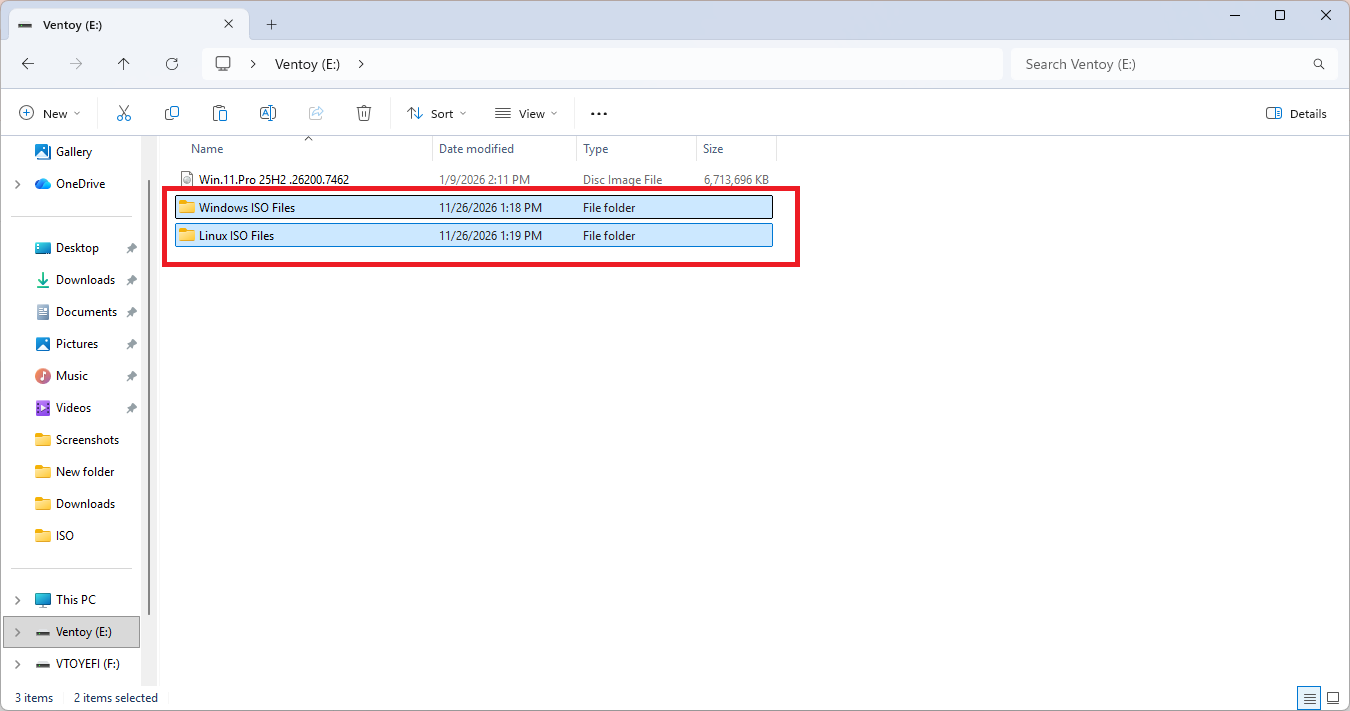
Ventoy automatically detects the main partition and all subfolders to detect supported image files.
Step 4. Now, Boot Your PC Using Ventoy USB Drive
Once you have copied all your necessary ISO files to the Ventoy USB drive. Just check if the drive works properly or not.
1. Eject the USB drive from your computer safely
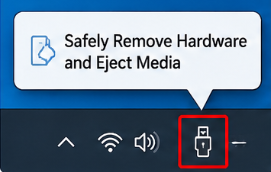
2. Insert it into the computer where you want to install or boot an operating system
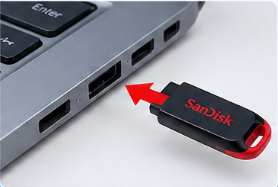
3. Just, restart your computer
4. Now, launch the Boot Menu using the F12, F9, F11, and Esc buttons
5. From the list of boot devices, choose the USB flash drive
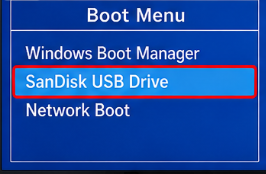
6. The Ventoy boot menu will load
7. Now, choose to open the desired ISO file
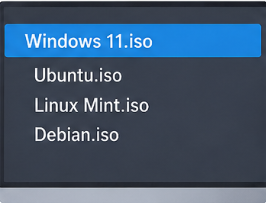
- Press Enter to proceed with the remaining on-screen steps
This process will begin for the chosen operating system or recovery system. Thus, you are able to create Ventoy bootable USB and use several ISO images from one device.
Common Limitations of Using Ventoy:
You can make multiboot USB using Ventoy, but there are a few challenges that a user can encounter.
- Ventoy will format the chosen USB flash drive and delete all existing data on it
- There are some ISO files which do not support Ventoy
- Some systems can give you security alerts or need further Secure Boot enrollment
- The problem is caused by faulty BIOS or UEFI configuration
- Some older PCs might experience issues when booting off some USB drives
- The number of ISO images that you can save depends on the size of the USB drive
- Ventoy boots image files and does not convert the ISO files to any other disk image formats
For these reasons, users must verify their ISO files and system requirements before proceeding to create Ventoy bootable USB.
If there is a need to view and extract files and folders within an ISO image without mounting it. Then, you should consider using SysTools ISO Extractor.
Convert ISO Files Easily Using Expert Solution
You can use Ventoy to create bootable USB which works with various image types. Although, at times users might want to convert ISO files into popular disk image formats. In that case, you can use SysTools ISO Converter. This tool helps to convert ISO to IMG, BIN, CUE, DMG, 7Z-ISO, and ZIP-ISO file formats. Moreover, it supports advanced ISO file types such as ISO 9660, UDF, Joliet, and Rock Ridge.
These features can be used by the users:
- Convert bulk ISO files at once
- Adding of single/multiple ISO file or entire folders
- View ISO file contents prior to conversion
- Keep the same folder structure
- Supports both Windows and macOS
- The process is completely offline without uploading to the online server
Note: There is no need for the conversion of ISO to any other file format through the Ventoy application. It will be able to boot the supported ISO file directly. The above solution helps users to convert your ISO files to your required image format.
How to Use Ventoy and ISO Converter Together?
The two applications have different functionalities and can be used together in preparing ISO files.
- Firstly, add the necessary ISO files to our dedicated software
- View the files and verify that the images are in the right format
- If needed, convert the images to a suitable format.
- Make sure that the converted files are ready for further use
- Now, if you have Ventoy, then use bootable images such as ISO
- Copy the bootable images in the Ventoy USB drive
- Then, restart your system and choose the desired image file from the Ventoy boot menu
This will help you to manage ISO files individually, and create Ventoy bootable USB drives.
Ventoy vs Professional Solution – Which One to Use?
Both tools perform different functions. Ventoy is used to create bootable USB drives, while the other tool is helpful for converting ISO files.
| Features | Ventoy | Professional Tool |
| Primary Objective | Create Bootable and multiboot USB drive | Convert and manage ISO files |
| Add Multiple ISO Files | Yes | Yes, for conversion |
| Boot ISO from USB | Yes | No |
| Convert ISO to BIN/CUE/IMG | No | Yes |
| Convert ISO to DMG | No | Yes |
| Preview ISO Contents | Does not have built-in ISO file preview feature | Yes |
| Batch Processing of ISO | Copying multiple ISO images to the USB | Multiple ISO File Conversion |
| USB Boot Menu | Yes | No |
| Windows Operating System | Yes | Yes |
| macOS Support | No macOS Ventoy GUI installer | Yes |
Conclusion
We have shown you different steps to create Ventoy bootable USB drive. It needs to be installed only once, and then users simply have to copy their various ISO files into the USB drive. This will allow them to avoid having to format their drive repeatedly. They can choose their desired operating system from the Ventoy boot menu.
However, if you want to convert ISO files into other disk image formats. Then, opt our dedicated software. Select a tool depending on your requirements and consider the ISO file format compatibility.
Questions Asked by Users – Answered All Your Queries
These are all the user queries which often come across in order to create Ventoy bootable USB.
Q1. Is it possible to have a multiboot USB with both Windows and Linux OS using Ventoy?
Ans. Yes, Ventoy allows users to install several Windows and Linux OS images on the same USB drive.
Q2. Is the USB drive formatted by Ventoy during installation?
Ans. Yes, Ventoy formats the selected USB drive during its installation. Your existing data is deleted permanently which means that you need to backup your data.
Q3. Is it possible to boot ISO files above 4GB using Ventoy?
Ans. Yes, you can boot your ISO files which are larger than 4GB using Ventoy. Since, the default partition created by Ventoy is exFAT, which does not have a restriction on the 4GB file size.
Q4. Why am I not able to see my Ventoy USB in the boot menu?
Ans. This problem can be caused by the BIOS settings, boot mode incompatibility, Secure Boot setting, and USB device detection issues.