

Microsoft Access allows users to import large CSV files and handle them in database tables. This is helpful when you want to search, filter, or re-arrange data that is saved in CSV format. But sometimes it might fail, and users get into trouble when trying to upload CSV files containing multiple MBs or GBs of data.
For example, if someone has 2 GB of CSV file, then he or she might face import errors because of maximum size limit of Access database. In such situations, users need to know and understand uploading restrictions to manage data in right manner.
Can I Import Large CSV File into Access Database?
Yes, Microsoft Access works effectively when it needs to upload large CSV data file via Text Import Wizard. Users can make new table or add more records to an existing CSV file. But there are some limitations of Access that can affect oversized CSV upload process.
| Microsoft Access Database Limit | Maximum size is 2 GB that also includes system objects |
| Data Type Restrictions | Wrongly formatted values might result in import errors |
| Maximum Fields Per Table | 255 columns or fields supported by Access table |
| Other Space Requirements | Uploaded CSV data consumes more storage than original file, depending on content and data |
| Character Limit in Table or Field Name | 64 for both Access fields and table name |
Thus, users cannot import 2 GB CSV file into Microsoft Access all at once. Even if it is slightly smaller than 2 GB, it may also exceed database limit, which can further lead to multiple problems, such as unwanted crashes or slowing down of Access.
One can also refer to Microsoft Access specifications to check its ability to import large CSV files.
How to Import Large CSV File into Access Using Manual Method
Access offers built in option to upload CSV files, which does not require any application to be installed. Users can follow these steps listed below if they have less than 1 GB of CSV data.
Steps for Creating New Database Table
- Launch Microsoft Access on your system.
- Either open existing database or make new blank database.
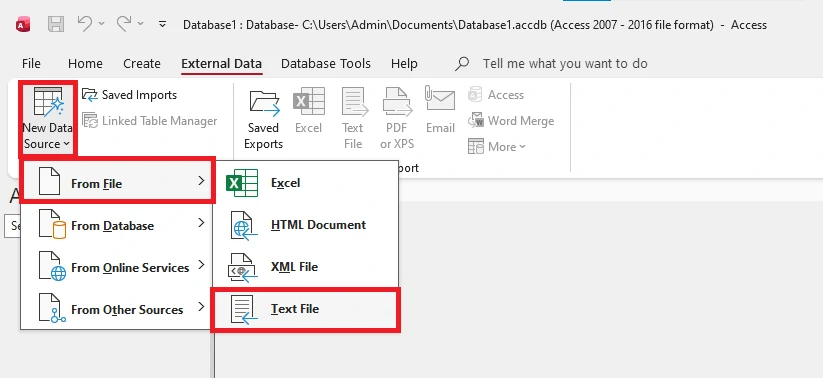
- Choose External Data tab from upper ribbon.
- Press New Data Source > From File > Text File (.csv or .txt)
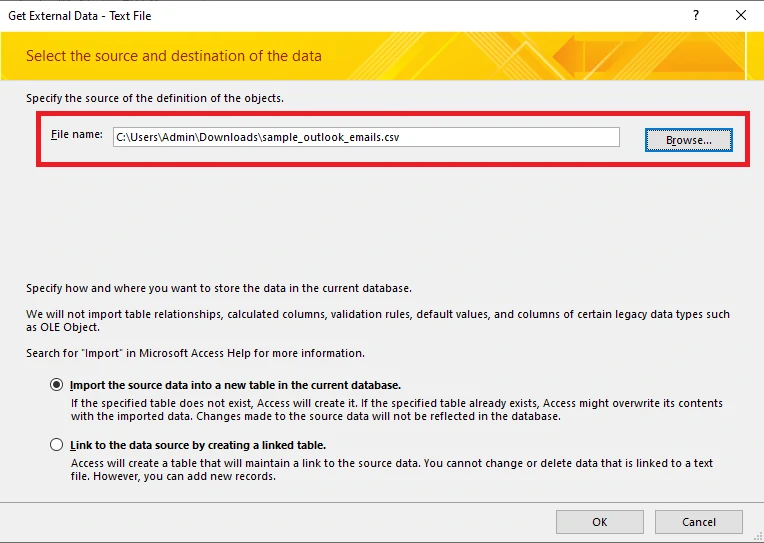
- Browse and select CSV file that you want to import into Access.
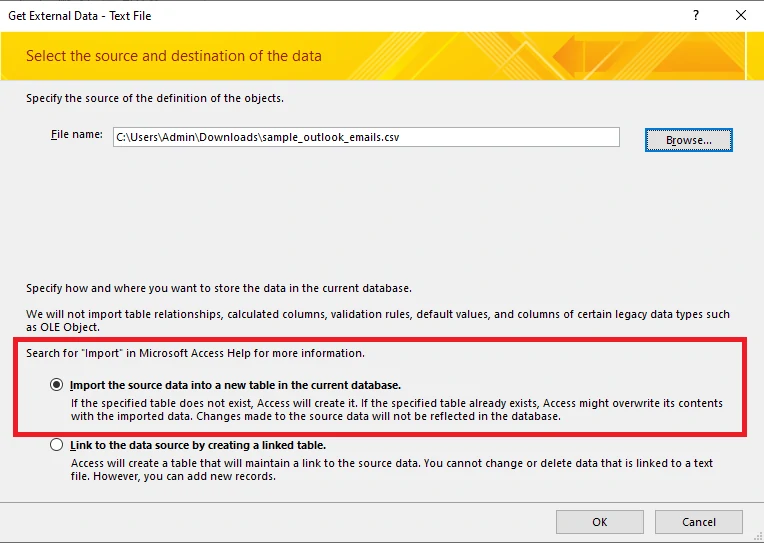
- Select “Import source data in new table in current database” option.
- Click Ok to open Text Import Wizard.
- Choose Delimited and select helpful delimiter, i.e., comma (,).
- Now, check its first row to see if it includes column headings.
- Verify field names and other data types.
- Finally, tap Finish after you successfully import large CSV into Access.
Now, your uploaded CSV records have been transferred into new Microsoft Access table. Let’s look for solution if users already have table but want to add more data to it.
Steps for Add CSV Data to Existing Table
- Open your Access database.
- Navigate to External Data > New Data Source > From File > Text File.
- Look and select your CSV file.
- Choose “Append copy of records to table” option.
- Now, select destination table where you want to store CSV data.
- Lastly, complete Text Import Wizard, verify your records, and finish import process.
Note: In case of append option, remember that your CSV columns should always match with structure of your destination table. And increased records cannot bypass 2 GB limit of Access database.
How to Upload Large CSV File into Microsoft Access With Exceed Size Limit?
Sometimes, when users have CSV file with more than 2 GB in size, you can reduce CSV size by breaking it into different parts into approx 200-500 MB CSV files each. This will help users to import large CSV file into Access with ease, as split process of CSV files is based on their file size and number of rows (records), while keeping header intact.
To divide into several CSV parts, we recommend using SysTools CSV Splitter Tool, which helps users by breaking their huge CSV files into accessible parts that can be easily imported into MS Access.
This advanced software offers exclusive option to split their huge CSV file based on file size and record count. Moreover, it works completely offline without needing internet connection. Also, this proactive tool provides simple and easy user interface, which makes it reliable option for both technical and non technical users. One can add multiple CSV files within same utility with no size restrictions. Let’s understand how this software works.
Working Steps to Split CSV Data File Before Importing into Access
- Download and launch this aforementioned program on your system.
- Click Add Files and Folders option to import large CSV files.
- After uploading, users can view their CSV files and then click Next button.
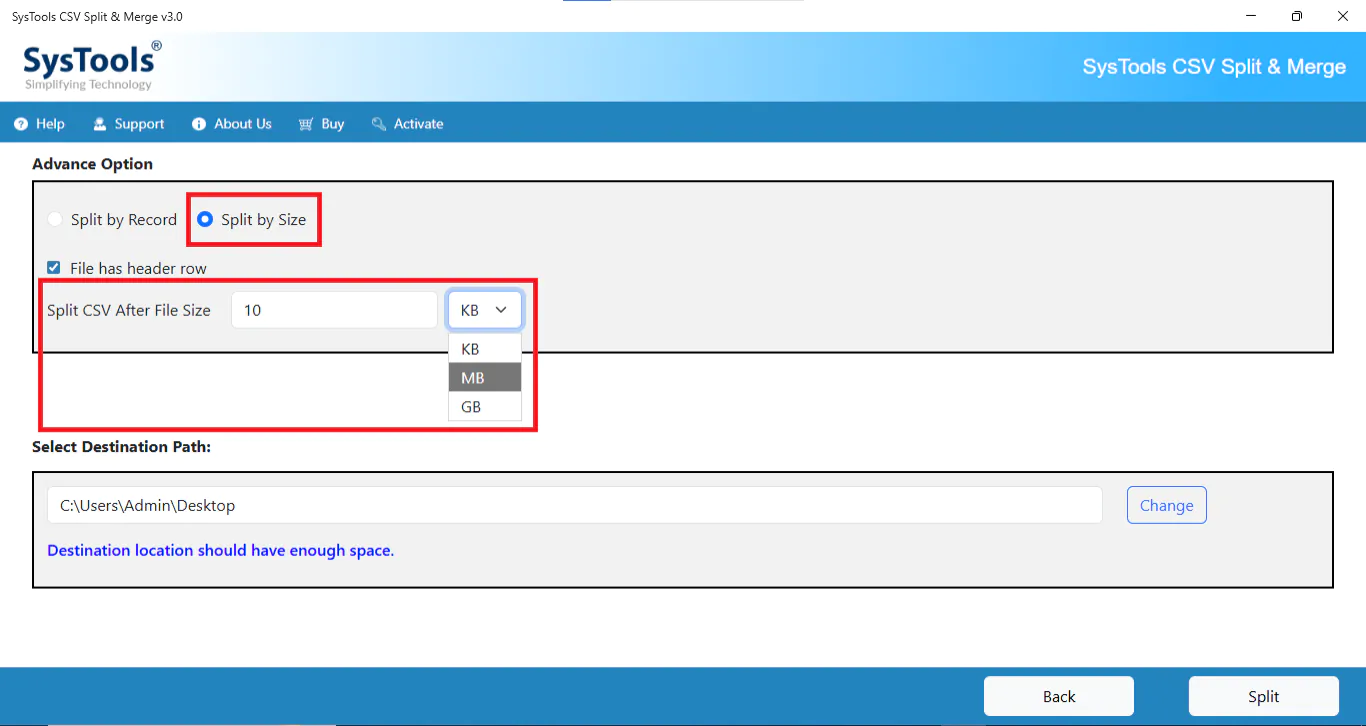
- Users can apply advanced options based on size (KB, MB, or GB).
- Select Destination path to save output CSV parts.
- Click Split button to break down huge file and import it into Access.




Remember: Dividing CSV file does not make your CSV data less in size, but it will help you to upload only important CSV data parts into MS Access without unwanted data.
Pro Tips to Import Large CSV File into Access
Users can follow these practices to prevent such common import errors in future. Here are some of them given below:
- Always check your CSV file size before importing into database.
- Verify whether CSV contains column headers with their correct field names.
- Try to upload only necessary CSV data into Access to avoid reaching storage limit.
- Make sure that your CSV file is properly formatted with correct delimiters.
- Also, save extra copy of your original CSV file before doing anything to it.
Conclusion
In this article, we have discussed how to import large CSV file into Access database using MS Access built in Text Import Wizard. Moreover, if someone has large CSV file of size 2 GB, then it cannot simply be uploaded to Access. Also, we listed manual method to add CSV file to Access by splitting it up. Furthermore, use professional solution to make them accessible in Access. If anyone still faces any issues, contact our support team via live chat, which is 24/7 available.