

Summary: In this guide, we will be able to understand the process to create a bootable USB from an ISO file manually using Rufus and prepare the ISO file for further use.
Short Answer: Rufus is a freely available, open source software that runs on Windows OS. It creates ISO images on USB flash drives, through which you can boot your computer. Rufus does not have the feature to convert disk image formats. In case you have a wrong image format or file system problems, then you should first use SysTools ISO File Converter to convert and write it with the help of Rufus.
Rufus Features & Uses:
| Aspects | Overview |
| Main Use | Creates bootable USB drives out of ISO or disk image files |
| Supported Platform | Windows 8 or later versions (32-bit, 64-bit, and ARM64). There is no need for installation |
| License Type | Free and open-source software |
| Available Settings | MBR, GPT, BIOS, UEFI, FAT32, NTFS and exFAT formats supported |
| Limitations | Not able to convert ISO files to BIN, CUE, NRG, IMG and archive formats. It is also unable to perform batch conversions |
Key Reasons to Make Bootable USB from ISO File
A bootable USB drive enables users to run a computer through an OS or recovery files without the need for a CD or DVD. Below are the points mentioned to create a bootable USB from an ISO file.
- You can install Windows, Linux, or any other operating system on a new computer
- Erase the existing OS and install a new version of Windows
- Users can solve any computer problem through recovery tools
- Access the recovery tools, in case the installed operating system doesn’t function properly
- Another way is that you can install an OS through a USB drive rather than a CD or DVD
- Make a bootable USB drive beforehand and use it whenever required
- To install operating systems on more than one compatible computer
How to Create a Bootable USB from an ISO File Using Rufus?
There are several built-in ways to make a bootable USB drive. Follow the below steps:
#1. Make Bootable USB Drive Using Rufus – All Steps Mentioned
Follow the given steps to create a bootable USB from an ISO file using Rufus.
- Firstly, go to the official site of Rufus and download the latest version of Rufus.
- Next, connect your USB flash drive to the computer.
- Launch Rufus. There is no need for an individual installation here.
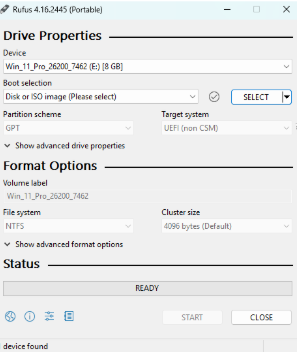
- Now, choose your USB drive from the Device menu.
- Under Boot selection, click the SELECT button.
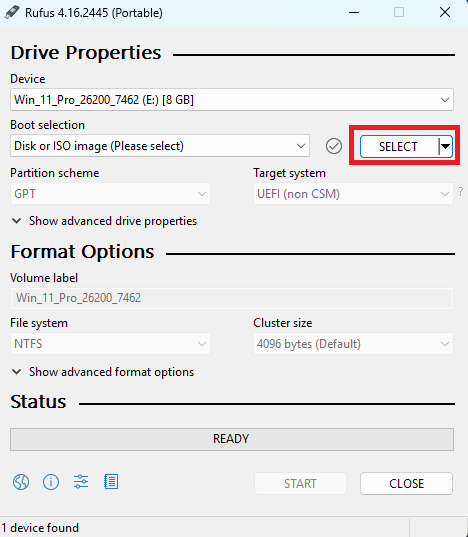
- Search on your computer for the required ISO file.
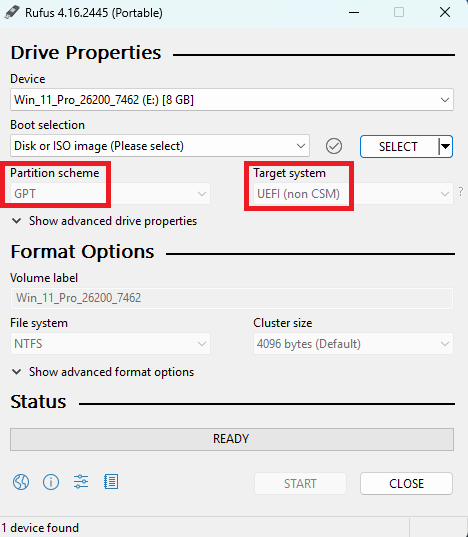
- Select the Partition Scheme and Target System as per your computer’s configuration like GPT or UEFI.
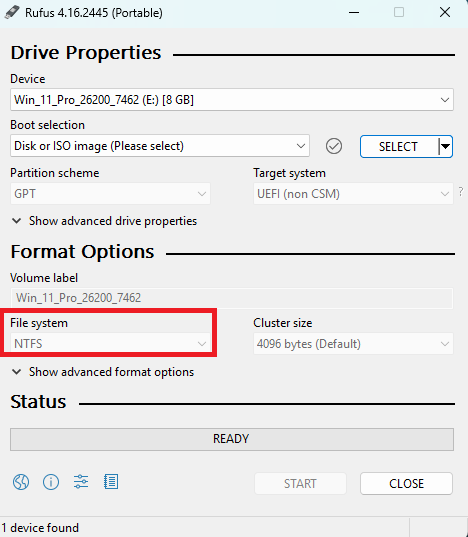
- Select the File System (NTFS) from the options available. Though FAT32 is the most compatible format, it cannot contain a file larger than 4GB.
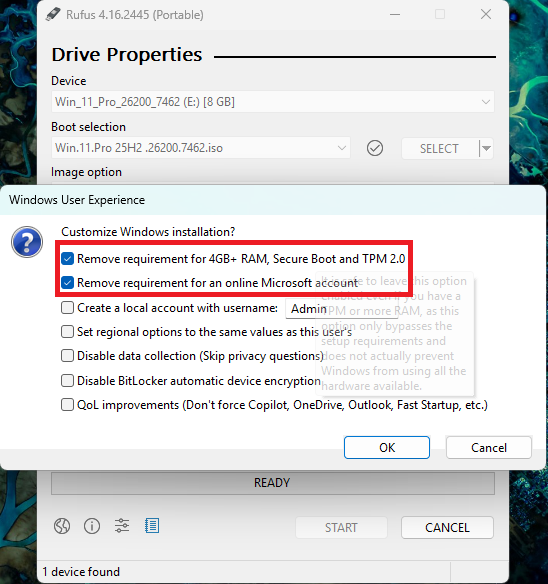
- Choose the options to customize the Windows installation process, like deleting the requirements for TPM 2.0, Secure Boot, and RAM, then press OK.
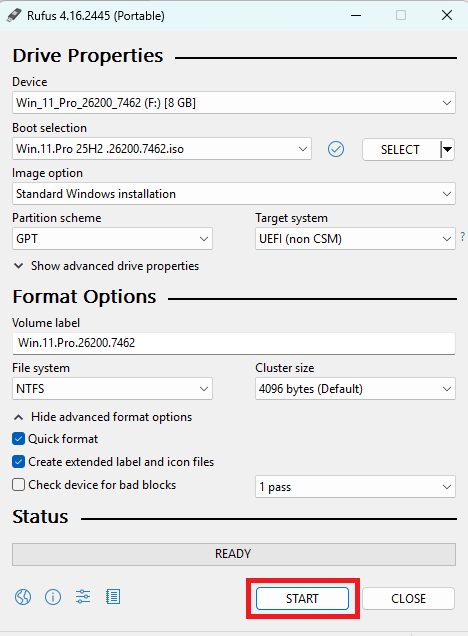
- Press the START button to start the process of booting the USB drive.
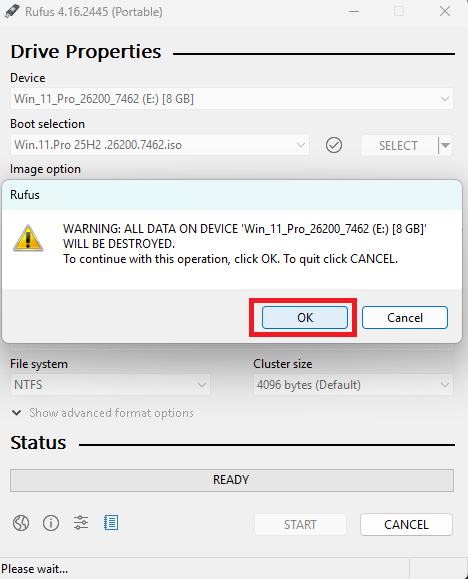
- Be sure to confirm the warning that your data will be destroyed from the USB device. Just tap on OK.
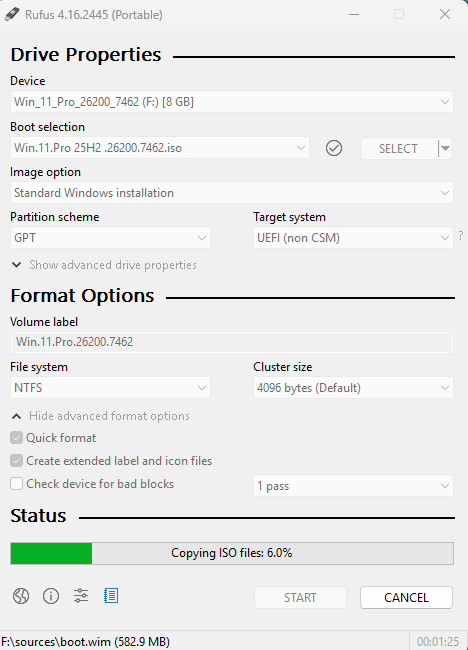
- At last, wait until Ready appears in the Status Bar.
Common ISO File Issues Where Rufus Stops
- Rufus is unable to convert NRG and BIN/CUE files to ISO files
- FAT32 is not able to store single files that exceed 4GB size.
- Not all computers can boot off USB drive having NTFS/exFAT file system
- Older and newer computers might require various file systems
- It cannot convert several ISO files simultaneously
- Unable to convert ISO files to IMG, ZIP, and 7Z files.
Want to Extract Files from an ISO?
If all you want is to extract files and directories from the ISO file, and you do not have to make it into a bootable USB drive. With the help of SysTools ISO Extractor, you can extract files from the ISO files, and then save it on your computer system.
Use Professional Solution to Convert ISO Files Securely
Users can go with SysTools ISO Converter that converts ISO files into IMG, BIN, CUE, DMG, 7Z-ISO, and ZIP-ISO formats. The software also supports ISO 9660, ISO 13346 (UDF), Joliet, & Rock Ridge as the file system. Thus, the file system can be selected depending on which machine the image will be booted from.
Features:
- Import and convert multiple ISO files/folders in one go
- You can see the content before going with the conversion process
- Users can convert large ISO files in seconds
- Tool works completely offline and your data is safe and stays within your computer
- Supports both Windows and Mac operating systems
- It gives you 24×7 customer support and 30 days Money back Guarantee
Follow Tool Steps to Convert ISO Files in Bulk – Easy Steps
Step 1. Install and open our software on your system
Step 2. Then, select Add File(s) button to add ISO files quickly
Step 3. Next, preview your ISO files and click on Next.
Step 4. Choose the Export format and click on Change to set the destination folder for conversion.
Step 5. Lastly, click on the Convert button to start the conversion process.
Use Both Rufus + Professional Solution for Combined Workflow
- Load the source image file into our software and check its contents.
- Export to the desired format and file system (for instance, ISO in the correct file system format).
- Now, open Rufus and load the prepared ISO and USB drive.
- Choose the partition scheme and the operating system file system and hit START.
- Just boot the target computer from the drive
In this way, you can create a bootable USB from an ISO file.
Need to Edit ISO File Before Creating a Bootable USB with Rufus?
If you wish to make any changes in your ISO file before making a bootable USB with Rufus. Then, use SysTools ISO Editor software for editing your ISO image.
Rufus and Automated Tool – Which Tool Should You Use?
This is the difference table where you can see which one to choose and work best for you.
| Features | Rufus | Professional Solution |
| Make ISO on USB device | Yes | No |
| Export ISO to BIN, CUE, IMG, 7Z-ISO, ZIP-ISO | No | Yes |
| Specify ISO 9660, UDF, Joliet, Rock Ridge format output | No | Yes |
| Convert multiple ISO files at once | No | Yes |
| Preview ISO contents before exporting | No | Yes |
| Format USB drive | Yes | No |
| Platforms | Windows | Windows and macOS |
| Cost | Free | Free version, full from $29 |
Conclusion
Rufus is an excellent tool that helps users to create a bootable USB from an ISO file. It doesn’t allow you to convert ISO files to other formats or provide any kind of batch conversion features. When you require any of these, you might need our professional tool to do it. You can use both these tools together for preparing your ISO files and making bootable USB flash drives. We have also given a comparison table to select the right method for accurate results and better management of ISO files.
FAQs – Frequently Asked Queries
These are all the questions asked by the users in order to create a bootable USB from an ISO file.
Q1. What is Rufus used for?
Ans. Basically, Rufus formats the USB and writes the ISO image to the USB. So, you can boot a computer using a USB drive and install the operating system.
Q2. Does Rufus convert an ISO file into some other format?
Ans. No, Rufus writes the images on the USB, but cannot convert the ISO files into disk image formats.
Q3. Why does Rufus say that my ISO is too big for FAT32?
Ans. There is no support for files larger than 4 GB in FAT32. You need to Choose NTFS or exFAT when using Rufus or recreate the ISO, bearing in mind that some firmwares can only boot from FAT32.
Q4. Do converted files retain their structure?
Ans. Yes, you can use our professional solution to retain the same data structure as the original ISO.
Q5. Can I Work with large or bulk ISO files?
Ans. Yes, you can include multiple ISO files or folders at once, and this tool is specially designed to deal with large images.
Q6. Is it reliable for confidential data?
Ans. The entire conversion process is done offline and no data is ever transferred out of your PC.
Q7. What can the free version do?
Ans. It helps you open large ISO files, perform a fast scan while preserving the folder structure. But saves only a few converted files. If you want to save all your exported files, then buy the paid version.