

You are likely well aware that your SSD stores Windows, important work files, photos and all other important data. But let me tell you very frankly that it gives very little warning before it fails. Knowing how to check SSD health helps you to quickly identify wear and tear, overheating issues or other related errors early and at the same time your data is still safe.
If you are thinking How can I check the health of my SSD for free? well in this simple guide you will learn free methods that can be used to properly check SSD’s health on your Windows 11 and Windows 10 operating systems so that you can solve your question how to check SSD health windows 10 and 11. Also you will learn how to analyze the results and thereafter what steps you can take if any issues are detected.
Why Check SSD Health Regularly
Let me share an interesting point with you as many of you may already know that hard drives start making a clicking sound before they fail and just after you will see that it slows down. However there are no moving parts in the SSD so it fails silently without giving any clicking or warning sound. Their flash memory cells have a limited capacity for writing data. Furthermore some factors such as heat, sudden power cuts, firmware bugs or controller faults can also cause them to fail at any time.
So SSD health check on regular bases takes only a few minutes. This allows you to see how much lifespan the drive has left so you can replace it on time rather than having it fail in the middle of an urgent task. You should also remember one important limitation in mind that a good result does not guarantee that your drive will never fail. So the good idea is to always maintain a backup of your drive.
Common and Early Signs of SSD Failure
- You will notice that your PC freezes or becomes very slow when you are copying files.
- Problem in opening Files or folders or they get corrupted
- Frequent blue screens (BSOD) error or it crashes during startup
- Drive turns read-only mode so you cannot save anything
- Your SSD disappears from File Explorer or BIOS now and then
- Boot time take much longer than before
If you notice any of these signs of SSD failure then you must check SSD health right away.
What Does SSD Health Check Include?
Check SSD Health status simply involves reading SMART which is known as (Self-Monitoring, Analysis and Reporting Technology) data to quickly identify any kind of wear and potential issues with the drive.
- Health Status: It shows the overall condition of the drive like Good, Caution or Bad.
- Percentage Used / Wear Level: Shows how much of the rated endurance is consumed.
- Available Spare: Indicates about the remaining reserve capacity for replacing worn memory blocks.
- Total Bytes Written (TBW): It displays your total amount of data written to the SSD.
- Temperature: Shows how hot the SSD is running.
- Media and Data Integrity Errors: It reports errors that are related to data reading or writing.
- Unsafe Shutdowns and Power-On Hours: Basically it shows unsafe shutdown counts and how much drive runs.
- SMART Failure Warning: Shows a message like “SMART Failure Predicted on Hard Disk” warns about possible drive failure.
Quick Suggestion: If you are working with hard drive and facing same issues as on SSD then our this article Best Free Hard Drive Health Check Software will guide you to choose the best tool to check health of your internal or external hard drive.
How to Check SSD Health in Windows 11 and 10 – Explore Free Methods
Now its time to address the main issue How do I run diagnostics on my SSD? There are a number of free tools that you can use to check SSD health free and report the condition of an SSD. Here choosing the best option completely depends on your drive model, Windows version and the level of detail required. So we will start with Method 1 and use other tools when you want deeper details.
Method 1: Use Windows Built-in Tools (No Download Needed)
How do I test if my SSD is bad? You just need to right click on Start icon or on Windows icon at the button of Taskbar and then open Terminal (Admin) or PowerShell (Admin) and run the following code as given below:
PowerShell Script to Check SSD Health and Reliability
Get-PhysicalDisk | Select FriendlyName, MediaType, HealthStatus, OperationalStatus
Get-PhysicalDisk | Get-StorageReliabilityCounter | Select DeviceId, Temperature, Wear, PowerOnHours, ReadErrorsTotal, WriteErrorsTotal
The first command will show you the basic status where the second one will show you details about temperature, wear and error counters. This is the fastest way to check SSD health in Windows 10 and 11 without installing software.
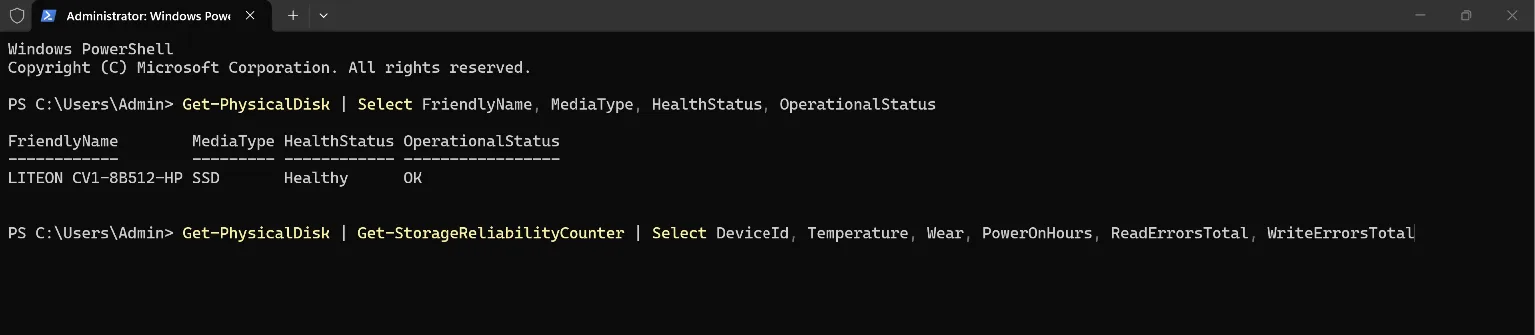
Some fields may come back blank and there is no need to worry as this is very normal because not every drive or driver reports every value. It simply means missing data is not an error.
Method 2: smartmontools (smartctl)
How to test if SSD is healthy? This is another free advanced SSD health check tool that works well in Command Prompt. You can simply Install smartmontools in your PC and then open admin terminal and run the following code:
Commands to Check SSD Health Using smartctl
smartctl --scan
smartctl -a /dev/nvme0
You can use /dev/sda if you have a SATA SSD. It will print the full raw SMART log without simplification so it is useful when another tool gives unclear results.
Method 3: Check SSD Health Using CrystalDiskInfo (Best for Beginners)

If you are a beginner and thinking What is the best software to check my SSD drive health? then this method is for you as CrystalDiskInfo is a popular free SSD health check software that you can use to check the health of your drive. You can download it only from its official developer website and then run it as administrator. It shows you information in detail and in proper manner like a colour badge (Good, Caution, Bad) temperature, Percentage Used and also error counts for each drive in one screen. This is the easiest tool to check SSD health if you are new to this.
Method 4: Check SSD Health Using HWiNFO
HWiNFO is free to use and best for personal use. Open it in “sensors-only” mode and now just scroll to your drive’s section. You will get details of real time temperature, remaining life and lastly total amount of data that are written by the host. It is useful when you want to watch the drive under load.

Method 5: Manufacturer Tools to Check SSD Health
In order to Check SSD Health there are many brands who provide their own tools and utility like Samsung Magician, Crucial Storage Executive, Kingston SSD Manager and the Solidigm Storage Tool are examples. They show you health in their brand’s own format and also it will help you with firmware updates.
How to Read SSD Health Results
| What you see | Normal | Needs attention |
|---|---|---|
| Health status | Good/Healthy | Caution or Bad |
| Available Spare | Near 100% | Dropping towards boundary line |
| Percentage Used | Low and rising slowly | Close to 100% |
| Media/Integrity Errors | 0 | Any increase |
| Temperature | Stable in normal use | Staying near the drive’s throttle limit of approximately 70°C |
| Unsafe Shutdowns | Low | Rising without a reason |
Here the SSD health percentage is estimate so you need to compare it with the same SSD’s past readings and also regularly check SSD health to spot any errors or wear early.
What to Do After Checking SSD Health
After knowing How to Check SSD Health now it is also important to know what should be your next step just after this. You should work on these 5 plans to keep your drive and data safe.
- Back up first: If you see any warning then copy your important files to another drive or cloud storage immediately.
- Check the basics: You should try to reseat the SSD and use a different M.2 slot or a different SATA cable and also update BIOS, chipset drivers and the SSD firmware.
- Look at Event Viewer: See the repeated disk, Ntfs or stornvme errors in the System log point to a real problem.
- You must run chkdsk C: /scan to catch any kind of file system errors.
- You should plan for replacement if errors continue to increase or if wear is near the limit.
Need to Recover Important Data from Unhealthy SSD?
If your SSD drive becomes RAW, gets formatted or its files disappear then you must stop using as every new operation as continued use will increase the chance of data overwriting. SSD recovery is not always possible because of the TRIM function and it may permanently erase deleted files.
Use SysTools SSD Data Recovery Software it is one of the most recommended software utilities by Data Recovery experts. The tool works offline and can help you to securely recover your data from NTFS, FAT and exFAT partitions. It supports both internal and external SSDs.
How to use it:
- Download and install software on any Windows PC. Check below the download option and click to download.
- Now select your SSD partition
- Look for Scan mode for deleted files or simply choose Format Scan for formatted drives.
- Software allows you to preview all the recovered files in the panel.
- The last step you can save them to a different drive – Remember never save to the same SSD drive.
Simple Tips to Improve SSD Lifespan
Just as your question about How to Check SSD Health is important now knowing some important tips to improve your SSD life is also very important. So keep remember these 6 simple and important tips for the good health of your SSD.
- Check SSD health once in a month and save the readings
- You must keep 10 to 15% of your drive space free
- Keep your PC cool with proper airflow and add a heatsink on hot NVMe drives
- Use UPS so that you can avoid sudden power loss
- Keep SSD firmware updated
- Must keep the backup of your drive.
Frequently Asked Questions
Q1. How do I check SSD health in Windows 11?
Simply you can Open PowerShell as admin and run the commands check Method 1 for details or you can install CrystalDiskInfo for a simple visual report. Both work on Windows 11 and Windows 10 as well.
Q2. How often should I check SSD health?
It is recommended once a month by SysTools Data Recovery experts which is enough for most users.
Q3. What is a good SSD health percentage?
Anything which is above 80 to 90% is generally fine. Also you must look at errors and temperature which are important not only the percentage.
Q4. Can SSD fail even if health shows good?
Yes absolutely. Controller, power or connector faults can appear suddenly and there also SMART may not warn you in advance.
Conclusion
Now you know everything in detail about how to check SSD health using Windows tools, CrystalDiskInfo, smartctl, brand utilities and HWiNFO. You should just make the monthly check as a habit, read the trends and simply keep a fresh backup. If your data is already lost then you must use trusted software to recover your important files and data as suggested in this article.