

To convert EML to ZIP, select the EML files that you want to compress, right-click > Send to > Compressed (zipped) folder. If you are working on Windows 11, choose Compress to ZIP file or if on Mac select Compress option. Manual methods usually work well with a small set of files. For thousands of emails or filtered selections, you can use verified software.
In this guide, you will learn about the EML file type, why and how to compress to ZIP files using various manual methods and an automated tool.
Table of Contents
What is an EML file?
An EML file is a standard format to store a single email in a file, including headers, body content, PDFs, and attachments. Windows Mail, Thunderbird, Apple Mail, and Outlook create and export EML files, each saved as a separate file. Due to this, a mailbox can grow quickly with thousands of loose files.
Example– filename1.eml
What is a ZIP file?
A ZIP file is a compressed format that bundles one or more files or folders into a single file. ZIP compression saves file size and is lossless, so every message, when restored, keeps its body content and attachments intact.
Example– folder1.zip
Why convert EML files to ZIP?
Reasons why users need to convert EML files to ZIP–
- Minimizes the use of storage space
- Sharing of multiple files becomes easy
- Easily creates backups that are simple to copy, label, and restore
- It preserves the folder structure for clients and thousands of mails
What are the manual methods to convert EML to ZIP?
There are three manual methods to convert EML to ZIP: the built-in compression feature, a file archiver, and the command line.
Let’s go through each method step-by-step:
Method 1: How Do You ZIP EML Files With Built-in Compression?
Every operating system includes a compress feature that creates ZIP files. It is the quickest method for converting one or a few files.
- Open the folder that contains your EML files.
- Select the files that you want to store as a single file. You can also select a whole folder.
- Right-click the selected file(s).
- Choose Compress to ZIP file / Compressed (zipped) folder / Compress.
- Give a name to the resultant archive and confirm the process.
Method 2: How Do You Zip EML Files With A File Archiver?
A file archiver such as 7-Zip or WinRAR adds the options that built-in features lack, including password protection, encryption, adjustable compression, and split archives.
- Right-click the EML files or folder that you want to compress.
- Choose the archiver’s option, such as Add to archive.
- Select ZIP as the archive format.
- You can select the compression level as per your requirement.
- If the mail contains sensitive data, you can protect it by entering a password under encryption settings.
- Now, if you want to share the archive through email, check the size limit of the provider’s attachment and set a split size accordingly.
- Click OK to process and confirm.
Method 3: How Do You ZIP EML Files From The Command Line?
Most systems include a zip command for scripted backups, like zip -r Mail_Archive.zip EML_Files/. This command compresses the EML_Files folder, including all subfolders, into a zip file named Mail_Archive.zip.
Note- It does not provide any filter advantage or message-level control.
What are the limitations of the manual methods?
| Limitations | Impact on Your Files |
|---|---|
| Large set of files at once | Slow and risky, as it may disturb email accuracy |
| No filter options | Can’t filter files by date or sender name |
| Duplicate file names | Emails with identical subjects cause overwrite prompts |
| Folder hierarchy | Can get disturbed and needs to be rebuilt manually |
| Other formats | PST, MBOX, or NSF data must be exported to EML first |
| No verification | There is no confirmation that the messages are intact |
How do you convert EML to ZIP in bulk with a converter tool?
For quick and bulk conversion, use an automated tool like SysTools EML Converter, which is capable of processing a large set of files while keeping the folder hierarchy maintained. This tool can export EML files to other formats such as HTML, PDF, MHT, TXT, CSV, JSON, and ZIP.
Let’s check the step-by-step guide on how to convert EML to ZIP:
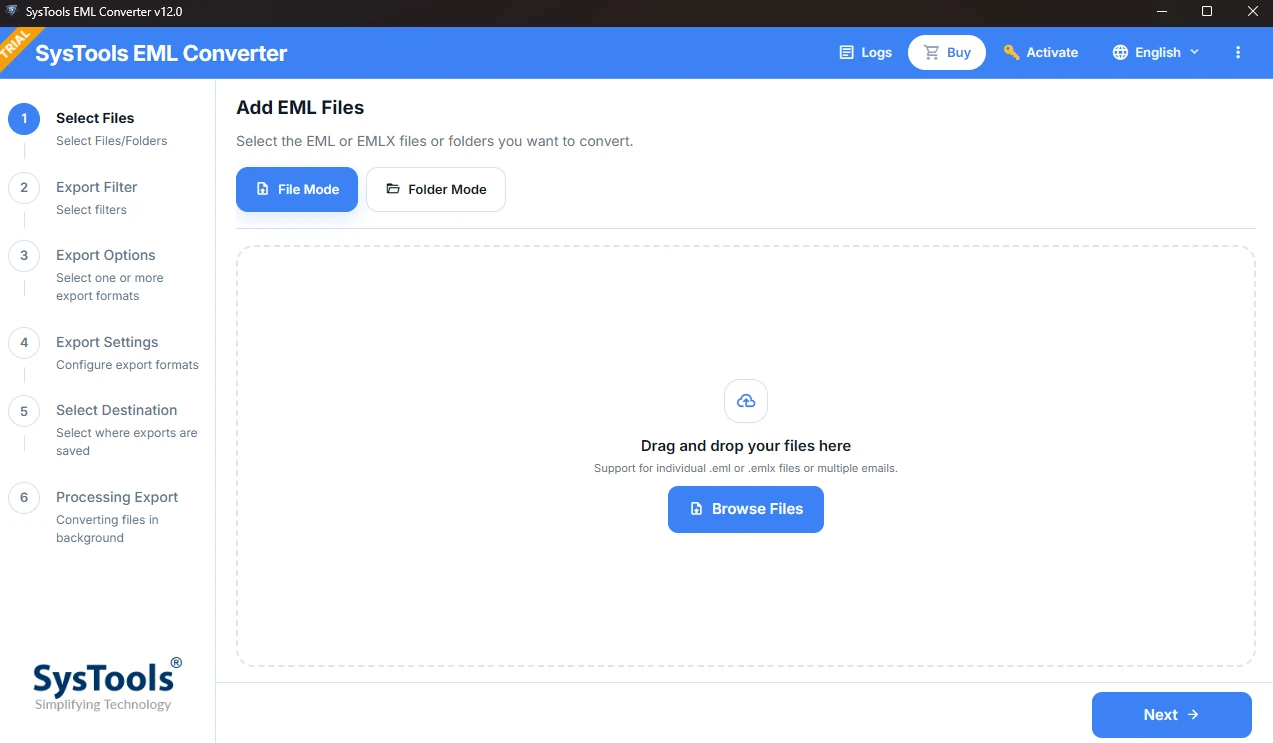
- Step 1: Download, install, and launch the SysTools software.
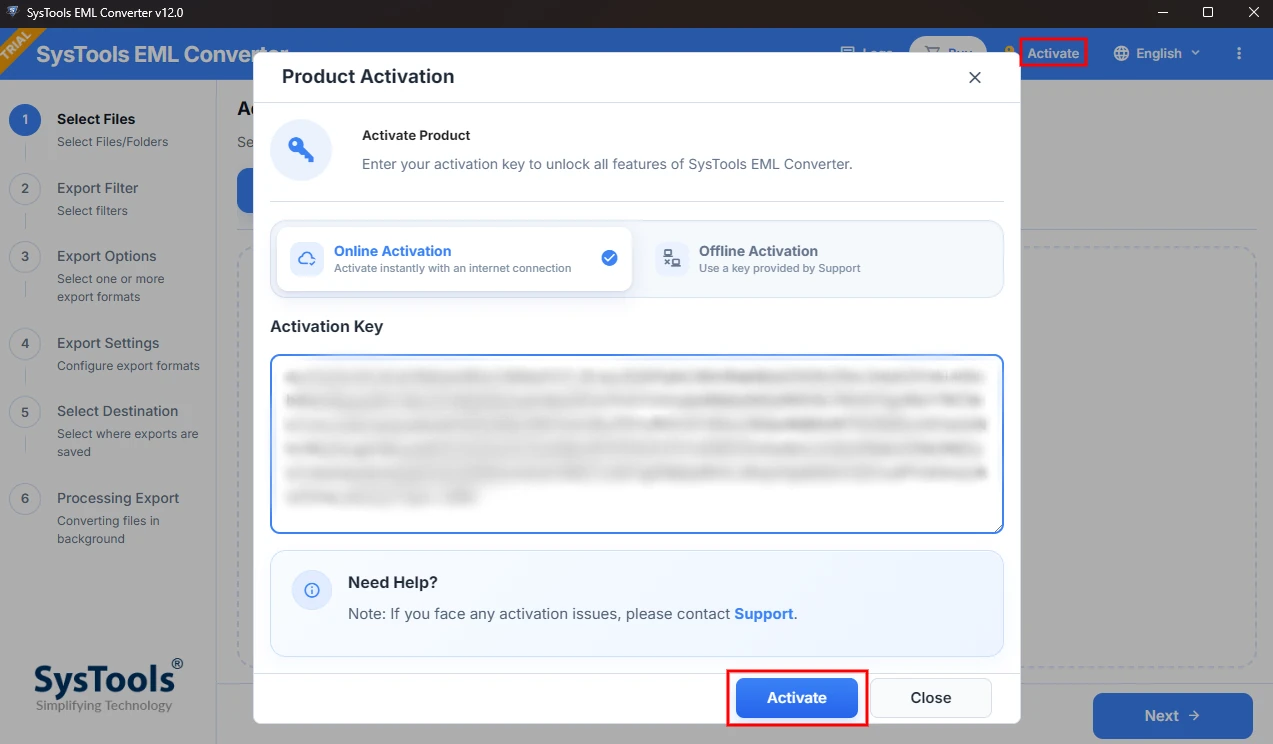
- Step 2: Click Activate in the top bar to open the Product Activation window. Choose Online Activation if you have an internet connection or Offline Activation to use a key from Support.
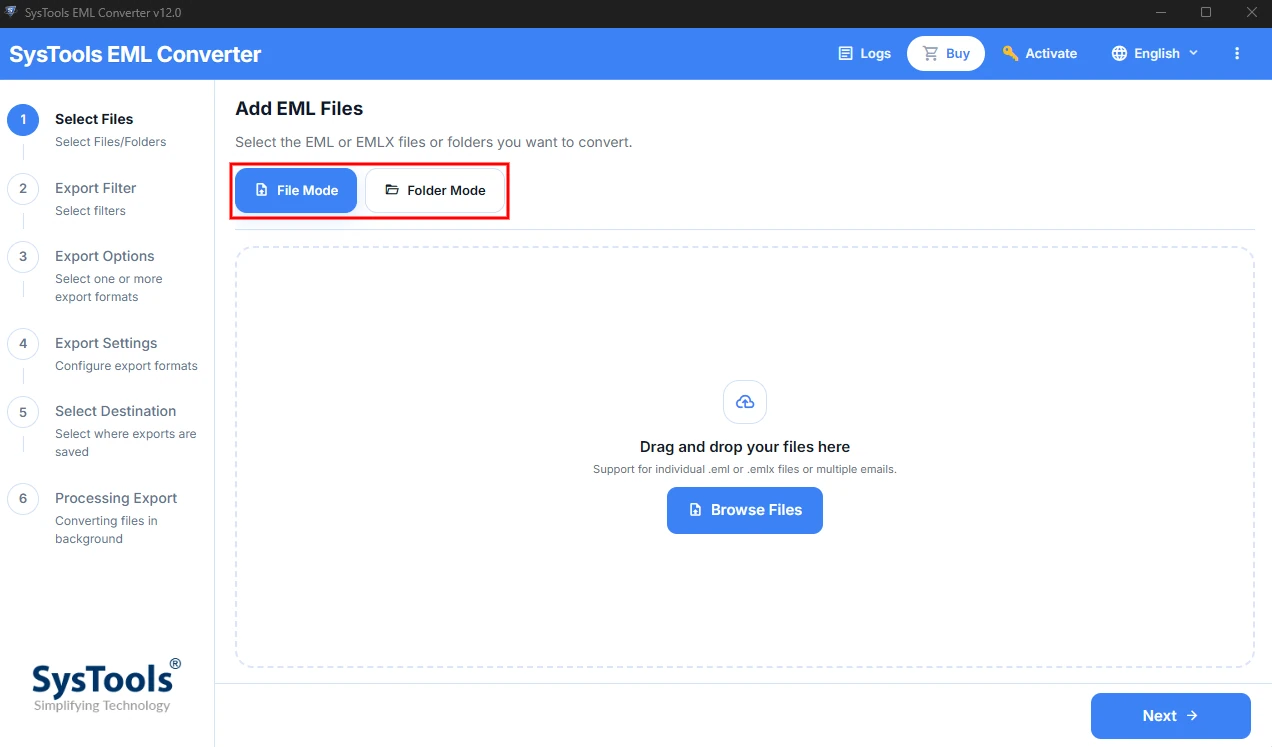
- Step 3: Select File Mode to add a single or multiple EMLX files as per requirement. You can also select Folder Mode to add a folder instead. You can also drag and drop files into the box.
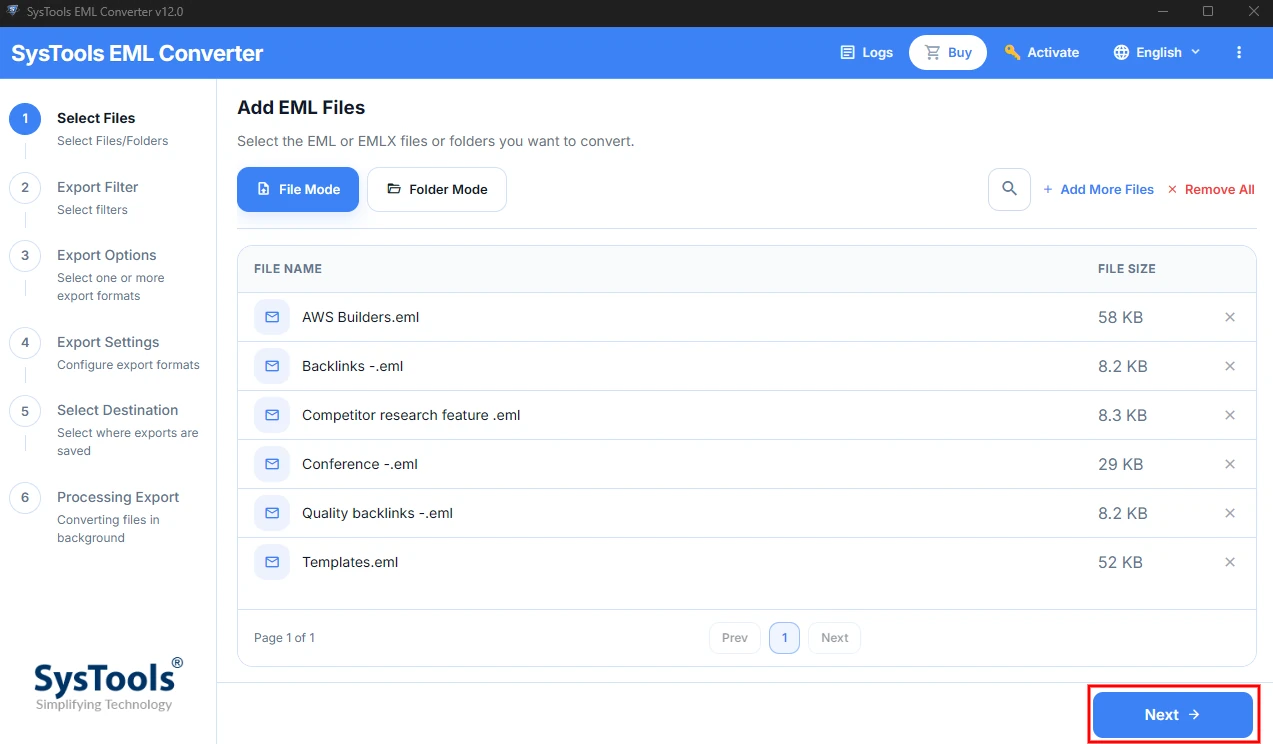
- Step 4: Click Next to move to the Export Filter screen.
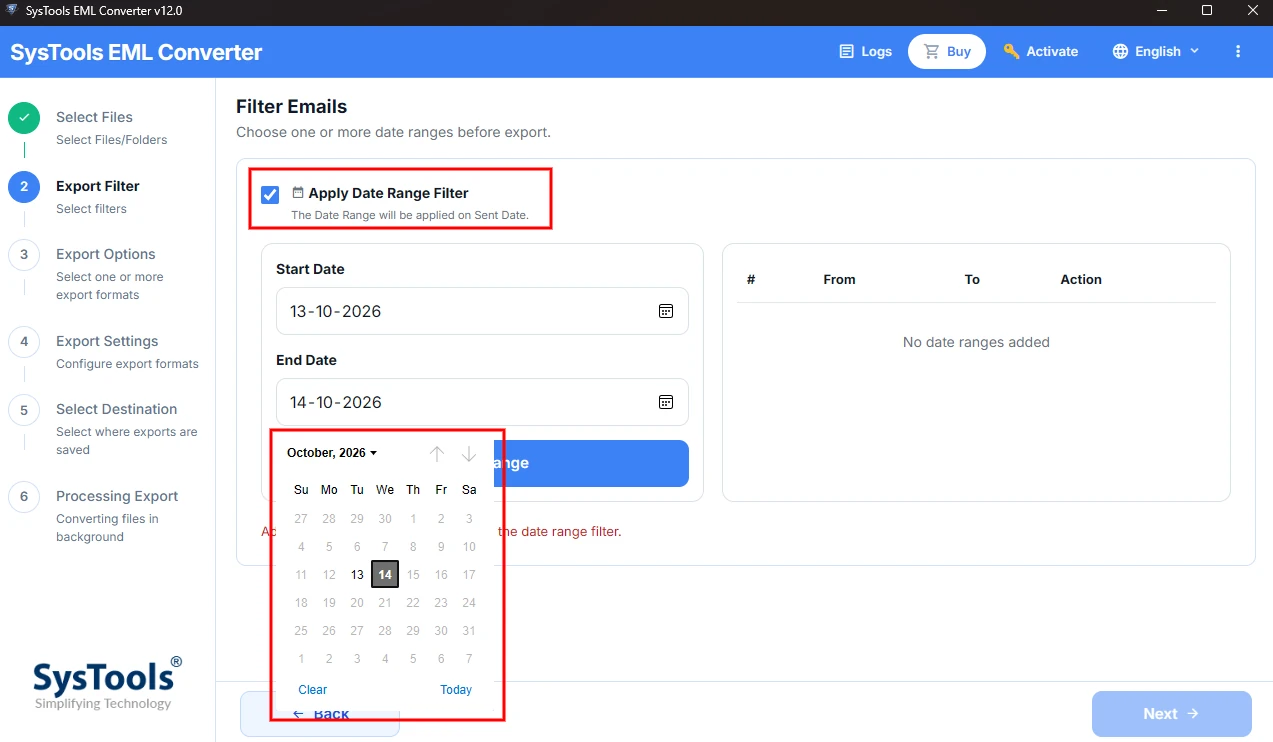
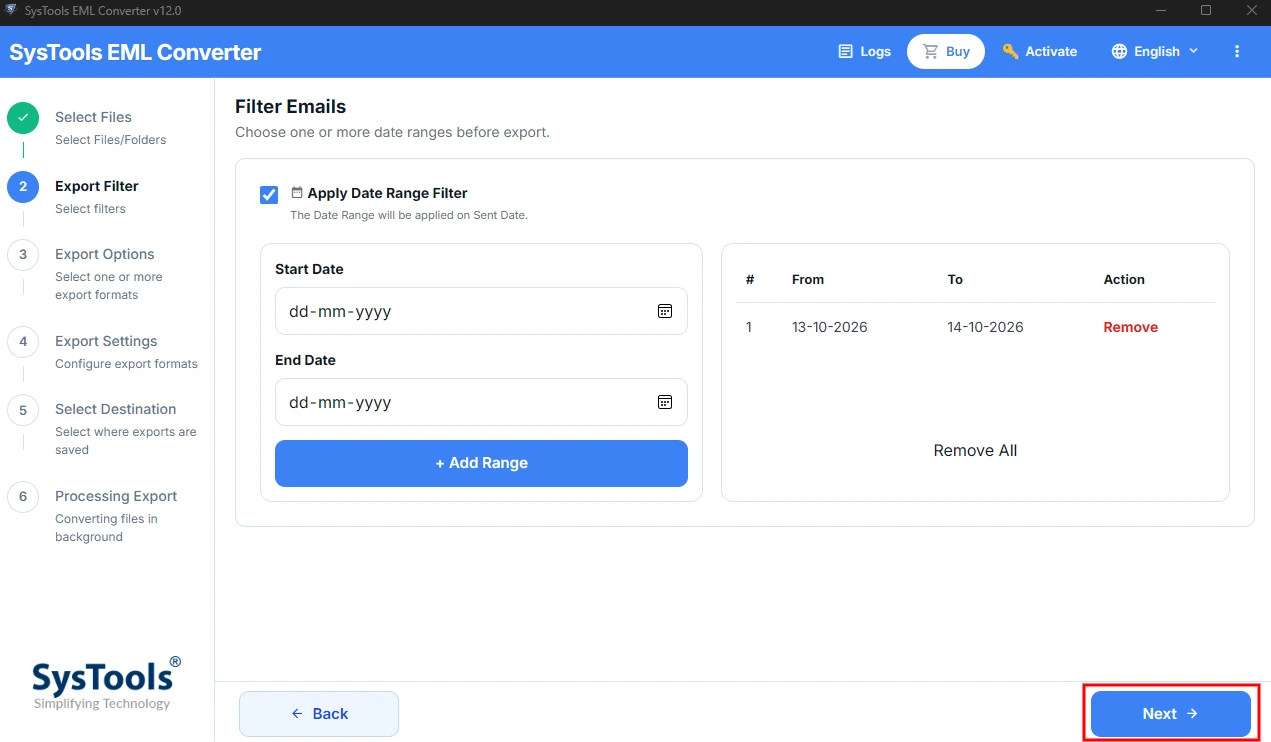
- Step 5: Select Apply Date Range Filter to export emails from a set period. Enter a Start Date and an End Date. Click Add Range to add more date ranges.
- Step 6: Click Next. If you do not need a filter, leave the box unselected and click Next to export all emails.
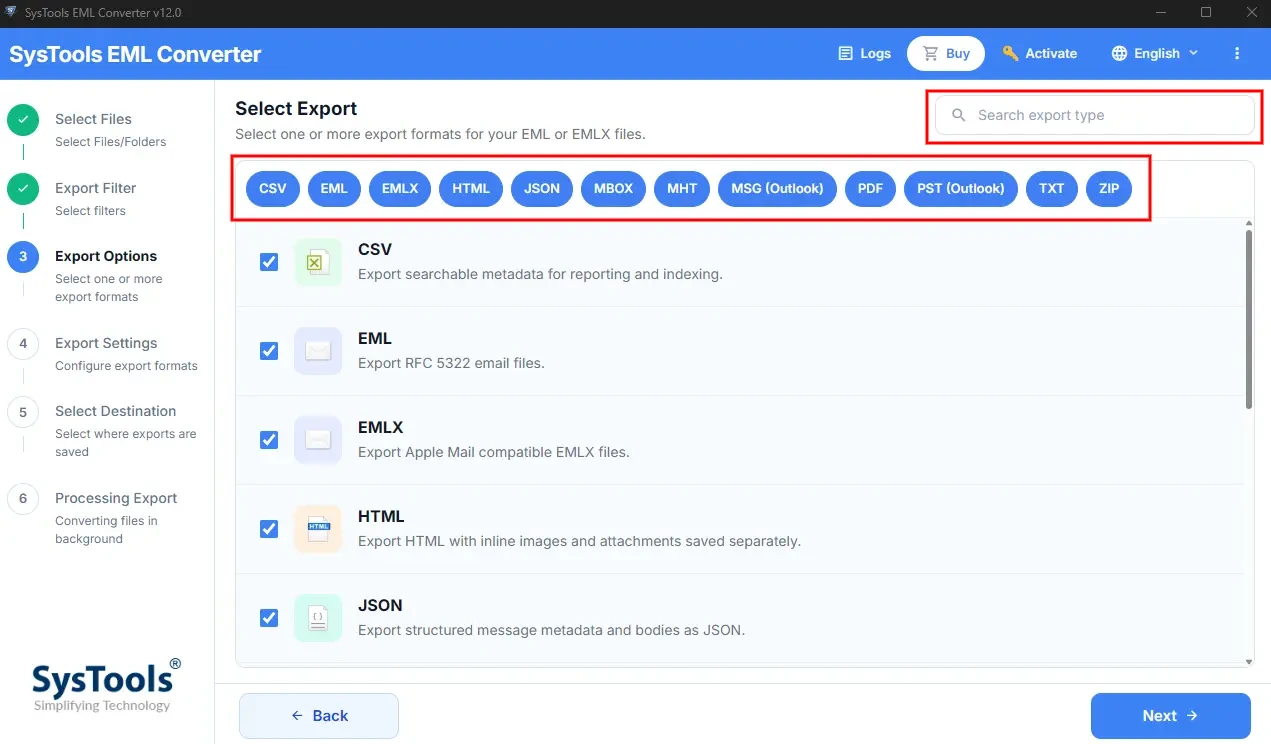
- Step 7: Choose an Export format for your EML files. You can select more than one option as well.
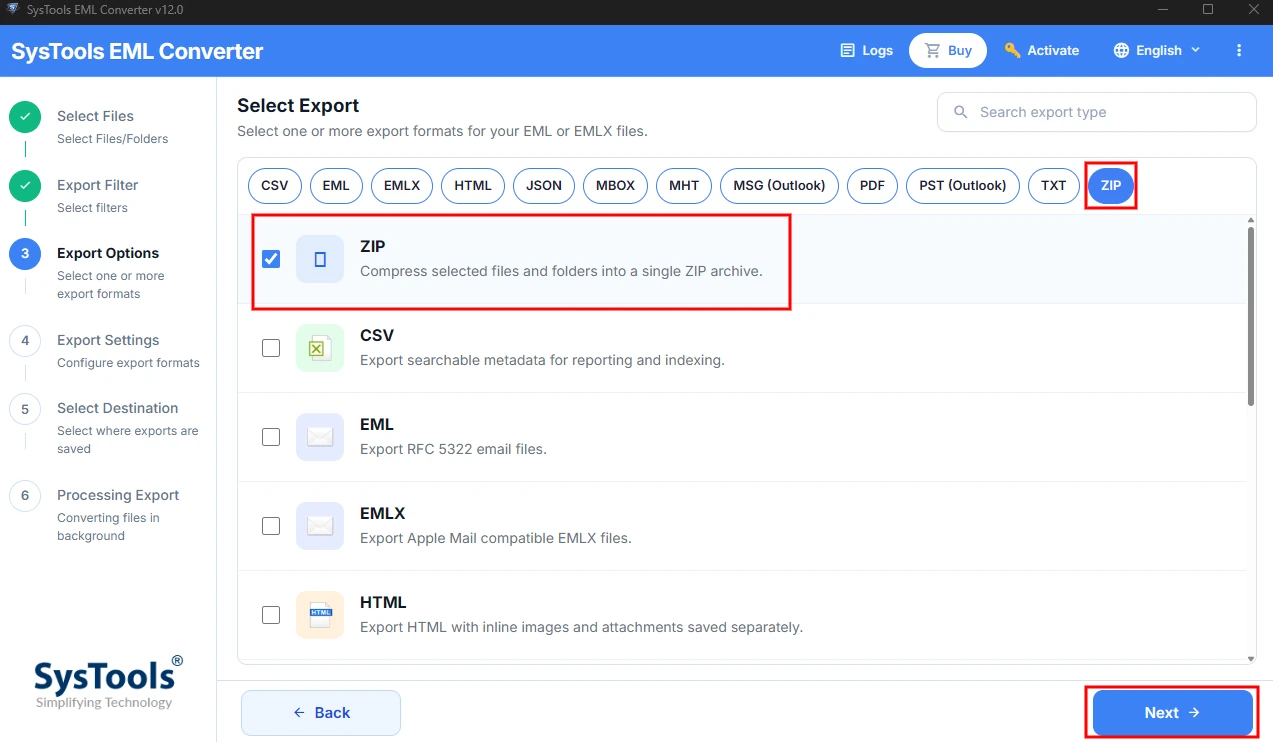
- Step 8: Select ZIP from the given Export list and click Next. There, give your file a relevant name.
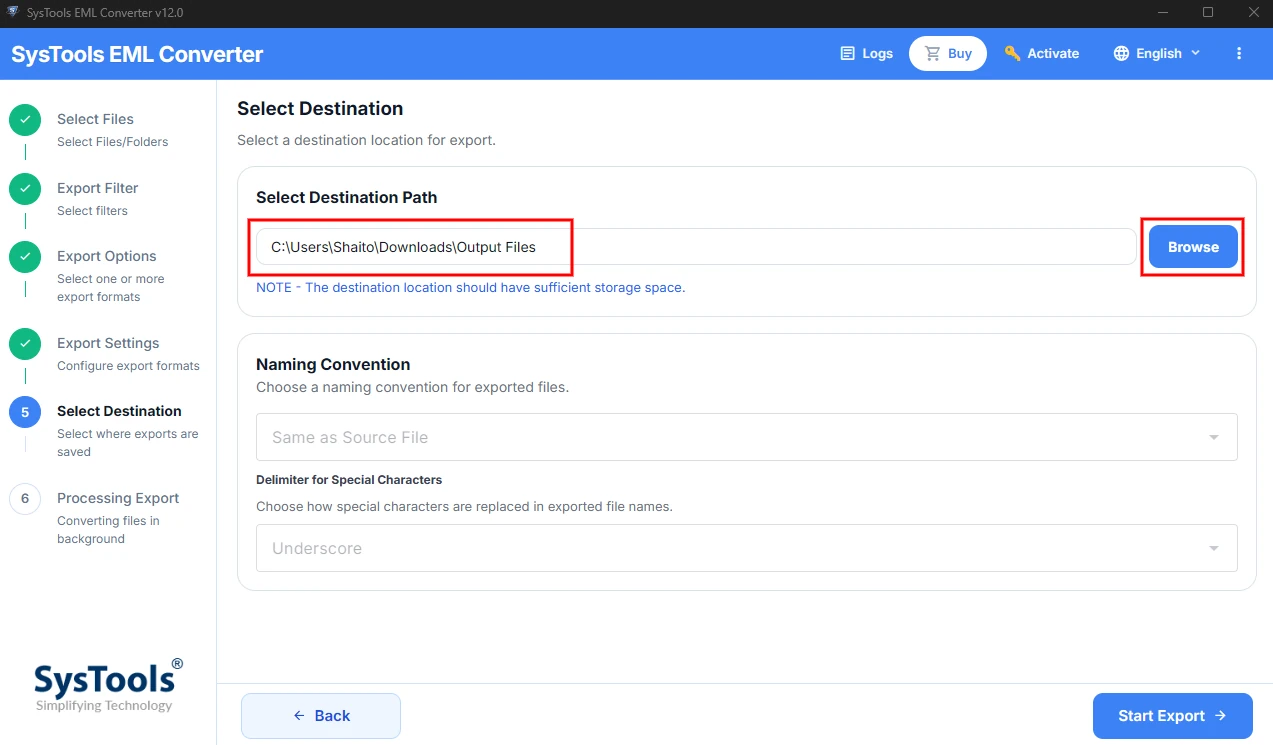
- Step 9: Select the destination location by clicking Browse.
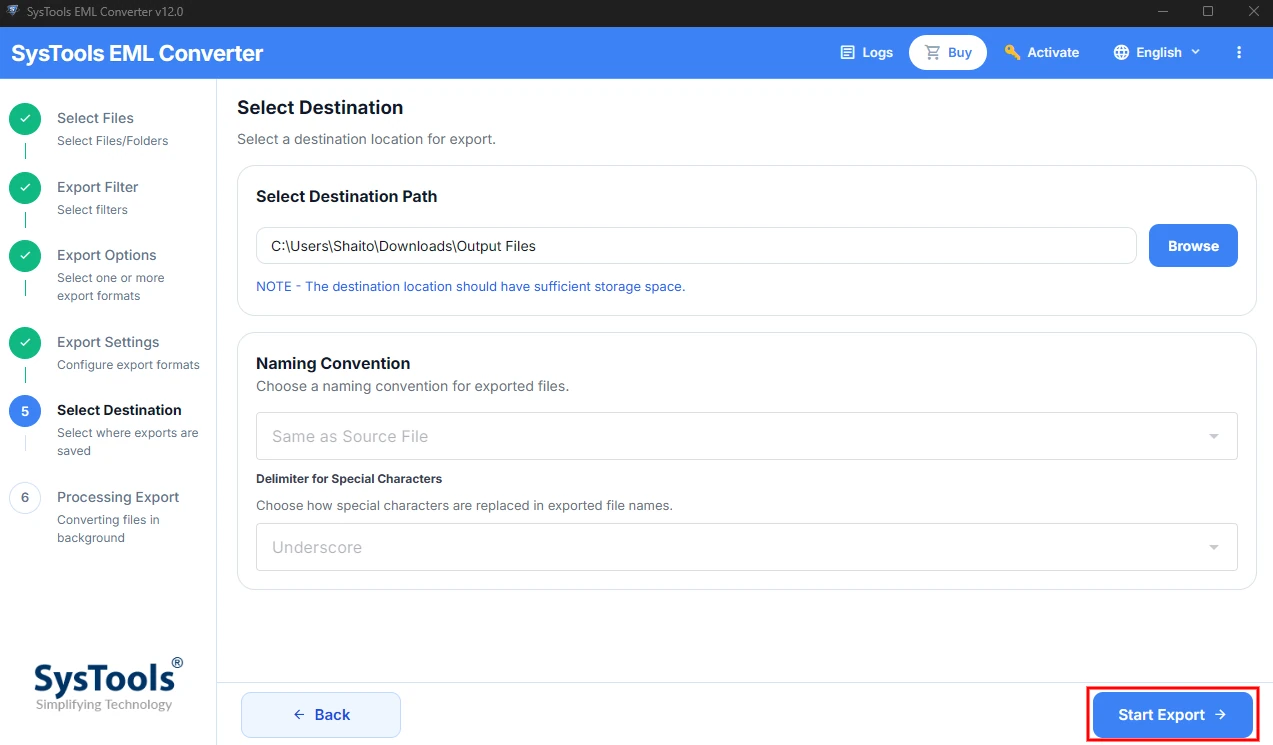
- Step 10: Now you can start the export process by clicking Start Export. You will get a confirmation message; click OK.
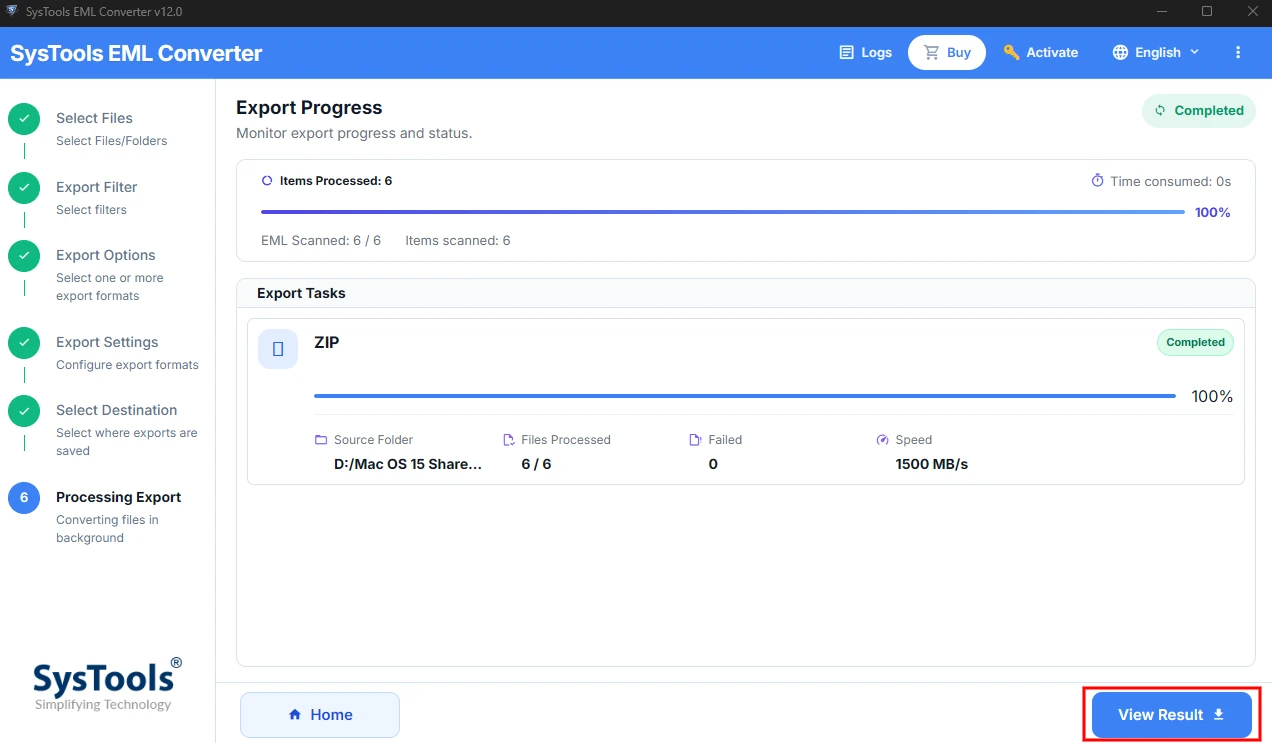
- Step 11: To view the results, click View Result and review your files.
Which method should you choose to convert EML to ZIP?
| Situation | Best Method |
|---|---|
| Under 100 emails | Built-in compression |
| Need to protect files with a password or split archive | File archiver |
| Scheduled backups | Command line |
| Large mailboxes, filtering, or multiple output formats | Automated converter tool |
Note- Make sure to back up your files before converting EML to ZIP or to other formats. After conversion, open a few files and confirm that the messages are intact and the attachments are also there.
Conclusion
The right way to convert EML to ZIP depends upon the number of files and the sensitivity level of the mailbox. You can use built-in compression for handling around a hundred files in seconds, a file archiver if your files contain sensitive data and need to be protected, or the zip command or dedicated software to convert EML files into more than one format at once without any risk of failed archives or missing messages.
No matter which method you use, keep a backup of your original EML files safe and try working on a demo file to check results first.
FAQs
- What difference will I see in the file size after converting EML to ZIP?
The difference depends entirely on the content your files contain. If your files contain mostly text, they will compress well, while if they contain attachments, they may compress less. - Can I convert EML files to ZIP with attachments?
Yes. Attachments are embedded inside each EML file, so they are compressed along with the text. To maintain message accuracy, you can use the demo version of the software tool for converting EML to ZIP. - Should I delete original EML files after compressing them to ZIP?
Delete the original EML files only after confirming the messages and attachments are compressed and can be opened correctly. Only then should you delete the originals. - Does ZIP compression work on emails from any client?
Yes. ZIP works on any EML file, irrespective of the email client that created it, because it compresses files without reading their content.