

Here is how to convert MSG files to ZIP fast. Right click the folder that contains your emails and choose Compress to ZIP file. As you can see zipping the files only allows you to pack the emails together. It keeps the messages inside the same file. If you want to convert MSG files to ZIP in bulk then you can use specialized software.
An MSG file contains one email from Outlook. A folder full of them may only fill your computer. Also sending them one by one takes too long. Many users choose to convert MSG files into ZIP format. It fixes both issues. This guide shows how to convert MSG files to ZIP manually. It also covers a professional software solution if you want to convert them in bulk. Additionally, read this if you want to convert MSG files to MHT format.
Why Users Need to Pack MSG Files into a ZIP Folder?
Most of the users want to learn how to convert MSG files to ZIP for four simple reasons.
- Users can easily share when they send MSG files in a ZIP folder. Since one attachment replaces many.
- You can also save your storage. Converted files use less space.
- When you create a ZIP file from MSG files backups feel easier. Also you can store one file per project.
- Teams often convert multiple MSG files to ZIP. So a coworker can get every email in one download.
Convert MSG Files to ZIP Manually
These methods cover how to convert MSG files to ZIP manually. Each needs only a few steps.
Use the Built-in ZIP Option
If you want to convert MSG files to ZIP file format just once you can use this method. It needs no extra software.
- Open File Explorer and find your MSG files. So you can check that every email you need is there.
- Select the files you want. If you want to select all files press Ctrl + A.
- Choose Compress to ZIP file from the menu. It opens when you right click. Older menus show Send to instead make sure you pick that and then choose Compressed (zipped) folder.
- Type a name for the new ZIP file. After that press Enter.
Create ZIP File From MSG Files Using WinRAR
WinRAR is a common tool for making ZIP files. Many users already have it on their computers. It helps to know how to convert MSG files to ZIP.
- Select your MSG files in File Explorer and right-click them. Choose Show More Options if you do not see the WinRAR menu.
- Click Add to Archive. This opens the settings box.
- Choose ZIP under Archive Format. WinRAR uses RAR by default unless you change it.
- Type a name for your file and click OK. Wait a moment for the new ZIP file to appear in your folder.
Convert MSG Files into ZIP Format Using 7-Zip
7-Zip is completely free to use. It is a great option for users who wonder how to convert MSG files to ZIP for free.
- Highlight your MSG files in File Explorer and right click them. Select Show More Options if you do not see 7-Zip right away.
- Take your mouse over 7-Zip in the menu. Click Add to Archive to open the options screen.
- Change the Archive Format to zip. 7-Zip selects 7z by default unless you switch it manually.
- Click OK to finish the process. Your new ZIP file will appear right next to your original files.
Limitation of Manual Solutions
- Finding email folders manually takes a lot of time. Selecting the wrong folder means you miss important files.
- Filtering by sent date is tricky. Most basic tools only see the file date instead of the actual email date.
- Naming and saving each ZIP file manually gets boring fast. Doing this repeatedly wastes a lot of time.
- Missing files stay hidden inside the ZIP archive. You have to open and check every single file by hand to spot errors.
Convert Multiple MSG Files to ZIP at Once: Professional Solution
A specialized software like SysTools MSG Converter is suitable for larger numbers of files. It lets you add a whole folder at a time. Download the software first then apply the following steps. They show how to convert MSG files to ZIP in bulk.
1. Install the software and open it. It will take you to the screen where you can add your emails.
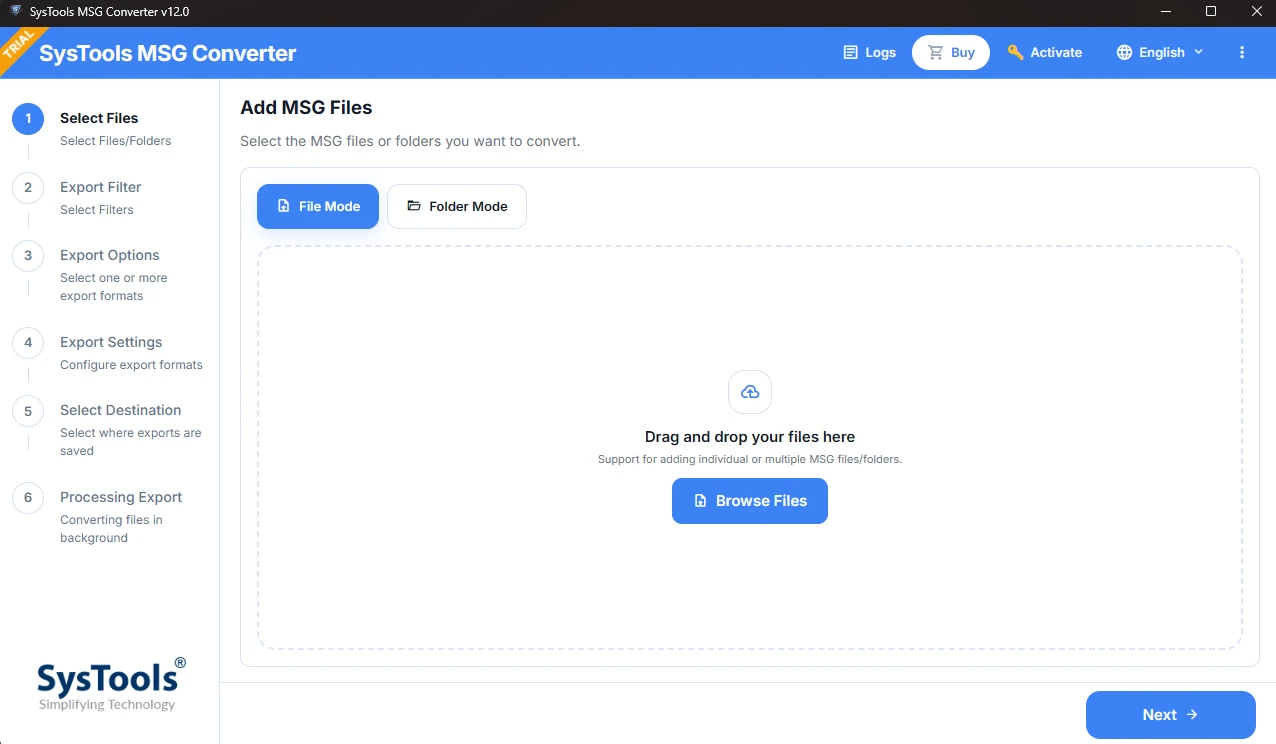
2. Go to Folder Mode. Click Browse Files and choose the folder with your MSG files. Click Next since one pick adds every email inside.
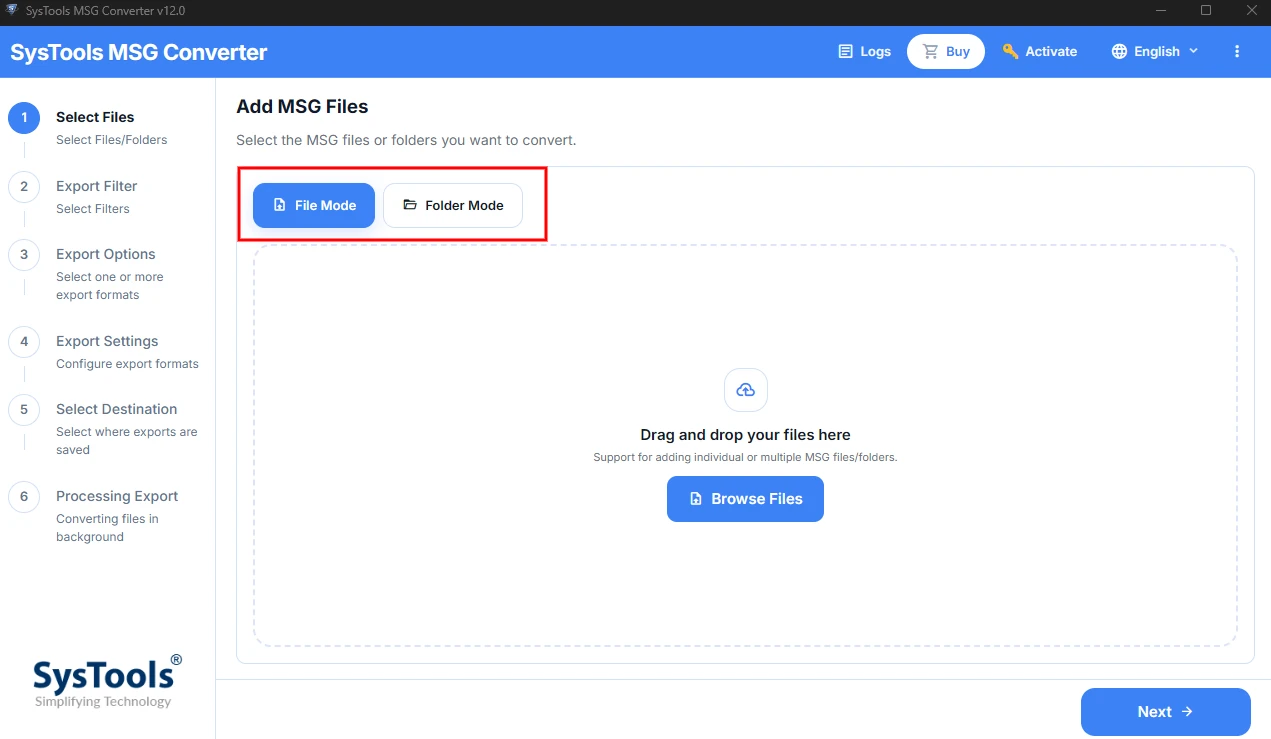
3. Leave the date range blank to keep every email. You can also pick a date range to filter your emails. Click Next to continue.
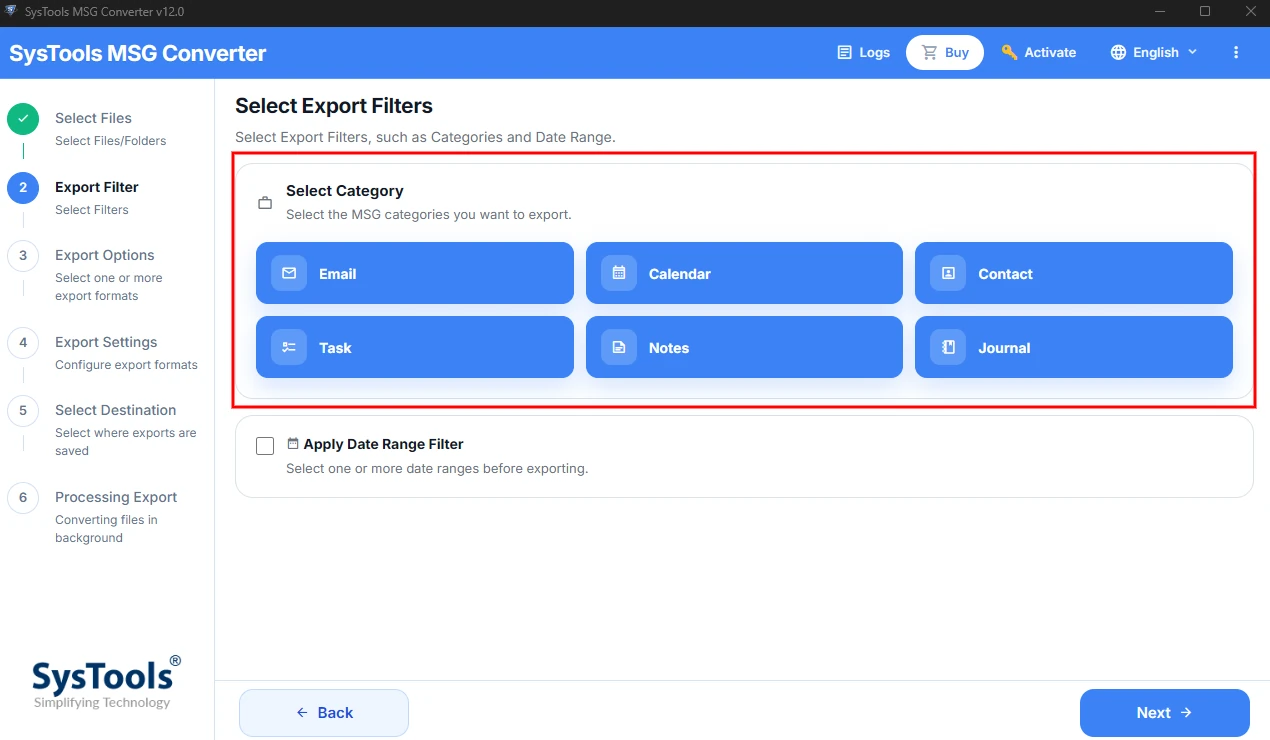
4. Choose ZIP from the list. Click Next and type a clear name under Settings. This helps you find the file later.
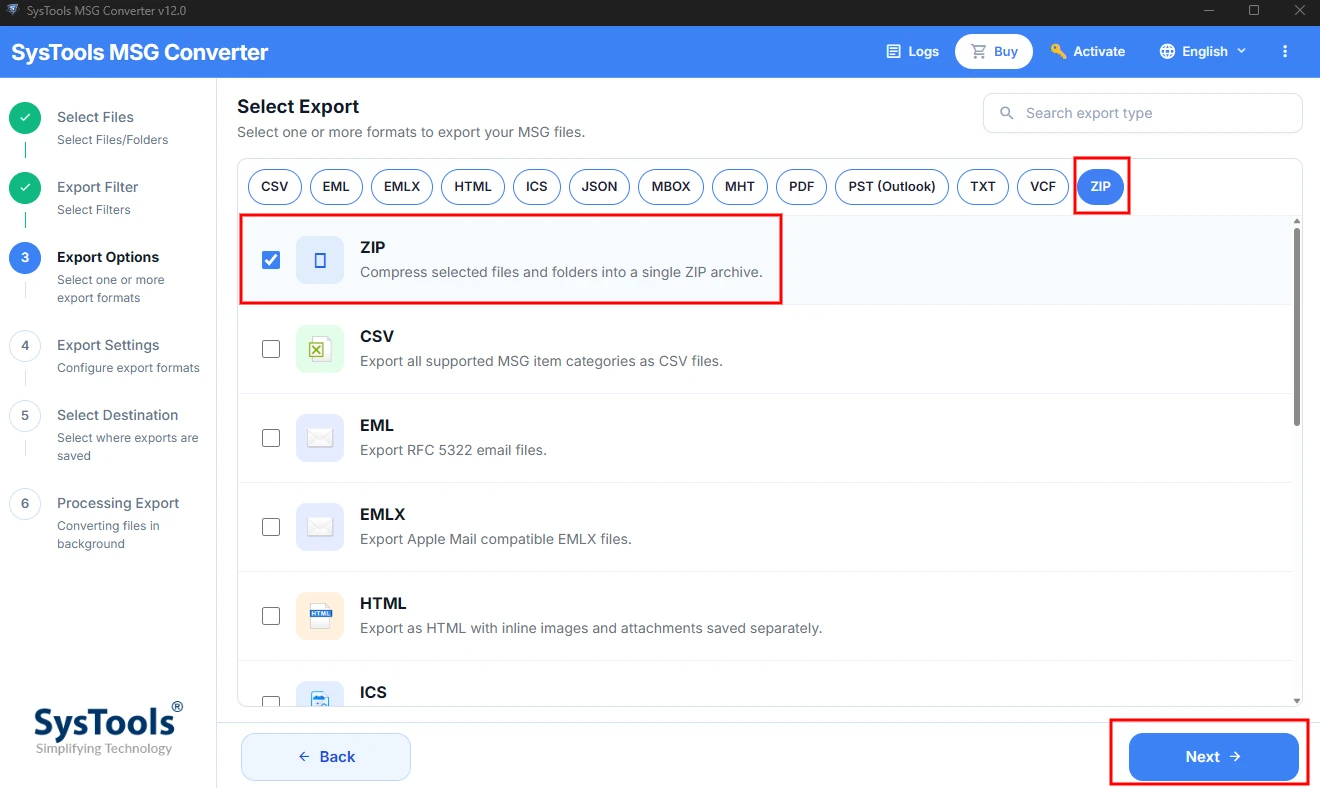
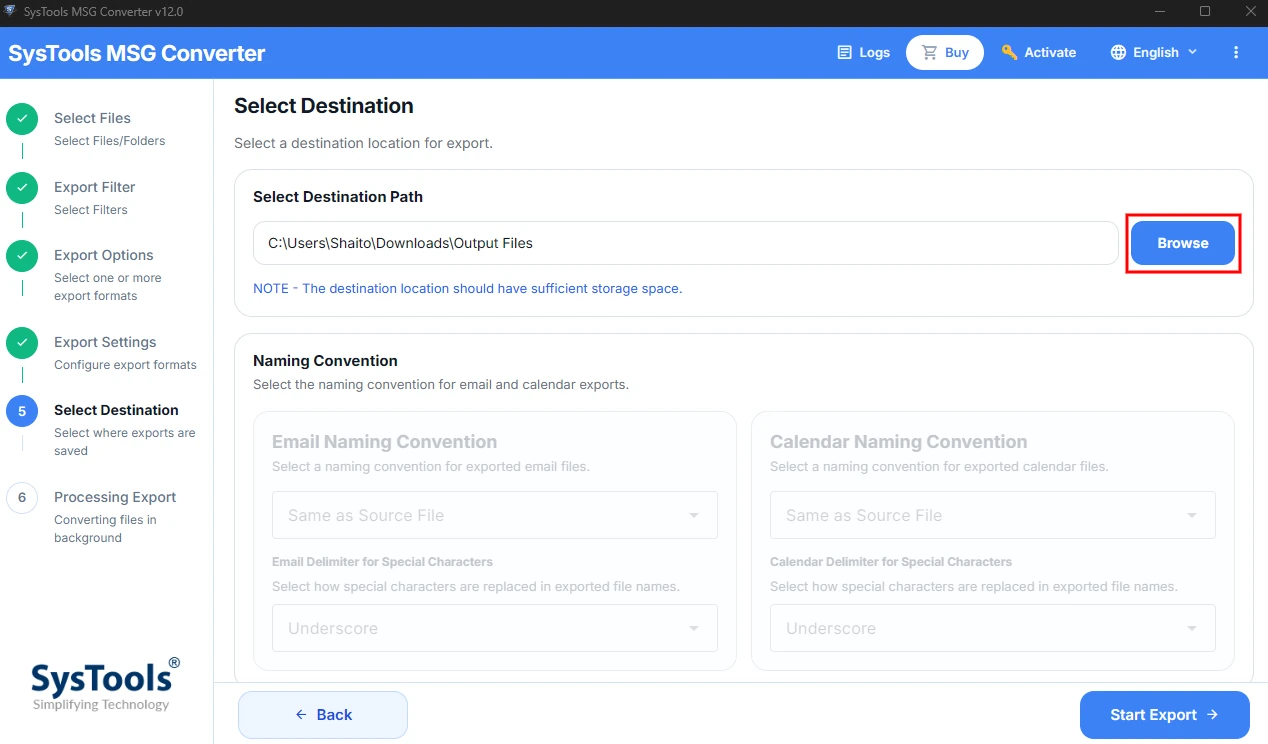
5. Click Next again. Pick a location to save your file. Click Start Export. Click View Result to check your new ZIP file right away.
Benefits of Using Specialized Tool
- You can convert large folders at once.
- It offers a date range feature. That lets you pack only the emails from the time you need.
- Each run saves a report. This report lists the success rate how many items went in and how many failed.
- One download also exports your MSG files to 13 other formats. Such as PDF and PST which may help you with later tasks.
Final Thoughts
Now you know how to convert MSG files to ZIP using four ways. Built-in ZIP, WinRAR, and 7-Zip suit small jobs. Software saves time on larger numbers of files. Match the method to the size of your requirement. Keep one ZIP per project so you lose nothing.
Common Queries From Users
Q1. Does zipping change my MSG files?
Ans: No. Every email stays exactly as it was earlier. Think of a ZIP file as an email container box. You pack the emails and the same emails come out.
Q2. Can I zip multiple MSG files at once?
Ans: Yes. You can use the described methods in this blog. You can easily learn how to convert MSG files to ZIP using those methods. The Professional software solution will make your task easier.
Q3. Will Outlook still open my emails if I unzip them?
Ans: Outlook opens them as usual. ZIP never touches the emails.
Q4. Which method suits a large number of emails best?
Ans: Software fits best in this case. It adds a whole folder at once. It matters most when you decide how to convert MSG files to ZIP for hundreds of emails. Manual methods suit small tasks.