

You can simply convert MSG to ICS using manual methods like Save As option in Microsoft Outlook, Notepad, or online utilities. For bulk and secure conversion, use a verified desktop tool that is capable of keeping the original data intact and run offline, so your files are secured from third-party servers.
An MSG file is a single Outlook item file that contains an email, meeting request, appointment, or contact. Whereas an ICS file is the universal calendar format (iCalendar) used by Google Calendar, Outlook, Thunderbird, and most other calendar apps.
After converting MSG to ICS, you can easily open your Outlook meetings and appointments anywhere, without needing the application. This guide explains the need for this conversion, methods you can try and an automated solution with a step-by-step guide to perform bulk conversion in seconds.
Why Conversion of MSG to ICS is Reasonable?
Files in MSG format requires Outlook to open. ICS is an open standard format, which makes it easy and resolves problems related to calendar-related MSG files-
- Accessible on different platforms: ICS files can be imported into Google Calendar, Apple Calendar, Thunderbird, Zoho and other apps.
- Can be easily moved: When you move from Outlook to another email or calendar service, ICS makes it to move files from one platform to another.
- Sharing becomes easy: A small ICS file can be attached to an email or shared through a link, so others can add the event with one click.
- Backup and archiving: ICS is a plain-text format that remains readable for years, which suits long-term storage of meetings and appointments.
- No need for Outlook: Old MSG meeting requests can be accessed even when Outlook is not installed.
What Methods Can be Used to Convert MSG to ICS?
There are three manuals as well as a software solution available that can be used to convert MSG files to ICS format, suiting calendar-related files single and bulk conversion.
Manual Method 1: Use Microsoft Outlook Save As Feature
If your MSG file consists of calendar-related data such as meeting request or appointments, you can use Outlook to convert it to an ICS file.
Steps to follow:
- Open Microsoft Outlook and view Calender.
- Locate the MSG file in the File Explorer. You can also drag and drop the files into the Outlook Calendar folder.
- Double-click the new item to open it. Now, click File > Save As.
- From the list, select iCalendar Format (*.ics).
- Finally, select the destination folder, enter a suitable file name and click Save.
Note – You can save several events in one ICS file by clicking File > Save Calendar > More Options.
Manual Method 2: Create a Manual ICS File in Notepad
If you have only few events in MSG file, you can copy the details and create an ICS file using Notepad.
Steps to Follow:
- Open the MSG file and note the details like event title, start and end date and time, location, and description.
- Now, open Notepad and carefully paste the following code, replacing the values with actual values in your MSG file:
BEGIN:VCALENDAR

VERSION:2.0

PRODID:-//MSG to ICS//EN

BEGIN:VEVENT

UID:[email protected]

DTSTAMP:20261112T090000Z

DTSTART:20261120T100000Z

DTEND:20261120T110000Z

SUMMARY:Project Review Meeting

LOCATION:Conference Room 2

DESCRIPTION:Quarterly project review.

END:VEVENT

END:VCALENDAR - Click File > Save As > Save As type to All Files > file_name.ics.
- Now, click Save and double-click the file to check that the events are there in the correct order.
Manual Method 3: Use an Online MSG to ICS Converter
- Open an online MSG to ICS converter in your browser.
- Click Upload and select the MSG file that you want to convert. You can also drag and drop the file.
- Select output format as ICS and click Convert.
- Download the converted ICS file and import it into your calendar app to view the details.
Limitations of Manual Methods
- They are incompatible for bulk conversion as it can be slow and error-prone.
- One of the manual methods require Outlook for the conversion.
- Manually converting MSG to ICS can cause mistakes in event details and may not give desired results.
- Online converter websites save their data on third-party servers, which can be concerning for the files containing sensitive data.
Automated Software Solution to Convert MSG to ICS
Automated software solution provides an easy gateway to convert MSG files to ICS format, especially for bulk conversion. The SysTools MSG Converter Tool can export MSG to ICS, PDF, HTML, vCard, CSV, TXT, MHT, JSON, and ZIP. This tool offers various features such as maintaining the original structure, font, hyperlinks, and images of your MSG files.
Now, users can easily convert multiple MSG files to ICS in seconds on both Windows and macOS.
Step-by-Step Guide to Convert MSG to ICS
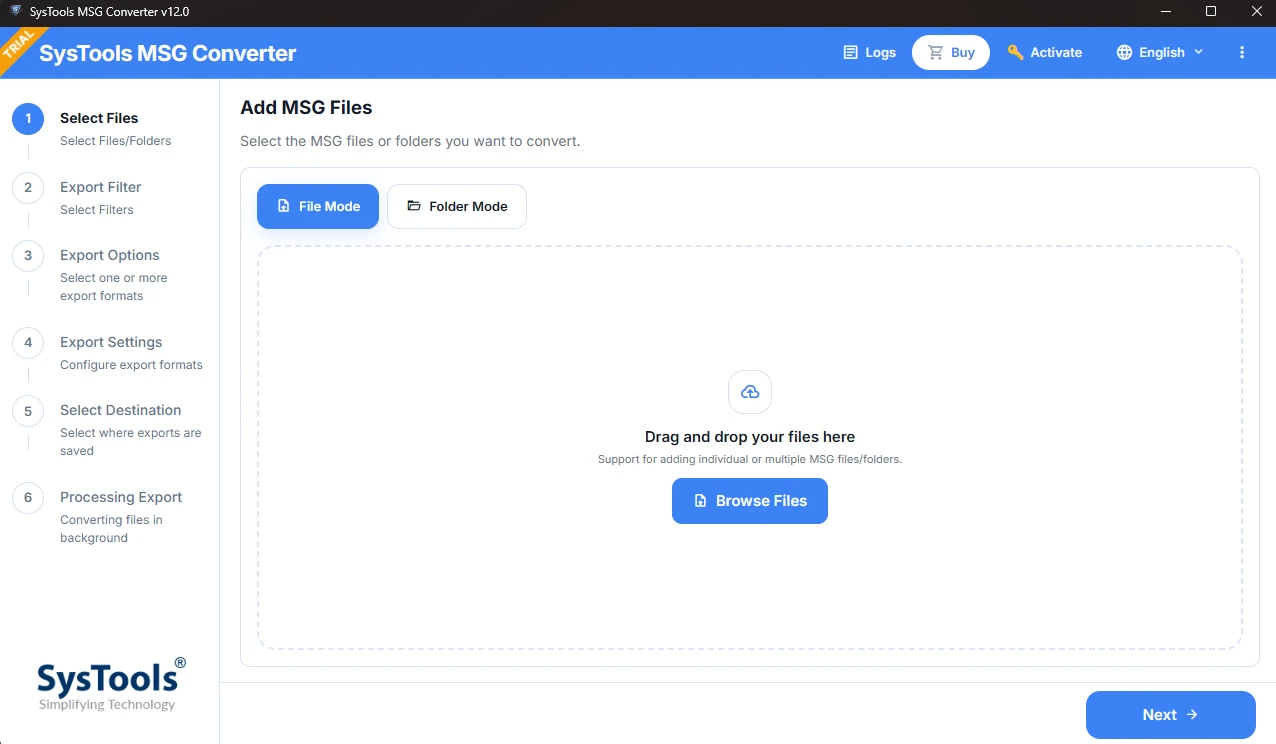
- Launch and open the aforementioned tool. Select File Mode or Folder Mode to add the files or a whole folder. You can also drag and drop or browse files on your device.
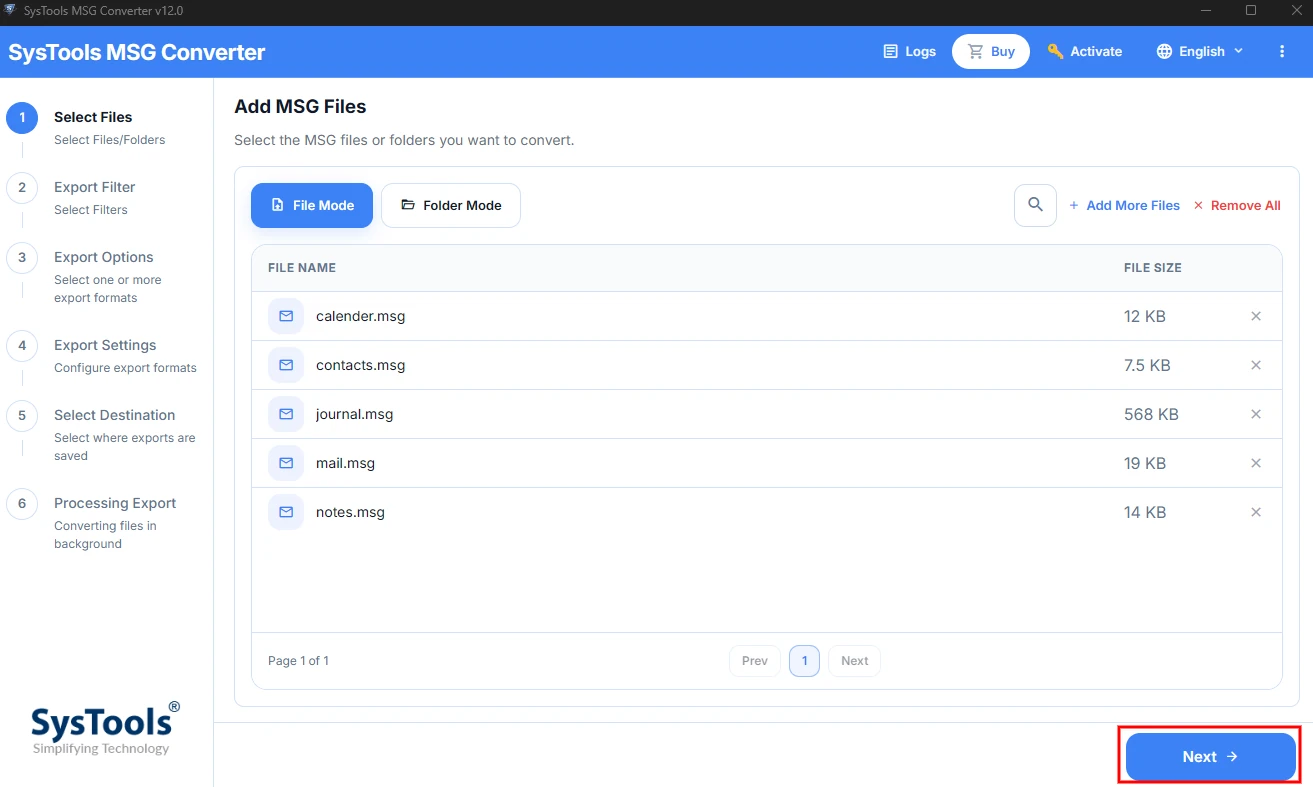
- Click Next to move to the Export Filter Options.
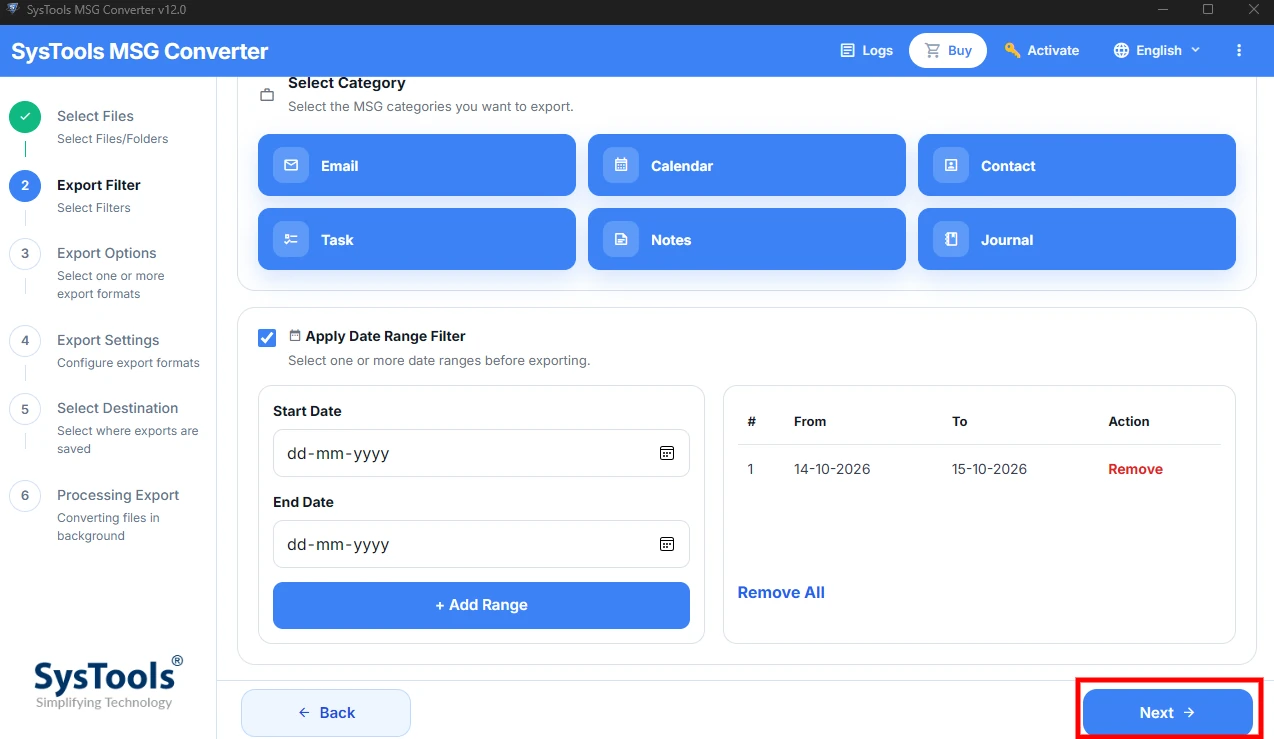
- Select the MSG categories you want to export such as Email, Calendar, Contact, Task, Notes and Journal. You can also Apply Date Range Filters to export items from a set period of time.
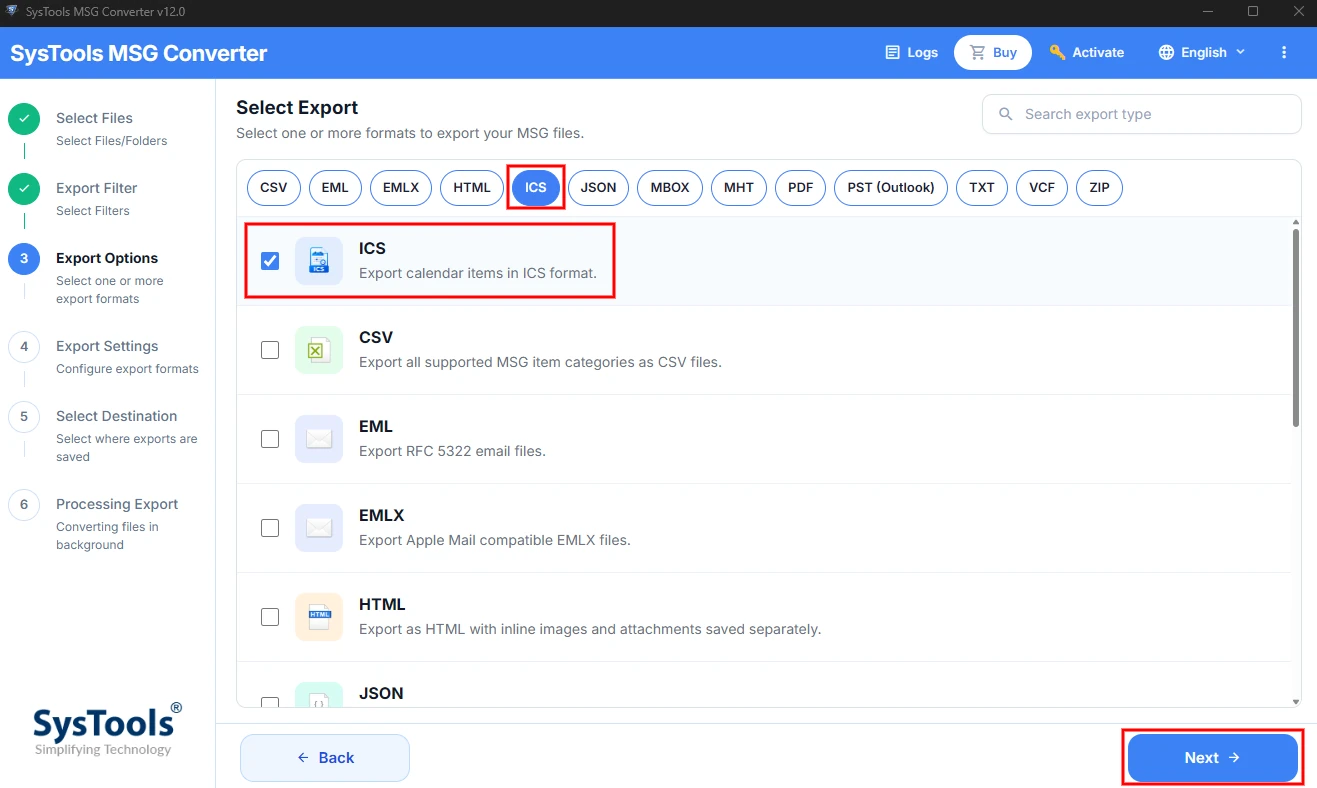
- Now, click Next and open the Export format option. Choose the format in which you want to convert your files. Since, you need files in ICS format, select ICS from the given options and click Next.
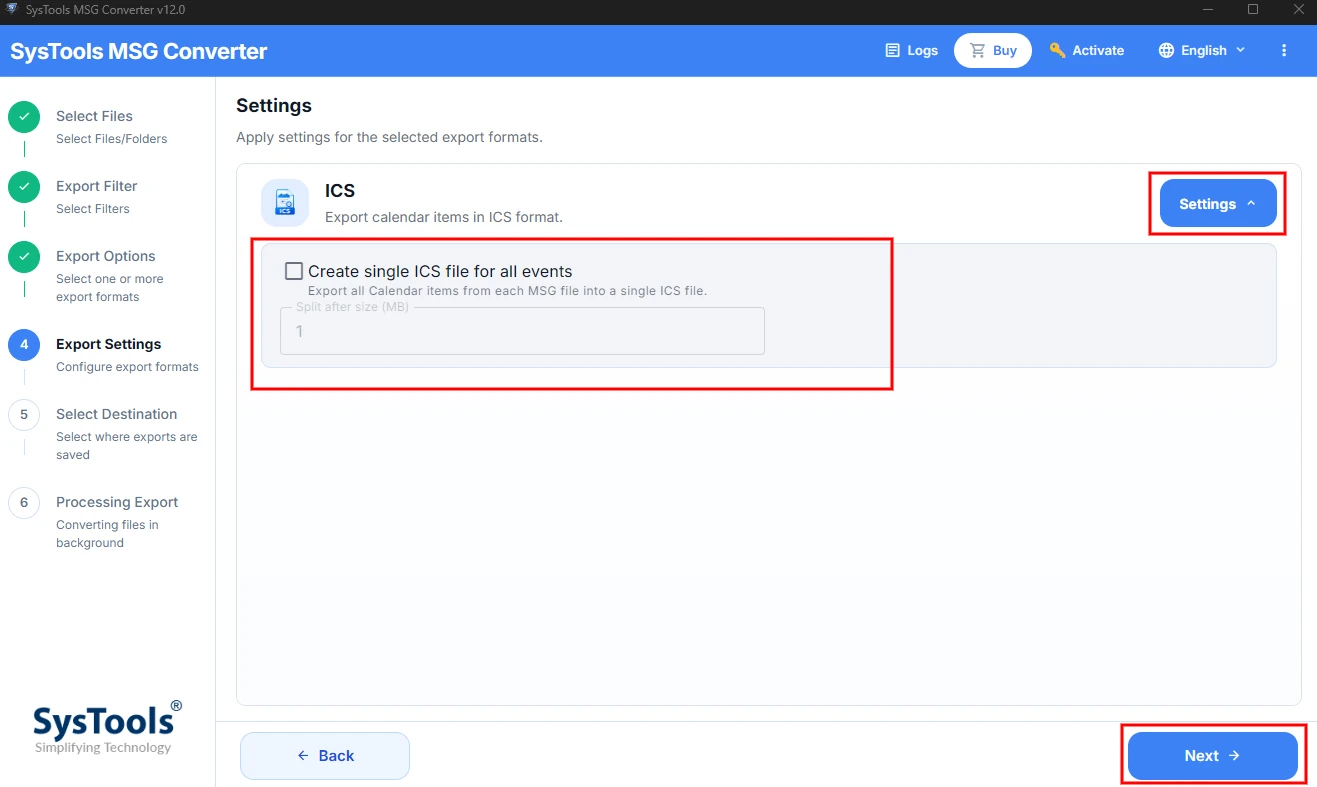
- Check the Settings of the ICS format. Create single ICS file for all events combines all calendar items into one ICS file. After that, click Next.
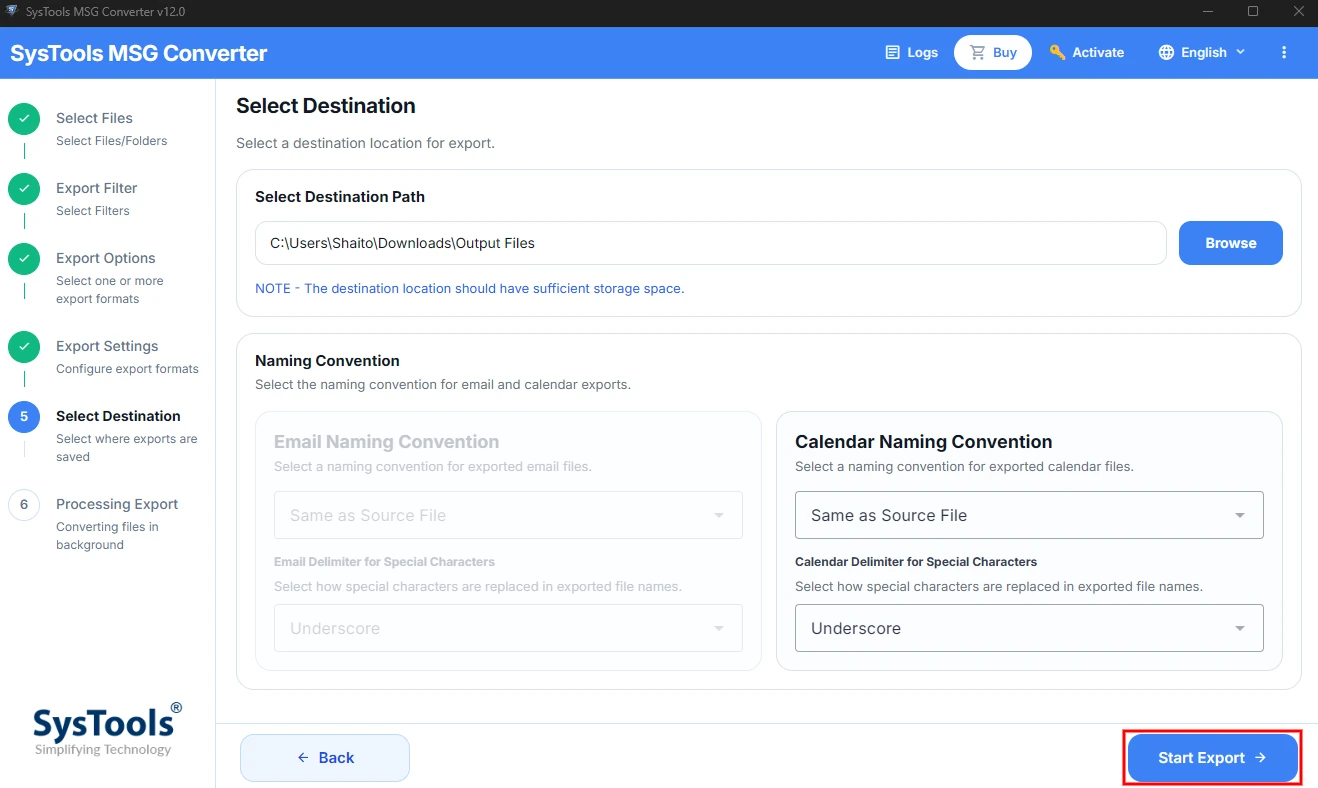
- Now, Browse the destination folder path where you want to save the converted files. You can also add Naming Conventions. After this, finally click on Start Export.
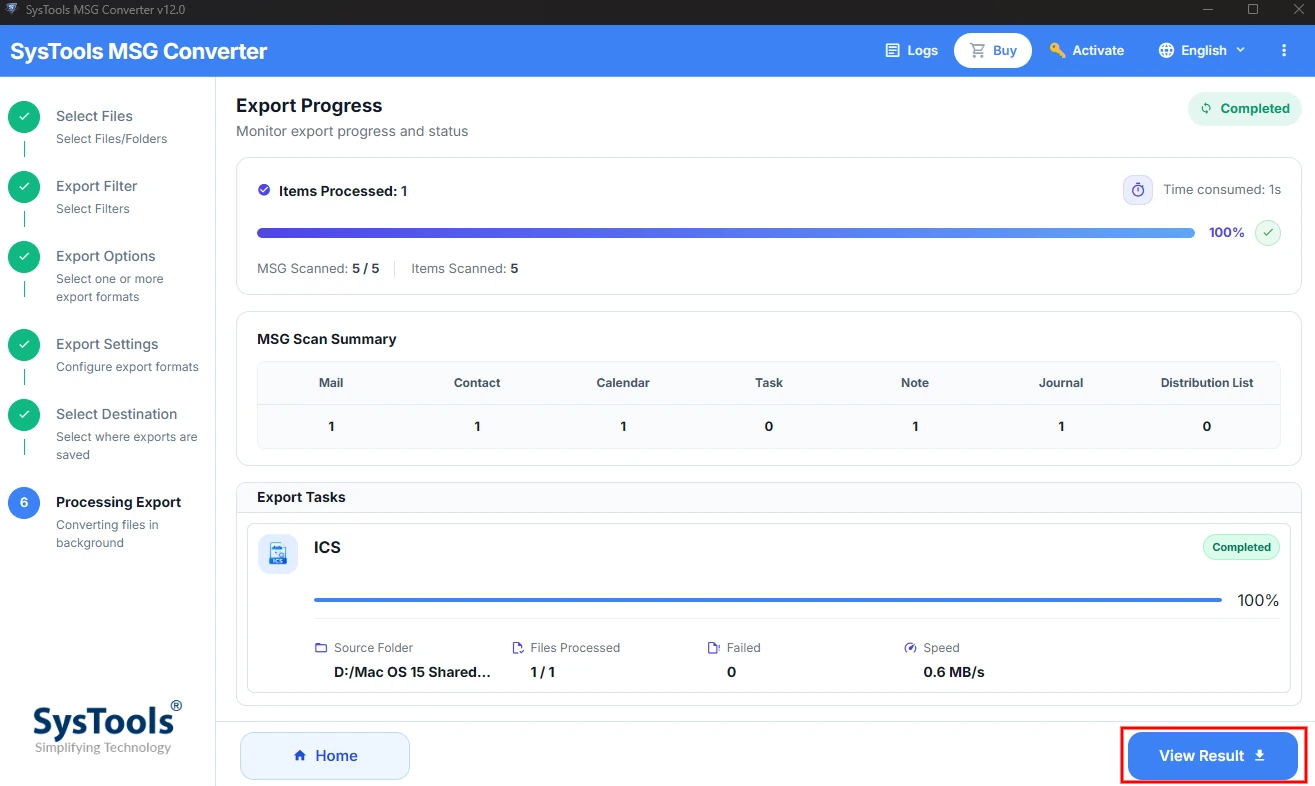
- At last, click on View Result to see the converted files in the output folder.
Ensure These Points Before Conversion
- Check if the file type is calendar items: Only calendar items like meeting requests, appointments or date and time should be in the MSG file which you need to convert. A normal email saved as MSG has no event data to convert to ICS.
- Always backup your MSG files before conversion: Maintain a copy of your original files before starting conversion. In case, you are using manual methods, any error in original files can corrupt your data.
- Avoid online tools for sensitive files: MSG files containing sensitive information should be avoided for conversion using online websites. Install SysTools desktop tool to ensure secured conversion to ICS format.
- Test with a sample MSG file first: Before applying methods on your actual files, try working with sample file to test whether the method is providing you correct results or not.
- Check method requirements: Some methods require Outlook for conversion. Offline software does not require any additional software for conversion.
Conclusion
You can make your Outlook meetings and appointments easily accessible anywhere by converting your MSG files to ICS format. ICS format is known to support calendar related data and can be helpful in sharing and migration, without requiring Outlook. Both manual and automated methods are available for the conversion. Manual methods have their own limitations and the offline software can be used for bulk MSG files conversion without requiring Outlook. Use SysTools tool to keep your meetings and schedule in-hand while securing it from third-party servers and errors.
FAQs
- Which apps support import of an ICS formatted file?
ICS is a widely supported calendar-related format. You can import it into Google Calendar, Apple Calendar, Microsoft Outlook, Mozilla Thunderbird, and many other calendar apps. - Can MSG meeting invite be opened in Mac?
No. You cannot directly open the invite as MSG is an Outlook-specific format. You can convert MSG to ICS format using the desktop tool, which is compatible with Mac as well. After conversion, you can easily open the ICS file in your calendar app - Are attachments also included in the ICS file after conversion?
Yes. If you are using an offline tool like SysTools desktop tool to convert MSG to ICS, it will save your Outlook message with respective attachments without any data loss.