

You can easily convert OLM to JSON by extracting the OLM file, parsing its XML message data with a script, and saving the output as JSON. To avoid complex steps, you can also use a dedicated software for exporting OLM files to JSON format.
An OLM file has emails, contacts, calendars, and tasks stored in a format that most applications are unable to identify or read. Here, JSON format is a structured format that is light-weighted and supported by databases and many tools.
This guide explains both manual as well as specialized software that can help you get OLM to JSON in simple steps. It also covers the limitations and best practices for each method to give you a better understanding which to choose.
Table of Contents
- Why Should I Convert OLM to JSON?
- Methods To Convert OLM to JSON? Both Manual And Dedicated Tool
- Manual vs. Tool Method? Which is Better
- Things to Consider Before Converting OLM to JSON
- Conclusion
- FAQs
Why Should I Convert OLM to JSON?
JSON (JavaScript Object Notation) is a text-based format that stores data as key-value pairs and arrays. Reasons to convert OLM to JSON are–
- Data Migration: When you need to import mailbox data into databases such as MongoDB or any other application, importing it in JSON format makes the process more convenient.
- Easily Readable: JSON is human-readable format and does not require any specific email client.
- Analysis: JSON helps in analyzing email volumes, senders, response times, or data with Python, R, or BI tools.
- No Platform-Specific: It helps in searching and filter data irrespective of the platform.
- Improves development: Data in JSON format can easily be fed into APIs or chatbots.
Methods To Convert OLM to JSON? Both Manual And Dedicated Tool
There are 2 quick methods to extract OLM to JSON format– using a script (if you are comfortable with codes) and a dedicated software (for large OLM files).
Method 1: Manual Conversion Using Script
If you need to convert a small OLM file into more human-readable format like JSON, you can follow this method–
- Firstly, keep a copy of your OLM file safe somewhere locally. As always advised, you should never work on the original copy without keeping a backup.
- Rename the OLM file copy with
.zipand extract it, or open it with a tool. - Locate the message files that are usually stored inn XML format, along with separate files for contacts, calendars, and attachments.
- Now, use library such as Pythons’ s
xml.etree.ElementTreeorlxmlto read fields of the file. - Lastly, serialize the fields with
json.dump()after mapping it to a dictionary.
Code:
import json

import xml.etree.ElementTree as ET

from pathlib import Path

records = []

for f in Path("extracted_olm").rglob("*.olk15Message"):

root = ET.parse(f).getroot()

# Field paths vary by OLM version; inspect a sample file first

records.append({

"subject": root.findtext(".//OPFMessageCopySubject"),

"sender": root.findtext(".//OPFMessageCopySenderAddress"),

"date": root.findtext(".//OPFMessageCopySentTime"),

"body": root.findtext(".//OPFMessageCopyBody"),

})

with open("output.json", "w", encoding="utf-8") as out:

json.dump(records, out, ensure_ascii=False, indent=2)
Limitations of the Manual Method
- The structure and tag names can get disturbed or affected between Outlook for Mac versions.
- Images, attached PDFs and files need extra handling.
- Large or corrupted OLM files can cause error during the conversion.
- It may take a lot of time to get the desired result.
Method 2: Using a Dedicated Converter Tool
For large OLM files, mixed data types, or professional use, a dedicated tool like SysTools OLM Converter is recommended by experts. It is designed to convert and save OLM files into various formats like ICS, VCF, HTML, CSV, PDF, MHT, TXT, JSON. Let’s check the steps below–
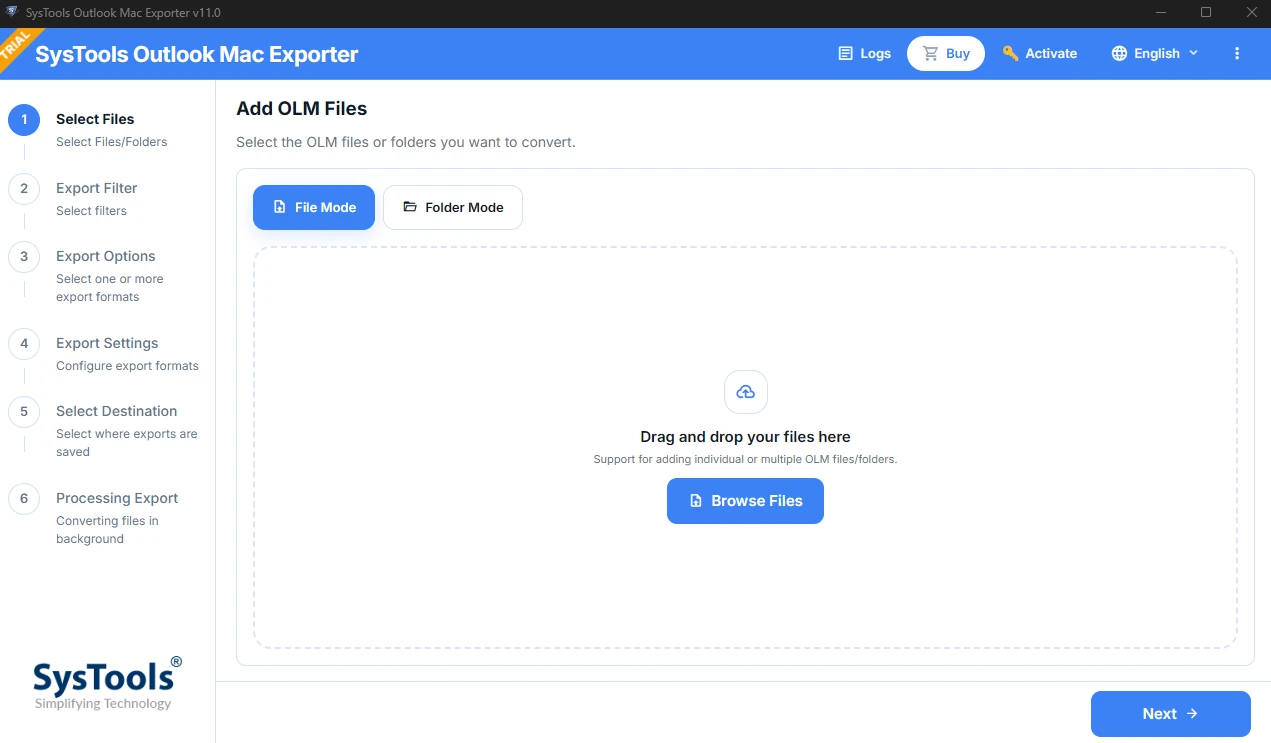
- Step 1: Install and launch the software on your device.
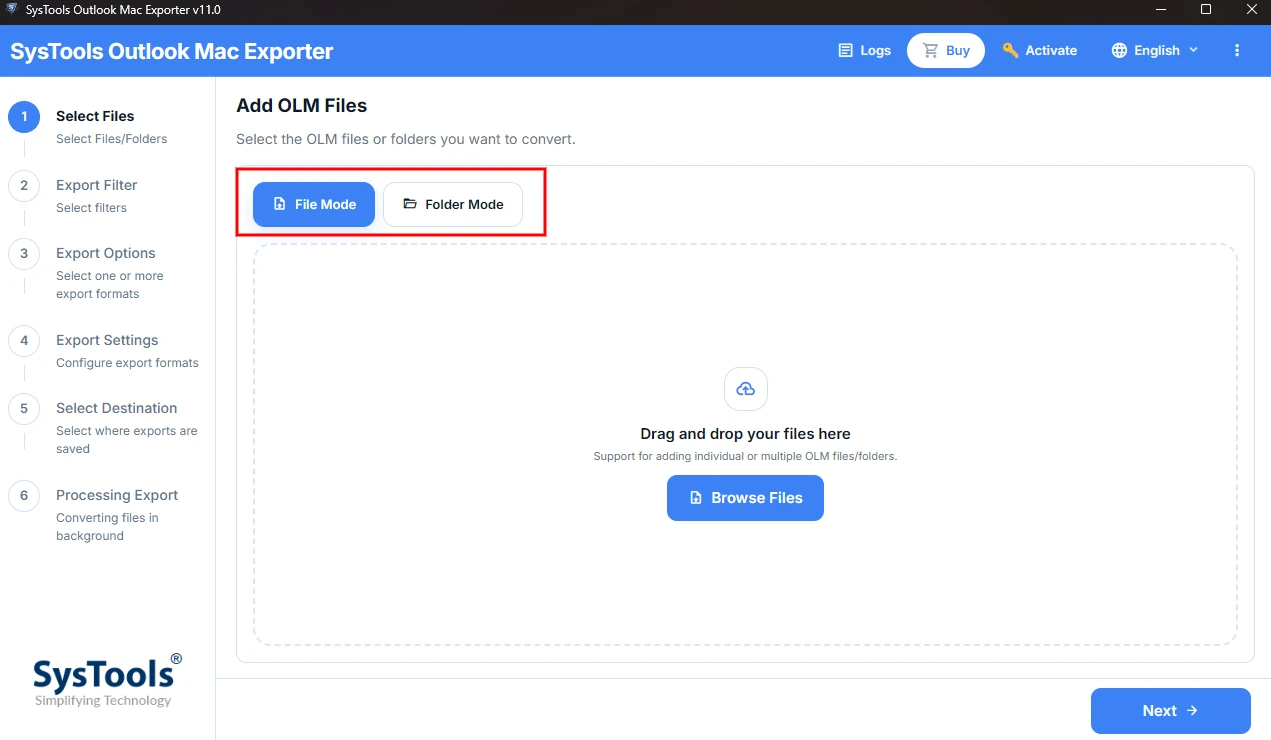
- Step 2: Click on File Mode and select the OLM files you want to convert. Select Folder mode in case you need to add a whole folder.
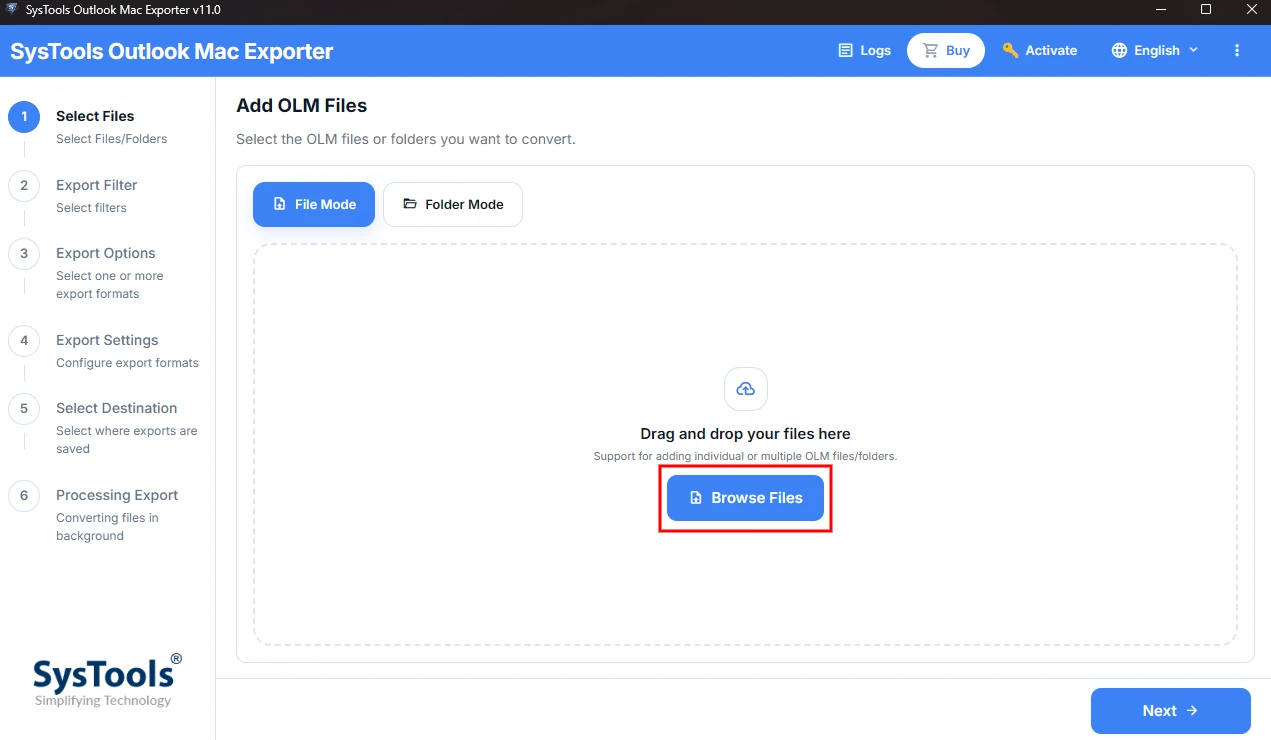
- Step 3: You can also drag and drop your files or click Browse files to search them.
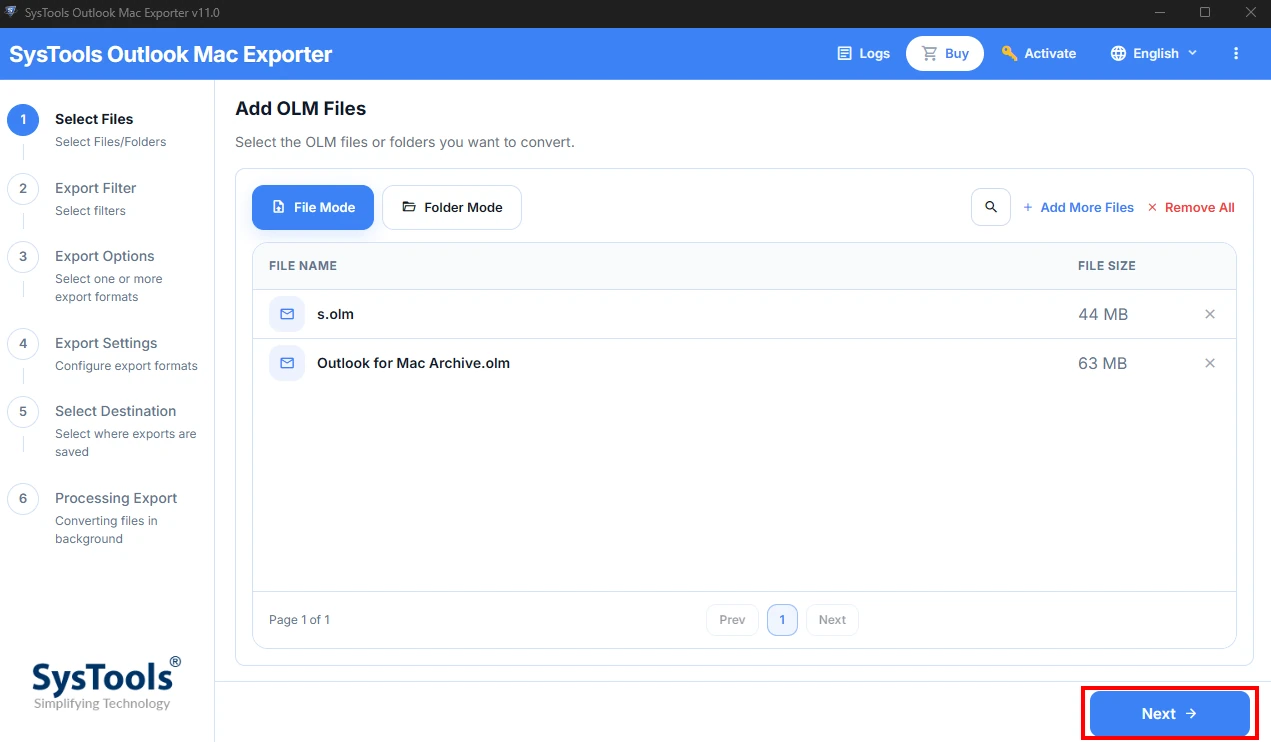
- Step 4: You will see the files on the screen that you have selected for conversion. Click Next to move to the filter options.
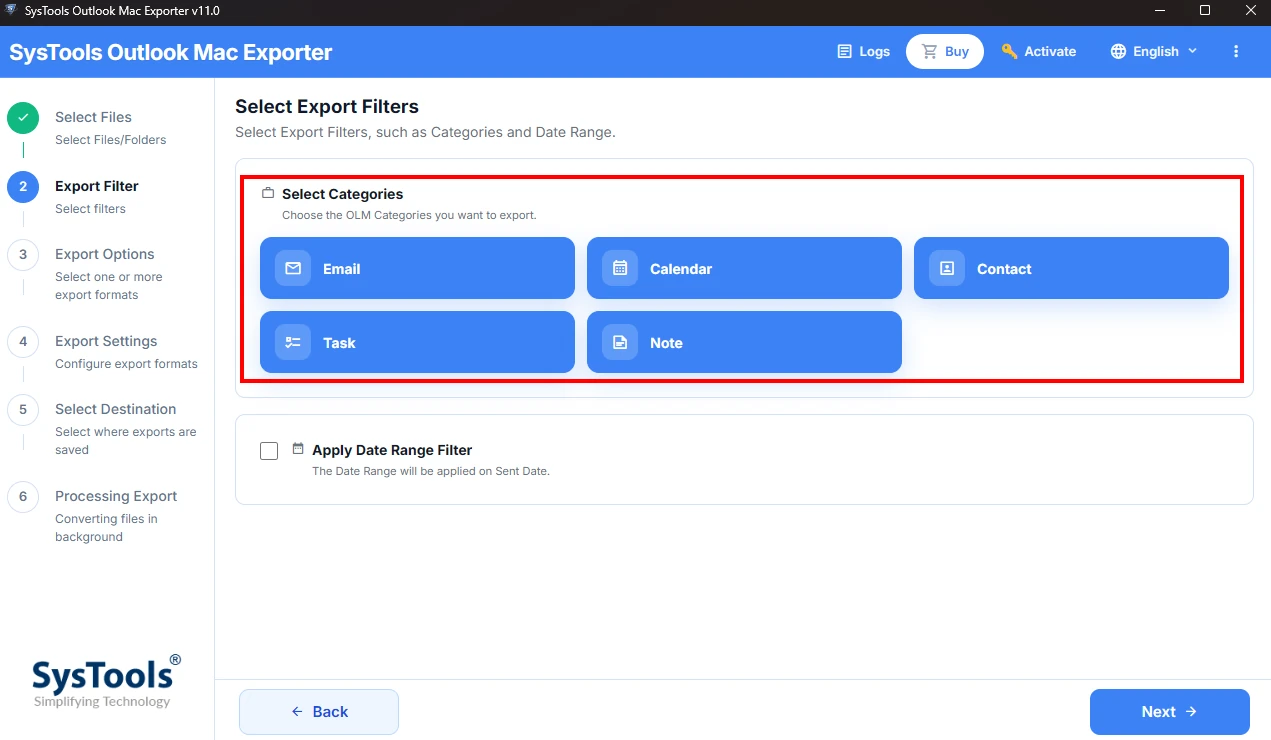
- Step 5: Here, you can select the categories you want to export. Categories like Email, Calendar, Contact, Task and Note are given in the option to select.
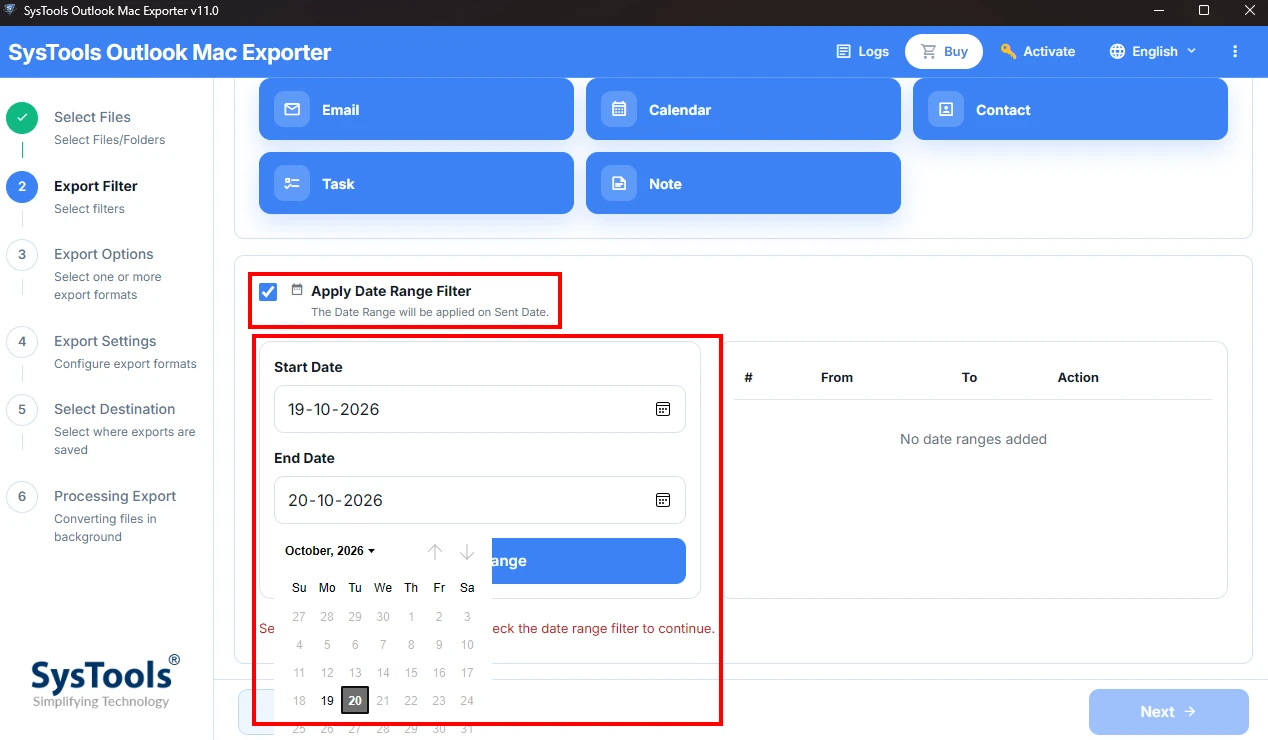
- Step 6: Apply Date Filter Range to select files or data for a specific period and click Next to move ahead in the process.
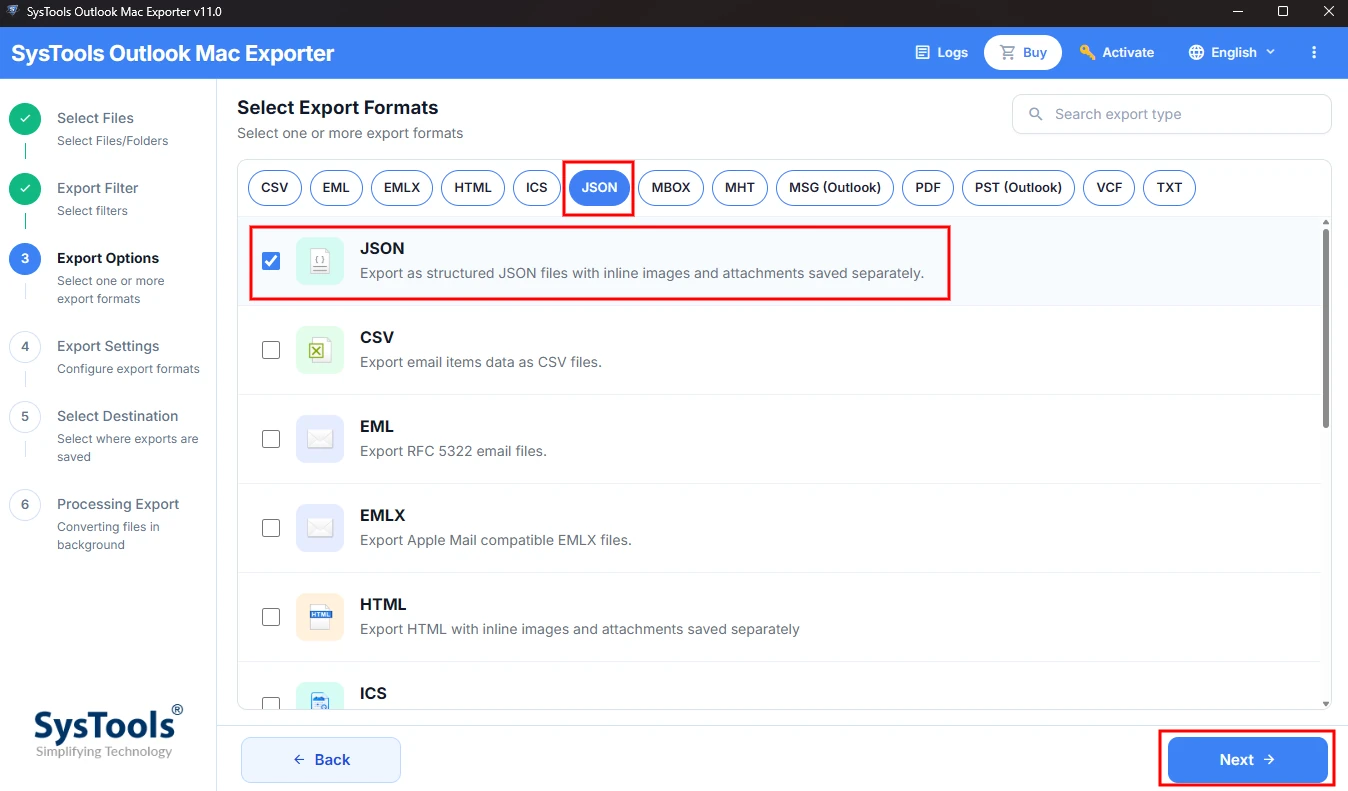
- Step 7: Now, you will see various export format options like CSV, EML, MHT, ICS, JSON, and PDF on the screen. Select JSON as export format for your selected OLM files and click Next.
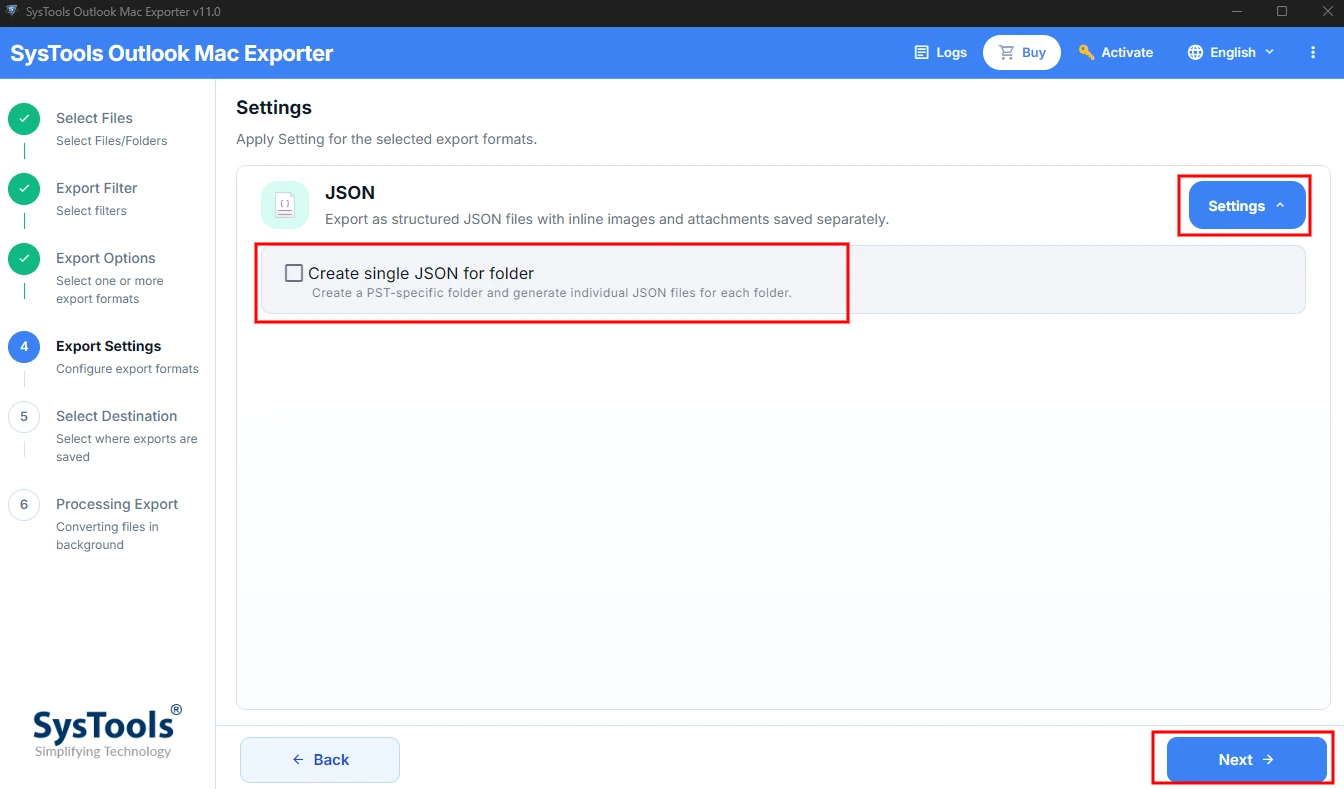
- Step 8: Now check JSON export settings. Two options are provided- firstly, create a single JSON for folder and secondly settings option for JSON export settings. Click Next.
- Step 9: Click Browse and select the destination path where you want to save your files after conversion.
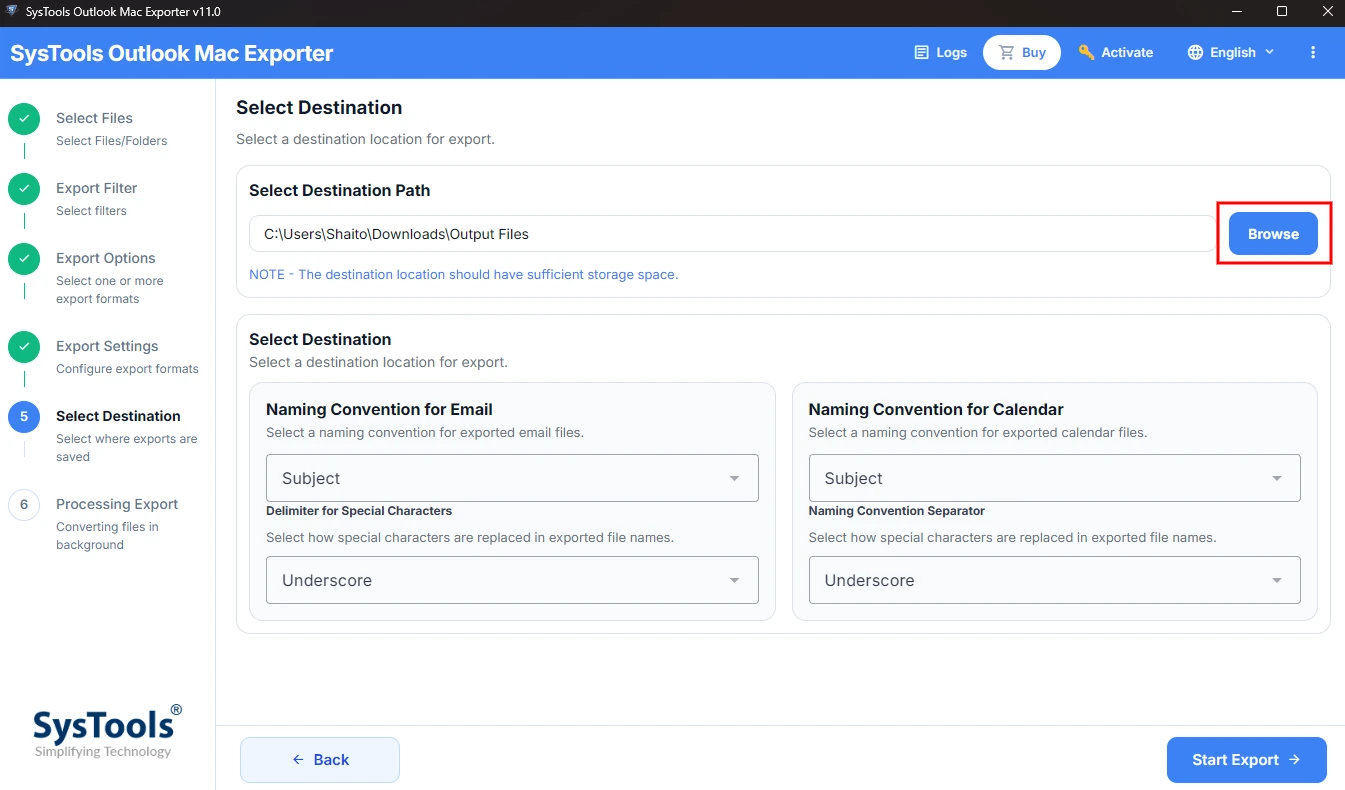
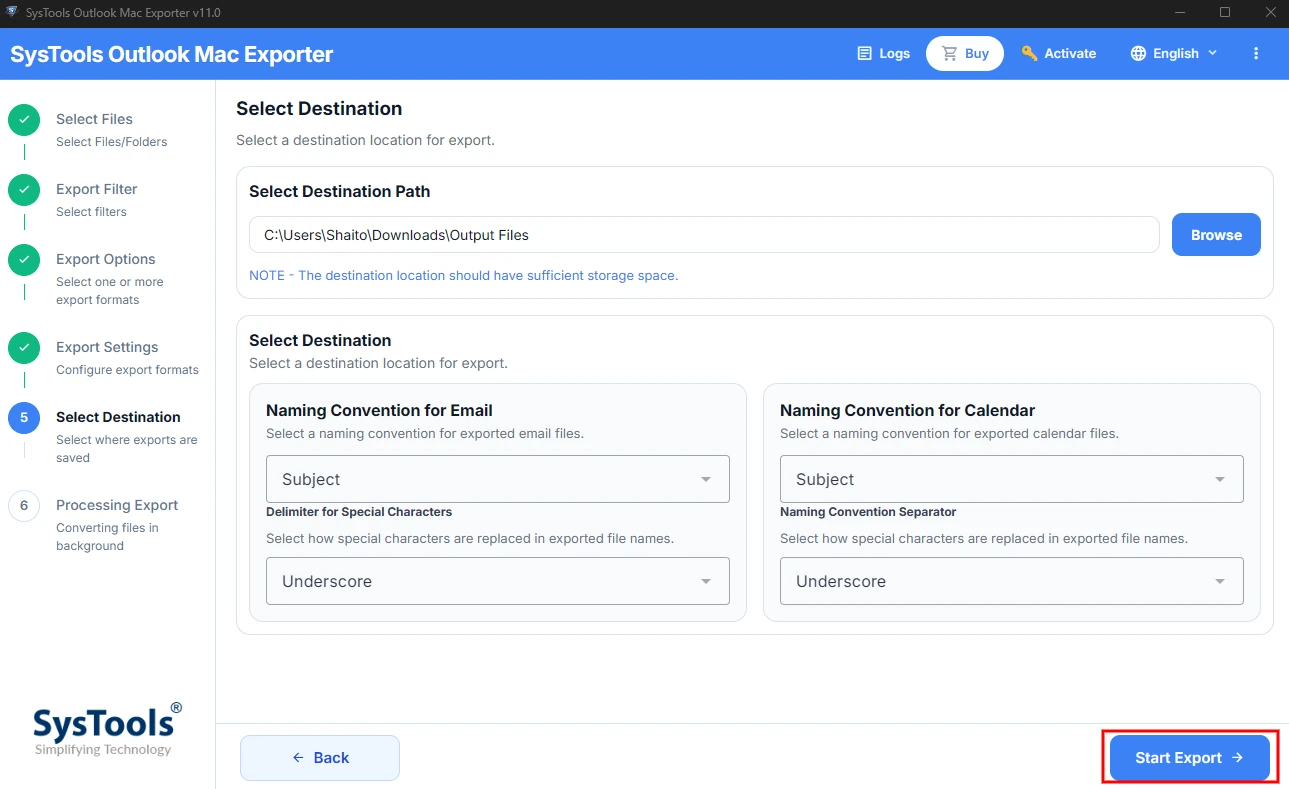
- Step 10: Finally, click Start Export after the destination path is finalized.
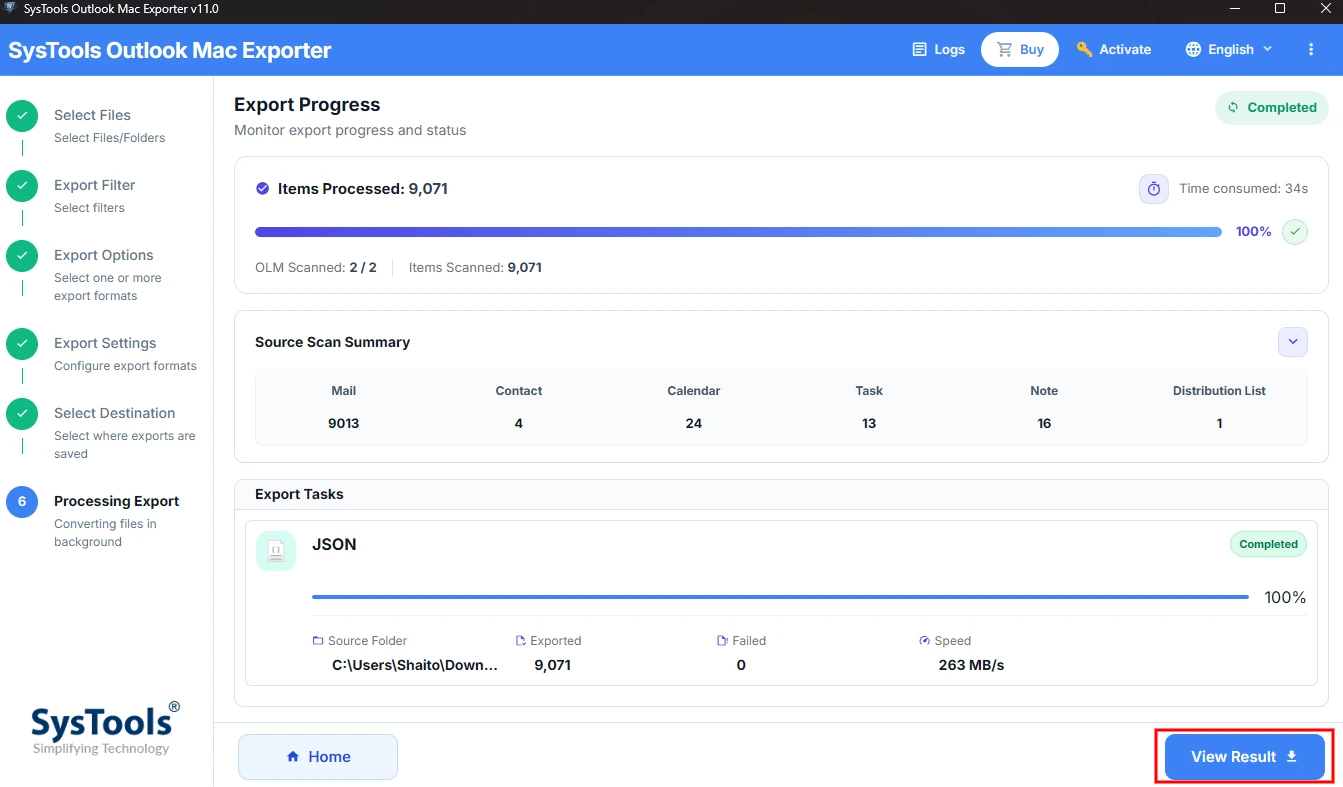
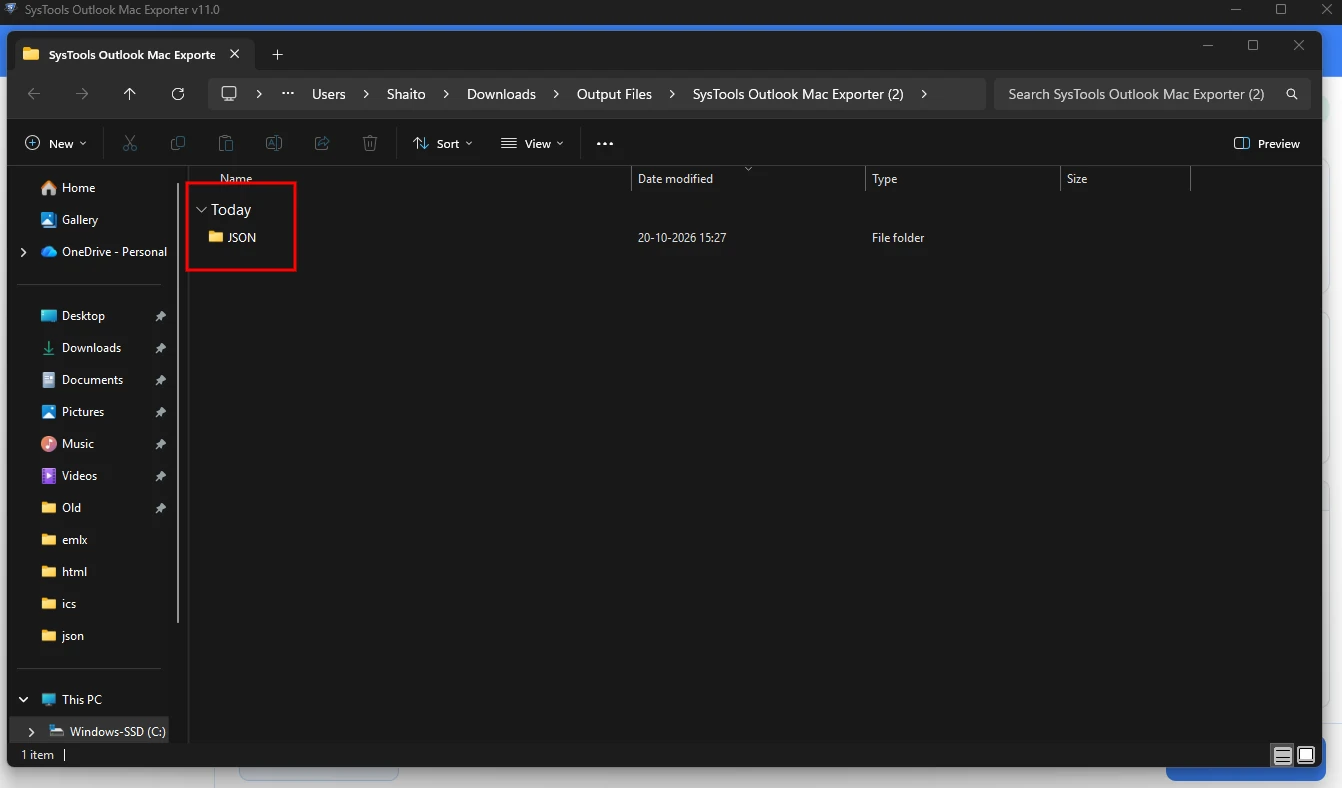
- Step 11: Now click View Result to open the output / destination folder.
Manual vs. Tool Method? Which is Better
| Manual Script | Software |
|---|---|
| Need knowledge about codes | Does not need any technical skills |
| Programming required | Minimal |
| Attachments have to be coded in order to get them in the resultant file after conversion | It gives attachments and images in the output file |
| It is not compatible with large OLM files | It is built to convert large or multiple OLM files to JSON in seconds |
| There is no preview option for the file before export | You can preview and remove any file that was mistakenly selected while browsing |
Things to Consider Before Converting OLM to JSON
- Backup the original OLM file before exporting it to any other file format.
- Ensure you decide the export settings beforehand as a large single OLM files can be tough to load.
- As JSON only supports text, so attachments are handled as separate files and are linked by path, or encoded in Base64.
- If your files contain sensitive data, use a secured method like offline converter tool to convert OLM files to JSON.
Conclusion
Converting OLM files to JSON format is a reliable solution when you need to use your data for different applications. JSON is a readable-text file format that is used for importing or analyzing information. If you need to convert OLM to JSON (single or small file), use the manual method (script) for faster results. If you have a whole folder consisting OM files or need to convert multiple OLM files, a dedicated software is the reliable and hassle-free solution in this case. Securely convert your OLM files with the right method and steps to get the desired result.
FAQs
- Can an OLM file be opened in a file editor?
No. OLM files are compressed archives and are unreadable in a text editor. For viewing those files, you need to first extract them or use a tool that can help you read archives. - How long it takes to convert OLM to JSON?
It depends upon the file size and the method you are using to convert the OLM files. A large OLM file can cause error if you use script for conversion. For faster results, use a verifies software. - Why is it showing error if I am opening OLM file in Outlook for Window?
Outlook for Windows only supports two file formats- PST and OST formats. As OLM is build for the Mac version only, convert it before importing OLM files in Windows Outlook.