

Blog Overview: You can stop unwanted emails in Gmail by following a proper approach. It becomes even more simple when you know which method to opt for. Gmail provides you four ways manage unwanted messages they are:
- Unsubscribing
- Blocking of senders
- Reporting of spam
- Creating filters.
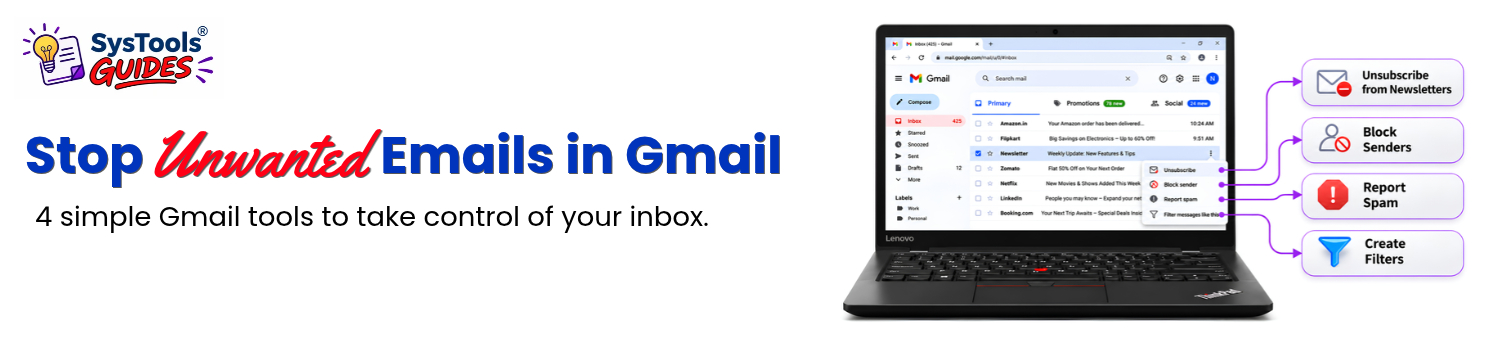
Each option operates differently so selecting right one is an important decision. Your inbox is full with promotional emails, repeated messages from unknown sender or suspicious links. You can use these Gmail features to get control of your inbox.
Identify Types of Unwanted Email You Want to Stop
Before taking any action, first step is to find out why an email is unwanted. Newsletters, repeated message from one sender or phishing attempt that require different response.
| Type of Email | Recommended Actions |
|---|---|
| Promotional emails and newsletters | Unsubscribing from mailing list |
| Regular emails from particular sender | Block the sender |
| Suspicious and unwanted message | Reporting as spam or phishing |
| Emails matching specific conditions | Creating Gmail filter |
| Emails already received | Deleting emails |
Take an example: Many months before you subscribed to beauty products website’s newsletter. Now those weekly newsletters are no longer needed. In this situation unsubscribing is a good decision. When an unknown sender continuously send suspicious messages, reporting them as spam is better.
Note: If you delete email message it will remove existing message. Blocking, unsubscribing and filtering helps in managing future messages more effectively
Different Methods to Stop Unwanted Emails in Gmail
There are four major methods via which user can stop unwanted emails in Gmail:
- Unsubscribing from mailing list
- Blocking individual senders
- Reporting spam
- Creating filters
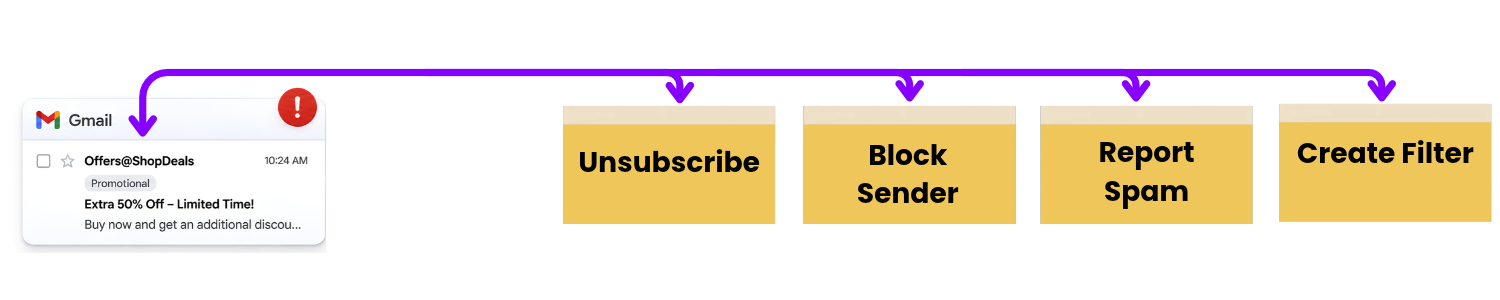
Always opt for method that matches type of email you receive. You can also use combination of these methods to manage different sources of unwanted messages.
How to Unsubscribe Spam Emails in Gmail
Unsubscribing promotional emails and newsletter when you don’t want those to hit your inbox again. To do this Gmail has an unsubscribe button that you can use unsubscribe the subscribed service and stop receiving those promotional emails again. Let’s have a look at steps to unsubscribe:
Steps to unsubscribe on computer:
There are two different methods to operate unsubscribe option; let’s have a look at both:
- Open Gmail.
- Locate promotional email from sender you want to unsubscribe to.
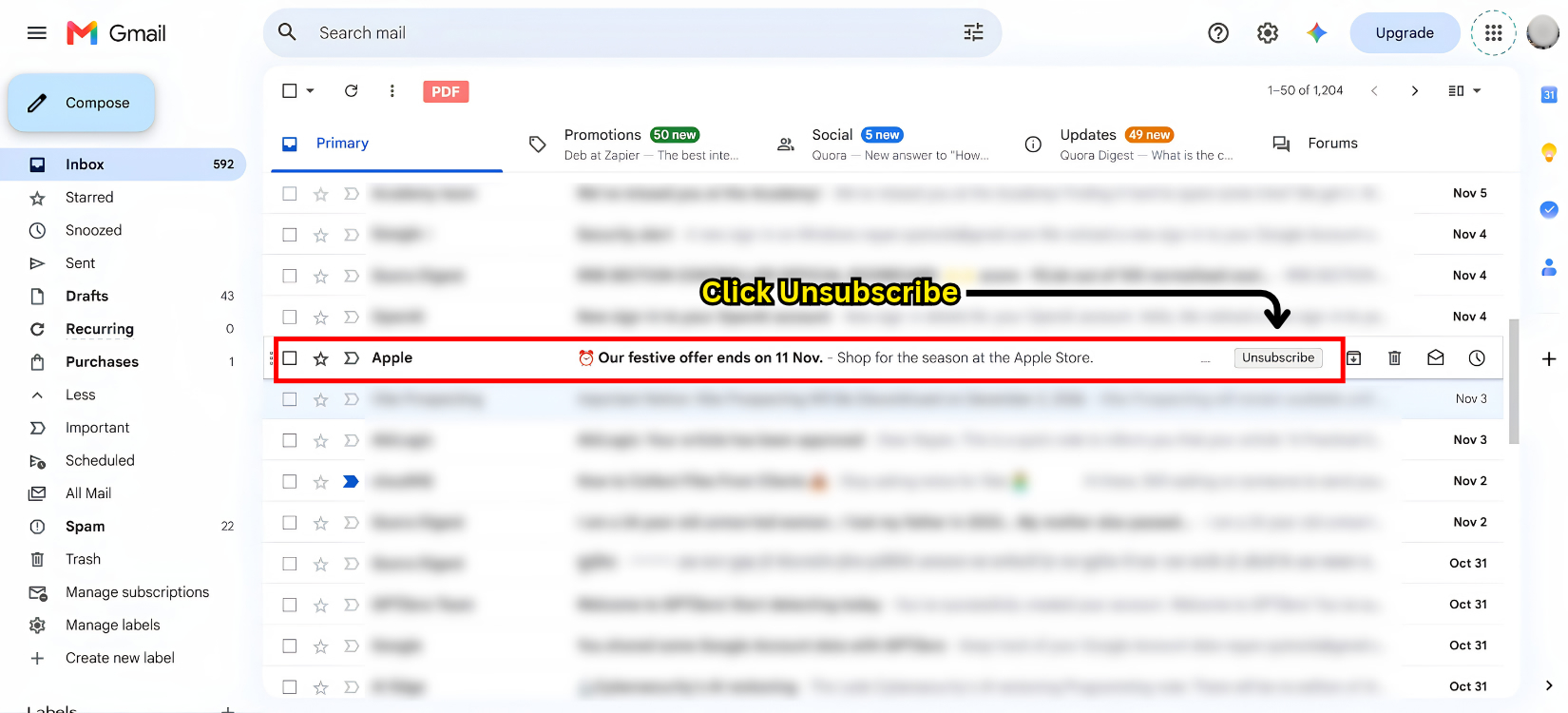
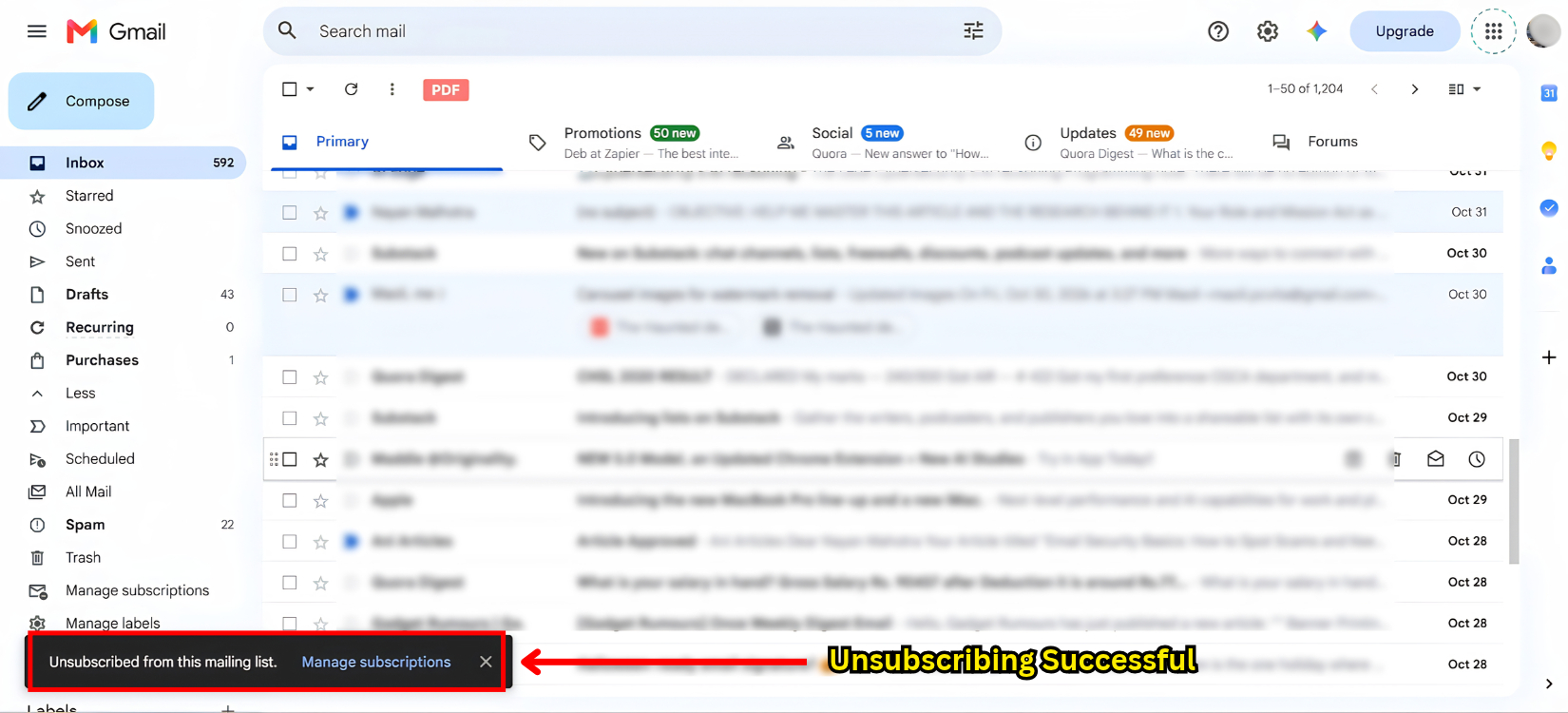
- Hover over that email strip and click Unsubscribe.
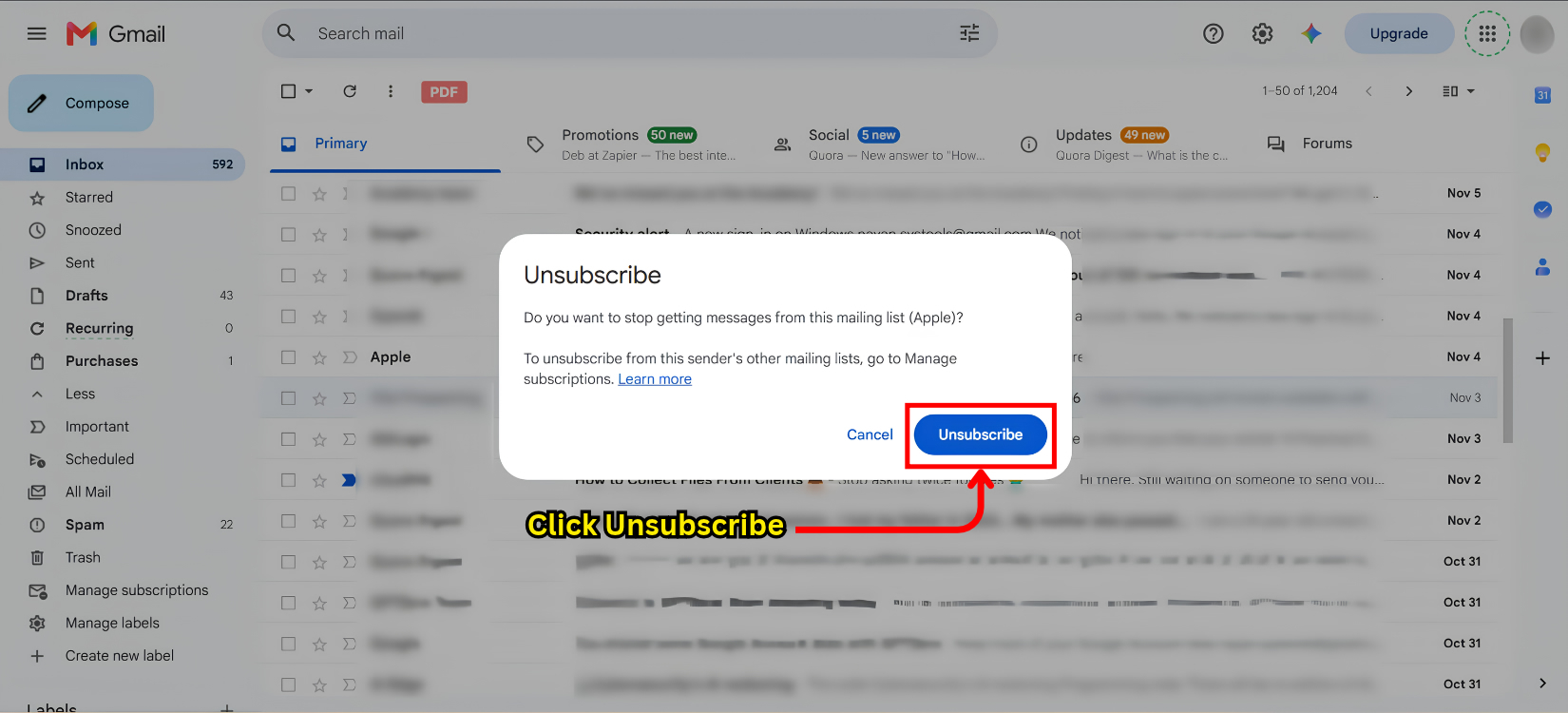
- Confirmation Pop up will appear, click Unsubscribe or Go to website. It depends on sender’s process.
- If on Gmail, click Unsubscribe on Pop-up and it will be unsubscribed.
Method 2: Unsubscribing Via Manage Subscriptions
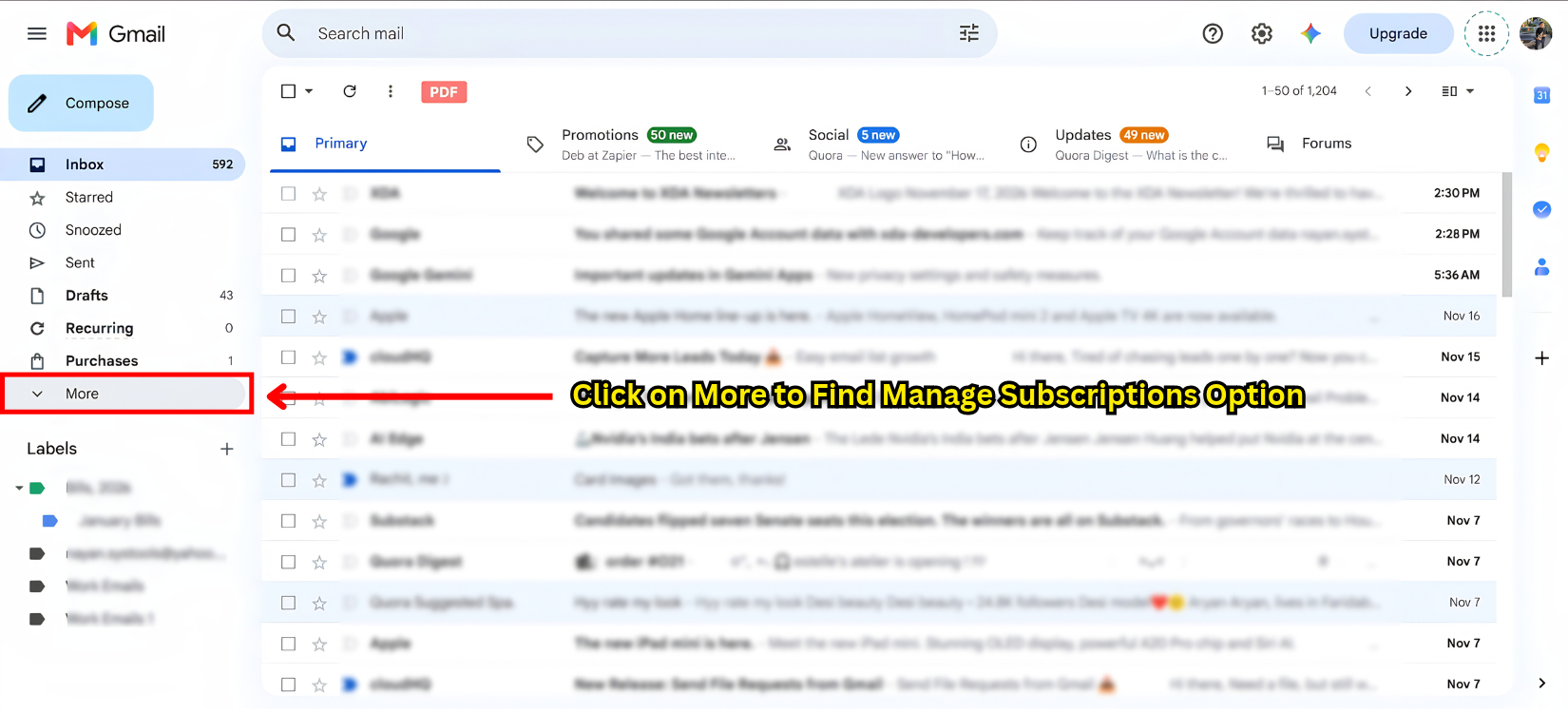
- Open Gmail and on left sidebar locate Manage Subscriptions option. Click on more if you are not able to find.
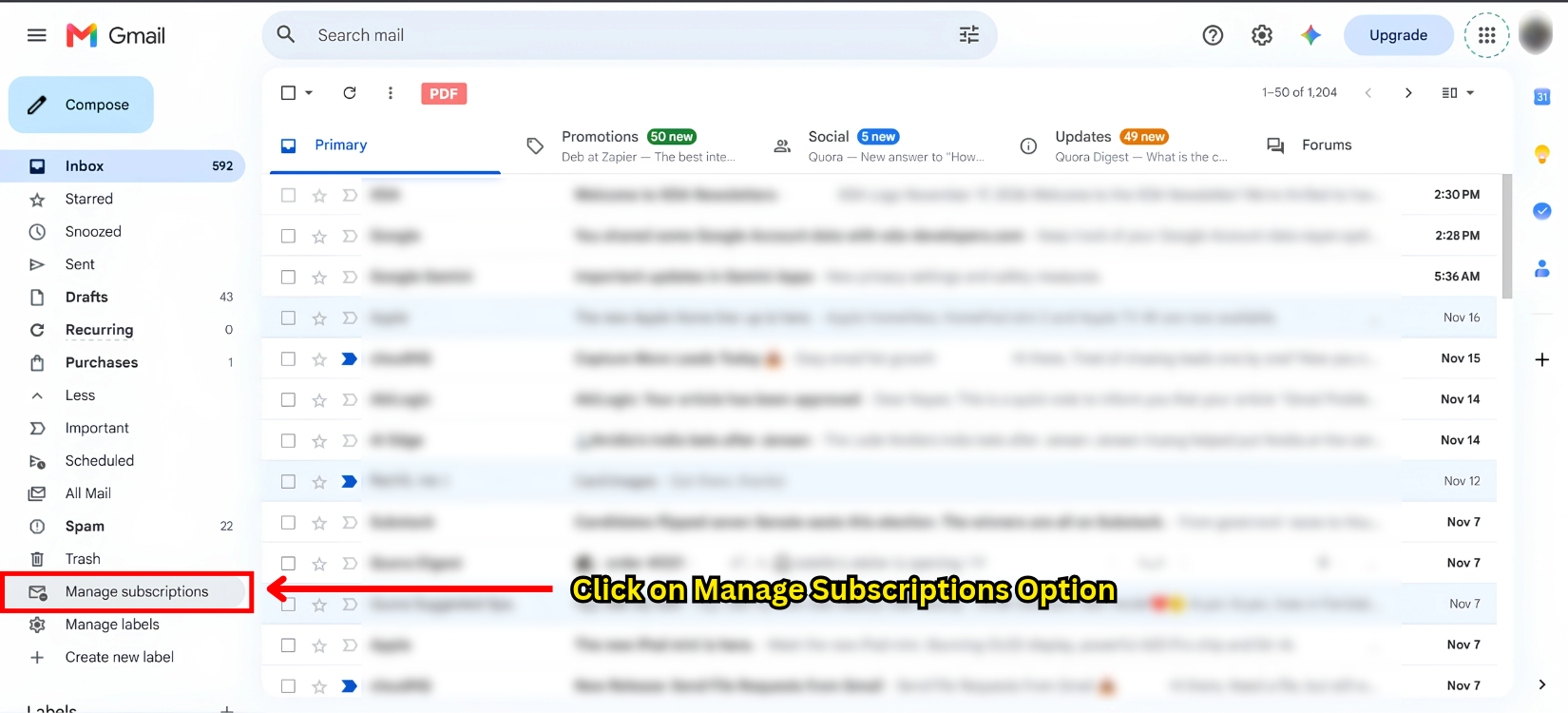
- Click Manage Subscriptions and sender’s mailing list will appear.
- On the list click Unsubscribe near to sender’s name you wish to unsubscribe to.
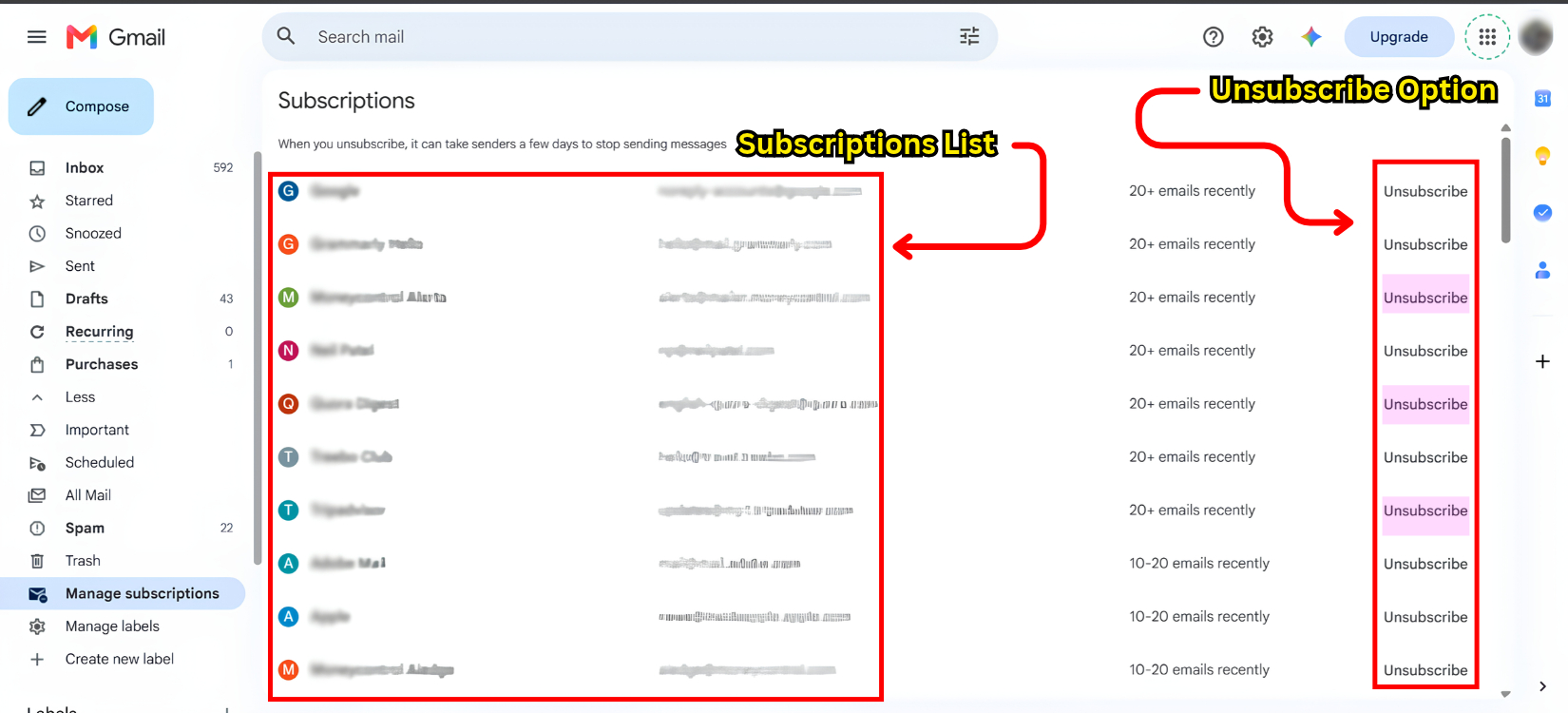
- Confirmation pop up will appear and click Unsubscribe to confirm your request.
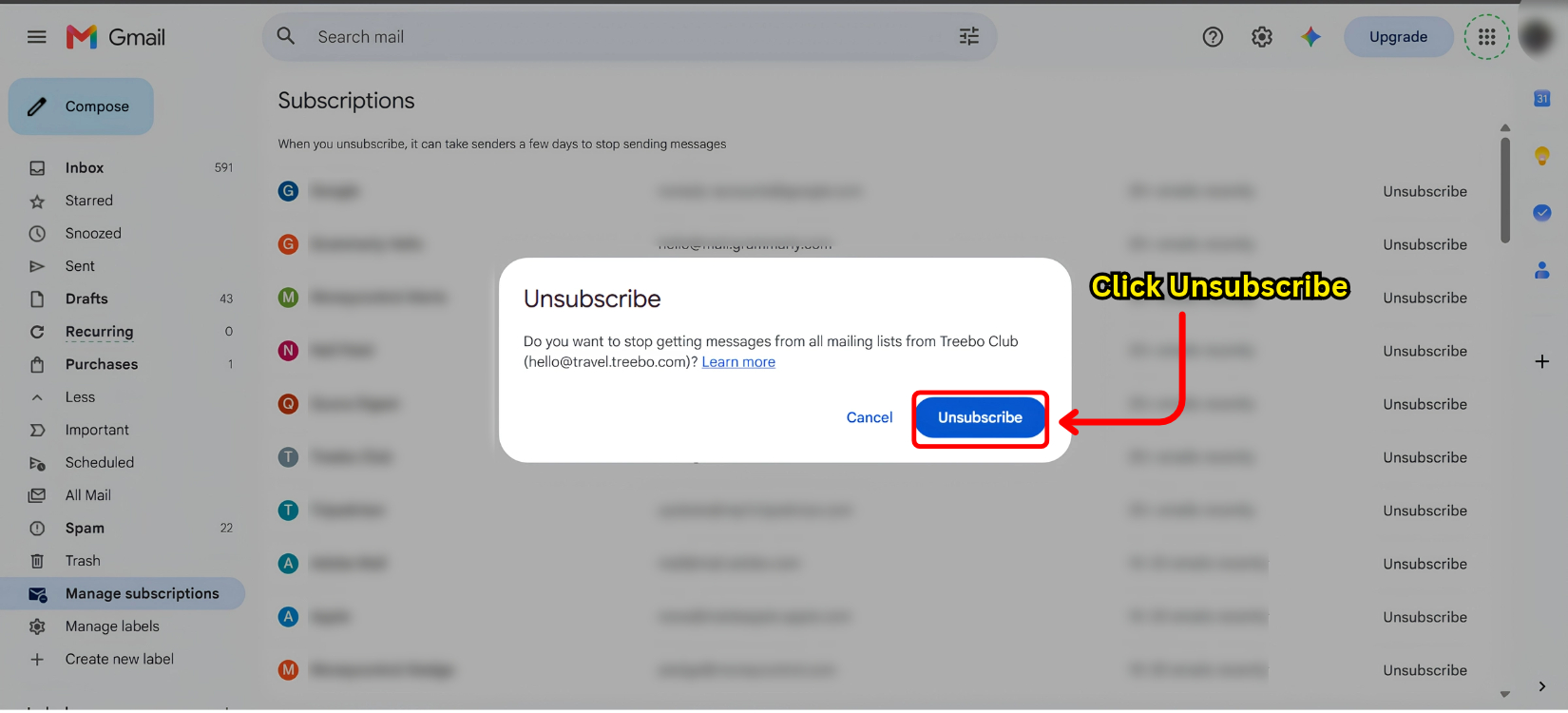
Note: Availability of manage subscription is gradually being rolled out.
How To Unsubscribe Emails on Android and iPhone (Gmail App Method)
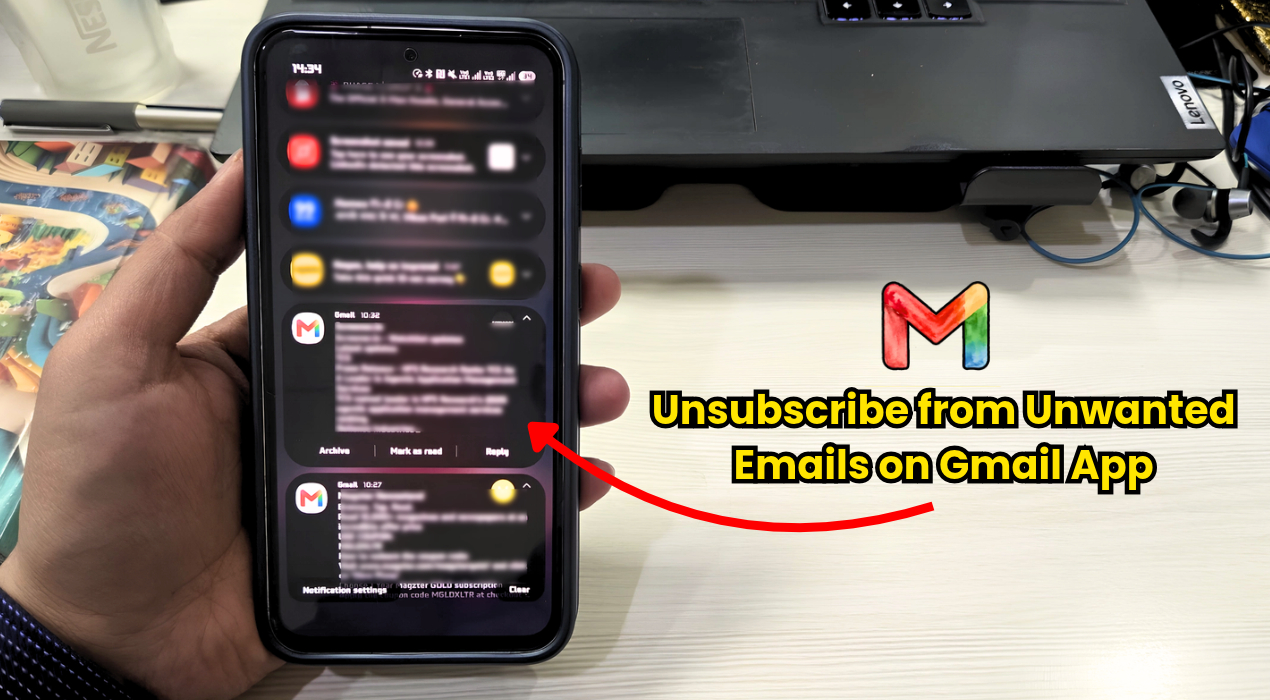
This process will be completed on Gmail app. To do this:
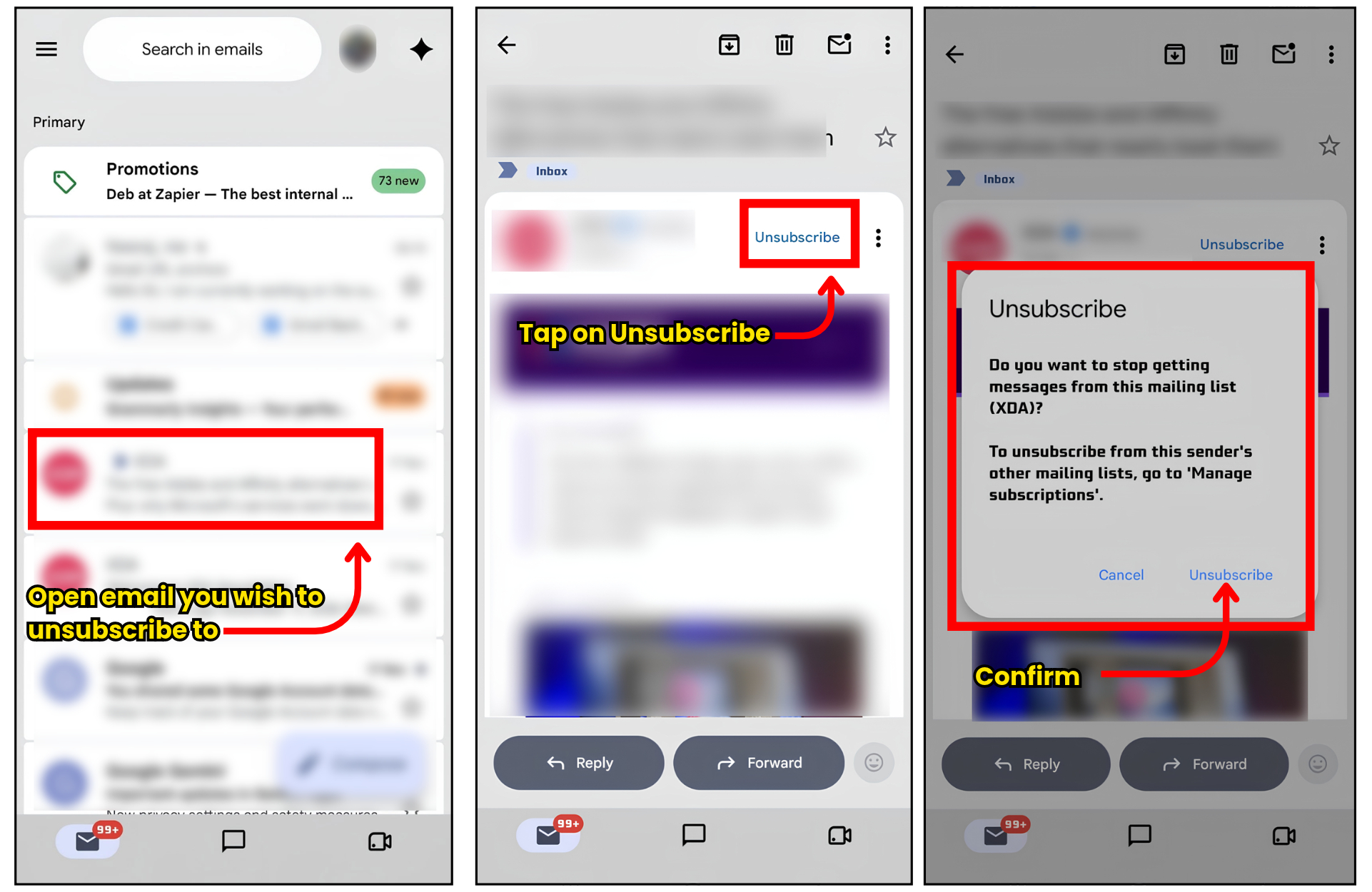
- Open Gmail app.
- Tap on promotional email you wish to unsubscribe from.
- Next to sender’s name, tap Unsubscribe.
- Confirm and it is done.
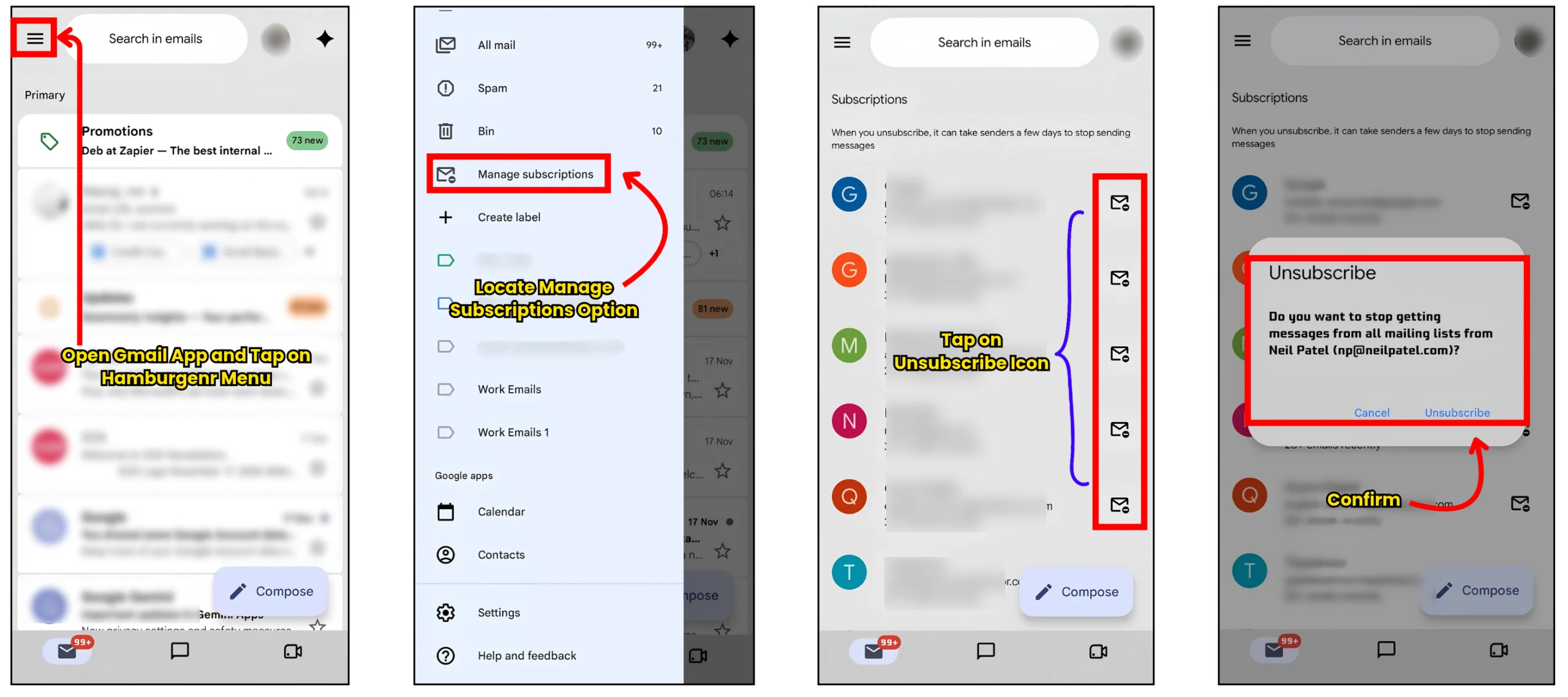
Method 2: Unsubscribing Email Through Mailing List
- Open Gmail app.
- Tap on hamburger menu on top left and locate Manage Subscriptions options.
- In Mailing list tap on Unsubscribe option visible near sender name to unsubscribe from it’s emails.
- Confirm and unsubscription will be successful.
How to Block Unwanted Emails in Gmail
Unsubscribing is completed. User can also block sender if they don’t want their future messages to appear in Gmail’s inbox. When blocked sender will send you emails Gmail will redirect it to Spam folder.
Steps to block sender on a computer:
- Open Gmail and locate email from sender you want to block.
- Open message.
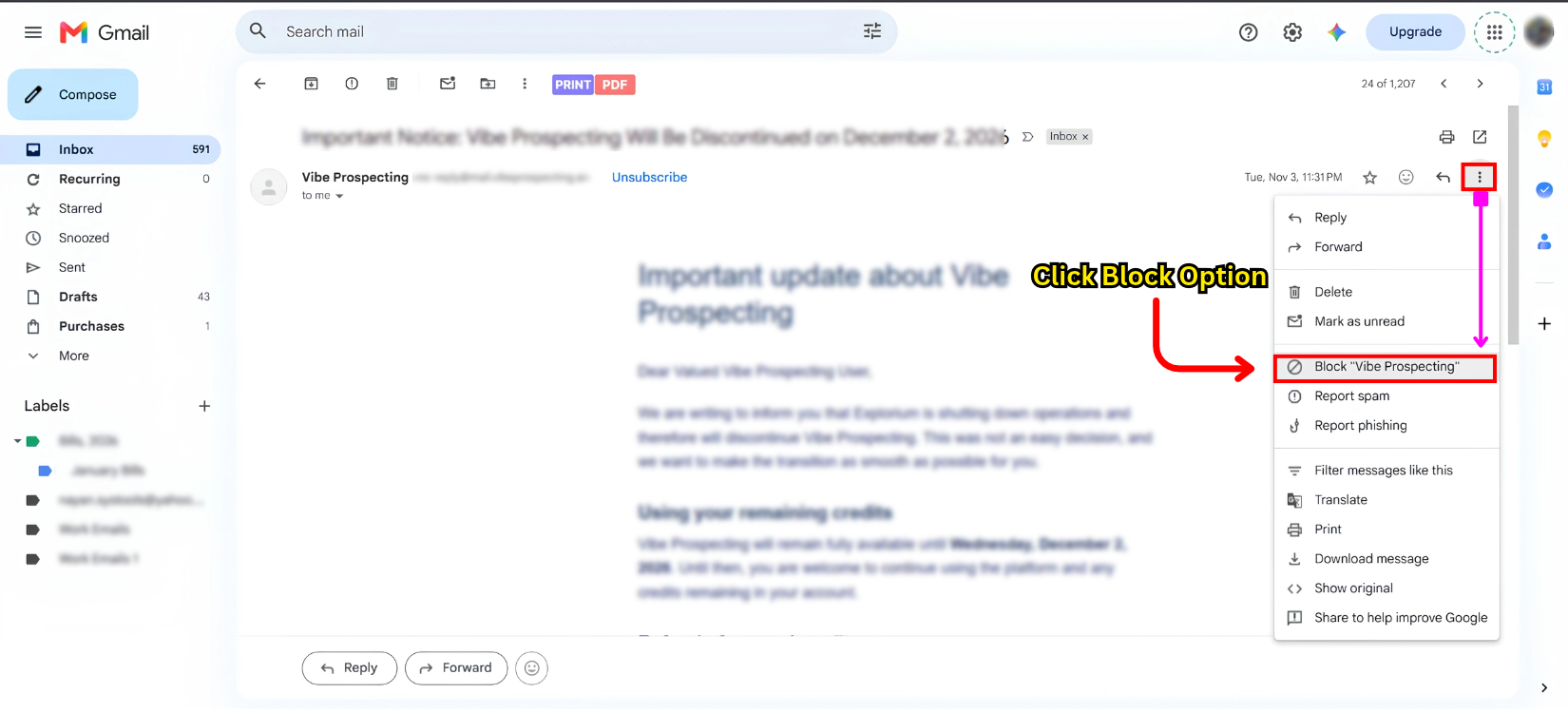
- Click three-dot More menu next to the Reply option.
- Select Block option
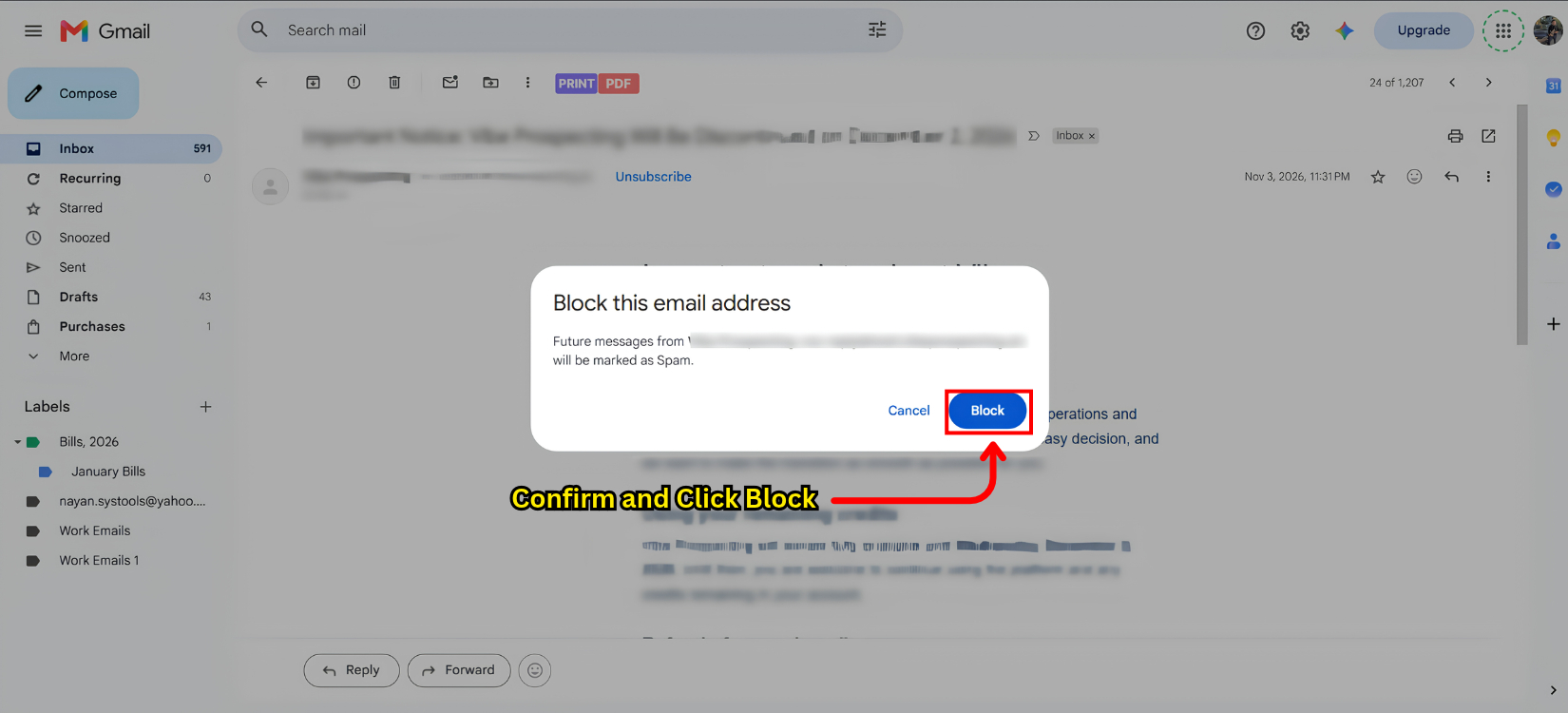
- Confirm Blocking.
How this process is executed Android and iPhone:
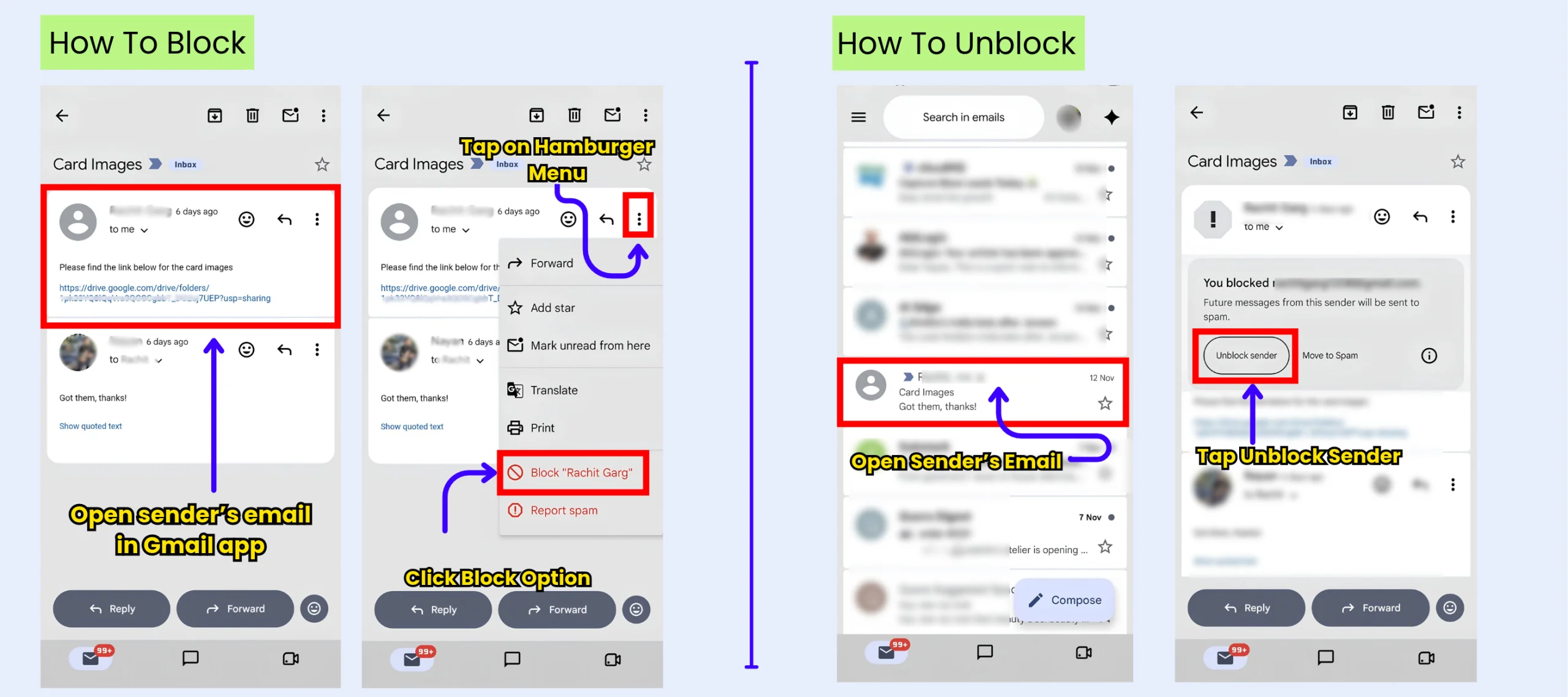
- Open sender’s email in Gmail app.
- Tap hamburger menu option, and select Block sender.
How to unblock a sender:
If you have blocked someone by mistake, you can reverse this action.
- Open email from blocked sender.
- Unblock Sender.
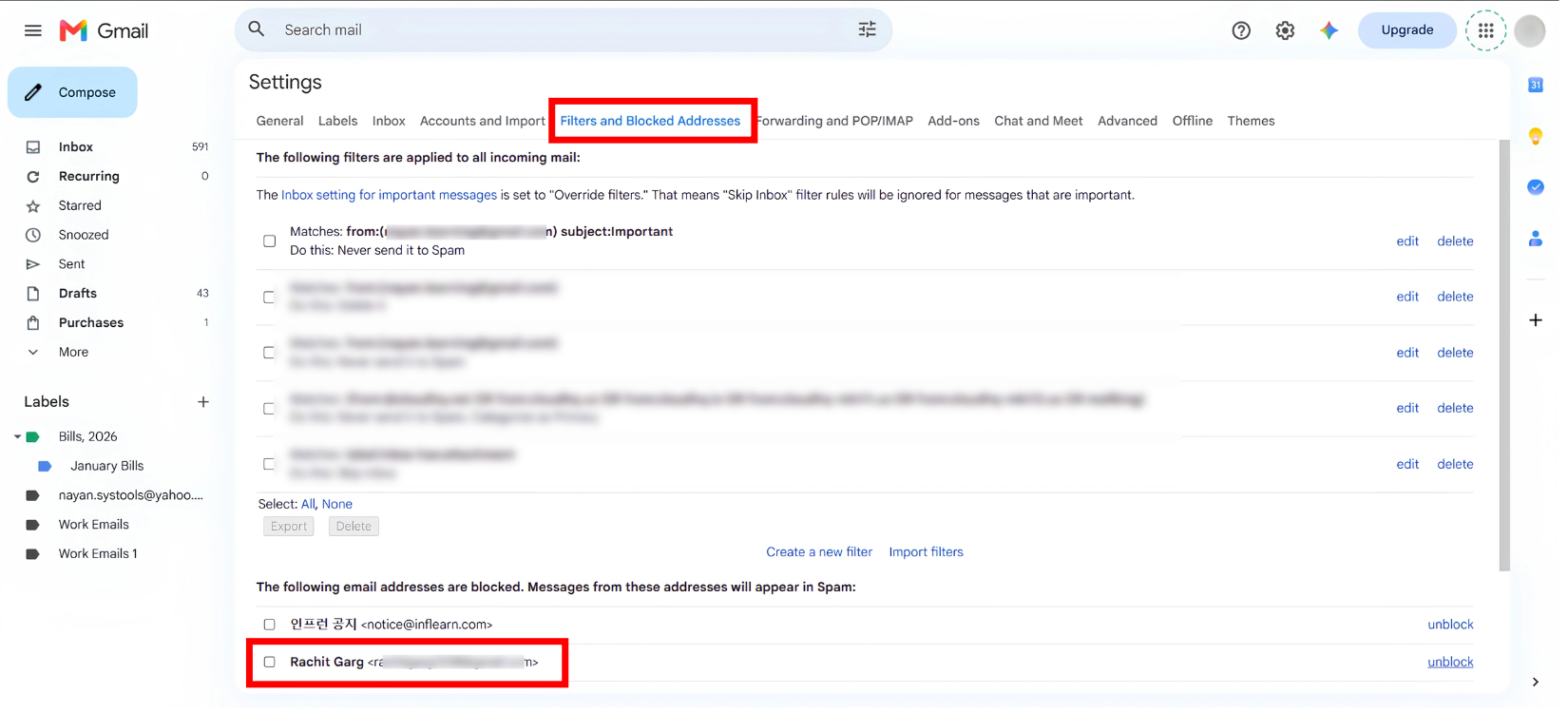
You can view blocked addresses in computer by:
- Open Gmail > Settings icon > See all settings.
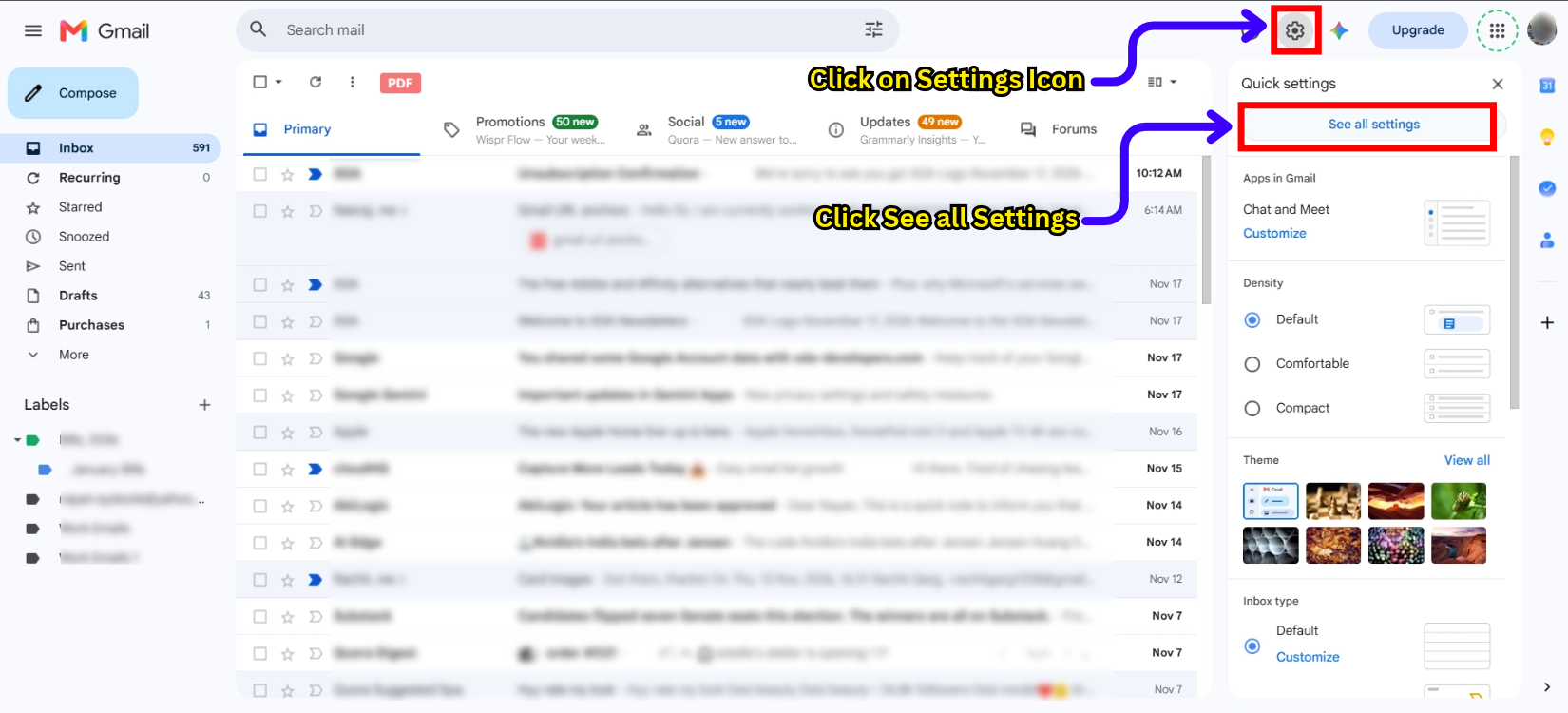
- Under all Settings, click on filters and blocked addresses option.
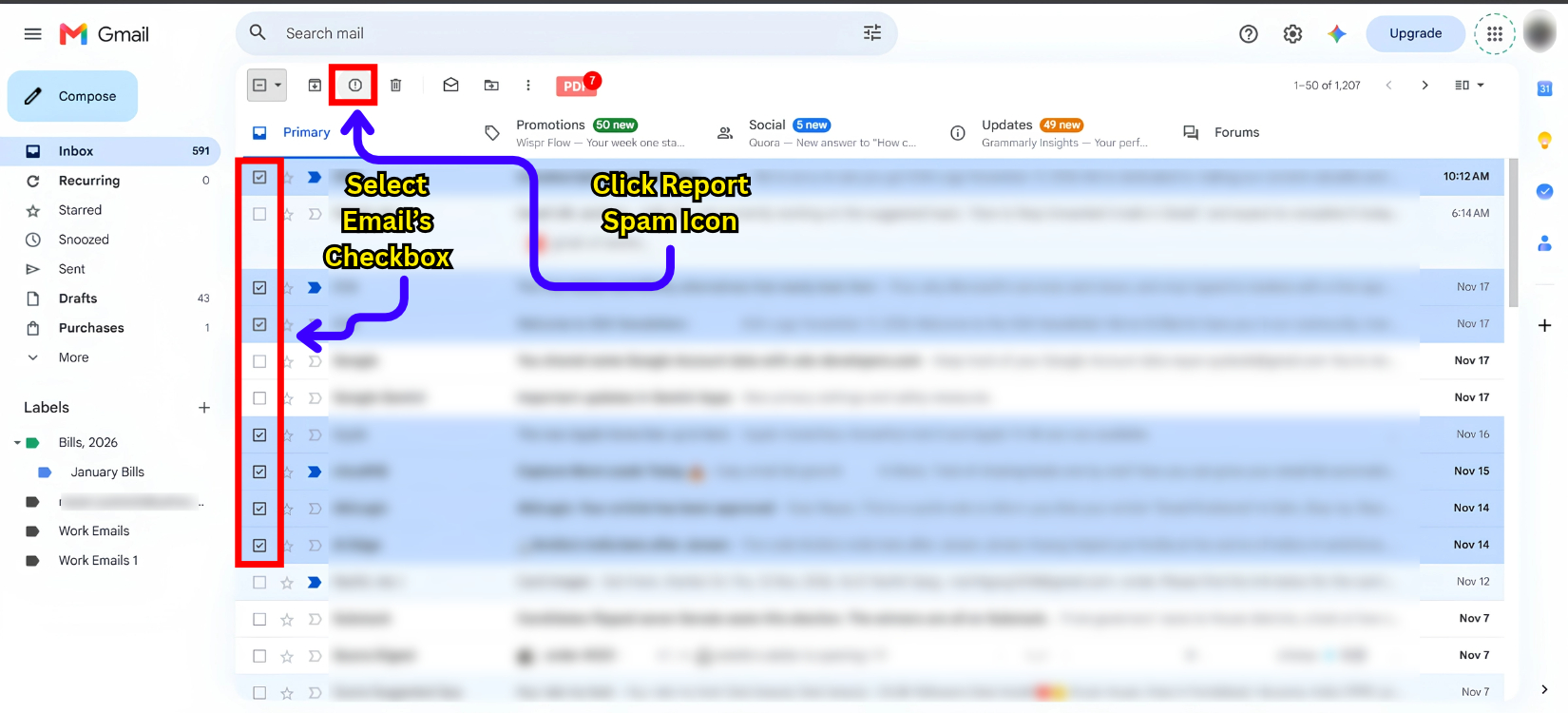
Reporting spam works when you think email is deceptive and you want Gmail to recognize these type of messages more effectively. Reporting sends messages to spam and helps Gmail in identification of similar unwanted emails.
Steps to report Spam on Computer
- Open Gmail.
- Find unwanted emails in your inbox.
- Select email’s checkbox. You can select multiple messages also.
- Click Report Spam icon in toolbar.
- Gmail will move selected messages to Spam folder.
When Should User Report Phishing
Phishing is a type of counterfeit email that attempts to steal important information:
- Passwords
- Financial details
- Account credentials
Such messages impersonate banks, small finance banks, online services and people you know.
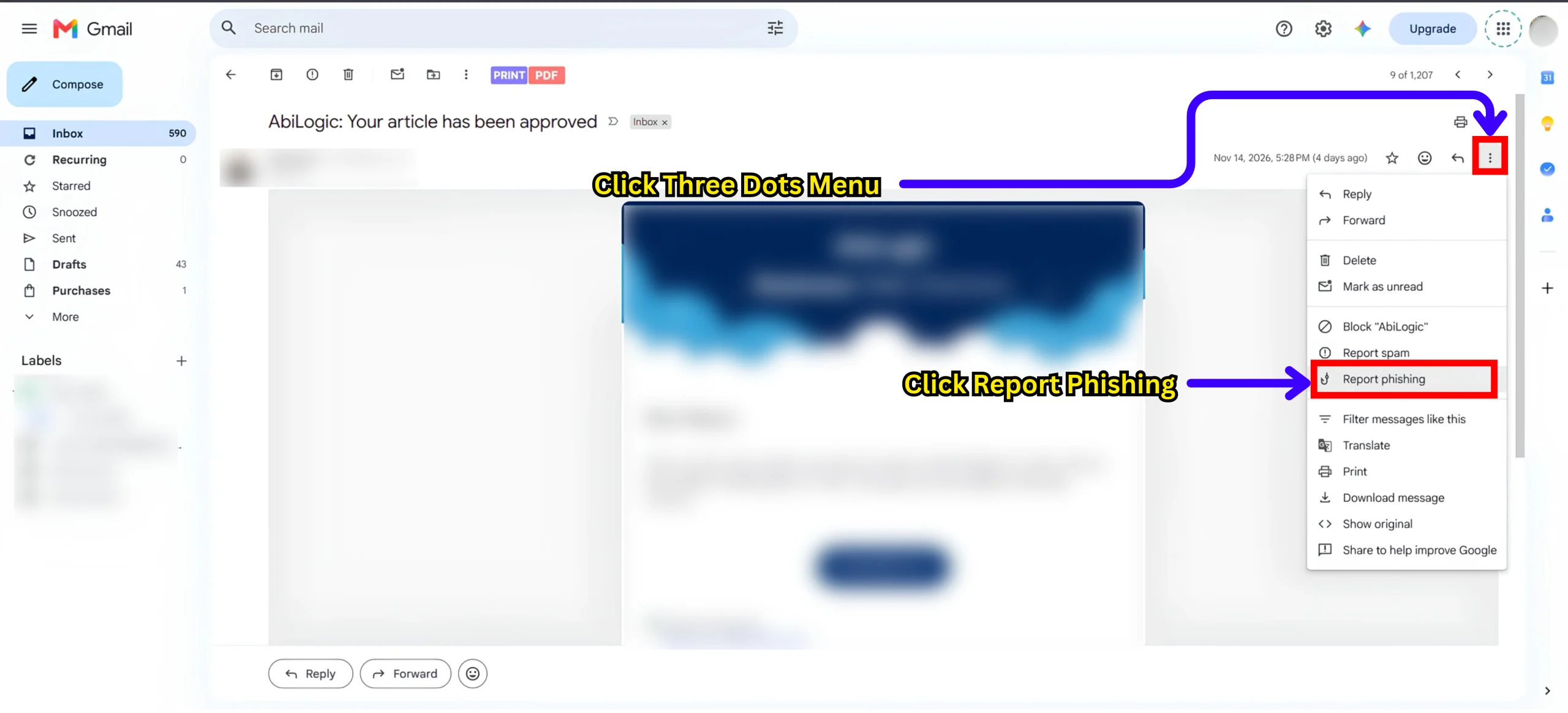
To report phishing on computer:
- Open suspicious email.
- Click More near Reply option.
- Select Report phishing.
Note: If you feel message is suspicious, never reply that message, download suspicious attachments, open links before sender verification.
Note: Reporting spam and reporting phishing are different actions, always select option that best describes message.
Manage Emails That Still Reach Your Inbox
Now you know how to stop unwanted emails in Gmail through:
- Unsubscribing
- Blocking
- Reporting
Different types of unwanted messages. If some unwanted emails continue to reach your inbox especially if they have recurring patterns. User than has an option to manage these messages using Gmail filters and remove existing data through deletion.
Create Gmail Filter for Repeated Emails
For performing some pre-decided actions on incoming messages that matches specific conditions user can use Gmail filters. User can use filters to
- Archive
- Label
- Delete
- Star
- Forward
Matching emails for more clarity think a particular sender repeatedly sends messages you don’t want in your inbox. You can create filter using their email address
Steps To Create Gmail Filter on computer:
- Open Gmail.
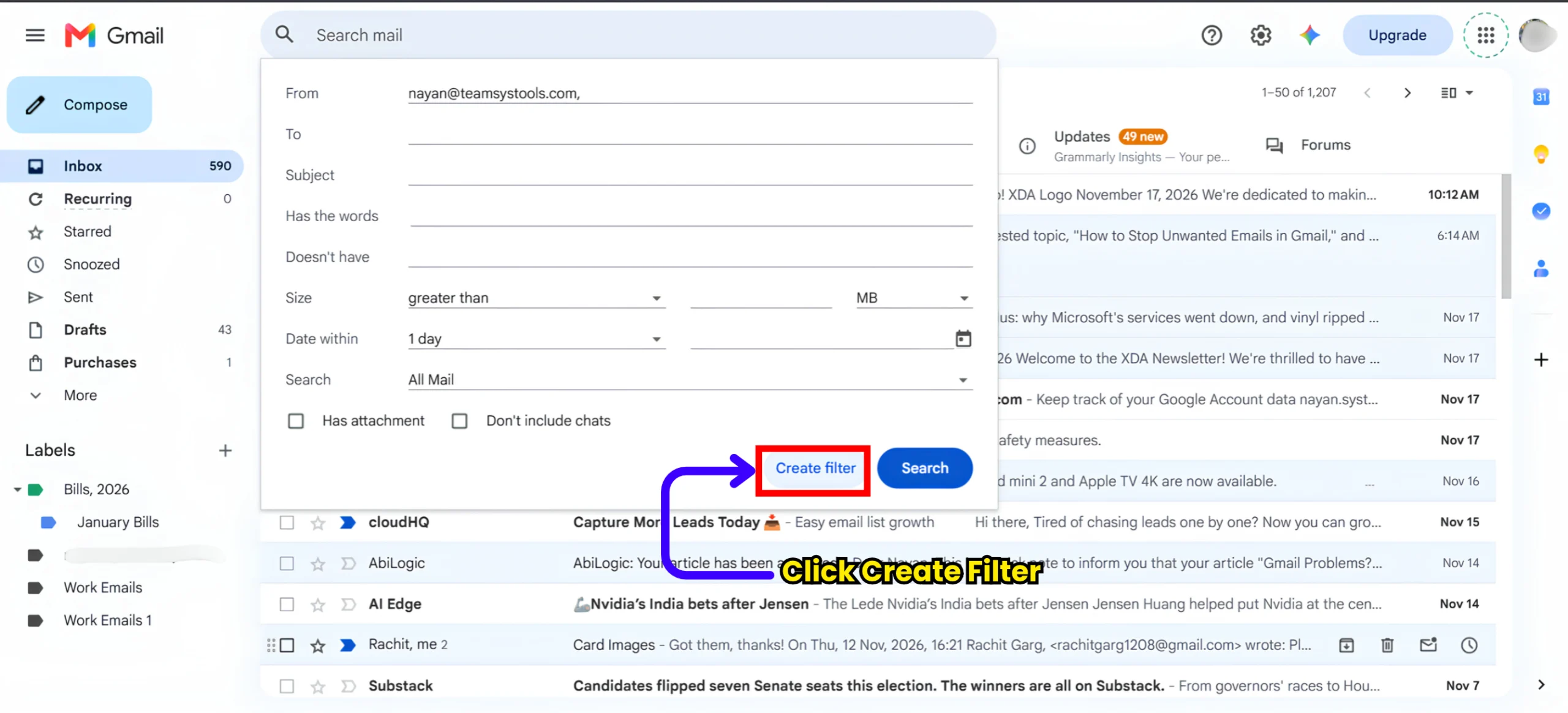
- Click Show search options in search bar.
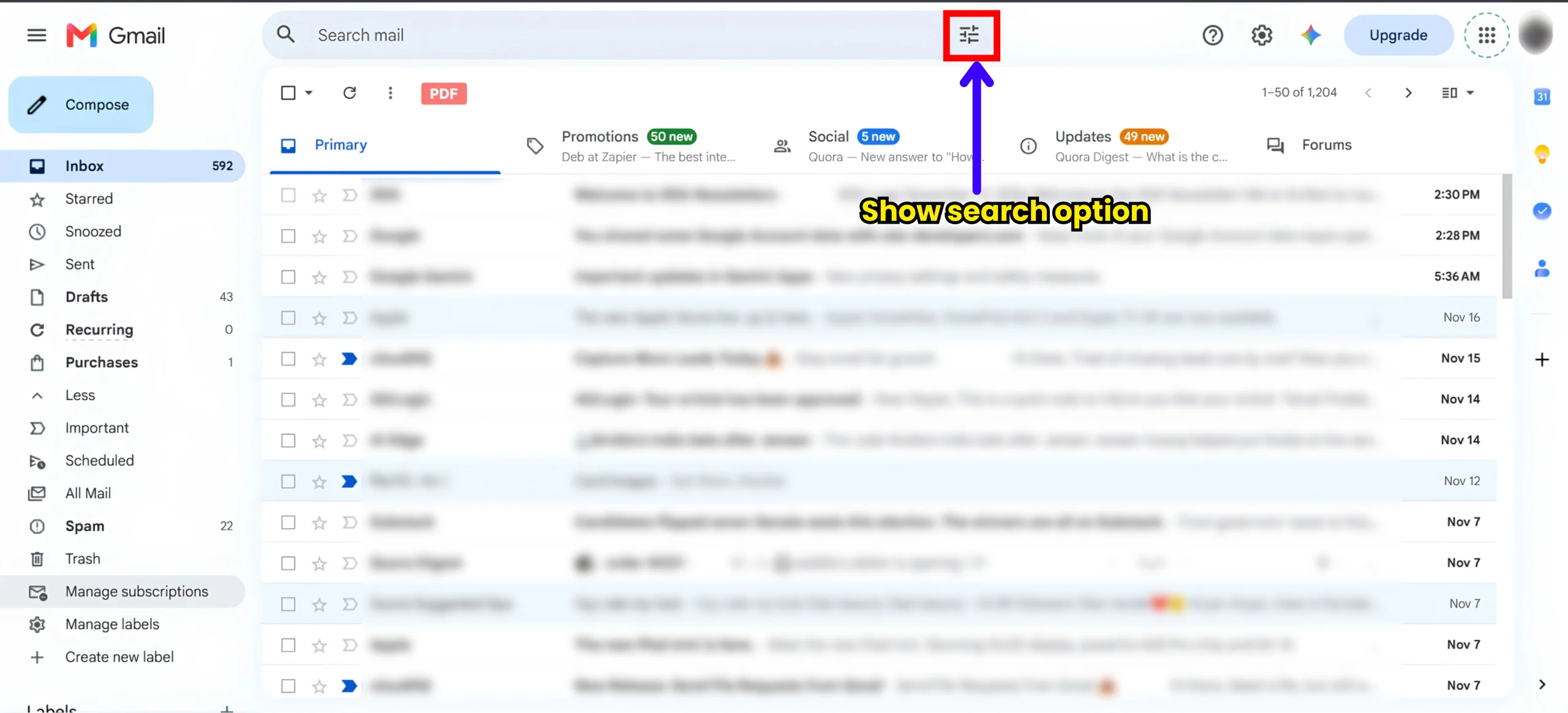
- Enter conditions, sender’s email address.
- Click Create filter.
- Select your desired goal of what you want to do with that email, such as Delete it, Skip the Inbox (Archive it), or Apply the label.
- Click Create filter again to save rule.
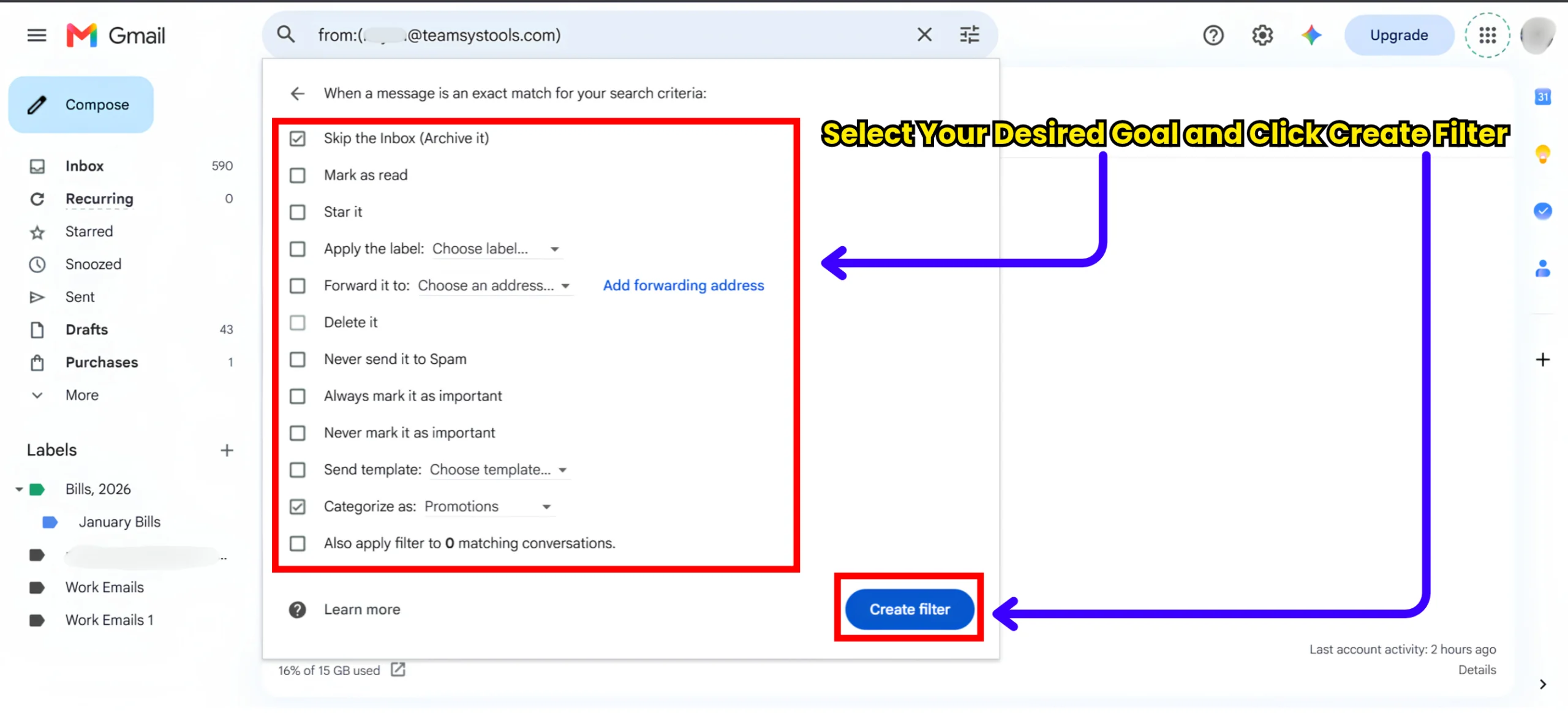
How Gmail Filters Help To Stop Unwanted Emails in Gmail
You can think of filter as sorting rule. As we separate important documents from unwanted paperwork. Gmail can organize messages based on conditions we set. Sender-specific filter can move matching messages out of inbox without handling each one manually. Filter conditions should be checked very carefully before choosing Delete it. We have observed that broad rule can remove messages you actually need.
How to Delete Spam Emails in Gmail
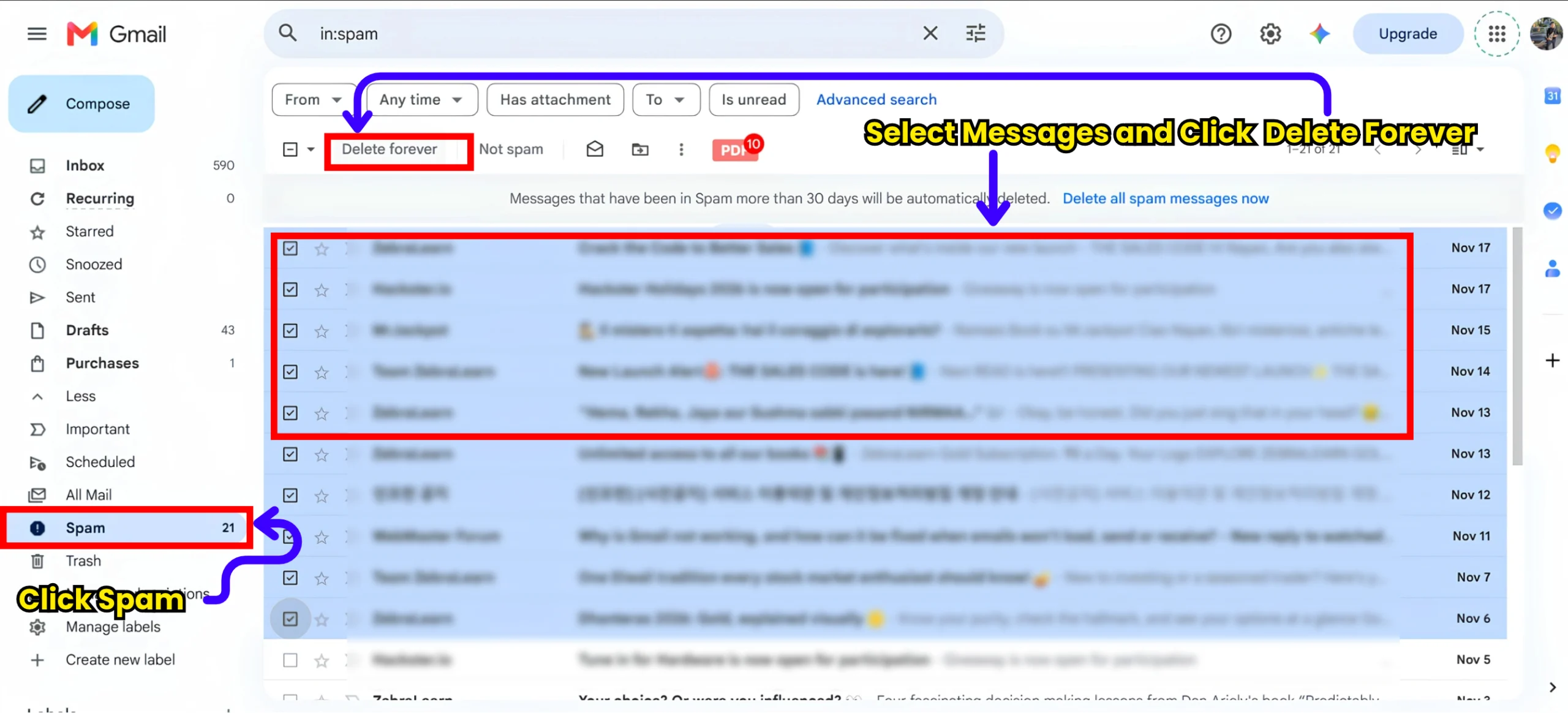
When you delete spam emails you just simply delete emails in your spam folder. Gmail also automatically deletes messages in Spam after 30 days. Steps to delete spam emails are:
- Open Gmail
- In left sidebar, click More, and select Spam.
- Under spam select messages you want to delete.
- Click delete forever.
What happens after deletion?
When you delete messages from your inbox it goes in trash and remain there for 30 days. During this period, user can restore if deleted by mistake. After 30 days, Gmail permanently deletes it. Users can also permanently delete it manually. For this reason, review selected messages before going for deletion. When you organize your inbox in Gmail, first create a safe backup so everything can be recorded and kept safely.
The SysTools Gmail Backup Tool organizes your Gmail data and create backup of Gmail emails, Google Contacts, and Google Drive documents securely.
Frequently Asked Questions
Q: Can Gmail Permanently Block Unwanted Emails?
A: Gmail can block specific sender, but it do not guarantee that every message from same person or organization will be stopped. If sender uses other email address, those messages still reaches inbox. For recurring spam from different senders, report message and consider using filters for clearly identifiable patterns
Q: Should I Block or Report an Unwanted Email?
A: User should block when they want future messages from particular sender to go to Spam. Choose Report spam when message is unsolicited or suspicious and you want Gmail to recognize similar message. Message that looks like an attempt to steal sensitive information, use Report phishing.