

Android’s journey started in 2008, and it has continued to evolve with new features, versions, enhanced performance, and improved security. Now, Android has changed from a basic mobile operating system into a multifunctional platform that supports smartphones, tablets, smart TVs, wearables, and many other connected devices. Over the years, Google has released various Android editions with advanced features, cleaner interfaces, stronger privacy controls, and more to meet users’ evolving needs.
The evolution of Android versions reflects how phone technology has evolved over time. From the early Android releases to the latest editions, each update has introduced new features and capabilities to meet changing users needs. In the following blog, we will discover the entire history of Android versions, their timeline, notable innovations, and technology advancements that have reshaped the mobile experience. Now, let’s begin the discussion.
Understanding the Different Android Versions
Android is Google’s openly developed mobile operating system, which has transformed through several releases over the years. Every Android release is identified by its edition number, an API level, and a codename, which is important. Google used desert-inspired names for public releases up to Android 9; it continued using these themed codenames internally for later versions, including Android 10, which was “Quince Tart”, ;Android 16 is “Baklava”, and more.
Knowing the list of Android versions helps both professionals and beginners to identify how the operating system has improved, from its initial release to the latest Android editions. In this section, we will cover the major versions and highlight their release years, numbers, and codenames in the form of a comparison table. This table is an overview of each generation, so have a look at it:
|
Category |
Android Versions |
Codenames |
API Levels |
Release Year |
|
Core Legacy |
2.2 – 4.3 |
Froyo, Gingerbread, Honeycomb, Ice Cream Sandwich, Jelly Bean |
8 – 18 |
2010 – 2013 |
|
Legacy |
4.4 – 6.0 |
KitKat, Lollipop, Marshmallow |
19 – 23 |
2013 – 2015 |
|
Mid Legacy |
7.0 – 10 |
Nougat, Oreo, Pie, Android 10 |
24 – 29 |
2016 – 2019 |
|
Mid Advance |
11 – 13 |
Android 11, Android 12, Android 13 |
30 – 33 |
2020 – 2022 |
|
Advance |
14 – 16 |
Android 14, Android 15, Android 16 |
34 – 36 |
2023 – 2025 |
|
New Released |
Android 17 |
New Android Edition 17 |
37 – 37.1 |
June 16, 2026 |
From the earliest Android releases to the upcoming Android versions, every generation marks a new stage in the operating system’s growth, with its own identity, version number, and place in Android’s history.
Global Usage of Android Version – Complete Overview
Android has a major share of the global smartphone market, but users worldwidedos not run the same edition of the operating system. Some devices use the latest releases of Android, while other users continue using older Android versions. This difference in editions relies on some factors such as device compatibility, manufacturer updates, and users who are moving to newer smartphones.
An in-depth look at the global distribution of Android versions helps to select which releases are currently more commonly used and how adoption differs across different regions.
Which Android Edition is Most Used Right Now?
According to StatCounter’s August 2026 data for mobile devices, Android 16 is the most used version worldwide at about 26%. On the other hand, Android 15 follows with 17.19%, and Android 13 holds about third position at about 15% approximately. The newer Android 17 edition currently holds a global usage share of less than 5%.
The worldwide usage breakdown of multiple Android versions is presented below:
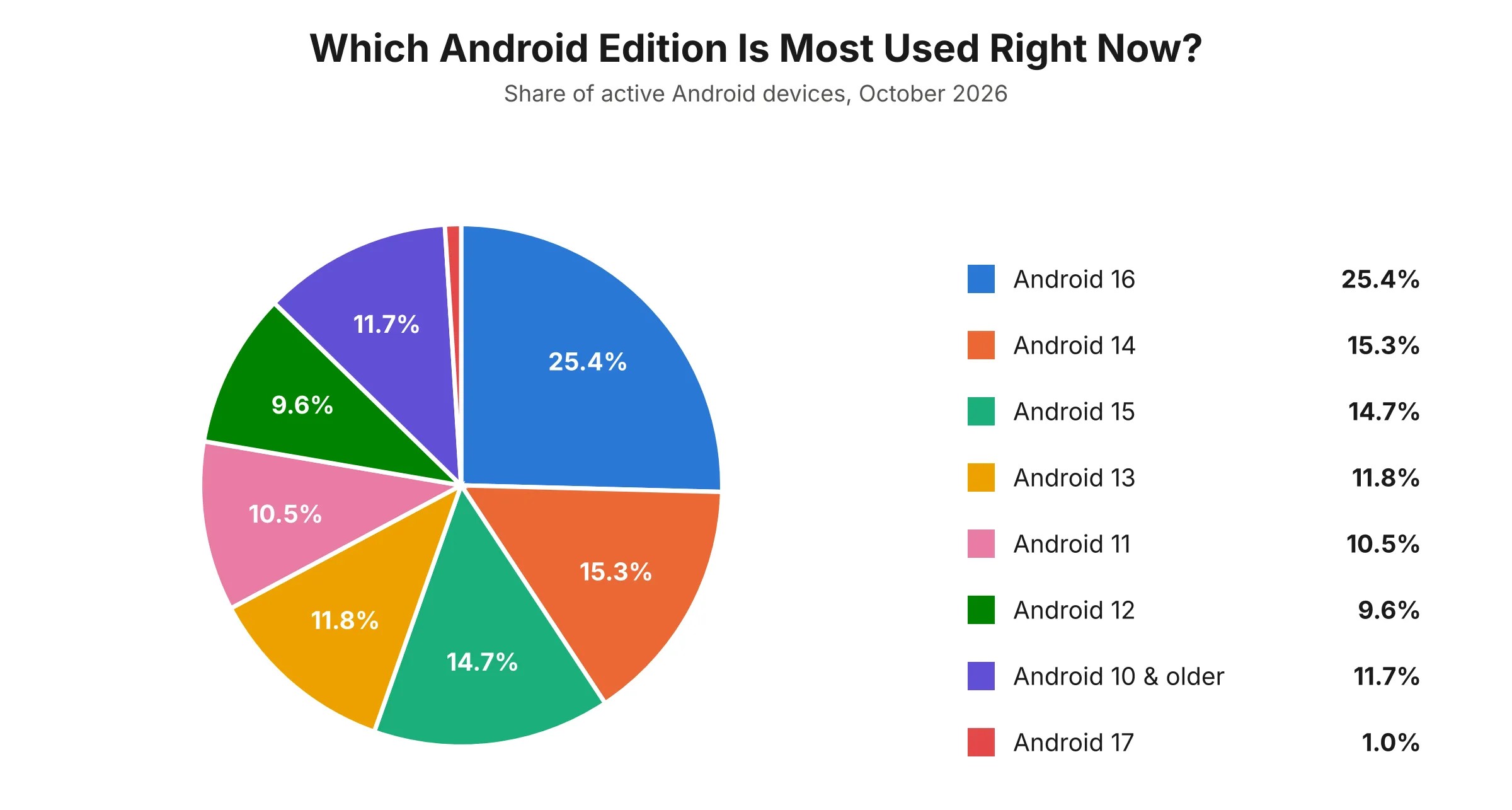
The chart explains that Android 16 leads global usage, but various older editions continue to hold a considerable share. This shows how Android adoption varies across generations and regions.
Why Do Legacy Android Editions Still Hold Significance?
Newer Android releases provide the latest operating system environment, and thousands of smartphones still use older versions. Many users continue using these devices due to their affordability, existing information, or specific usage needs. Many of these have reached the end of their security update cycles, but that doesn’t mean their devices are no longer in use:
Here are some common reasons why legacy Android versions remain relevant:
- Cost-Effective Smartphones: Users may need to use inexpensive mobile devices for many years instead of upgrading to newer or costly models.
- Secondary & Backup Devices: Older phones serve as backups and may contain crucial contacts, messages, and other important details.
- Embedded or Connected Systems: Car multimedia systems and Bluetooth-enabled devices may depend on older Android versions to access and exchange contact data.
- Data Migration & Contacts: When moving to a new smartphone, users need to transfer contacts and other saved information from the older device.
Moreover, understanding the older Android editions is essential when organizing, accessing, or transferring data between platforms or devices. This also helps to ensure better compatibility when sharing contact details across smartphones running different releases of Android.
How to Manage Contacts on Android Smartphones?
Android mobile devices use a central contacts database to store contact information. However, the way users import, access, save, and export data has evolved across various Android editions. Depending on the device and storage, contacts can be saved to the phone’s internal storage, SIM card, or a Google account. This account synchronization makes it easy to access the same contacts across various Android devices.
|
Android Edition Category |
Android Contact Management |
|
Core Legacy (2.2–4.3) |
Simple Contacts app that saves contacts on the phone, SIM, or Google account. Import and export through basic menu options. Limited support for multiple numbers and email addresses per contact. |
|
Legacy (4.4–6.0) |
Cleaner Contacts app with better Google Account synchronization. Supports importing and exporting contacts from internal storage, SD cards, and SIM. |
|
Mid Legacy (7.0–10) |
Improved account synchronization and more manufacturer-specific Contacts apps. Android 10 begins restricting app access to shared storage. |
|
Mid Advance (11–13) |
Google Contacts is the default app on many phones. File access is managed through the system file picker under scoped storage. |
|
Advance (14–16) |
Cloud-first contact management with Google Account synchronization. Supports complex contact fields, including structured addresses and notes. |
Moreover, contact management options can differ depending on Android version and the Contacts app. The following table highlights how contact management has progressed across different Android generations:
How to Import & Export Contacts on Android Phone? Overview
Android smartphones allow users to move contacts between devices using different techniques. The Google Contacts app offers a built-in feature to import & export contact data, usually through vCard files.
Importing contact information means adding previously exported or saved contact data to Android smartphone using a supported contact file.
- vCard Edition Compatibility: The incoming VCF file must use a format supported by the Android device or its Contacts app. Incompatible versions may cause import errors or missing contact details.
- Storage Destination: During import, you can generally select to save contacts to the device’s internal storage or a configured Google account, depending on the available options.
Follow the steps to import contact data:
- Open the Contacts app on your mobile device.
- Move to the Organize or Fix & manage option.
- Choose Import from file and set the location to save the resulting file.
- Browse and load the required vCard (VCF) contact file.
- Lastly, follow the on-screen steps to complete the process.
Exporting contacts means forming a copy of contact data saved on your device and storing it as an individual file for a backup or transfer. Here are the two aspects to determine how contacts are exported:
- vCard Edition: The Android Contacts app may support various VCF versions such as 2.1, 3.0, 4.0, etc. Selecting a compatible edition helps to ensure that contacts can be imported successfully on the destination device.
- Storage Location: The exported VCF file can be saved to the phone’s internal storage or a compatible SD card, depending on the device.
Here are the steps that need to be followed to import contact data:
- Go to Fix & manage or Organize.
- Choose Export to file.
- Select the contacts or accounts you want to export
- Save the VCF file you generated to your preferred location
Example: If your mobile phone contains 500 contacts and you need to export them as a vCard file to an SD card, you are allowed to use that file as a backup or move it to another device.
Important Note: The right-menu names and available options may differ across Android versions and smartphone manufacturers.
Bonus Tip: What if Your Contacts are Saved in Excel/CSV Format?
Many users maintain a large contact list in XLS/XLSX/CSV file format because spreadsheets make it easy to manage names, phone numbers, email addresses, and other contact information. However, Android mobile devices do not support direct import of these spreadsheet files into the Contacts app. To transfer these contacts, you need to convert Excel or CSV file into a supported VCF format.
For this purpose, using a dedicated solution like SysTools Excel to vCard Converter tool is considered the best choice. It allows both technical and non-technical users to transform spreadsheet contacts into VCF files in bulk while mapping the required contact fields. Download the free demo version to explore its functions. It is a handy solution for those who are transferring their contacts from Excel or CSV format.
Universal vCard Compatibility by Android Version
vCard (VCF) is a standard format for storing and exporting contacts between smartphones and other applications or platforms. However, its import and export features vary across Android versions and the Contacts app. Older editions mainly support VCF formats, while newer versions provide enhanced handling of contact information and coordination. The given table compares vCard import and export compatibility with several editions and their common drawbacks:
|
Factors |
Core Legacy |
Legacy |
Mid Legacy |
Mid Advanced |
Highly Advanced |
|
Android Era |
Android 2.2 – 4.3 |
Android 4.4 – 6.0 |
Android 7.0 – 10 |
Android 11 – 13 |
Android 14 – 16 |
|
Native Export (vCard Version) |
vCard 2.1 |
vCard 2.1 |
vCard 2.1 |
vCard 2.1 |
vCard 2.1 |
|
Native Import (vCard Version) |
vCard 2.1 Only |
vCard 2.1 Only |
vCard 2.1 (Strict) & 3.0 |
vCard 2.1 & 3.0 |
vCard 2.1 & 3.0 (Partial 4.0) |
|
Complex Field Support |
Limited |
Limited |
Basic Support |
Improved Support |
Advanced Support, Including Structured Addresses and Notes |
|
Multiple Phone Numbers & Emails |
May Cause Import Conflicts |
May Cause Import Conflicts |
Limited Handling |
Better Handling |
Improved Handling |
|
vCard 4.0 Compatibility |
Not Supported |
Not Supported |
Limited |
Limited |
Partial Support |
|
Google Account Sync |
Limited Compatibility |
Limited Compatibility |
Supported |
Supported |
Supports vCard 4.0 Through Cloud Sync |
Common Limitations
- Simple formatting support. Several phone numbers/emails for one contact can lead to conflicts while importing data.
- Nesting of detailed information or complex details is problematic. Complex fields can be broken down into general text lines or discarded.
- Imports typically depend on traditional formatting techniques. Changing the version number in a file header manually without reformatting the syntax will lead to an import error.
- However, Local Contacts applications may face difficulties reading vCard 4.0 documents generated by iCloud or MS Outlook applications, because the attached profile images may not be taken into consideration.
- More advanced dealing with complex fields like structured address fields and notes. The cloud profile supports the vCard 4.0 format via the Google account sync process.
Why Android Relies on vCard 2.1 Edition?
- Wider device compatibility: vCard 2.1 is a somewhat older but widely adopted standard. Its use would help ensure compatibility with legacy mobile phones, car infotainment systems, and legacy contact management applications.
- Compatible with Legacy Systems: Many earlier devices and applications recognize VCF 2.1 more than newer formats. This makes it an ideal choice when transferring contacts.
- Contact Data Structure: The format supports essential contact details, including names, phone numbers, email addresses, and other important information, making it suitable for basic contact transfers.
- Backward Compatibility: Continued support for VCF 2.1 helps to exchange contact information with older devices and applications without relying on newer vCard specifications.
Exploring Common vCard Scenarios & Compatibility Errors
VCF files are generally used to transfer contacts between smartphones, cloud platforms, and other connected devices. However, this process may vary depending on destination, source, vCard editions (2.1, 3.0, and 4.0), and application compatibility. Below are some common scenarios:
- Android to Android Contact Transfer: Usually light if both smartphones support VCF 2.1. The main problem appears when the old phone cannot read fields from a newer file.
- Wear OS VCF: Smartwatches get contacts through the paired device sync, so contact data stored only on the device may not be visible on the watch.
- Bluetooth vCard: Car systems and feature phones often accept only VCF 2.1, which is why Android keeps that file format as the default.
- Gmail Address Book: Importing a vCard into Google Contacts is the secure way to protect important contacts, since it syncs them across devices.
- iCloud Address Book: iCloud exports are often VCF 3.0 or 4.0, and older Android Contacts apps may drop pictures or fields on import.
It seems like picking the right VCF version might help with moving contacts around on Android devices and other platforms too. Checking format compatibility first before you import anything is probably a good step. That way, you avoid missing details or running into data loss. I think this part gets a bit messy if the versions do not line up right.
What to Do When VCF File Fails to Import on Android?
Sometimes, Android mobile devices may fail to import vCard files due to unsupported VCF versions, improper formatting, encoding errors, or other problems with Contacts app. These issues can prevent users from importing contacts or misplace some important information.
Here are some common reasons:
- Unsupported vCard Editions: The phone may not understand the VCF version used (for example, vCard 4.0 on a legacy Android device), resulting in import errors or missing contact data.
- Incorrect Formatting: A vCard file with an improper structure or formatting may not be recognized by the Contacts app.
- Encoding Issues: Symbols, special characters, or non-English names may cause issues due to differences in character encoding.
- Large VCF File Size: Files containing several contact records may take longer time to process or fail during the import.
- Improper Contact Details: Missing structured fields can prevent certain contact information from importing properly.
Effective Tips to Resolve VCF Import Error:
- Check whether the vCard version is supported by your Android device.
- Verify that the file has a valid .vcf extension and structure.
- Try opening the file through another compatible Contacts application.
- Validate the contact records for missing or incorrectly formatted data.
- Break large VCF contact files into smaller files before importing them.
Note: If you are dealing with large vCard files, then break them into smaller chunks using a professional utility for an easier process. The best way to divide VCF files is to use a dedicated SysTools vCard Splitter Tool, which is designed to reduce file size in just a few clicks.
Time to Conclude!
Android versions differ in their features, contact management functions, and, most importantly, vCard compatibility. While newer releases offer updated contact handling, many users still depend on older devices with limited vCard support. Moreover, always check and verify the supported VCF file format before transferring contacts between Android phones. Choosing a suitable export format and saving data to a Google account helps to ensure smooth migration, reliable backups, and simple access across devices.
Frequently Asked Questions!
Q1: Which Android edition is used the most worldwide?
A: StatCounter put out numbers in August 2026 showing Android 16 at the top. It accounts for 26 percent of devices or so. Android 15 comes in second with 17 percent. Now, Android 17 is currently used as the newest version.
Q2: Is it possible to import vCard file into an old Android phone from a newer one?
A: Yes, in almost all cases. However, everything depends on the Contacts app and vCard format used. Older devices may support VCF 2.1 but deny VCF 3.0 or 4.0 files. Checking the supported file format before importing is crucial.
Q3: Where are all the exported contacts saved on Android smartphone?
A: The save destination depends on Android version and the Contacts app. Older devices may provide internal storage or SD card options, whereas newer ones often let users choose a location through the system file picker. Mainly, locations include Downloads and Documents.
Q4: Why does Android remain sticky on vCard 2.1?
A: Android continues to support vCard 2.1 because it provides better compatibility with older Android mobile devices, basic contact apps, and third-party address books. Its basic structure makes it easier to transfer contacts between devices running on different Android versions, reducing compatibility issues during contact import and export.
Q5: On which platform should I save contacts (Device Storage or Google Account)?
A: Saving contacts to a Google account is more suitable because they automatically sync across supported devices and can be restored after switching to another Android device. On the other hand, Device storage keeps contacts locally and needs a separate backup for transferring them.
Q6: Do all Android versions support vCard 4.0?
A: No, vCard 4.0 compatibility relies on Android version, Contacts app, and other implementations. Some older contact apps support only vCard versions 2.1 and 3.0. If a VCF fails to import, converting it to a suitable vCard edition can be a convenient option.