

If you want to avoid firmware related errors which can simply make your drive unreadable is having a good understanding and knowledge about the types of BIOS on your computer system. My objective in writing this guide is to share with you complete details and knowledge regarding the different types of BIOS – Legacy BIOS vs UEFI, show you in detail how a wrong setting, failed update or dead CMOS battery can lead to BIOS failure which may result in data loss. Here, I will tell you the most important thing that what should you actually do first in this situation and also show you how dedicated data recovery software can bring back all your files safely from your drive that is no longer accessible.
So if you are in a hurry be sure to review these three given points.
- Your files remain on the disk as BIOS very rarely deletes them however it only stops your PC from reading them.
- Do not change settings and also do not format anything from your PC.
- Fix settings if it is simple or you can scan your drive with recovery software.
Quick Summary: There are two main types of BIOS one is Legacy BIOS and another is known as UEFI. Legacy BIOS is the older with 16-bit firmware that boots from MBR disks. UEFI is a modern replacement with support of GPT, Secure Boot and faster startup. One more important thing is that most firmware is supplied by AMI, Insyde and Phoenix.
Why Am I Writing This? I have seen this situation many times where someone enters BIOS to change a single setting, saves the changes, restarts their computer and they are met with the message “No bootable device.” Alternatively drive containing family photos suddenly appear in RAW format. If this has happened to you stay calm as in most of the cases your data is still there and it is full chance of recovery so i will guide you accordingly to find the exact issue why this happened and safe methods to recover files.
What is a BIOS and How It Works?
BIOS which is stand as Basic Input/Output System. It is a small program which is stored on a chip at the motherboard of your computer system. When you turn on your PC then BIOS starts working before Windows loads. It first runs a process called POST (Power-On Self-Test) which allows to check important hardware components like RAM, CPU and storage also to make sure they are ready. Once these checks are complete thereafter it starts the process of loading the operating system.
Your files are not stored in BIOS however they stay on the hard drive or on your SSD drive. BIOS only helps computers to detect and communicate with these storage devices. If something goes wrong with this process here Windows may fail to find the drive or access its files. This does not at all mean that your data has been deleted rather sometimes even a minor change in the BIOS settings is enough to cause issue which cause here a boot failure. So knowing about the different types of BIOS will help you to simply explain why these problems occur.
Types of BIOS: Legacy BIOS vs UEFI, Vendors and Chip Types
There are three practical ways which can be used to classify BIOS – by firmware technology, by vendor and by chip. Find details about each of them below.
1. By Firmware Technology
- Legacy BIOS: This is older firmware which runs in 16-bit mode and boots from MBR disks. It is mostly found on PCs made before 2012.
- UEFI firmware: It is a modern replacement and also supports GPT disks, Secure Boot, a graphical setup screen and faster startup. This is used in most current PCs and servers.
- UEFI with CSM: UEFI having a compatibility mode which is for booting older operating systems or MBR disks on more recent systems.
- Open source firmware: It includes coreboot, SeaBIOS, Tianocore EDK II and U-Boot. Mostly used in Chromebooks, embedded devices and also custom hardware.
- Dual BIOS: It uses two firmware chips on the same motherboard. If one fails then the other can act as a backup. Found on some Gigabyte and enthusiast motherboards.
Note: Learn about the safe practice How to Change GPT Partition to MBR without loosing your data follow this guide to know more.
2. By vendor (who writes the firmware)
- AMI (American Megatrends): Aptio V it is used by most of the retail boards from ASUS, MSI, Gigabyte and also by ASRock.
- Insyde Software: InsydeH2O is a BIOS firmware which is used in many laptops and computers made by brands like HP, Dell, Lenovo and Acer.
- Phoenix Technologies: SecureCore. Phoenix also absorbed Award Software so “Award BIOS” is effectively Phoenix today.
3. By Chip Storage (Physical chip)
- ROM / PROM: It is just a factory level program or this written once and generally found on very old boards.
- EPROM: This can be easily erased using UV light. It is now obsolete.
- EEPROM: This is electrically erasable and it can also be updated.
- Flash (SPI): Here BIOS updates are done by using tools like EZ Flash, M-Flash or Q-Flash. Here the problems occur if the update fails.
Legacy BIOS vs UEFI: Understand the Difference
It is good to compare both legacy BIOS and UEFI. This will help us to clearly understand the major difference between both. So check the table below to know Types of BIOS and where the features of both are compared.
| Feature | Legacy BIOS | UEFI |
|---|---|---|
| Partition style | MBR | GPT (MBR also, via CSM) |
| Max boot disk size | About 2.2 TB (2 TiB) | Far larger (up to 9.4 ZB, theoretical) |
| Boot speed | It is slower | Quite faster than BIOS |
| Secure Boot | No | Yes |
| Setup interface | Text menus & keyboard only | Graphical and mouse supported |
| Windows 11 | Not supported | Needed (with Secure Boot and TPM 2.0) |
How to Check Which BIOS Type PC is Using?
It is quite a simple task if you want to find out what types of BIOS your PC is currently using. It will just take 30 seconds. Also you don’t need to open the BIOS to do this. Check below simple steps and know which BIOS is your pc using.
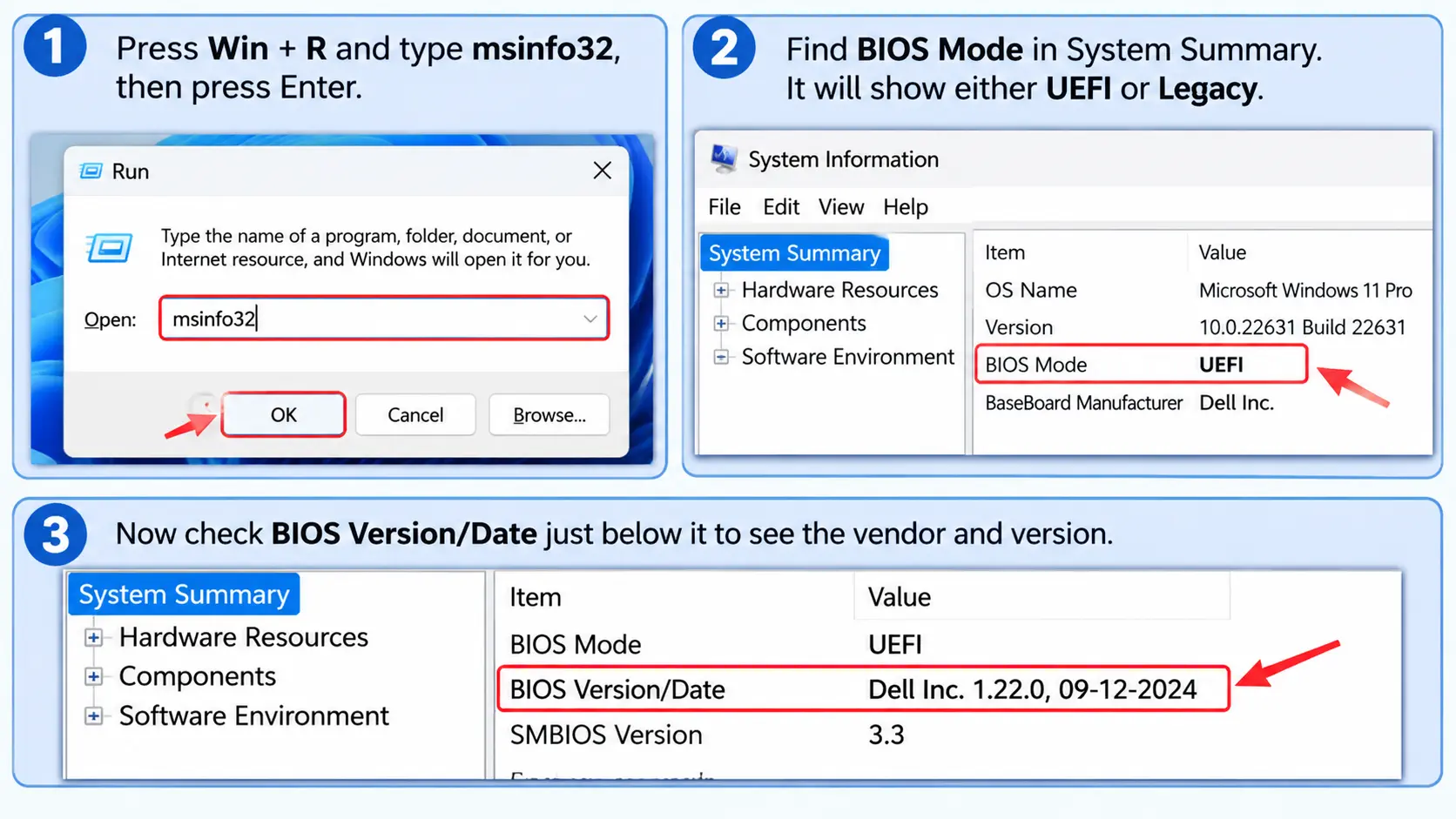
- Press Win + R and then type msinfo32 now press Enter (as shown in guide image above).
- Find BIOS Mode in System Summary. Here it reads either UEFI or Legacy.
- Now check BIOS Version/Date just below it to see the vendor and its version.
How to Enter BIOS (Keys by Brand)
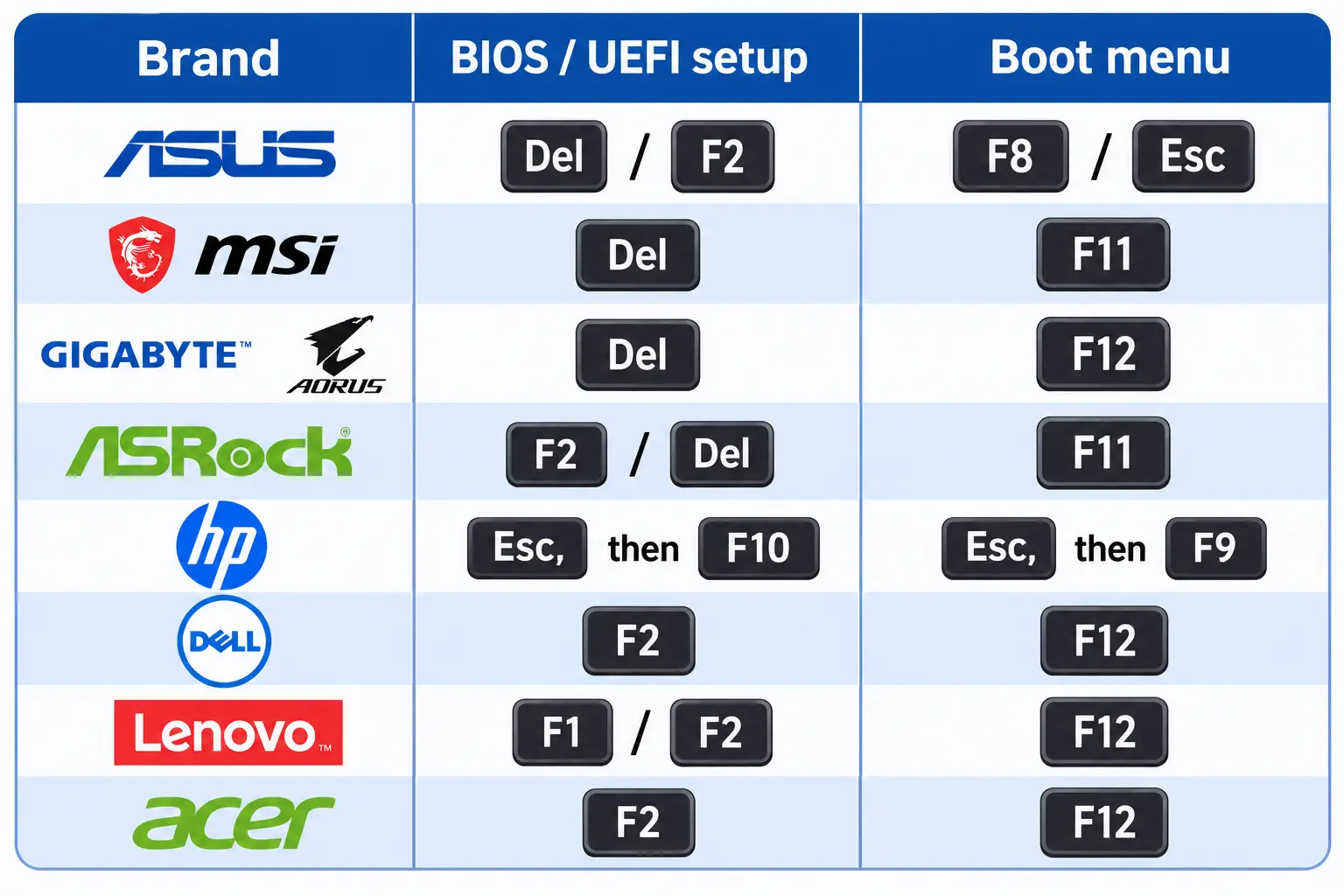
Entering to BIOS is simple and easy but here it depends on your system brand accordingly you need to act. We have prepared a detailed table where you will find each brand with your steps. So check the table below to know what specific step you have to perform according to your brand.
| Brand | BIOS / UEFI setup | Boot menu |
|---|---|---|
| ASUS | Del or F2 | F8 (desktop boards); Esc (many laptops) |
| MSI | Del | F11 |
| Gigabyte / Aorus | Del | F12 |
| ASRock | F2 or Del | F11 |
| HP | Esc, then F10 | Esc, then F9 |
| Dell | F2 | F12 |
| Lenovo | F1 or F2 | F12 (ThinkPad: Enter, then F1 for setup) |
| Acer | F2 (Del on some desktops) | F12 |
Save This Guide Image
You can download and save this shortcut guide image for later. It will help you quickly find the right key when you are entering BIOS or opening the boot menu.
Quick Things to Know: Read this detailed article to know how to Configure Powerful BIOS In PC using Simple Steps.
How BIOS Issue Results in Data Loss?
First we must understand one honest truth that most of the guides do not tell you that having a BIOS problem never wipes your file itself. What actually happens here is one of the three things as explained below:
- Your PC can not see the drive.
- PC is unable to boot from it.
- Wrong setting or repair attempt leads you to overwrite or format your drive.
In order to know Types of BIOS you also need to check some of the common BIOS Settings below which may cause boot and drive problems
1. Switching Between Legacy and UEFI
Changing to Legacy BIOS vs UEFI boot mode may stop Windows from starting if there disk using a different partition style. In this case you may see an Operating system not found error.
2. Changing SATA or RAID Mode
If you are switching between AHCI, IDE or RAID then it can cause INACCESSIBLE_BOOT_DEVICE error. Changing Intel RST/VMD settings may also make your partitions disappear from Windows.
3. BIOS Update or CMOS Reset
A failed BIOS simply prevents your PC from booting just like a bad CMOS may cause the BIOS to restart and also the SATA mode to reset.
4. BitLocker and TPM Changes
When you are changing BIOS or TPM settings here it can trigger a BitLocker recovery key prompt. Now without a recovery key the encrypted data remains locked.
5. Wrong Boot Order or Drive Not Detected
If there is incorrect boot order well it may then make the PC start from a USB drive in place of the internal disk. If you found that your drive is missing from BIOS then check its cable, port and connection before you start assuming data loss.
Symptom and Your First Action
| Situation | Symptom | What to do |
|---|---|---|
| If SATA mode changed | It seems like an inaccessible boot device or boot loop. | Just restore your original mode |
| Legacy/CSM vs UEFI mismatch | Disk shows unallocated or it won’t boot | Match boot mode to partition style and do not initialize your disk |
| When drive missing in BIOS | It is not listed in boot menu | Check cable and port if it is still absent then it is hardware failure |
| Failed BIOS update or power cut | PC won’t start | Should reflash firmware |
| Having dead motherboard | No power or POST | Connect your drive to another working PC |
Which Path Should You Follow?
Getting confused on types of BIOS is a common mistake among most of the beginners so do not worry if you have found it confusing. The first step as suggested is the same for everyone – you must stop experimenting and then choose your level.
Check this if you are a beginner:
- Restart your PC and enter the BIOS using the key table above.
- Now choose Load Optimized Defaults, save and exit.
- Check if drive appears in the boot menu. If yes then you are done.
If you are intermediate:
- You need to check SATA mode and then match it to your Windows install (generally AHCI).
- Now check boot mode. If your disk is GPT then use UEFI. If it is MBR then use Legacy/CSM.
- Lastly replace the CMOS battery if settings keep resetting.
If you are a PRO or advanced user:
- Using a recovery environment you need to run diskpart, then list disk. An asterisk (*) under the “GPT” column means the disk is GPT.
- Do not run chkdsk /f or repair tools on a drive that has important files or data as running this will risk a loss of data.
Recover Files with SysTools a Safe and Secure Solution
When setting a fix does not work in your case and it does not bring your files back as Windows may detect the hard drive but still it fails to open its partition for example your partition may appear as RAW or it shows you a format prompt due to file system corruption. Now the best option is choosing SysTools HDD Recovery Software as it is built for exactly this same situation. Using this utility you can get your lost data back safely. It reads your drive directly to find data even when Windows can not mount the partition.
What it can help you with in BIOS related cases:
- If drives showing as RAW after a mode switch
- Deleted or lost partitions after RAID or boot-mode changes
- Accidentally formatted drives from a reinstall
- It Works on internal HDDs, external hard drives and also USB drives
- Allows to Preview data before saving them so you only recover what you want
What About SSDs?
The working of SSD if I compare it with HDD is very much different but SSDs can also become undetected if you change BIOS setting like changing the SATA mode or Intel RST/VMD settings. So you must first check the original BIOS settings and reconnect the drive if needed. If your files are deleted remember SSD uses TRIM function which allows quick data removal. So avoid using the drive as it will overwrite data and look for safe SSD recovery options. If NVMe SSD not showing in windows then this guide to Fix NVMe SSD Not Showing Up in Windows will help you find common reasons and quick fixing steps.
FAQs Related to Types of BIOS
Q1. Can a BIOS issue delete my files?
No. The BIOS issue does not mean it will delete your files however it can only stop your computer from accessing the drive. Your files may be lost if your drive is formatted, partitions are deleted or if there is any new data overwrites existing files.
Q2. Which types of BIOS is very safer for my data?
My advice is to use UEFI as it is surely a better option if you have a modern computer. It supports GPT which helps you to keep backup of partition information and also secure boot which helps you to protect your systems from any harmful startup software.
Q3. Can a BIOS setting make a hard drive disappear?
Yes. If you are changing BIOS settings by using SATA mode or boot mode then it can stop your computer from detecting the hard drive. Here your drive still contains all its files. If you restore this to previous settings then it may make it visible again.
Q4. Why does my M.2 SSD disable a SATA port?
There are some motherboards which share connections between M.2 slots and SATA ports. When you install M.2 SSD then the motherboard may disable SATA port to share available connections. You need to check your motherboard manual to see which ports are affected.
Q5. What is the difference between BIOS and UEFI?
Legacy BIOS is older firmware that uses 16-bit mode and it supports MBR disks on the other hand UEFI is newer and it supports GPT disks, Secure Boot, faster startup and graphical menus.
Conclusion to types of BIOS
Learning about the types of BIOS and understanding key differences between Legacy BIOS vs UEFI gives you actual control as we have already explained in this guide. If you restore the correct setting then most BIOS related issues can be easily resolved. If that doesn’t work do not panic as your files can still be recovered just remember to avoid writing any new data to the drive. If you are a beginner then you must first start with simple fixes as explained above if it does not work then move to scan your drive using recovery software.