

What is point in time restore in Windows 11? It is a built-in Windows feature that takes your PC back to earlier working state. It simply brings back your apps, settings and files from a saved snapshot. By default Windows saves one snapshot every 24 hours and keeps it for 72 hours.
It sounds like a foolproof safety net but it is not. Many people only find its limitations once a file has already been lost. So in this guide we have explained how it works, how long the process takes and what steps you can take when it fails to provide a solution.
5 Quick Facts to Understand
- This works on Windows 11 version 24H2 and later (Home, Pro & Enterprise editions)
- It takes a snapshot every 24 hours and keeps it for 72 hours by default.
- Covers only Windows drive (generally the C: drive).
- It runs from Windows Recovery Environment (WinRE)
- It is disabled by default on PCs managed by IT.
What Is Point in Time Restore in Windows 11?
First it is good to understand what this actually is. Point in time restore is a recovery tool that is made by the Microsoft team. It saves a snapshot of your Windows drive using the Volume Shadow Copy Service (VSS). System Restore uses this exact same technique. If there is a faulty driver, a problematic update or any incorrect setting messes up your PC then you can use this feature to select a snapshot and Windows will revert your drive back to that previous state.
The biggest difference here is files. ‘System Restore’ does not affect your personal files where ‘Point in time restore’ brings back local files on your Windows drive to the exact state they were in at that specific time.
“Think of a save point in a video game. If you make a bad move then you need to go back to your last save. Here Windows also does the same with your PC. It is important to note one thing that any work you have done after choosing a restore point will be lost. Suppose if you have searched for “what is point in time restore in Windows 11” on Google then this is the simple answer for you to understand this.”
Point in Time Restore vs System Restore vs Backup
People generally get confused about these tools but you don’t have to be. We will help you understand them clearly with the help of a table. The main differences between them are outlined below please take a look at the table.
| Tool | What it brings back | Where it lives | How long it lasts |
|---|---|---|---|
| Point in time restore | Your Apps, Settings and Local files on Windows drive | On your own PC | By default it is 72 hours |
| System Restore | System files, drivers, settings and programs (not your personal files) | On your own PC | Up to 60 days on 24H2 and later |
| Backup (cloud or external drive) | The files you chose | Outside your PC | As long as you keep it |
| Data recovery software | Deleted or lost files still on the disk | Reads disk itself | It depends on whether data was overwritten or not |
Is Point in Time Restore Turned On for Your PC?
What is point in time restore in Windows 11 worth if it is switched off? So you need to check it first.
Microsoft rolled it out in 2026. And according to a report by ‘Windows Latest‘ it was introduced with the optional update KB5095093 in June 2026. On home PCs and unmanaged Pro PCs, this feature remains enabled if the Windows drive is 200GB or larger. However on IT managed devices it is disabled by default. Microsoft has given a statement that it will be enabled by default starting with the 26H2 version of Windows 11.
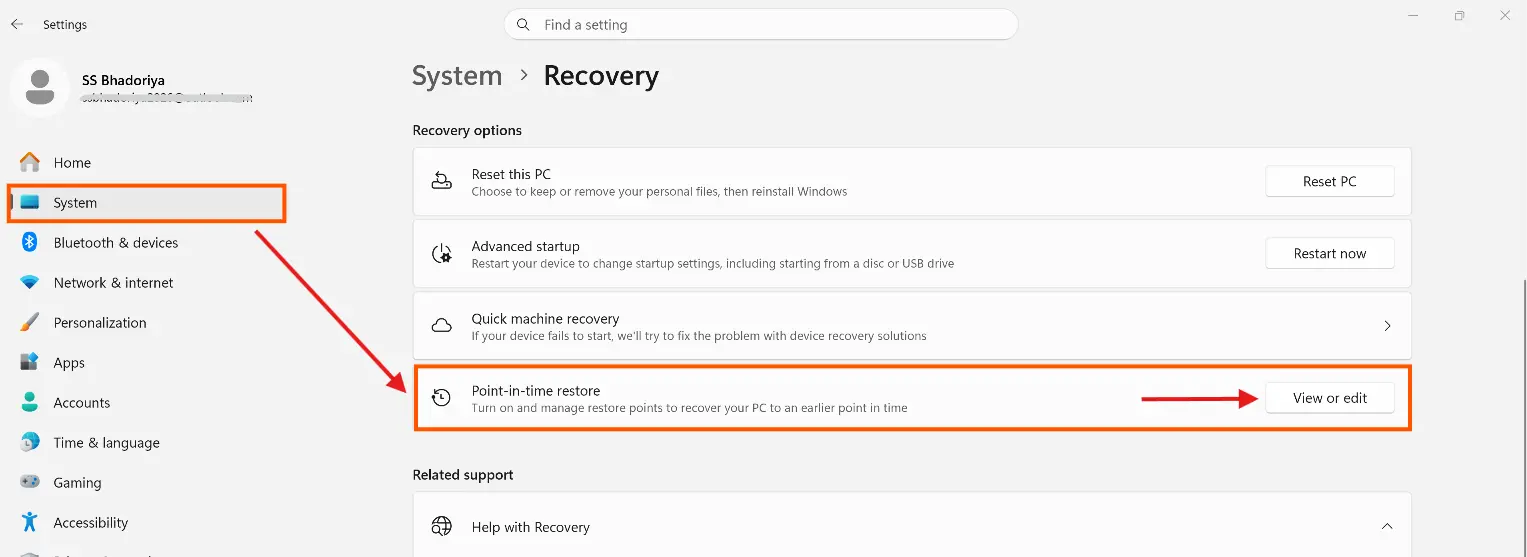
Follow these simple steps to check it on your PC:
- Open Settings go to System and select Recovery.
- Here find Point in time restore and click on View or edit.
- Now you need to approve the User Account Control prompt.
- And make sure that the feature is turned on there.
You need to be a local administrator to see or change these settings.
How to Use Point in Time Restore in Windows 11
There are many users who normally wanted to know “what is point in time restore in Windows 11” and search on Google they simply stop at the definition. But here is how to actually run it. You will not find a restore button in the normal Settings page as the restore runs from WinRE. Find below the simple working steps:
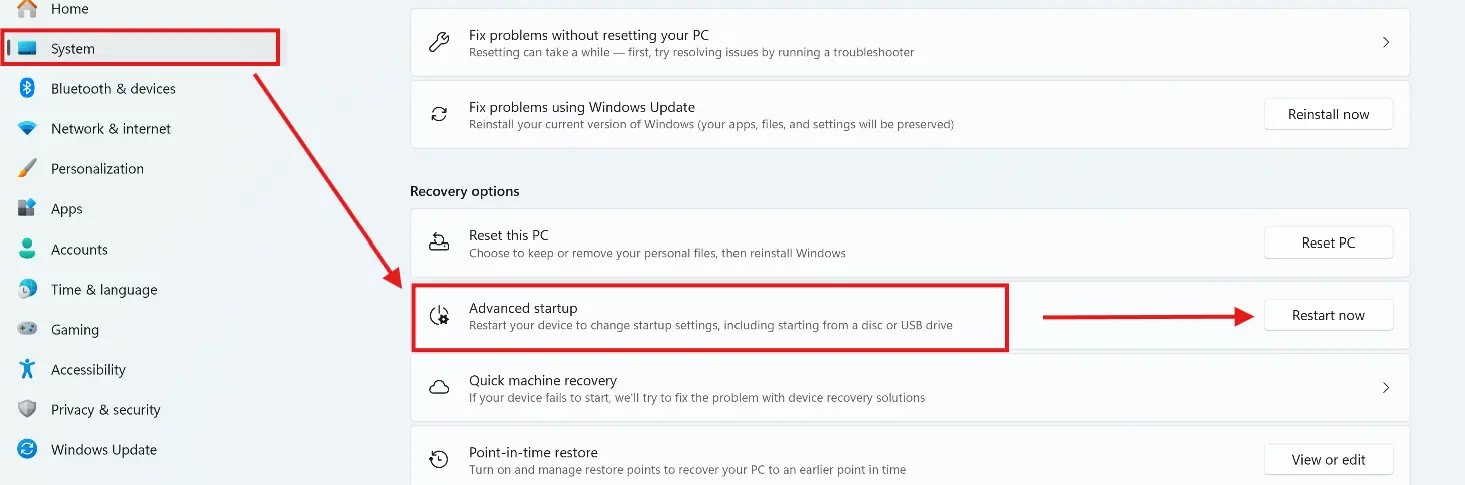
- Go to Settings > System > Recovery.
- Here click on Restart now next to Advanced startup.
- Now choose Troubleshoot then Point in time restore.
- Enter your BitLocker recovery key if Windows asks you.
- Lastly pick a restore point, read the warning and then start restore.
I advise you to plug in your laptop first. If Windows fails to start here WinRE will open automatically after a few unsuccessful startup attempts. From there you can launch System Restore. Only the Windows drive will be restored and your other drives will remain unaffected.
Point in Time Restore Windows 11 How Long Does it Take?
Microsoft states that the recovery process takes only a few minutes, rather than hours. Now some users however report that it can take 30 minutes or longer but it is completely depending on the amount of data available on your drive.
The time needed for this process depends on three factors:
- The amount of data on the Windows drive.
- The speed of the drive.
- The number of changes made since the snapshot was taken.
Please note that you must not turn off your PC when this process is underway. Once it is complete then you should sign in and run Windows Update as the restore process may remove some recent security updates.
Where Point in Time Restore Falls Short
So what point in time restore in Windows 11 can not do? Here are some limitations that you should definitely look at and understand.
- Only the Windows drive: Files that are located on the D: drive or any other drive is not safe.
- A 24 hour gap: If you restore to a snapshot from the previous night any work you have done since then it may be lost also OneDrive will not be rolled back.
- 72 hour limit: Your old snapshot will be deleted after three days.
- Same disk risk: These snapshots sit on your own drive so if your drive fails then the snapshots are lost along with it.
- Not a backup. It has been stated regarding this feature that it is unable to replace system image.
- WinRE only: You can only start a restore locally from within the recovery environment.
Important To Know: It is important for you to know that Point in Time Restore (PITR) and recovery of data are two different methods for getting your lost or damaged data back but they are not the exact same. The key difference between them lies in whether or not a prior backup or transaction log is available.
Point in Time Restore vs Dedicated Recovery Software
Both tools help you when your data goes missing but they work in very different ways which is important for you to understand. Point in time restore needs a saved snapshot but dedicated recovery tools do not need any snapshot. It works on the disk itself. Check below the complete comparison table between both.
| Comparison Factor | Point in Time Restore | Data Recovery |
|---|---|---|
| What you need | Last 72 hours of snapshot | No previously saved backup Needed |
| Where it works | Windows drive from saved snapshots | Directly on your drive where lost data |
| What brings back | Whole Windows drive as it was | Only the files that are still on the disk |
| Choice of files | No. It rolls back everything on drive | Yes. You pick the files you want |
| Speed | Usually minutes | It takes few minutes to hours – based on drive size |
| Risk | Work done after a snapshot may be lost. | Files may be gone if space was overwritten |
| Cost | Free as built into Windows | Need to pay for software cost |
Point in time restore undoes a change where in case of recovery it finds what was lost from your drive like you using recovery software you can recover all the deleted files or folders from your lost drive.
There is a high chance of recovery for the hard drive if I compare this to SSD. Here software scans raw disk sectors, rebuilds corrupted file systems and allows you to recover all your important files or only the selected files or folders that you need. If no snapshot exists then only a recovery tool can help you from this situation.
Suggestions: Before recovery it is good for you to run a free hard drive health check now to scan your drive health and performance.
When Recovery Become Important
If you came here asking “what is point in time restore in Windows 11” because you already lost your file you can simply start here.
Restore points cannot help you when the feature was off, if the snapshot expired or your files lived on another drive. In such a situation you need recovery of your important files and folders. Here a reliable hard drive recovery software reads the disk itself and looks for all the files that are deleted or lost but it is not yet overwritten. You can download a demo version of SysTools utility to test software features.
Simple Steps After Data Loss
Once you have got your answer to what is point in time restore in Windows 11 now you should treat it as a short term undo button not a backup. If you have already lost your data do this:
- Stop using your drive as new writes will overwrite deleted files.
- Must install recovery software on a different drive not on the same affected drive.
- Also save recovered files to a different drive never the one you are scanning.
- Keep your BitLocker recovery key ready if your drive is encrypted.
A Common SSD Case Where Files Gone After a Restore
Aman is a video editor and has a 512GB NVMe SSD laptop. He searched “what is point in time restore in Windows 11” just after a bad driver update broke his display. On Monday morning he ran the restore and the display worked again. But the client project he saved on Sunday night was missing. The last snapshot was from Saturday night so Sunday’s files did not exist in the restored drive. The Recycle Bin was empty too because he never deleted the folder by hand.
So in this case Aman stopped using his laptop right away. That was the right move he took. SSDs work differently from hard drives. They use a command called TRIM that clears unused blocks in the background and this can also wipe deleted data for good. So time matters and he decides to scan the drive using SysTools SSD Recovery Software to look for all the missing project folders.
One thing you must understand here is that no tool can promise a full recovery so your chances are better when you scan early and write as little as possible to your drive.
Frequently Asked Question
Q1. What is point in time restore in Windows 11 used for?
This restores your Windows drive to a snapshot from the last 72 hours. You should use this if there is a faulty update, driver or setting that causes issues with Windows.
Q2. How long does point in time restore take in Windows 11?
It generally takes a few minutes but also it is noted that some users report 30 minutes or more depending on your data size.
Q3. Is point in time restore the same as System Restore?
No. Both use VSS, but ‘System Restore’ does not touch your personal files whereas ‘Point in Time Restore’ does not operate in that same way.
Q4. Does it work if Windows will not start?
Yes. You can run it from the Windows Recovery Environment.
Q5. Can I recover deleted files from an SSD?
Yes. Sometimes you can If TRIM has not cleared your deleted blocks yet then scan may still find them. But if TRIM runs then your data can be gone for good. Stop using SSD right away and run a scan with a dedicated tool for SSD.
Q6. Should I use point in time restore or dedicated recovery software?
Using point in time restore is good when Windows itself is broken and if there are recent snapshot exists. But you must go with recovery software when your files are deleted, a drive was formatted or if there is no snapshot available.
Q7. Does point in time restore protect me if my hard drive or SSD fails?
No. Since snapshots are stored on the same drive and they could also be lost if your drive fails. You should definitely keep a proper backup on an external drive or in the cloud and use recovery software for any files that were not backed up.
Final Thoughts
So what is point in time restore in Windows 11 best for? It is very useful when something goes wrong recently on your Windows drive and you want to bring your system back to earlier working state. However it may not help you with older problems, files on other drives or failing hard disks. You should keep this feature enabled but remember you must always maintain a separate backup of your important files. If some files are still missing then must try to recover them as soon as possible and save that recovered data to a different drive.