

Are you unable to open your MS Outlook? In this write-up, we will discuss some actual working techniques for “Outlook could not start last time” error. The mentioned tricks will help you to run Outlook again with no errors. The fixes will work in all versions of MS Outlook.
Fixing the error i.e. ‘Outlook couldn’t start last time safe mode could help you troubleshoot the problem’ is one of the chief concerns in front of various associations. Inevitably, this is one of the major challenges; however, there are several ways to resolve this issue. If you are the one, who is struggling to find a proper solution for the same then, you are certainly on the right page. Here, we are going to introduce users with some manual workarounds to resolve “Outlook could not start last time safe mode could help you” error in Outlook 2021, 2019, 2016, 2013, 2010, 2007 & 2003.
Sometimes while working with MS Outlook, users get an unexpected error prompt that asks the user to open Outlook in safe mode. No matter whether the user clicks yes or no, the next time when Outlook starts, it will display the same warning message. While MS Outlook cannot start or fails to load the program it generates this error message. The main indicator of this error is quite obvious and easily recognizable. When the user clicks on Outlook’s icon, an hourglass emerges and then, the user will get the error as shown in the screenshot below:
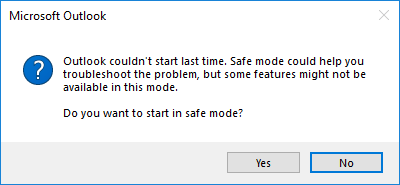
Reasons for Error: Outlook Couldn’t Start Last Time
- Instead of extending Outlook’s functionality, poorly designed or incompatible add-ins can prevent it from starting normally.
- An MS Outlook profile stores email configurations, preferences and account settings, however, if corrupted, a damaged Outlook profile may cause startup errors.
- Improper Outlook shutdown due to reasons like system crash or power failure may also cause the application to trigger Safe Mode during the next startup.
- The MS Outlook navigation pane manages folders such as Inbox, Calendar, and Sent Items. If these settings become corrupted, it can also prevent MS Outlook from launching properly.
- Oftentimes, certain antivirus programs or Windows updates may also interfere with Outlook’s startup process.
Now, a query arises that why “Outlook could not start last time” error occurs? Well, this issue usually arises with installed Terminal services that are running currently. As Outlook starts, it generates the following key in its registry:
HKEY_CURRENT_USER\Software\Microsoft\Office\10.0\Outlook\Resiliency (HKCU)
If there is no problem during startup of MS Outlook, this key becomes deleted automatically. Otherwise, if any error is detected in Outlook startup testing, subkey under resiliency becomes created and Outlook prompts same warning message as stated above.
Sometimes, while the terminal server is in install mode, a program deletes the subkey from the Resiliency key, and this key is copied to the location mentioned below under HKLM:
HKLM\Software\Microsoft\WindowsNT\CurrentVersion\TerminalServer\Install\Software\\
Microsoft\Office\11.0\Outlook\Resiliency
Now, when Outlook again tries to access the key via Terminal Server application mode, it finds it missing. Then, Outlook searches for the key in HKLM and when it gets TermSrvCopyKeyOnce under Resiliency, it replicates the resiliency key again into HKCU.
Therefore, Outlook always searches for the Resiliency key, and after finding it, Outlook prompts the same warning message.
How to Resolve “Outlook Couldn’t Start Last Time. Safe Mode Could Help You Troubleshoot the Error.”?
- Open MS Outlook in Safe Mode
- Turn-Off the Problematic Add-Ins
- Reset the Navigation Pane
- Use the SysTools Outlook Recovery Software
1. Start MS Outlook in Safe Mode
- Press the Windows + R keys on your keyboard.
- Then, type in the command: outlook /safe.
- Afterward, press Enter.
If your MS Outlook opens successfully after following the steps then, the issue is most likely caused by your add-ins, profile issues, or corrupt settings. In the following segments of this article, we will see how to tackle all of these.
2. Disable the Problematic Add-Ins If Outlook Couldn’t Start Last Time
Note: Opt for any particular technique as per the installed Outlook version.
For MS Outlook 2003 and Earlier Versions
If you are working with Outlook 2003 or any older version of Outlook then, go with down steps:
- Select Help tab from toolbar
- Click on About Microsoft Outlook
- From About Microsoft Office Outlook wizard, select Disabled items
- For re-enabling a disabled item, choose the Disabled Items >> Enable
- Then, click on Close >> Ok.
For MS Outlook 2007
If you are having Outlook 2007 then, follow the mentioned steps:
- Click on Tools menu from toolbar
- Select Trust Center from listed options
- In Trust Center wizard, select Add-ins
- From Add-ins section of Trust Center, click on Disabled Items >> Go
- Now, click on Close >> Ok
For MS Outlook 2010
If Outlook 2010 is installed on your PC then, you have to do following:
- Select File menu from toolbar and click on Options
- From Outlook Options wizard, choose Add-ins
- Click on Add-ins from Outlook Options dialog box
- Select Disabled Items option from manage list and click Go
- For re-enabling any disabled data item, choose the item from Disabled Items
- After selecting item, click on Enable button
- Now, click on Close >> Ok
For MS Outlook 2013 and 2016
If the mentioned issue occurs in Outlook 2016 or 2013 then, try the following steps:
- Hold down the CTRL key while launching Outlook
- After opening Outlook, select File >> Manage Add-ins
- Now, disable the plugins (if they are the cause of issue)
- Otherwise, if any add-in is enabled, select it and click on Disable this add-in
- Now, click on Close >> Ok
- Restart Outlook and your problem will be resolved surely.
3. Reset the Outlook Navigation Pane
- Press Windows + R keys on your keyboard.
- Doing so, type in the command: outlook.exe /resetnavpane.
- Then, press Enter.
The above-mentioned command resets the navigation pane to the default settings which may help in resolving the startup issue.
4. Professional Solution to Fixing the “Outlook Couldn’t Start Last Time. Safe Mode Could Help You” Error
If you are facing the trouble in Outlook with error “Outlook Couldn’t Start Last Time” , it is recommended that you try running ScanPST.exe and if the corruption level is severe then, use the SysTools Outlook PST Repair Tool as that will help you get back all the data without causing any data loss.
For Mac Version:
To fix any issue related to the Mac Outlook data file try the Mac Outlook Recovery Tool. The tool is capable of fixing any issue related to Mac Outlook OLK14, OLK15, and OLM files.
Conclusion
Sometimes while working with Microsoft Outlook, users get some unpredicted error messages i.e. ‘Outlook Couldn’t Start Last Time’. After getting the error, Outlook users get infuriated and they search for the techniques to fix this issue. Thus, in this blog, we have mentioned some easy manual solutions to solve “Outlook could not start last time safe mode could help you” error. Users can opt for any method as per installed Outlook version.