

You have finally downloaded your Gmail data using Google Takeout but instead of readable emails you can actually staring at a ZIP file containing a strange .mbox extension file. A file that no program seems able to open properly and if you want to read its contents then you will need to use a reliable MBOX File Viewer. If you need to convert Google Takeout to PDF for printing, legal records or for safe long-term storage then you are not alone here as there are many users who want to know simple steps to convert to PDF.
The good news is that it is very easy to do. This guide on How to Convert Google Takeout to PDF will explain everything deeply to solve this problem and suggest you free manual and professional methods to quickly get the solution you want.
Quick Summary
Do you need to convert Google Takeout data into PDF format? If you have a Gmail export then you should know that it comes as an .mbox file – A format that cannot be read directly. In this problem solving guide we will discuss and compare a free manual method with two special tools which allow you to search for any specific emails, print them and easily share them as clean PDF files.
Short on Time? Convert Google Takeout to PDF in 3 Major Steps
If you do not have time for the full article we have then suggest you to follow these three steps to cover everything quickly:
- Export and extract: Go to takeout.google.com and there select only Gmail, create export, download your ZIP and extract it. Inside the Mail folder you will find a .mbox file.
- Load MBOX file: If you have few emails then import it into Thunderbird (free). But if you have hundreds of emails then add a file or folder into a dedicated tool.
- Choose PDF and convert: Now select PDF as the output and choose a destination folder to start the process.
Facts Check
- Google Takeout gives you Gmail data as an MBOX file not as PDFs.
- Thunderbird is free but it works one email at a time and it is very slow.
- Best way to convert Google Takeout to PDF in bulk is using dedicated tools.
- Download links from Google Takeout expire in 7 days so save and back up ZIP files.
- Keep your original MBOX file backup as PDF is a read only copy and It cannot be re-imported into Gmail or Outlook.
What Exactly Is Inside a Google Takeout Gmail Export?
Many users believe that Google Takeout will provide them with a folder containing organized emails. But is that actually the case? No it is not. You can understand what you actually receive by reading the points provided below in detail:
- One or more ZIP files: If your file is bigger than archive size (1, 2, 4, 10 or 50 GB) selected by you in this case Google will split it into multiple parts.
- A single large .mbox file: Your all emails here are stored as plain text inside one container and it is generally named something like “Trash.mbox”.
- Labels stored as tags: Let me clarify that Gmail labels are not folders and they are saved as text tags associated with the files.
That is why when you double-click on the file it will not open. You need an email client software to understand the data of your MBOX file. So if you only want to look inside then read our guide to know how you can Open Google MBOX File using Google Takeout safely.
Why Convert Google Takeout to PDF
People rarely convert without any reason so you need to look at your situation in the table below to determine what matters most to you.
| Your situation | The problem you face | What you really need |
|---|---|---|
| Lawyer or investigator | MBOX emails are not court ready | Searchable PDFs with details of email |
| Business or HR manager | Archive of emails before account get closed | Bulk conversion needed with attachments |
| Student or researcher | emails buried in large MBOX files | Quick search needed and selected PDF export |
| Person closing a Gmail account | Needs a permanent offline email copy | PDFs that open on any device |
| IT admin or compliance officer | Must provide emails for audits or requests | Bulk conversion needed with filters |
| Anyone who needs a printout | You cannot print directly from Takeout files | Print ready PDFs |
Method 1: Convert Google Takeout to PDF for Free Using Thunderbird
Before starting it is good to know that this method works well when you have only a few emails and you do not mind manual work as it will take time. But if you have hundreds of emails then skip this and move to Method 2.
First Get MBOX file from Google Takeout
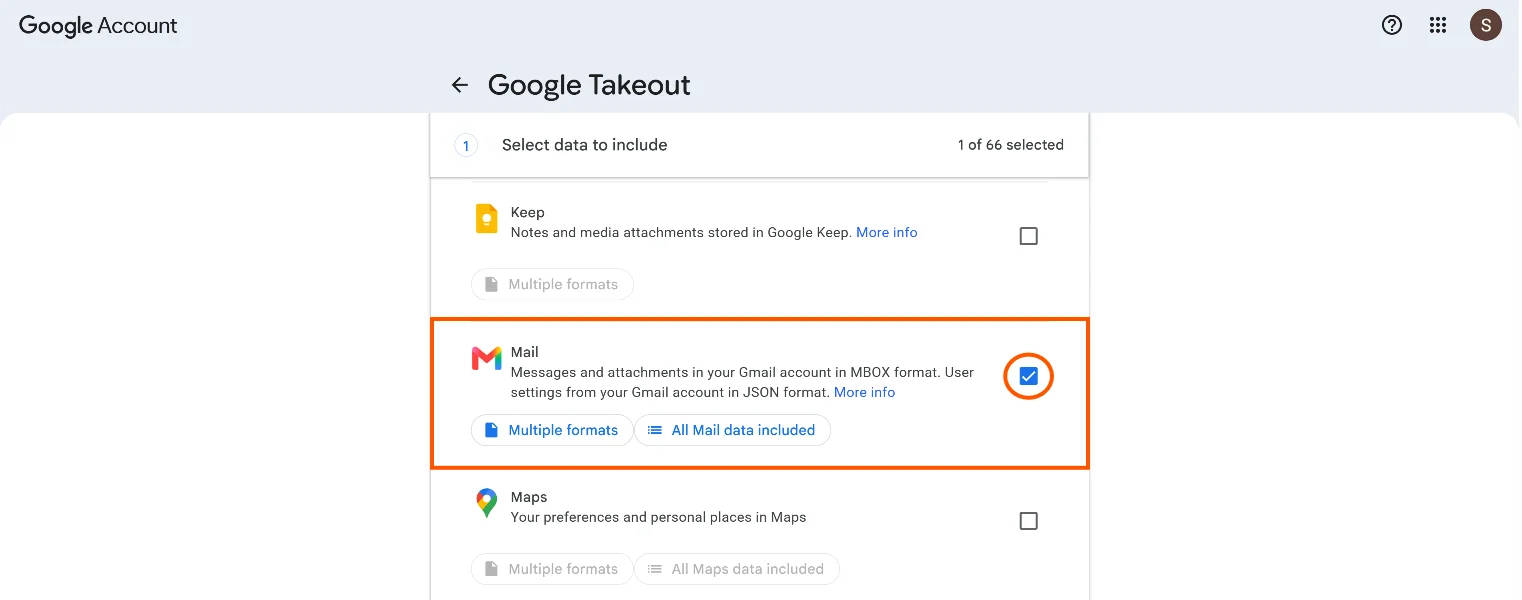
- Open takeout.google.com and there you need to sign in.
- Click on Deselect all and then tick only Mail.
- If you do not need everything so use the option to include only selected labels.
- Click Next step, choose Send download link via email, file type .zip and archive size (2 GB is a safe default).
- Now click on Create export. This is depending on your mailbox size also this can take from a few hours to a few days.
- Once done simply Download the ZIP files from the email link within 7 days then extract them.
Time to Convert emails to PDF Using Thunderbird
- You need to first Install Mozilla Thunderbird and then open it.
- Now install ImportExportTools NG add-on from Add-ons and Themes.
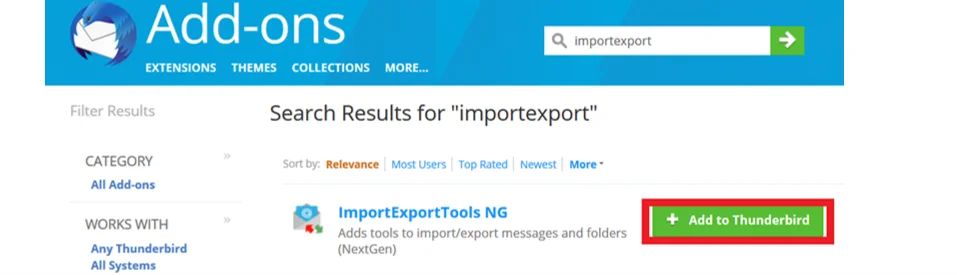
- Right-click Local Folders, choose ImportExportTools NG and then Import mbox file. Now select your .mbox file.
- Open the imported folder and simply select emails you want.
- Right click and choose Print then select Save to PDF as the printer.
- Lastly you can choose a location, name of the file and simply save it.
Limitations of Manual Method
- Emails are saved one by one so your large file can take days.
- Your attachments are generally not included inside PDF.
- You get limited control over headers, file naming and layout.
- If you have large MBOX files then it can make Thunderbird slow or unresponsive.
Method 2: Use Dedicated Converter – Best for Large Files and Search
When manual steps become a headache for you due to slow and hanging issues then you should move to a reliable tool to convert Google Takeout to PDF in bulk. SysTools MBOX to PDF Converter is one such option you can trust. This Software is best for investigation purposes. You are allowed to add a large MBOX file and offer you a search function by using specific filters to find the exact emails you need and then export them to PDF. The software will cost you $69 with its all advanced features.
How to Convert Google Takeout to PDF Using SysTools
-
- Download and install the software on your Windows PC.
- Thereafter you need to add your MBOX file or entire folder.

- Preview email and use the search option to find emails by keyword, sender or date range.

- Now Select PDF as the saving format.

- Just Pick destination folder and click Convert.

Method 3: Budget Option Another SysTools Converter at $39
You can also use SysTools MBOX Converter to affordably Convert Google Takeout to PDF at just the cost of $39. But you will not get a search function to search your large mbox file for any specific email and printing need. So if you just want PDFs from your Google Takeout emails and nothing else then you can use this tool else method 2 is best to go.
5 Pro Tips Before Converting Google Takeout to PDF
- Back up first: You must keep original ZIP and MBOX file backup.
- Download quickly: As Google Takeout links expire after within 7 days and only allow a limited number of downloads per file.
- Extract every ZIP part: If your export was split you need to extract all parts before adding your MBOX data.
- Export only Gmail: Do not select every Google product as it will make the archive bigger and slower.
- Use unique file names: Choose names like date with subject which help you to find PDF easily.
Common Mistakes to Avoid
There are some common mistakes which you must check and avoid when you Convert Google Takeout to PDF. This will save your time and effort and also make the process clean.
- Do not try to open the MBOX in a web browser or Notepad.
- No need to convert your whole mailbox when you need 20 emails only.
- Do not delete your original file after conversion – keep a backup of it.
- You must not overlook attachments of your email.
- Also do not expect matching file sizes.
Frequently Asked Questions
Q1. Can I convert Google Takeout to PDF without software?
Yes. You can convert if you have a small number of emails. But when you have a larger file size it is recommended to use dedicated software.
Q2. How do I convert Google Takeout to PDF with attachments?
If you are thinking of using the free Thunderbird method then let me tell you that it usually does not embed your email attachments. So a solution is the way you can handle attachments during export.
Q3. Why is my Google Takeout Gmail file so large?
This is due to Google Takeout including every email that you do not need also attachment, spam and trash item unless you select specific labels. So these are all the reasons for the large MBOX file.
Q4. Can I convert PDFs back into Gmail emails?
No. Aa a PDF is a document not a mailbox container so you can not convert back. If you need to restore emails later you must keep the MBOX file or convert them to format like PST.
Conclusion
Your Gmail data is only useful when you actually read, search and share it. In order to convert Google Takeout to PDF you can use the Free Thunderbird solution if you only have a few emails. But when you have a big size mailbox and you need to search for any specific emails or attachments by name or need bulk export then go with the suggested tool. Whichever you convert you must first keep your original Takeout archive safe and then test a small batch first.