SysTools ICS Splitter & Merger

Take a Step-by-Step Guide to Split & Merge .ics Files Using ICS Split & Merge Software


Additional Requirement:

If you are unable to install this SysTools application, then before launching it, please make sure to update or install the Microsoft App Installer at your machine.

STEP 1

Download and Install the “SysTools ICS Split & Merge” Software & check the Split ICS Option.

install tool

STEP 2

Next, click on "Add File(s)" or "Add Folder" option to add single or multiple ICS files at once or add the complete folder containing several .ics files respectively.

add file(s) or folder(s)

STEP 3

Browse file(s)/folder(s) and click Open to add the selected ICS files to the application.

browse files

STEP 4

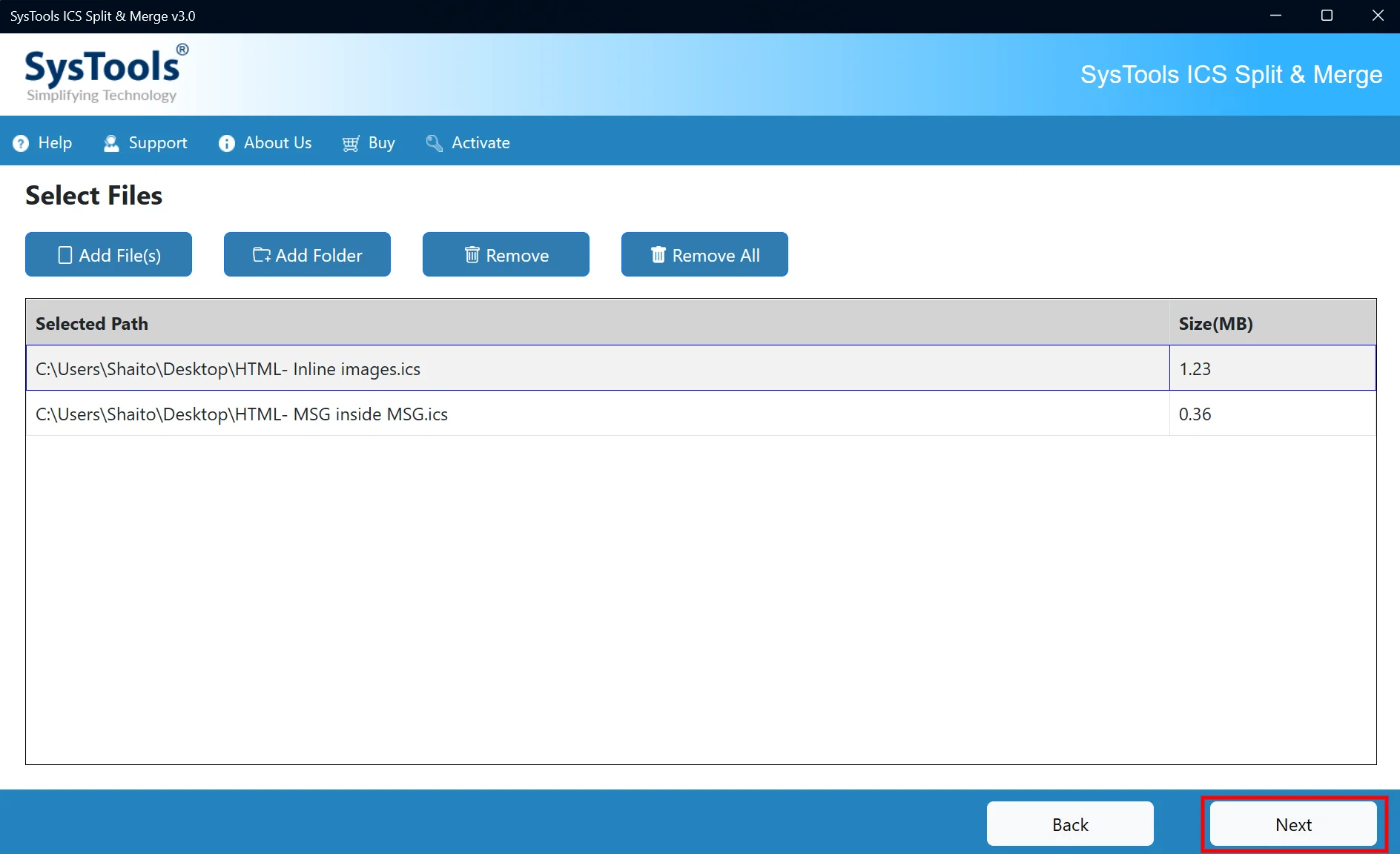
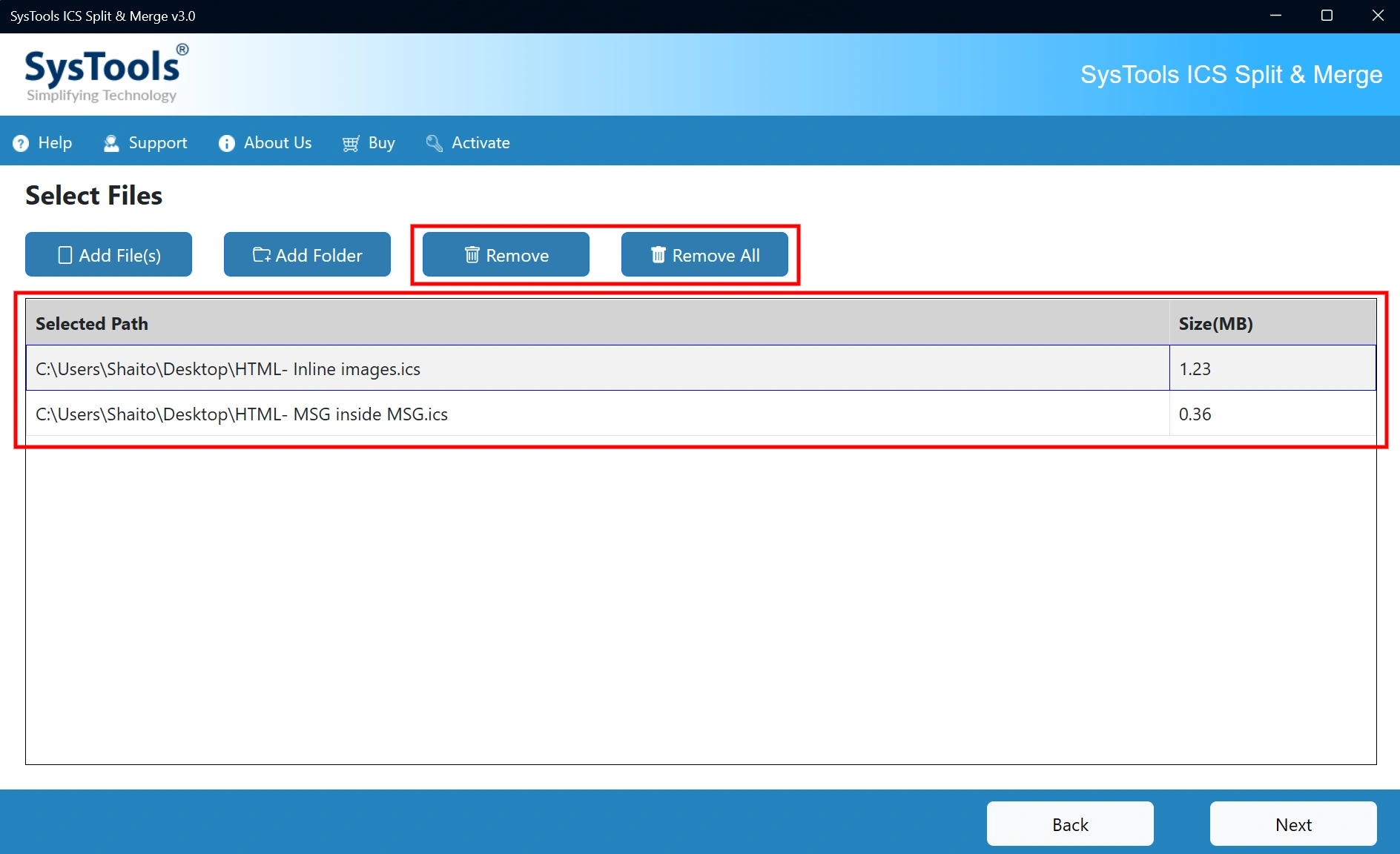
The selected ICS files are displayed in the list. Use Remove to delete a selected file or Remove All to clear the entire list.
files displayed

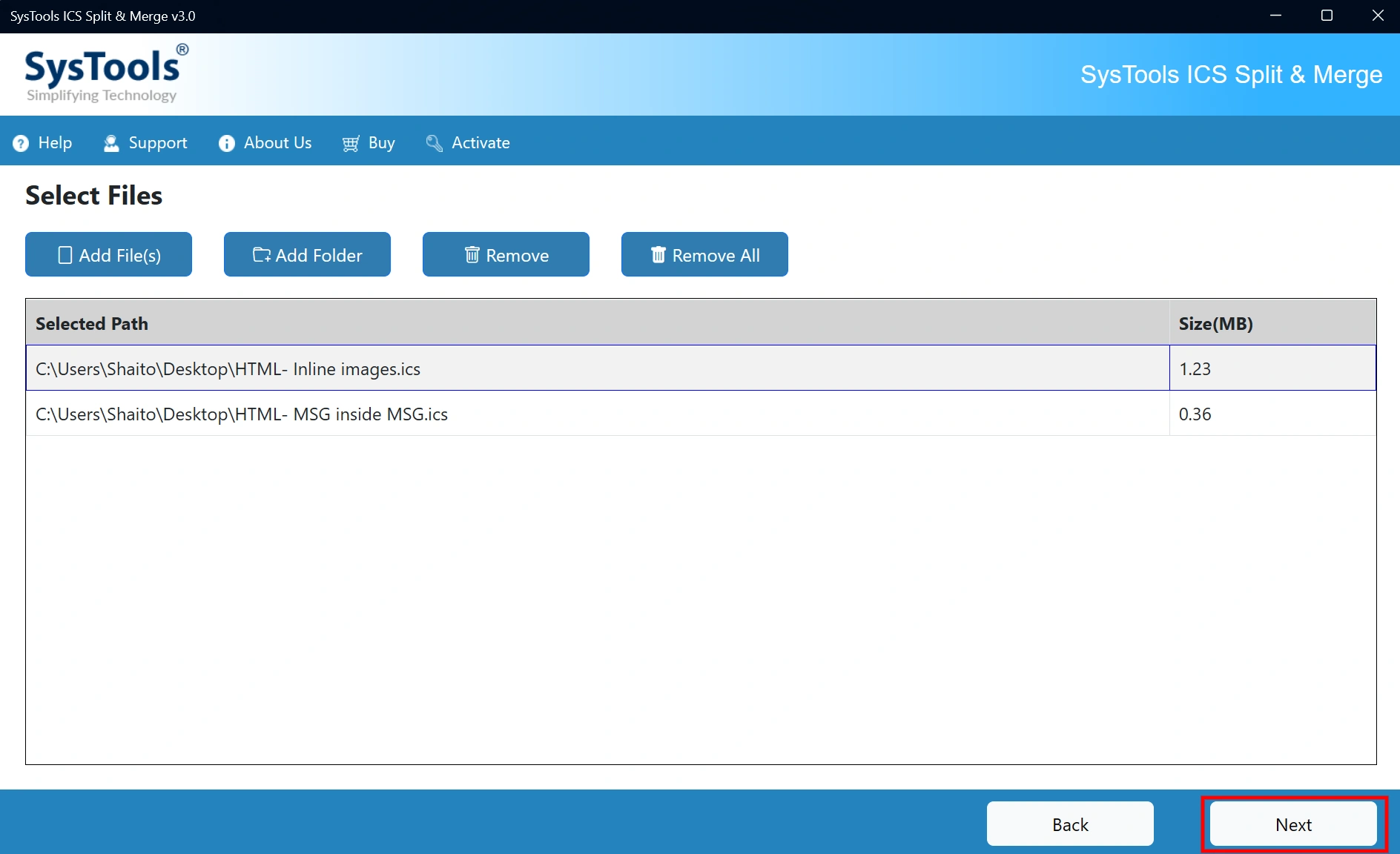
Once the required files are selected, click Next to continue.
continue

STEP 5

Select Split by Count to split the ICS file based on the number of events.

split by count

STEP 6

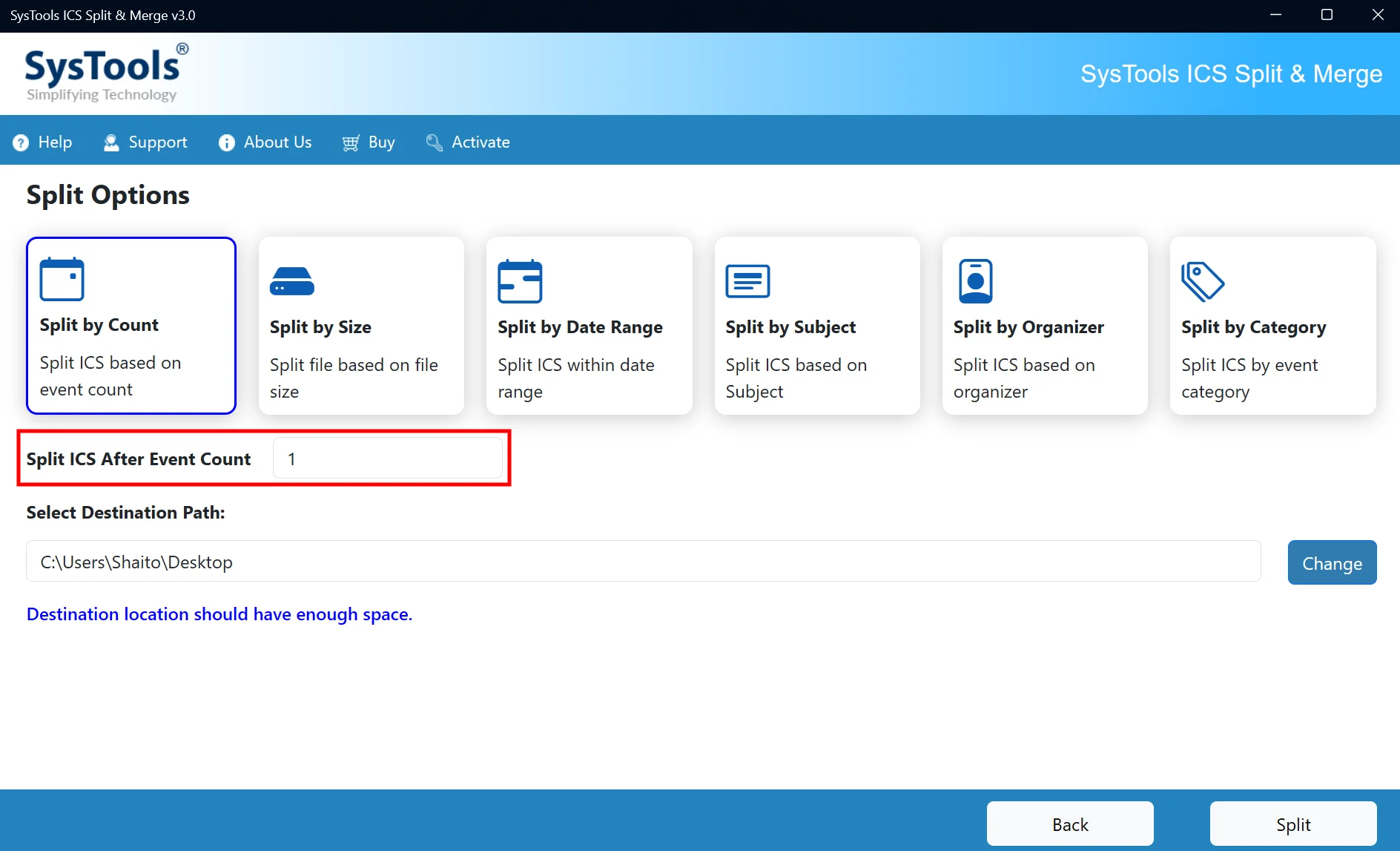
Enter the number of events after which you want to split the ICS file.

enter number of events

STEP 7

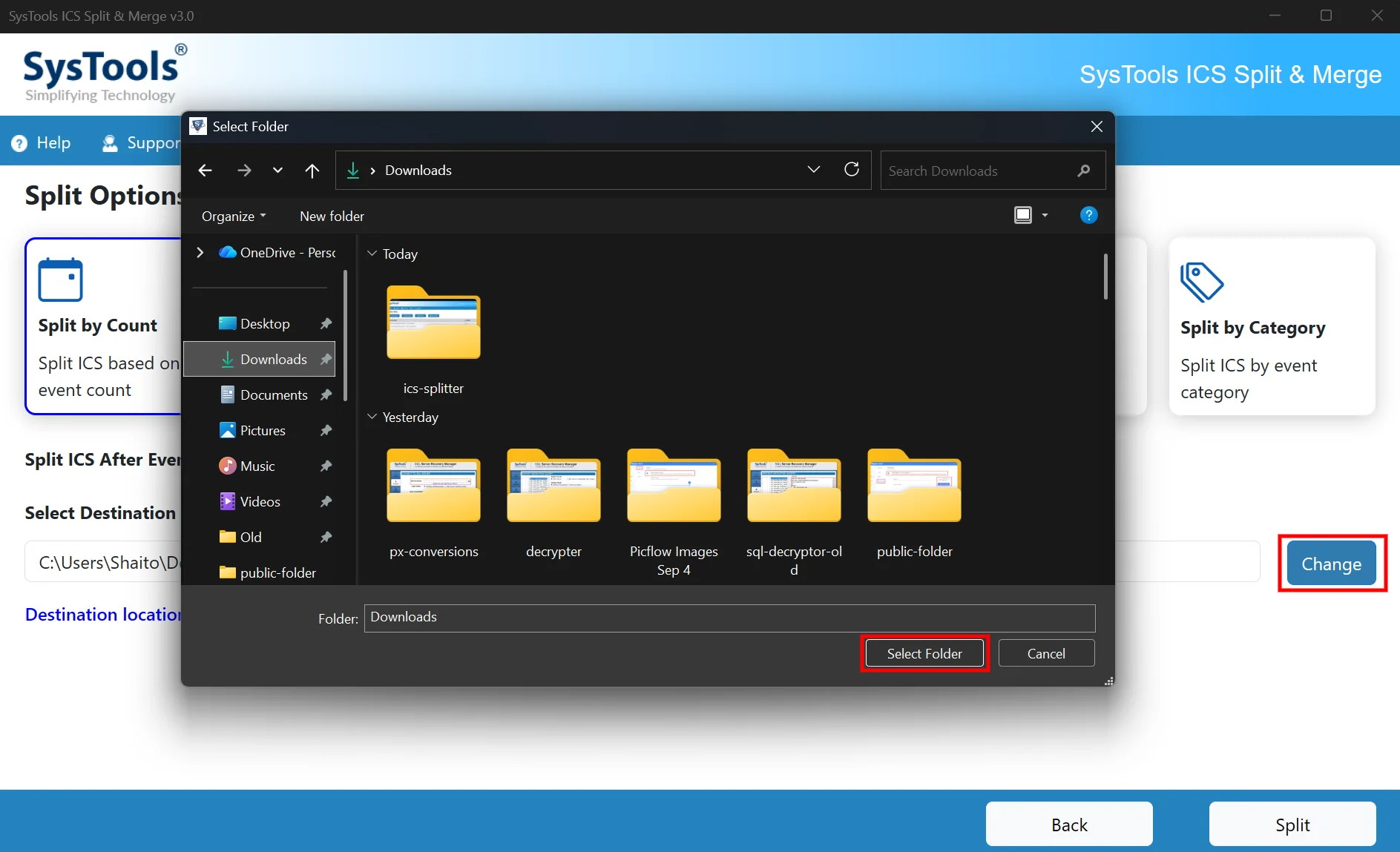
Choose the destination folder and click Select Folder to set the output location.

browse for output destination

STEP 8

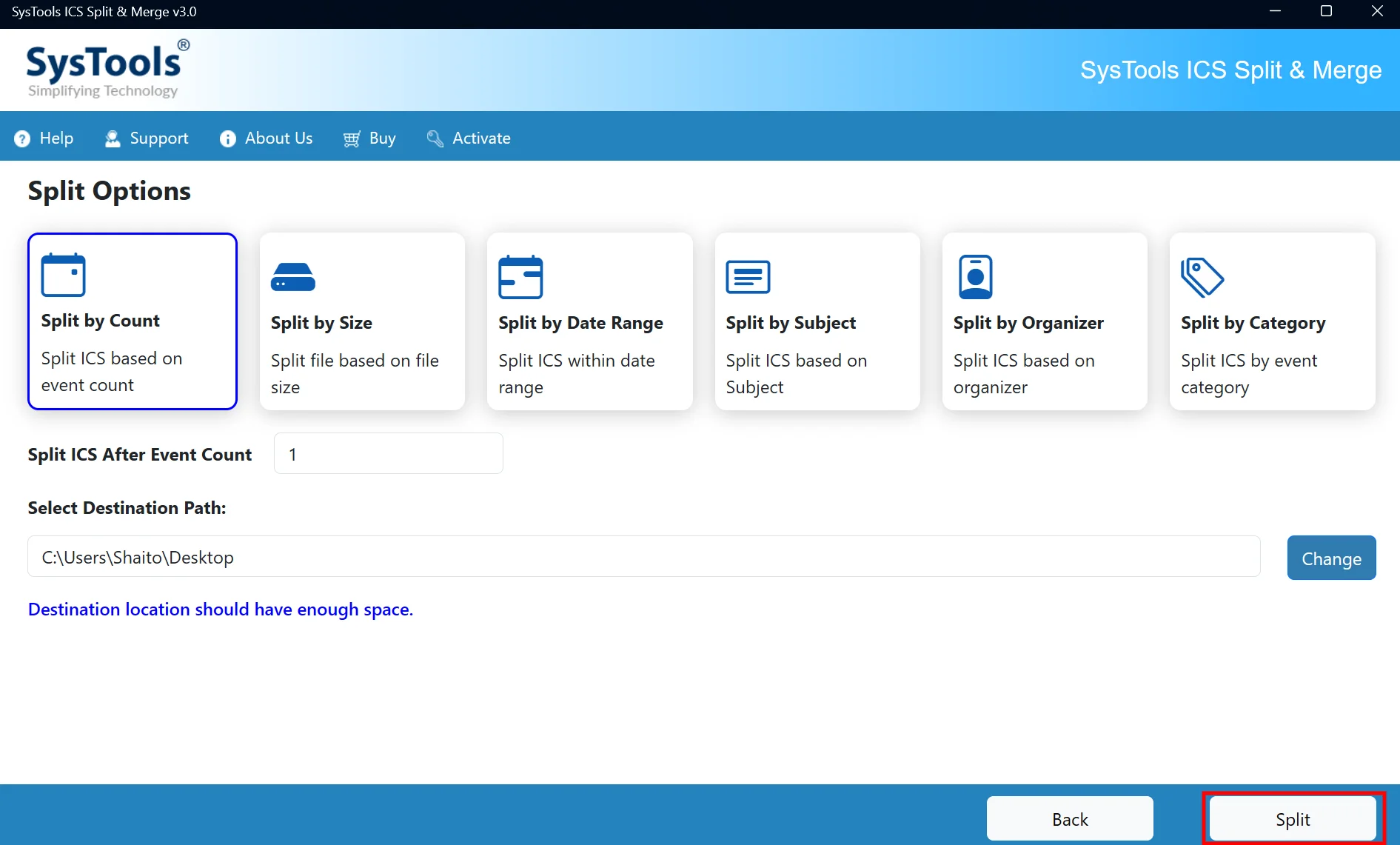
Click Split to start splitting the ICS file based on the selected options.

start splitting

STEP 9

After the split process is completed, a confirmation message appears stating, “Split process completed successfully.” Click OK to close it and proceed to the Export Status screen.

splitting completed

STEP 10

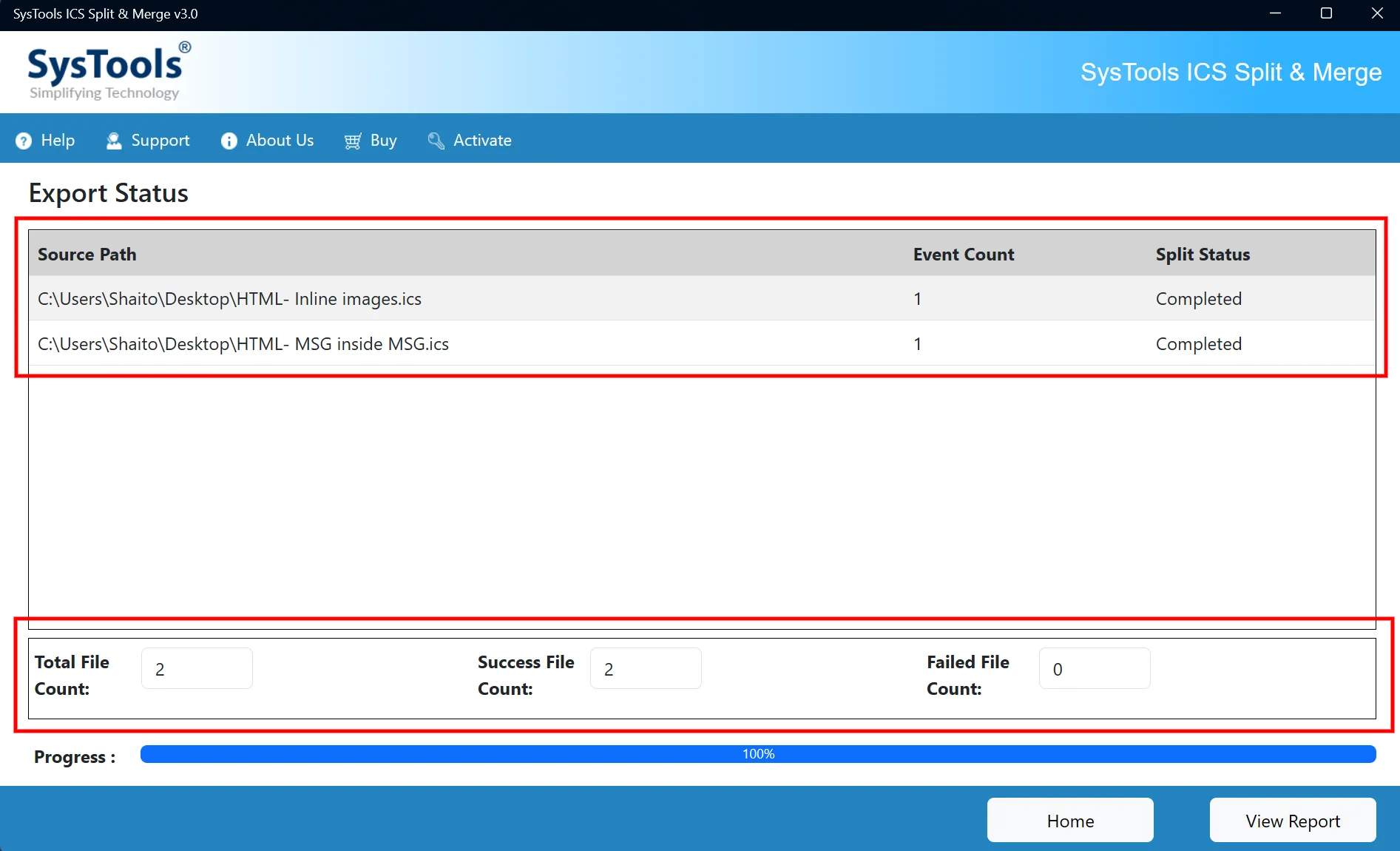
Review the export status to verify the processed files, event count, and split status. You can check the total file count as well as the success and failed file counts.
export status

STEP 11

Click View Report to review the detailed report of the completed ICS split process.

view report

STEP 12

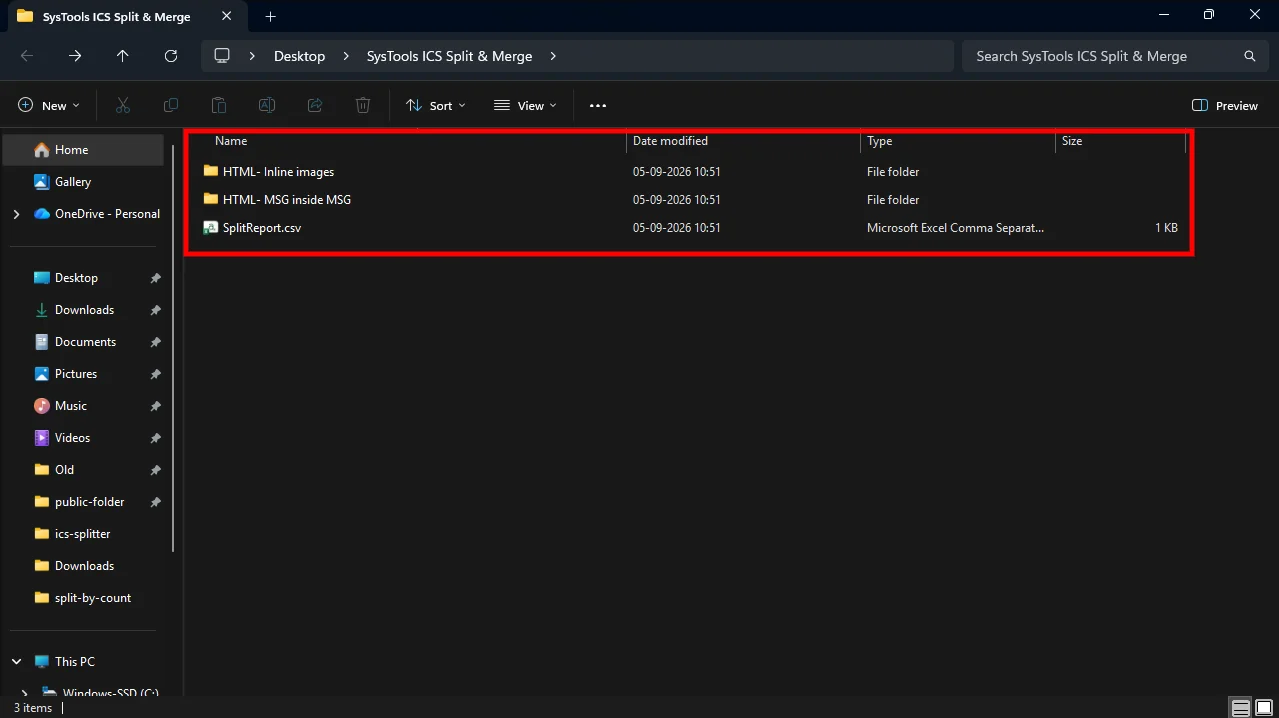
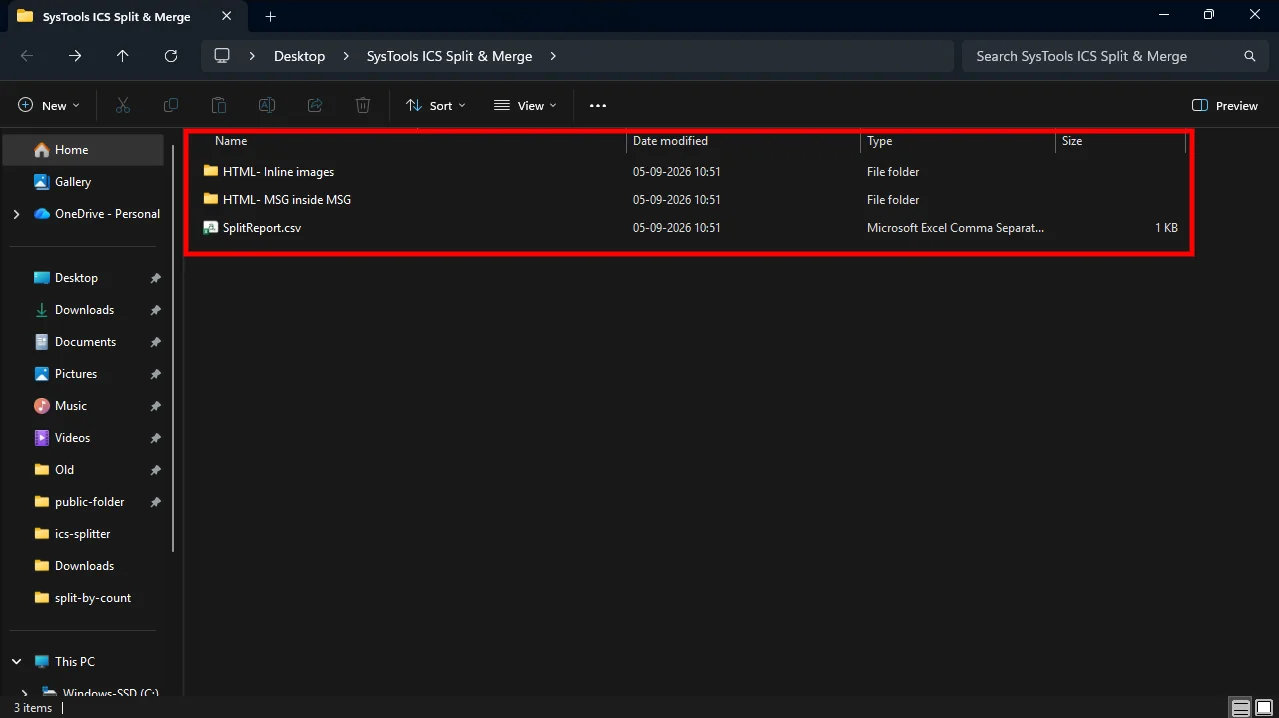
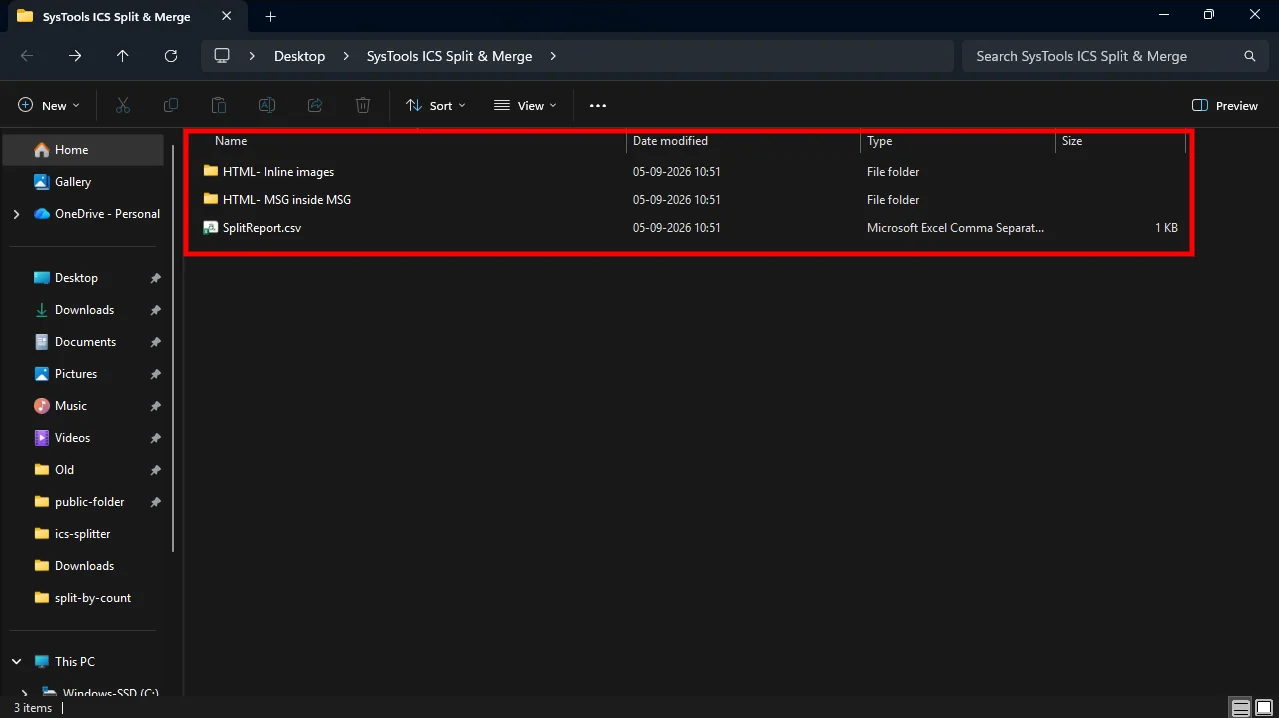
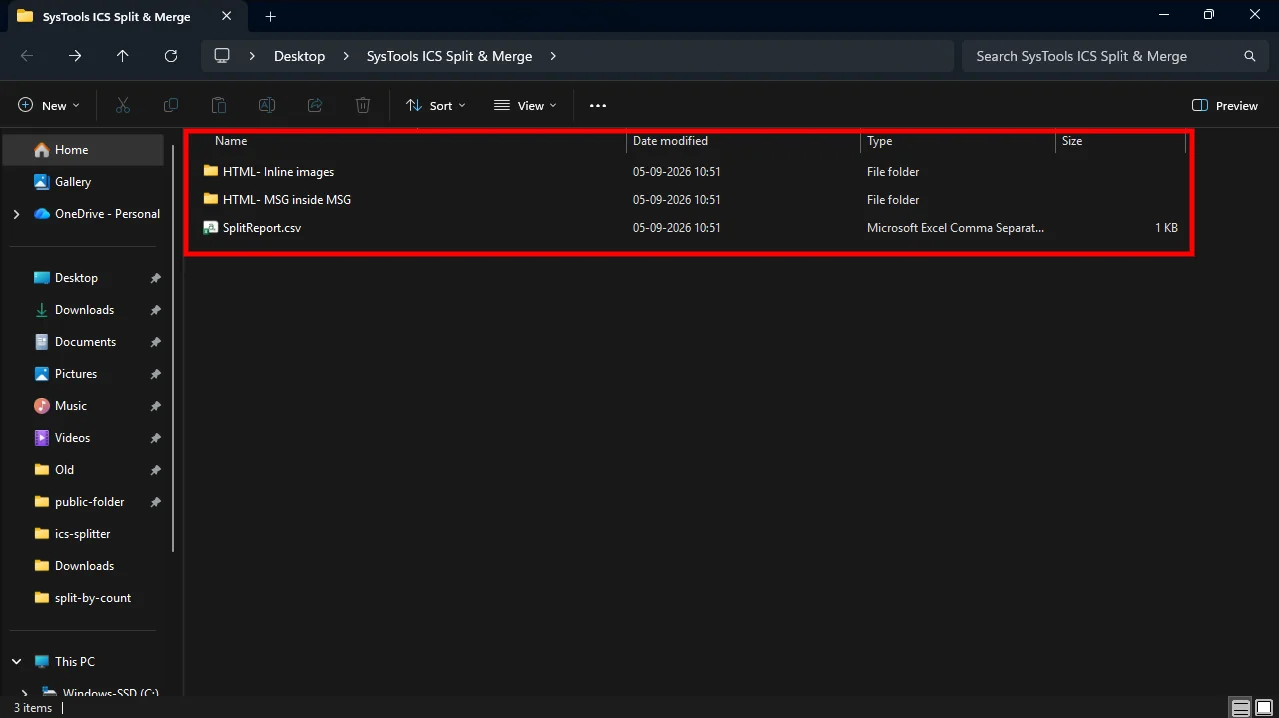
You will be navigated to the destination path where the output files as well as the report is saved.
destination path

STEP 13

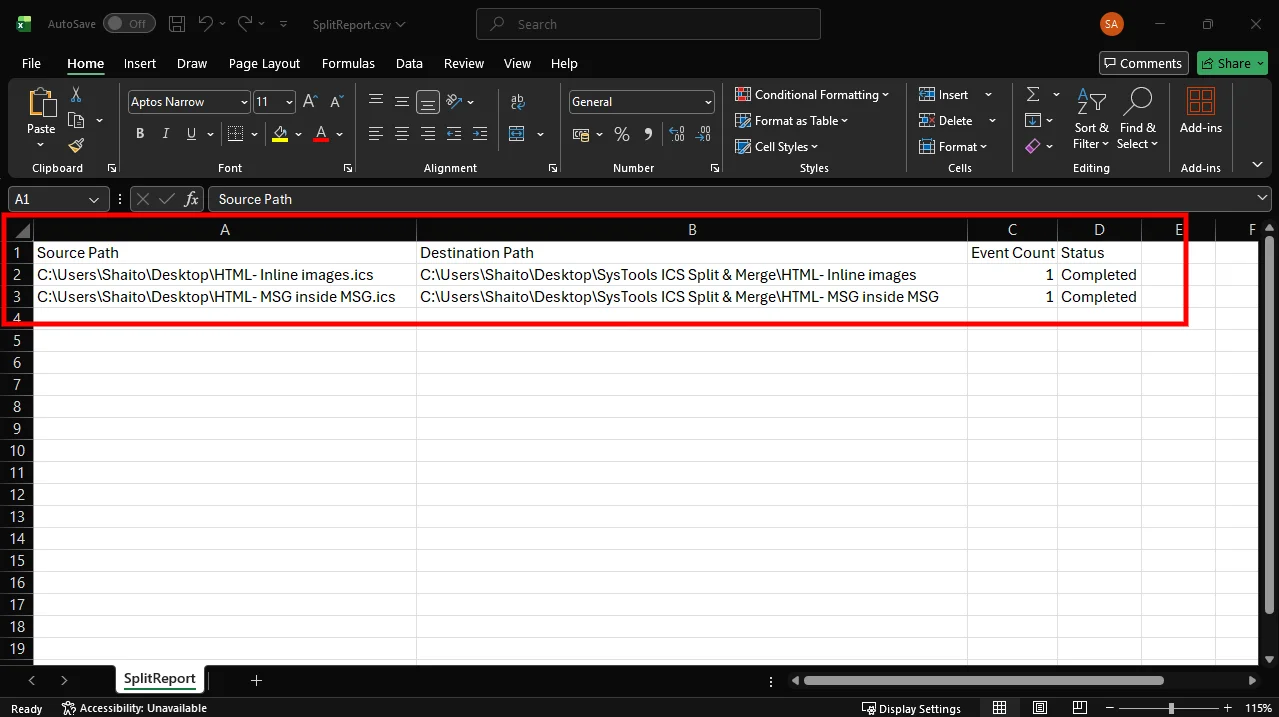
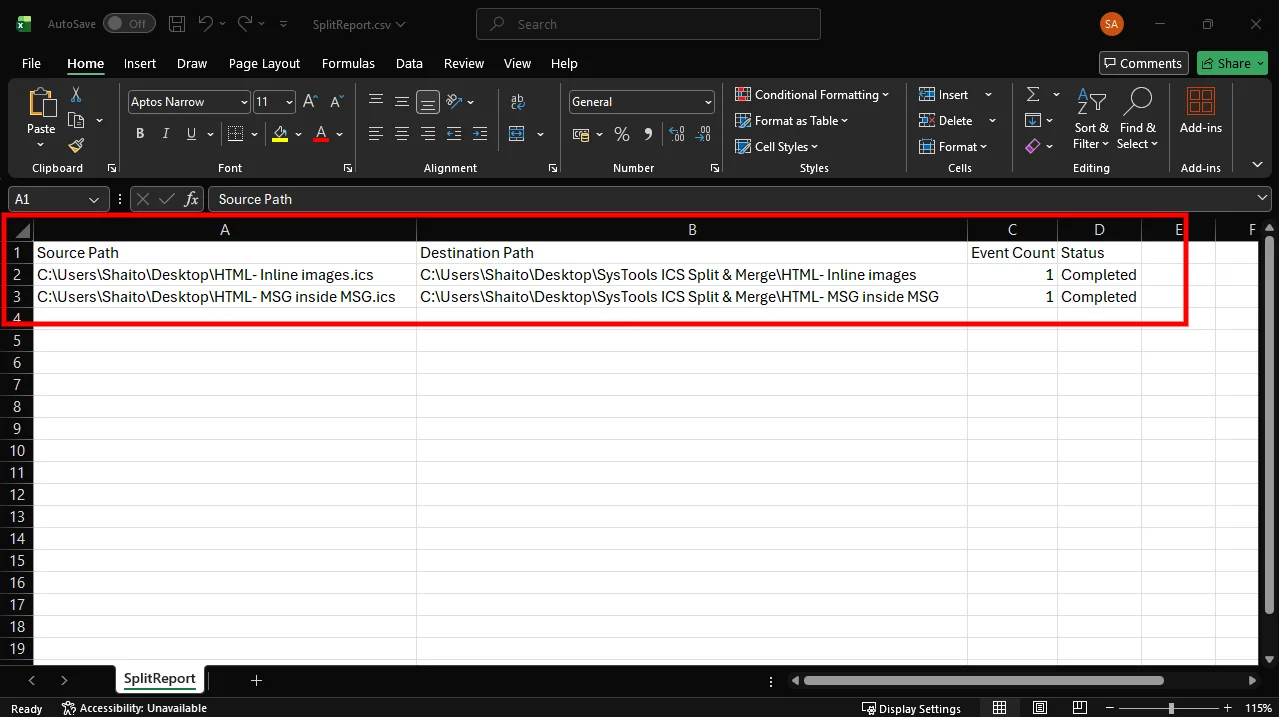
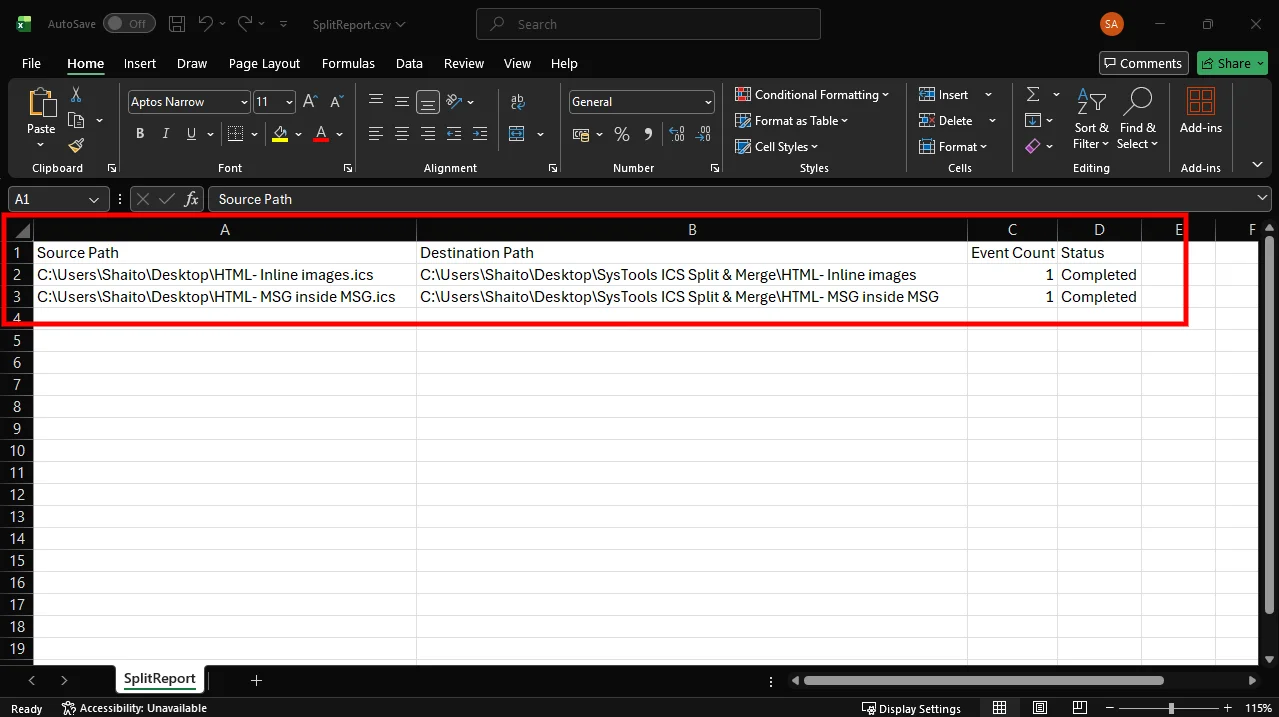
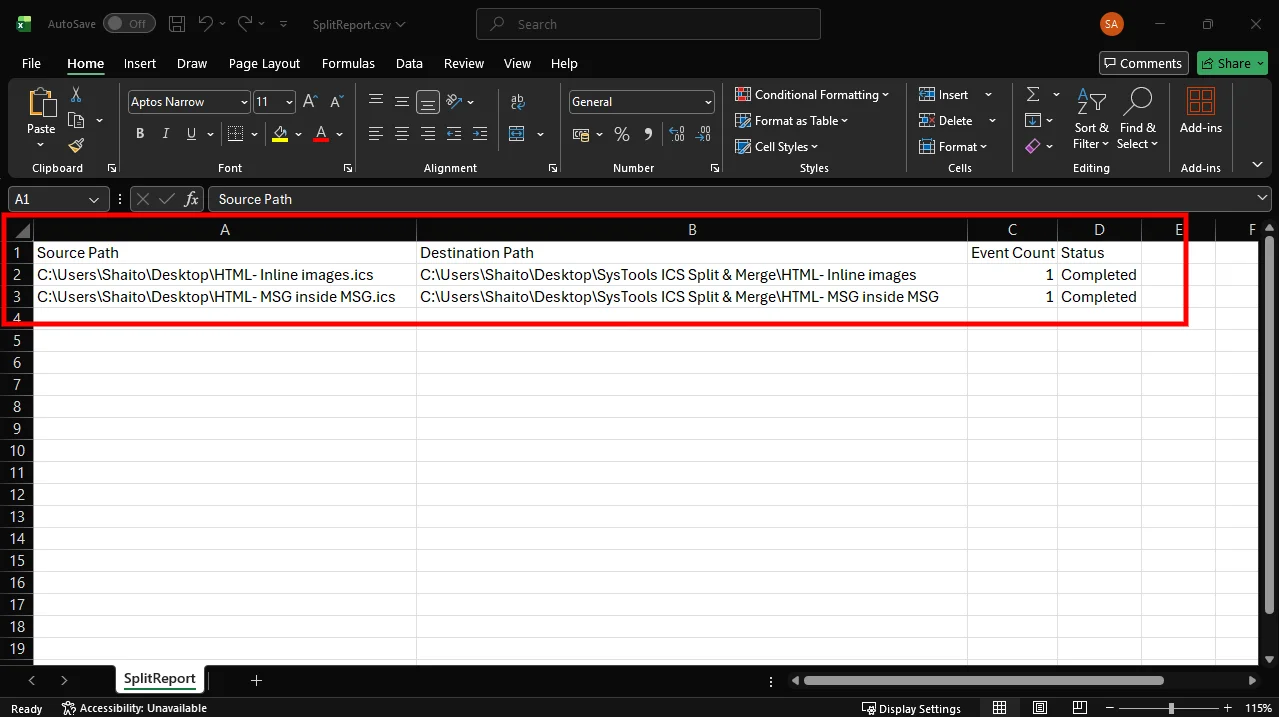
Review the SplitReport.csv file to verify the source path, destination path, event count, and split status of the processed ICS files.

report preview

STEP 5

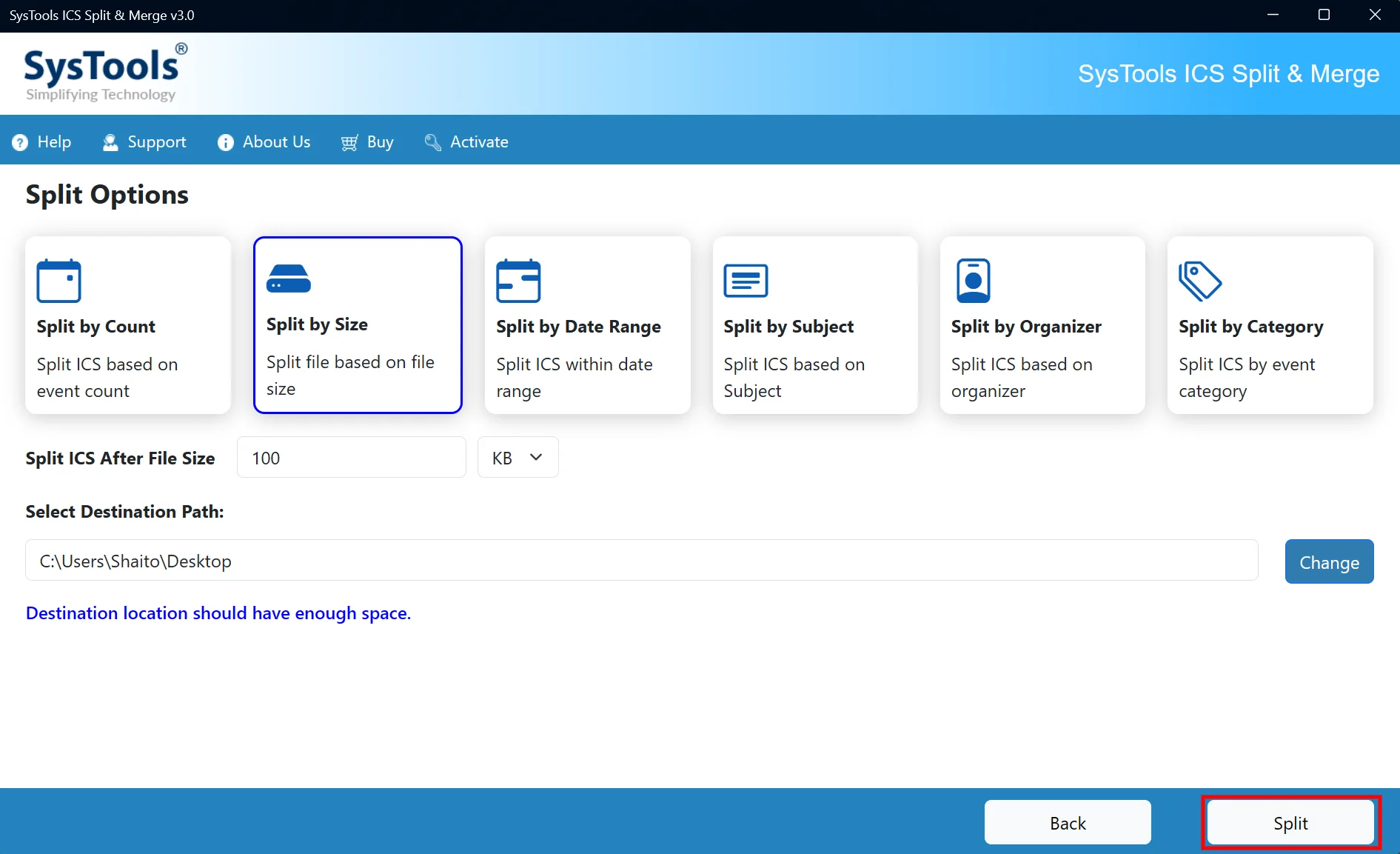
Select Split by Size to split the files based on the required size.

split by size

STEP 6

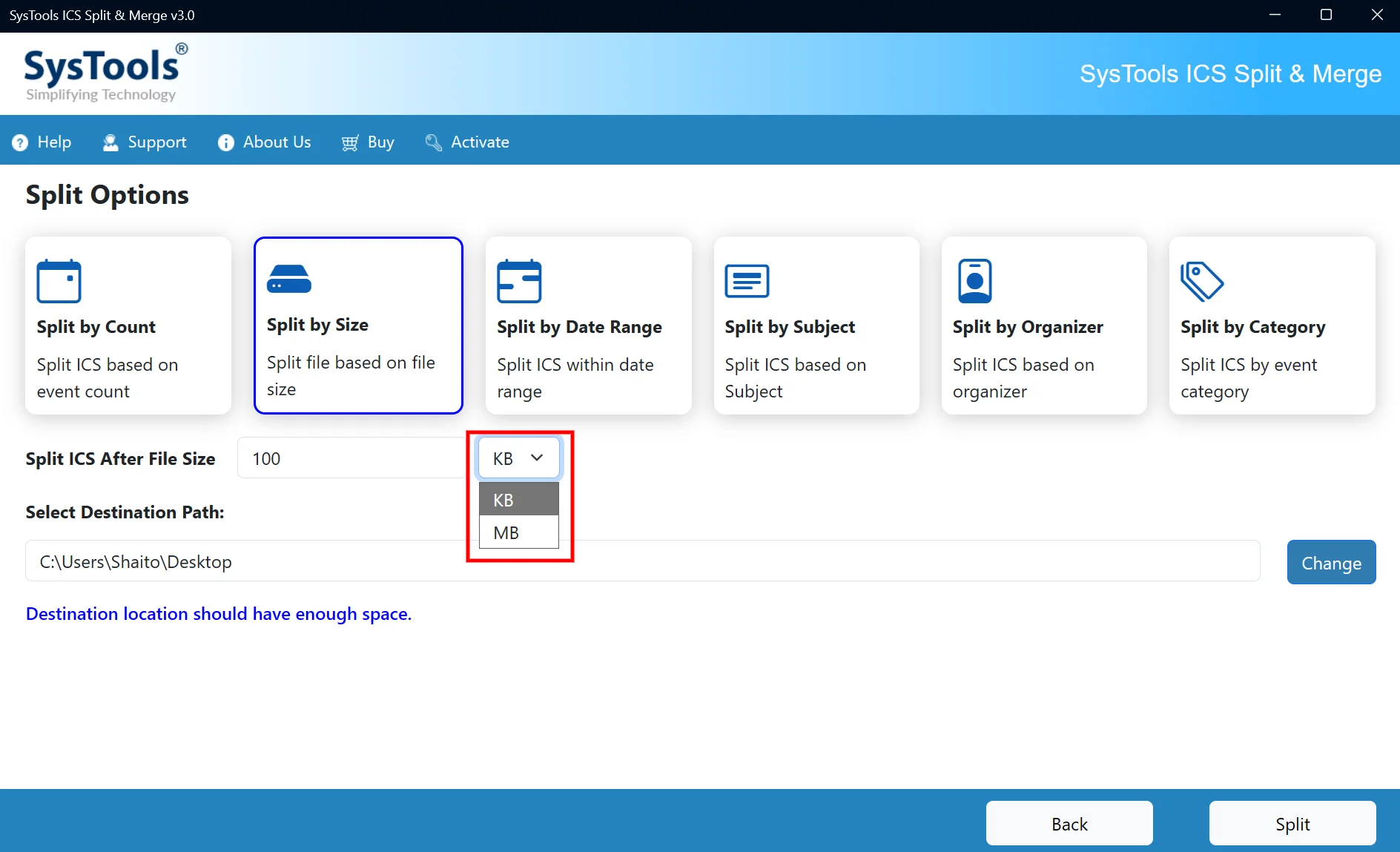
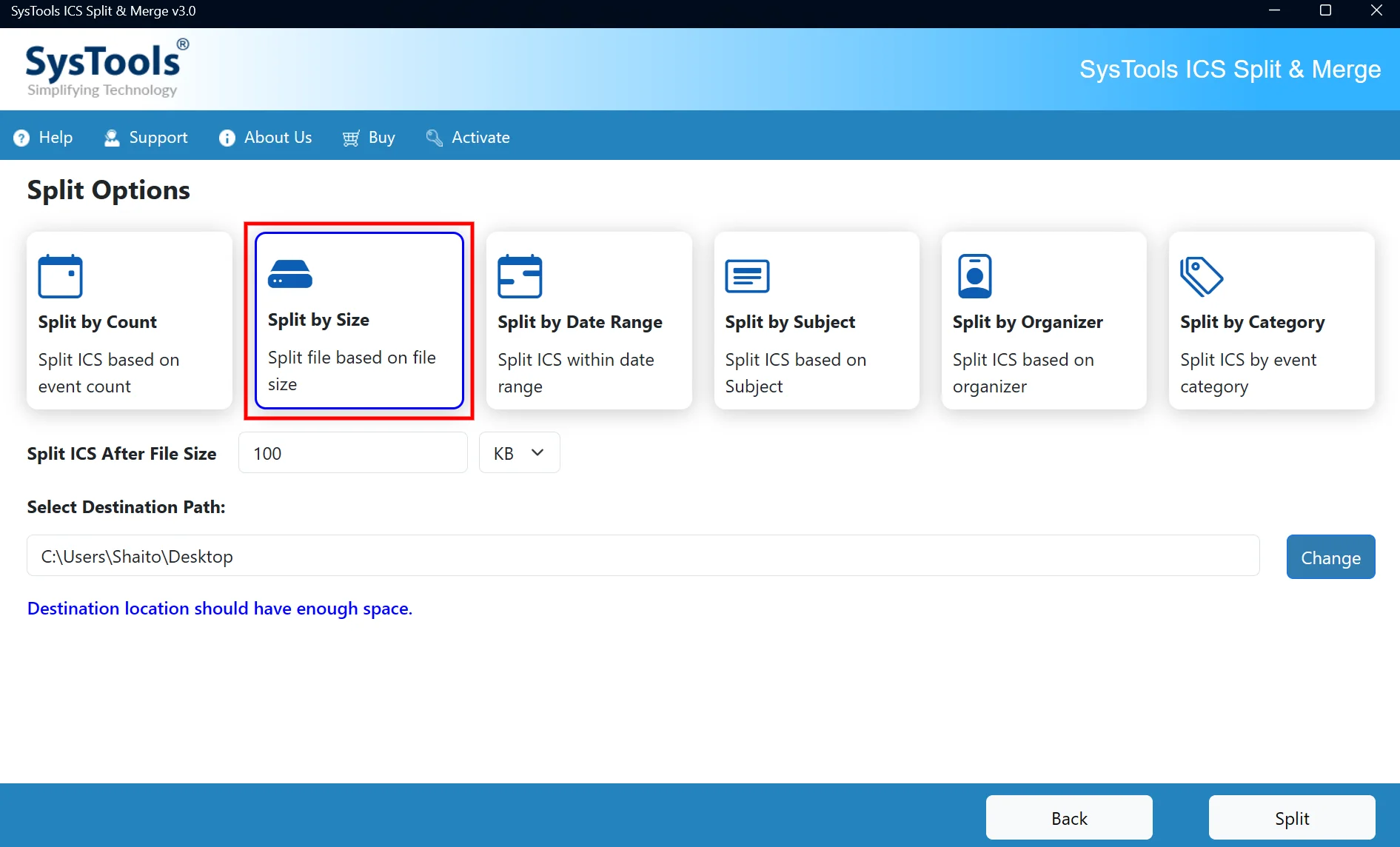
Enter the required file size and select the unit as KB or MB to split the ICS file based on size.

enter file size

STEP 7

Click Change, select the desired destination folder, and click Select Folder to save the split ICS files there.

browse for output destination

STEP 8

Click Split to start splitting the ICS file according to the selected file size and destination path.

start splitting

STEP 9

After the split process is completed, a confirmation message appears stating, “Split process completed successfully.” Click OK to close it and proceed to the Export Status screen.

splitting completed

STEP 10

Review the export status to verify the processed files, event count, and split status. You can check the total file count as well as the success and failed file counts.

export status

STEP 11

Click View Report to review the detailed report of the completed ICS split process.

view report

STEP 12

You will be navigated to the destination path where the output files as well as the report is saved.
destination path

STEP 13

Review the SplitReport.csv file to verify the source path, destination path, event count, and split status of the processed ICS files.

report preview

STEP 5

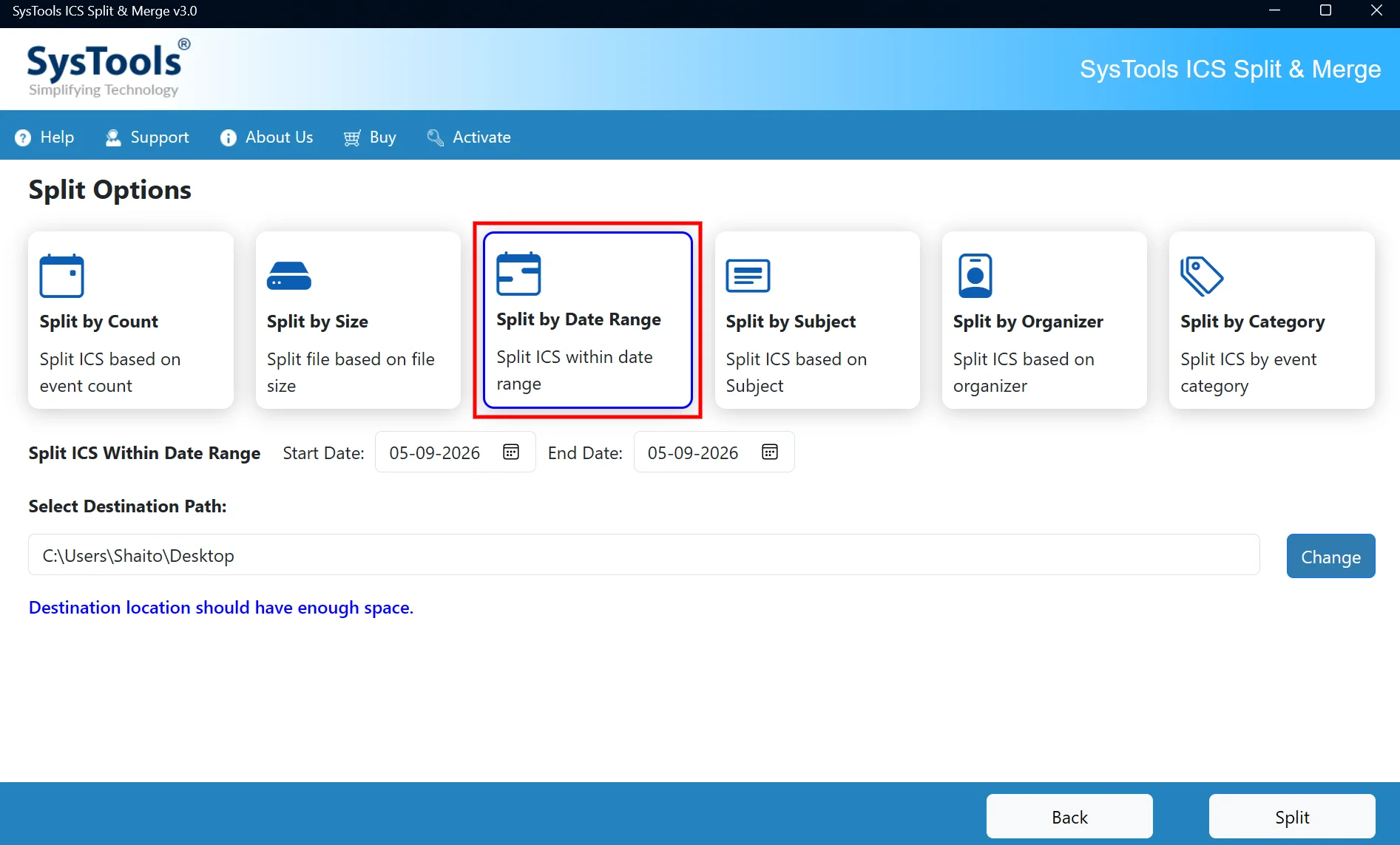
Select Split by Date Range to split files according to dates.

split by date range

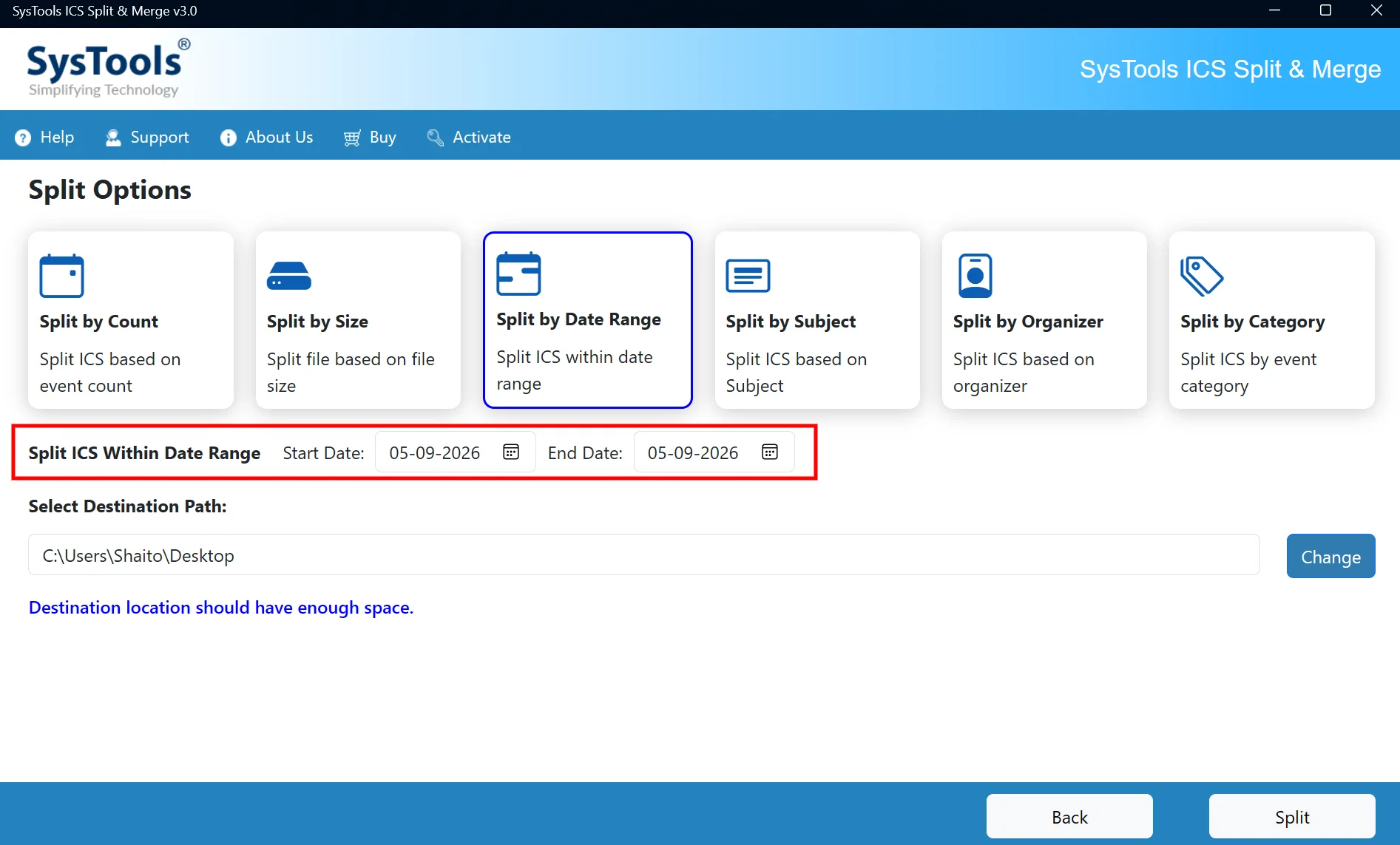
STEP 6

Enter the Start Date and End Date to specify the date range for splitting the ICS file.

enter start & end date

STEP 7

Click Change, select the desired destination folder, and click Select Folder to save the split ICS files there.
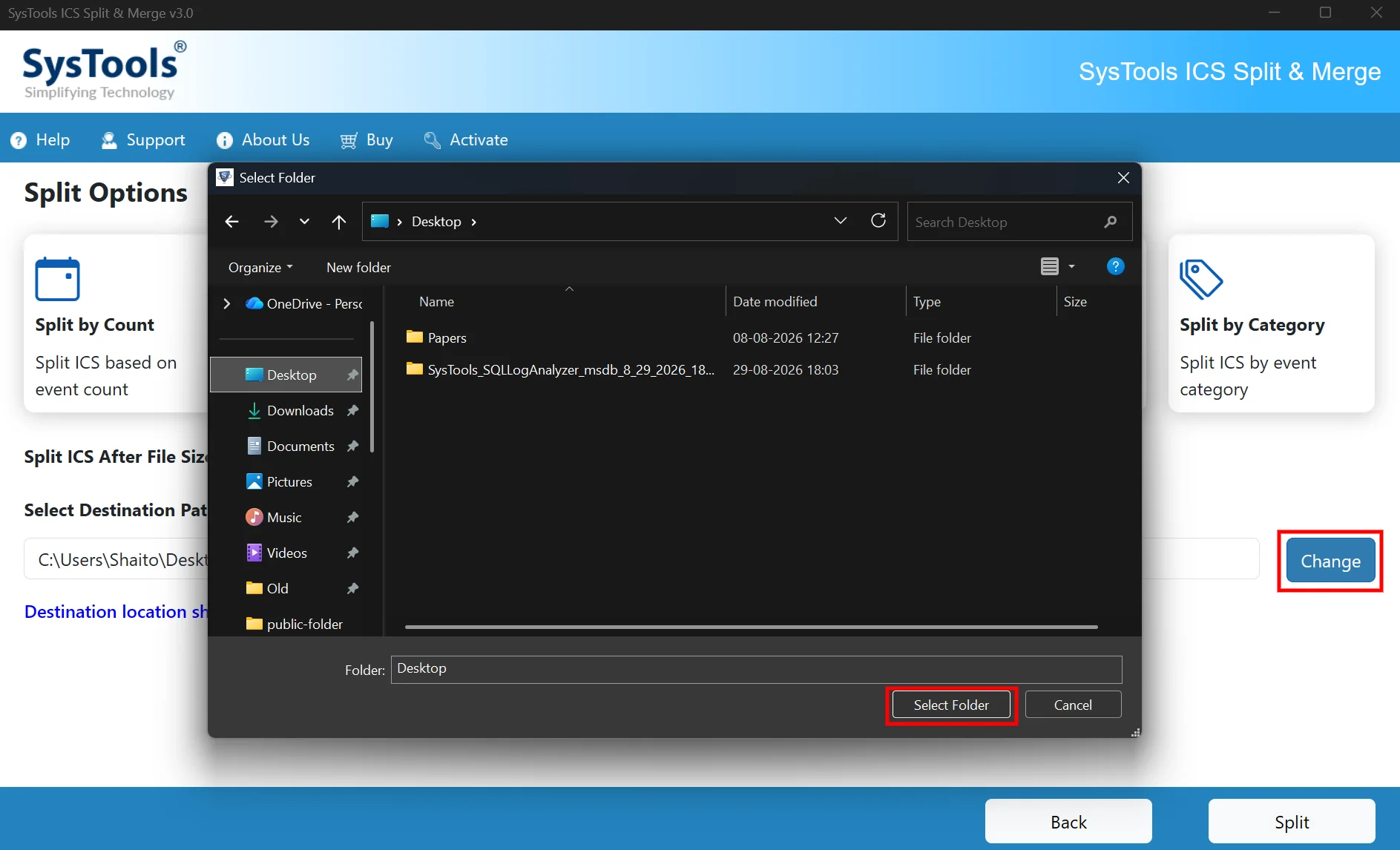
browse for output destination

STEP 8

Click Split to start splitting the ICS file within the selected date range.

start splitting

STEP 9

After the split process is completed, a confirmation message appears stating, “Split process completed successfully.” Click OK to close it and proceed to the Export Status screen.

splitting completed

STEP 10

Review the export status to verify the processed files, event count, and split status. You can check the total file count as well as the success and failed file counts.
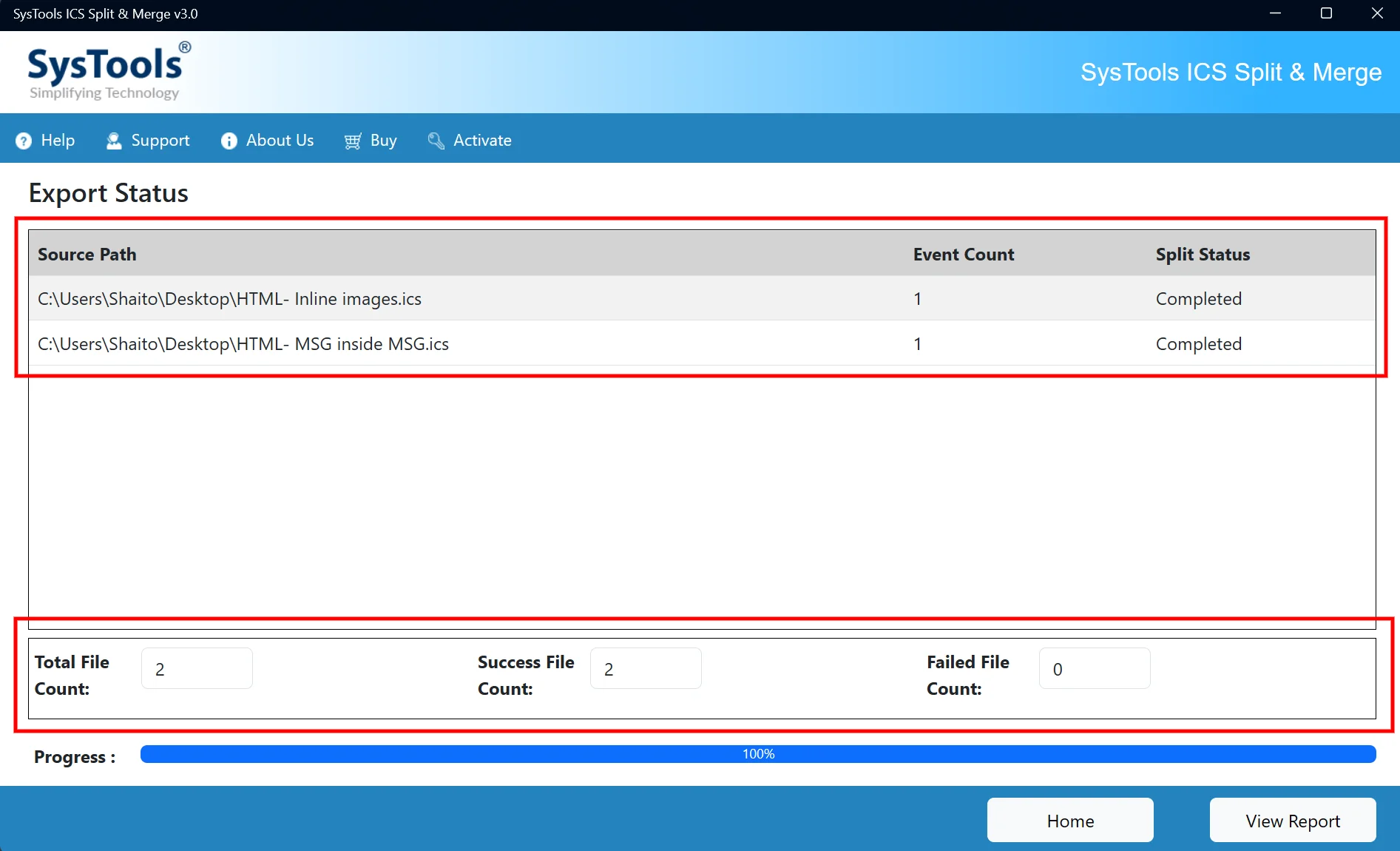
export status

STEP 11

Click View Report to review the detailed report of the completed ICS split process.

view report

STEP 12

You will be navigated to the destination path where the output files as well as the report is saved.
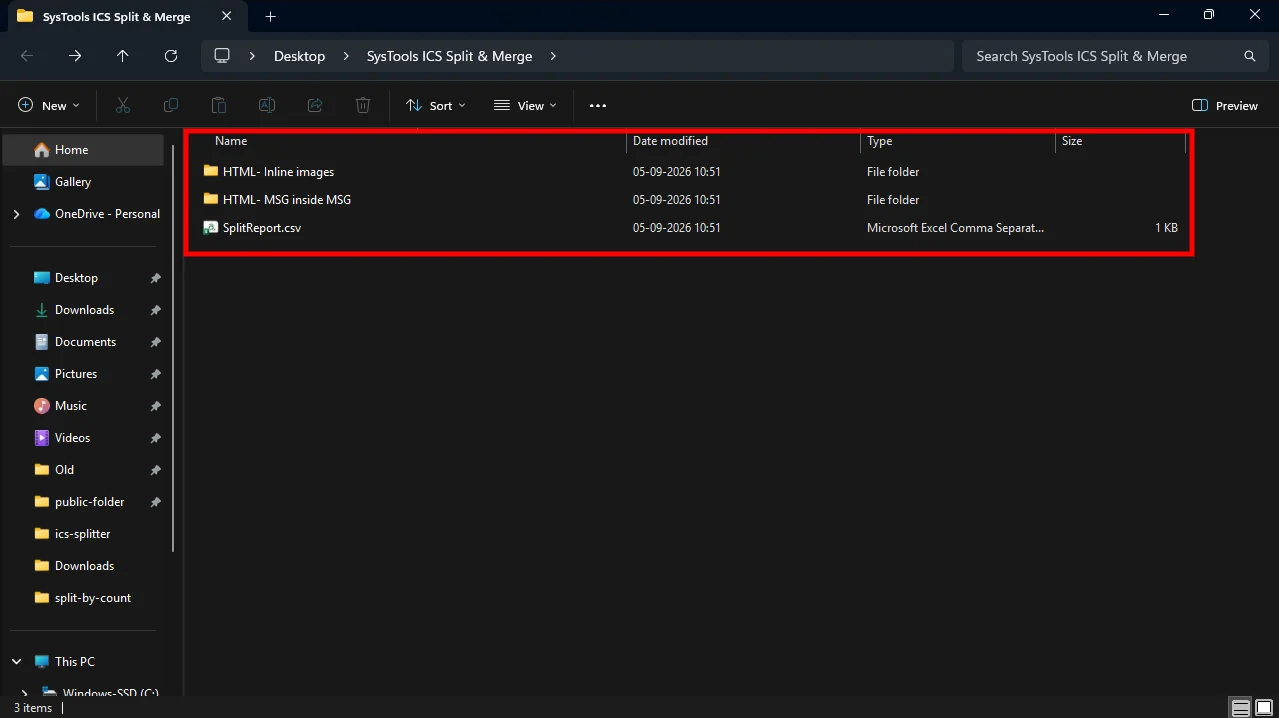
destination path

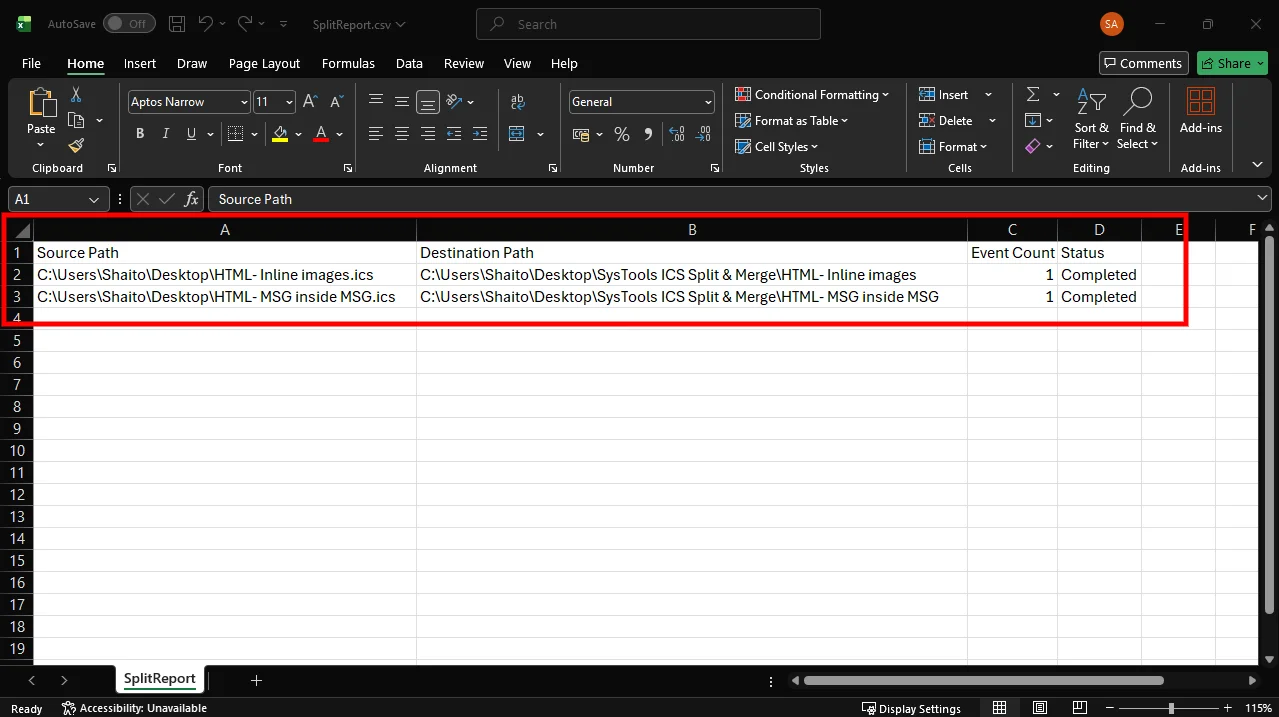
STEP 13

Review the SplitReport.csv file to verify the source path, destination path, event count, and split status of the processed ICS files.

report preview

STEP 5

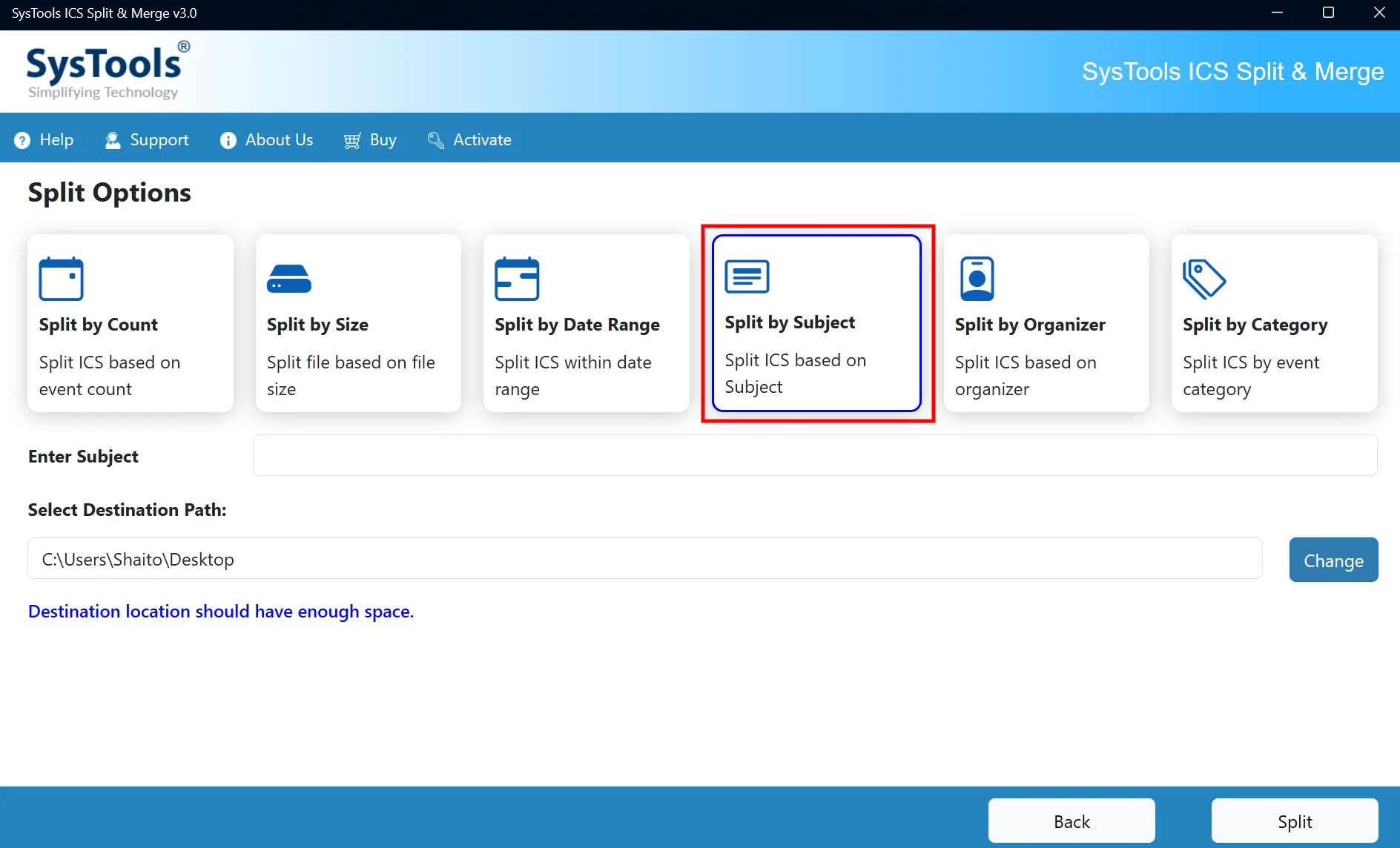
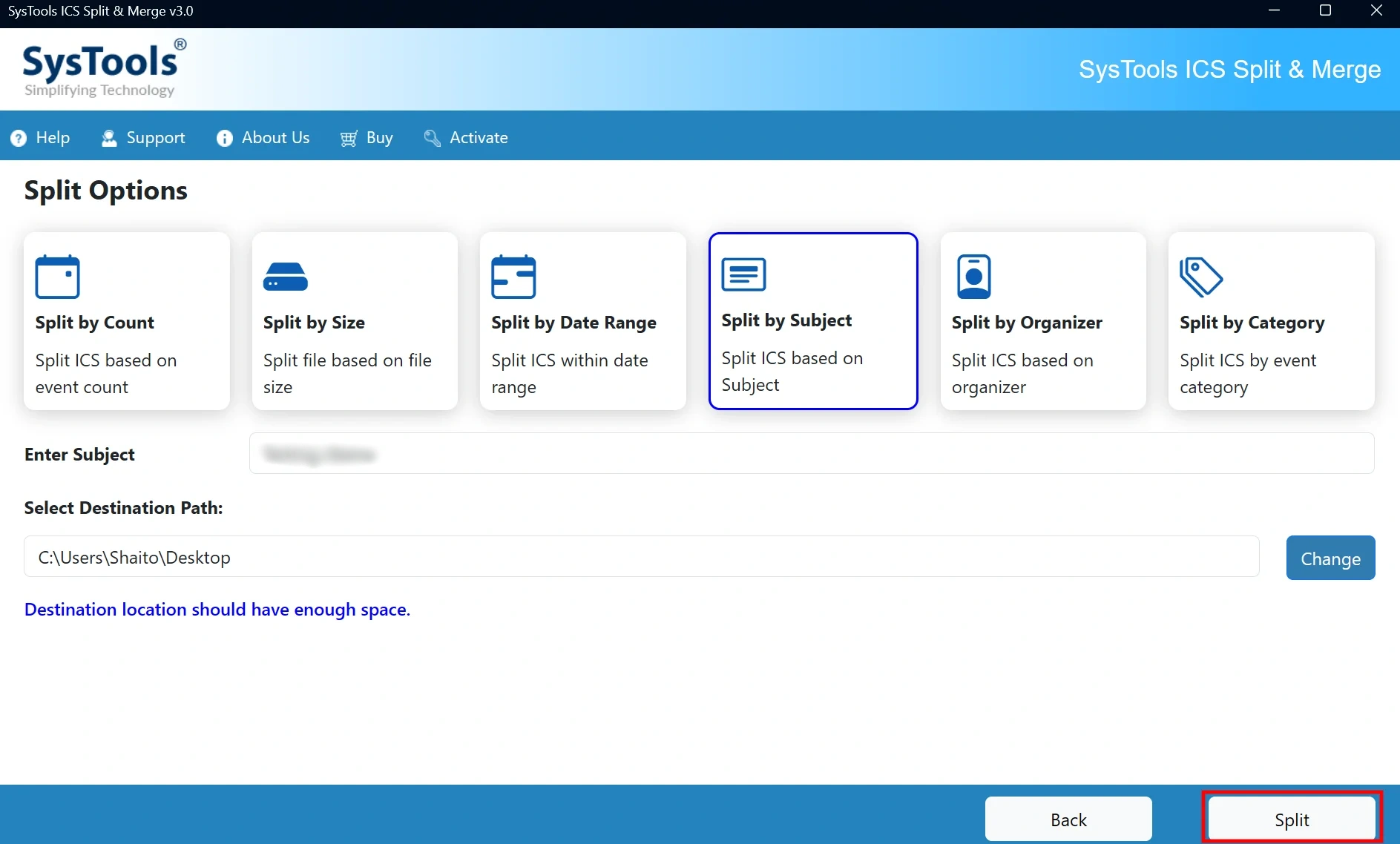
Select Split by Subject to split files according to matching event subjects.

split by subject

STEP 6

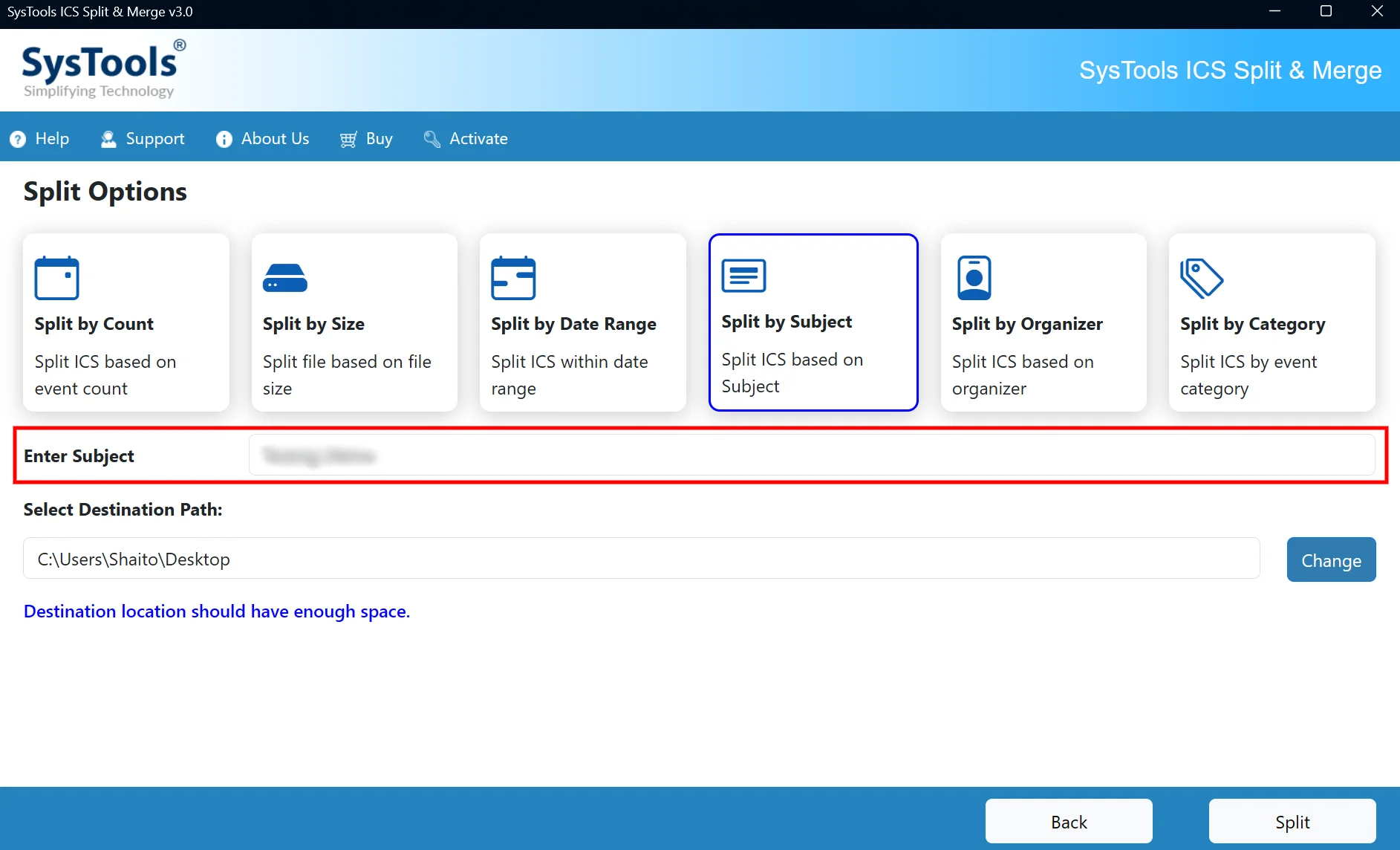
Enter the desired Subject in the field to split the ICS file based on the provided subjects.

enter subject

STEP 7

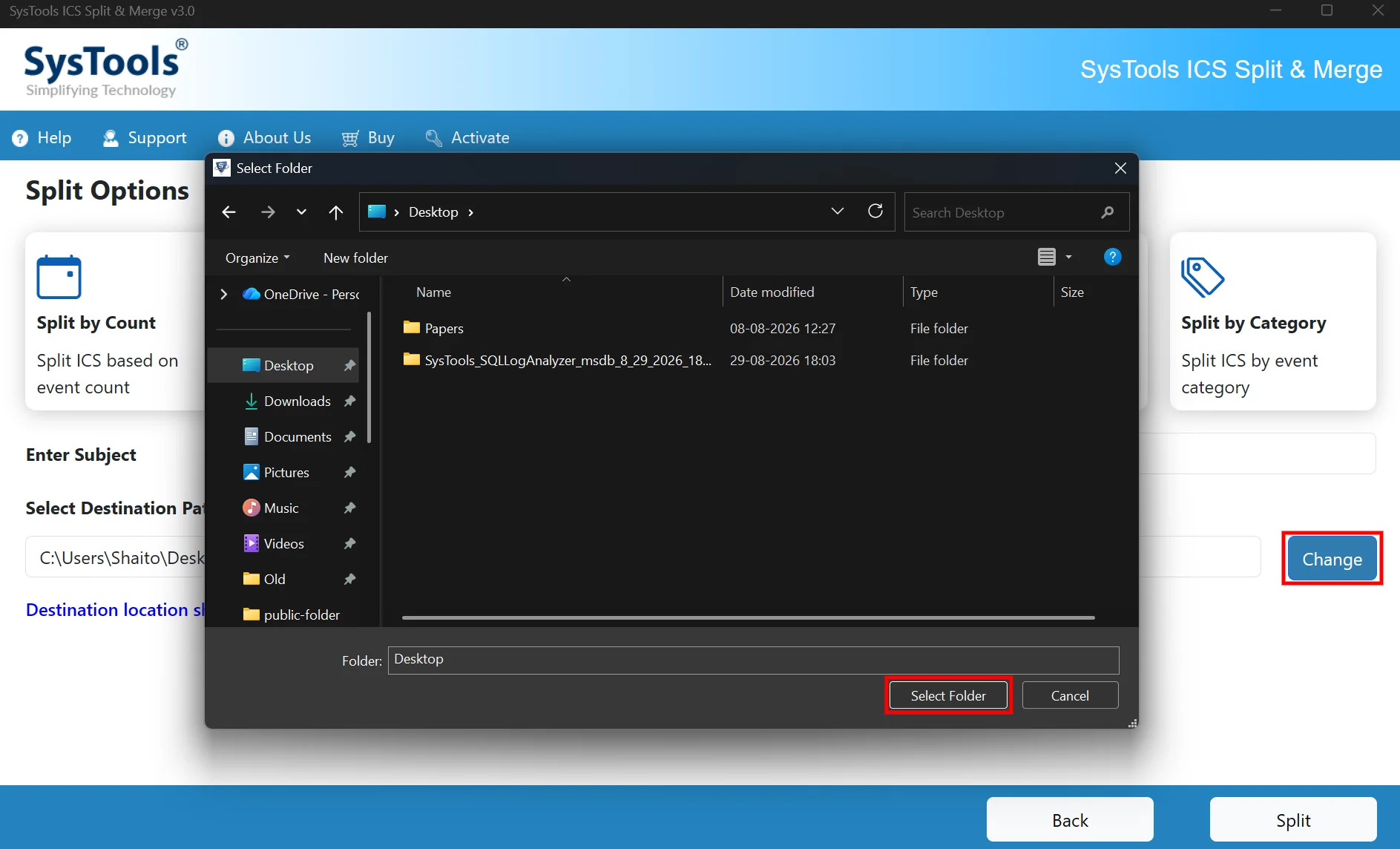
Click Change, select the desired destination folder, and click Select Folder to save the split ICS files there.

browse for output destination

STEP 8

Click Split to start splitting the ICS file within the selected date range.

start splitting

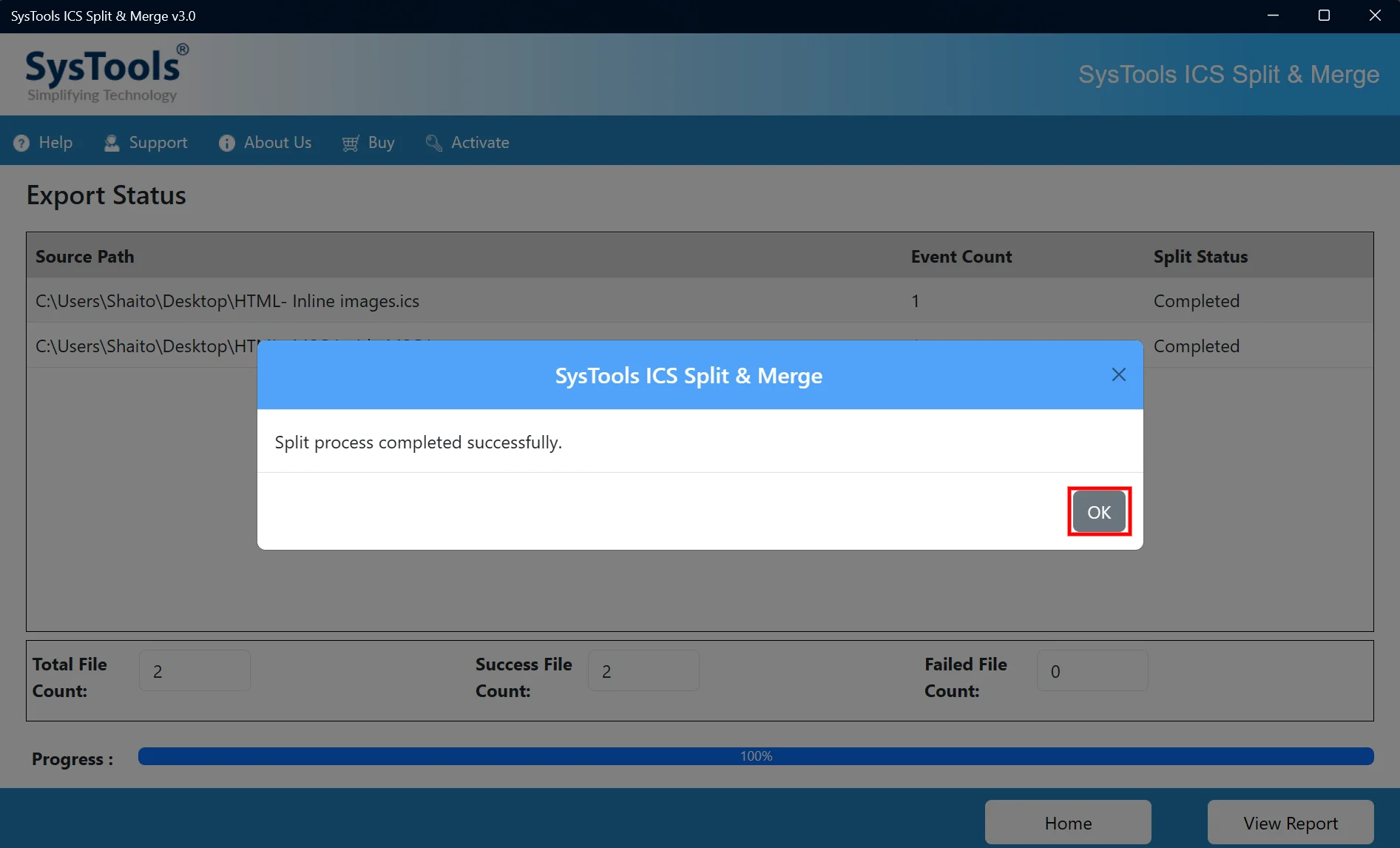
STEP 9

After the split process is completed, a confirmation message appears stating, “Split process completed successfully.” Click OK to close it and proceed to the Export Status screen.

splitting completed

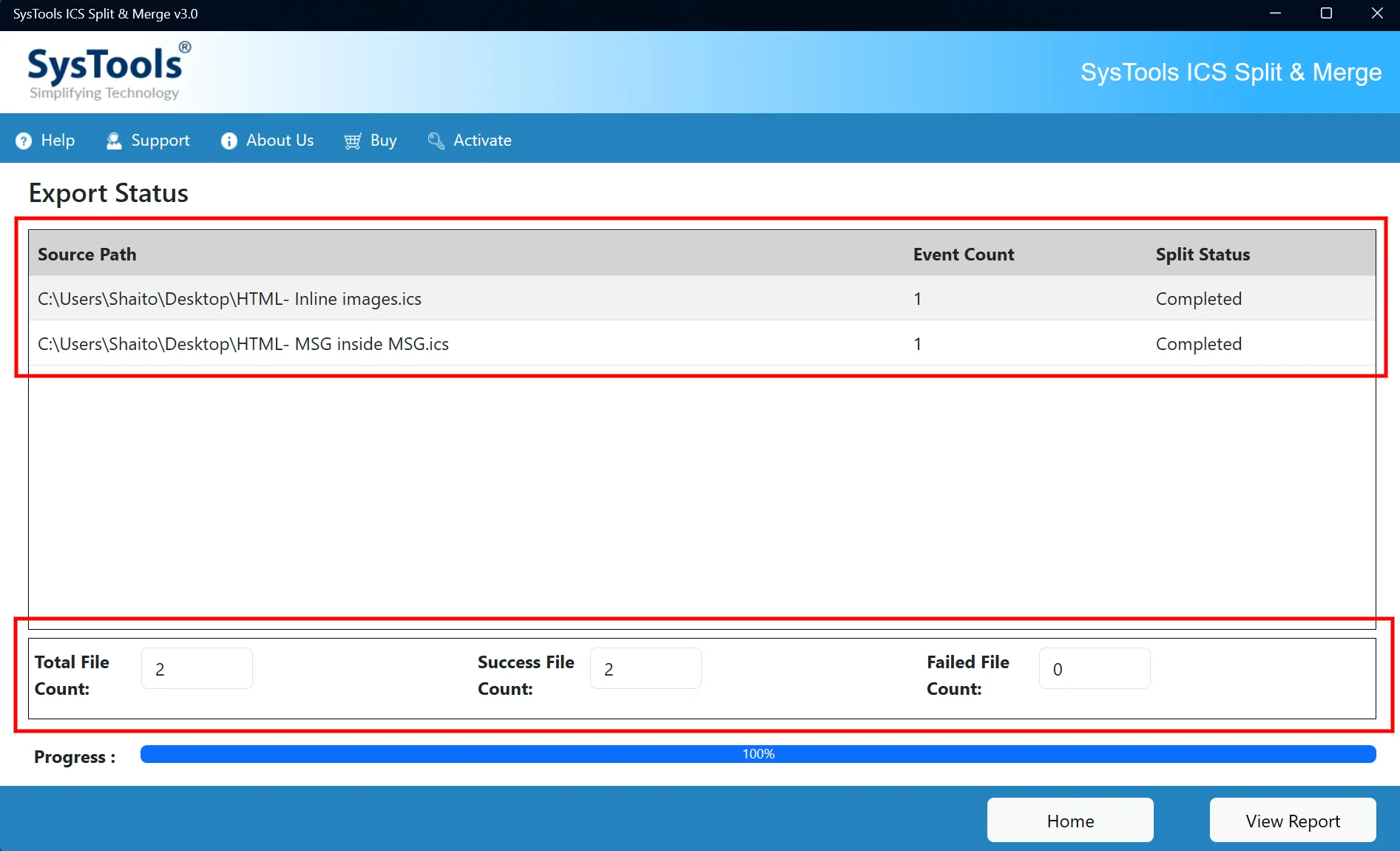
STEP 10

Review the export status to verify the processed files, event count, and split status. You can check the total file count as well as the success and failed file counts.

export status

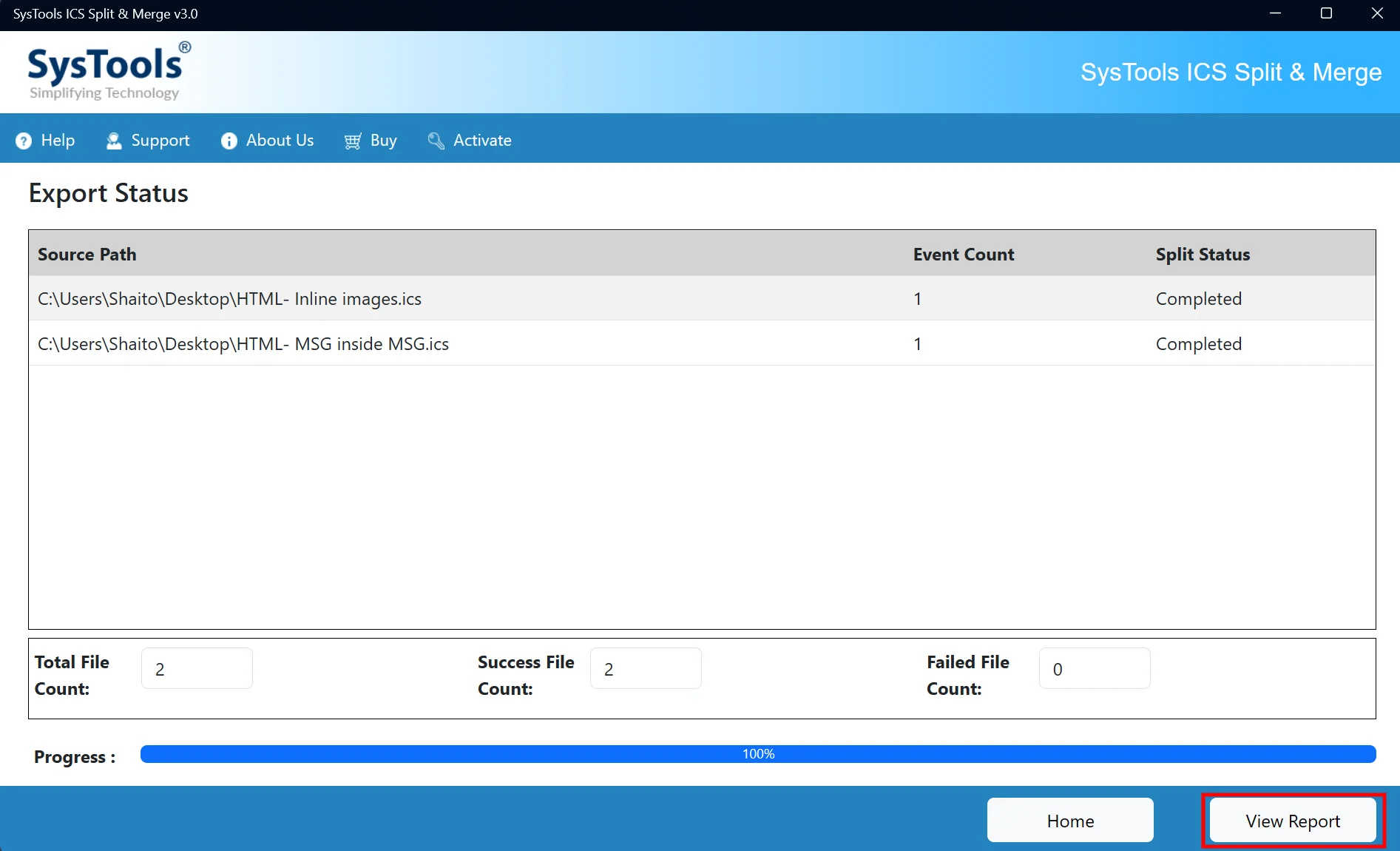
STEP 11

Click View Report to review the detailed report of the completed ICS split process.

view report

STEP 12

You will be navigated to the destination path where the output files as well as the report is saved.
destination path

STEP 13

Review the SplitReport.csv file to verify the source path, destination path, event count, and split status of the processed ICS files.

report preview

STEP 5

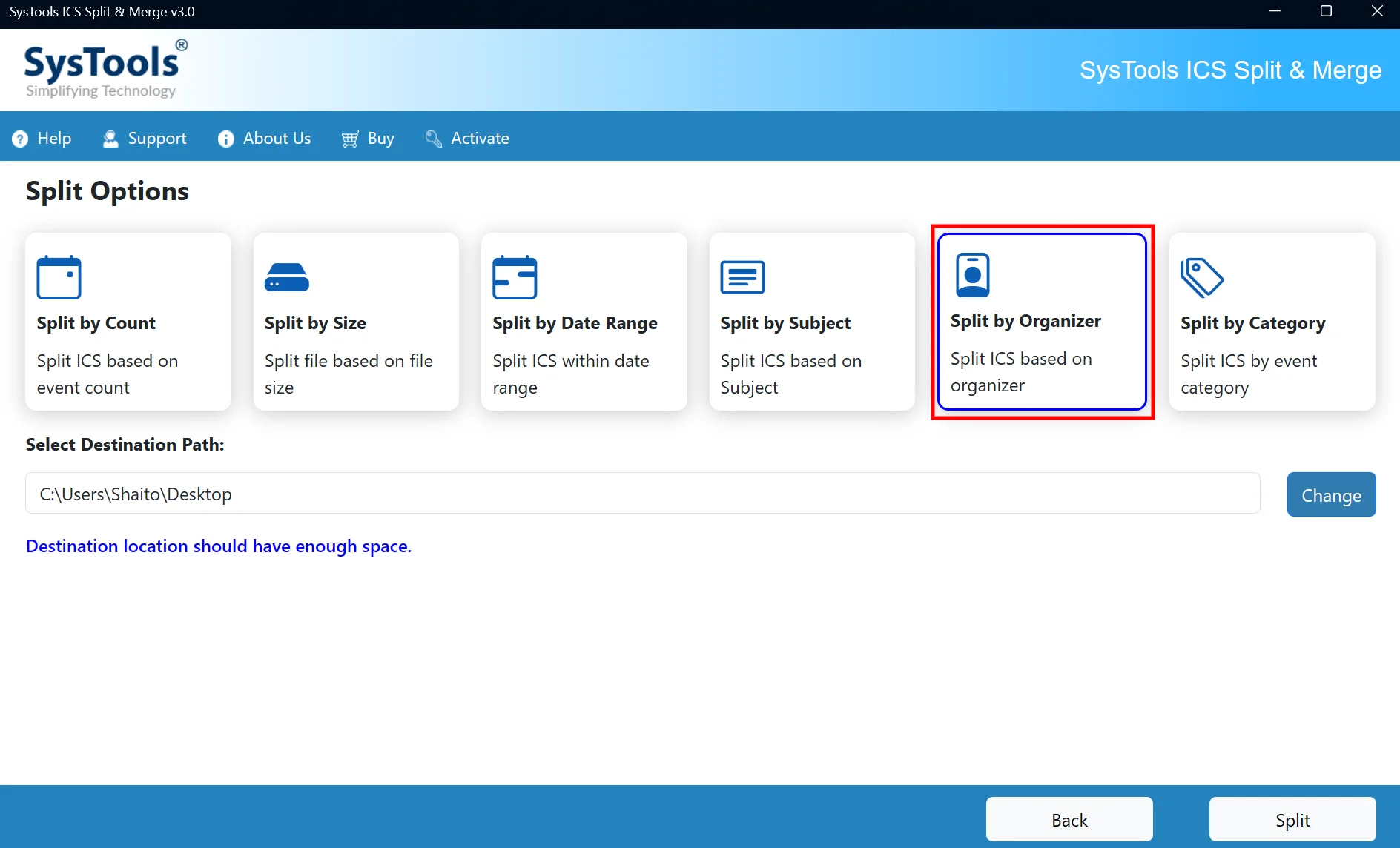
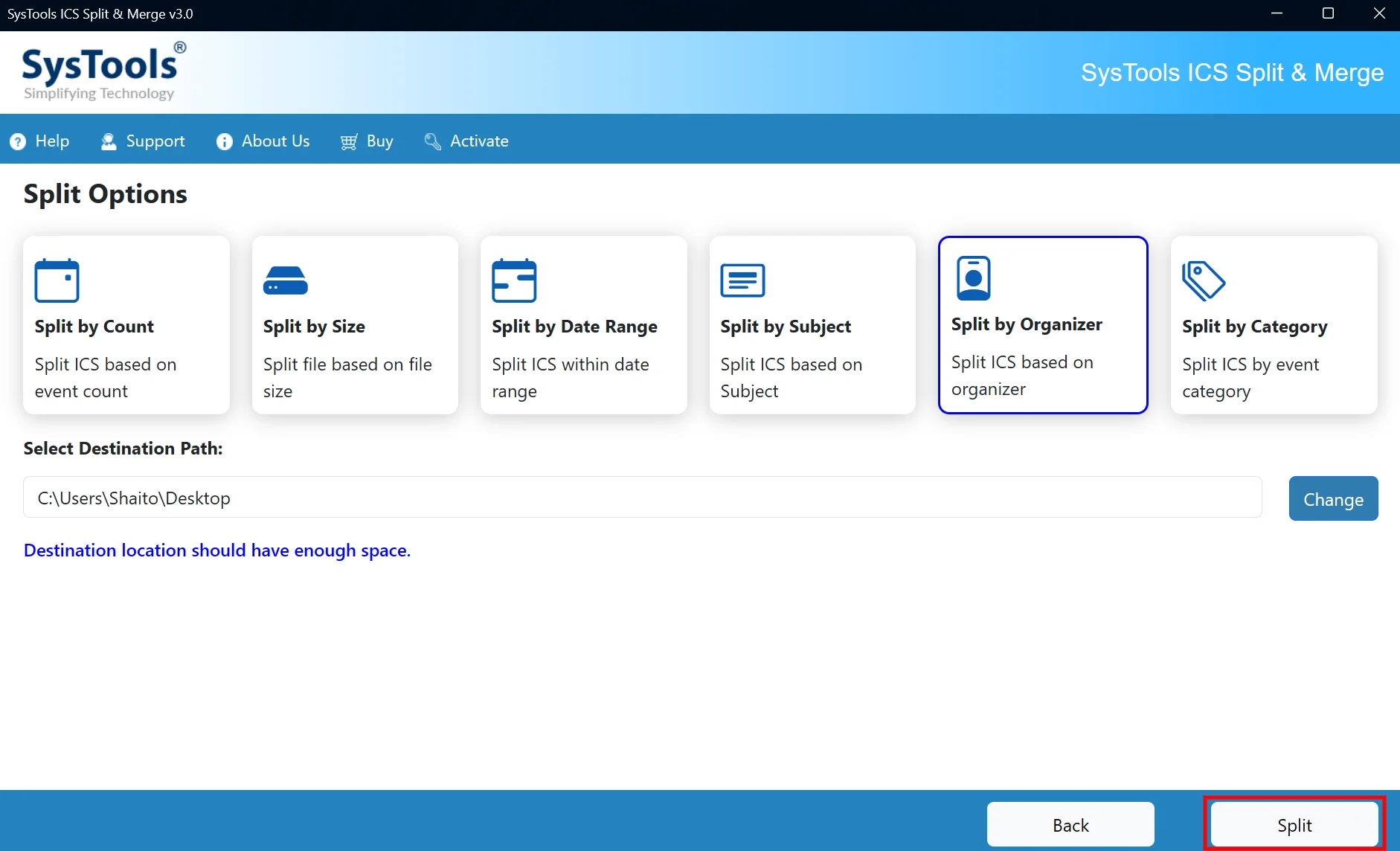
Select Split by Organizer to split the ICS file based on the event organizer.

split by organizer

STEP 6

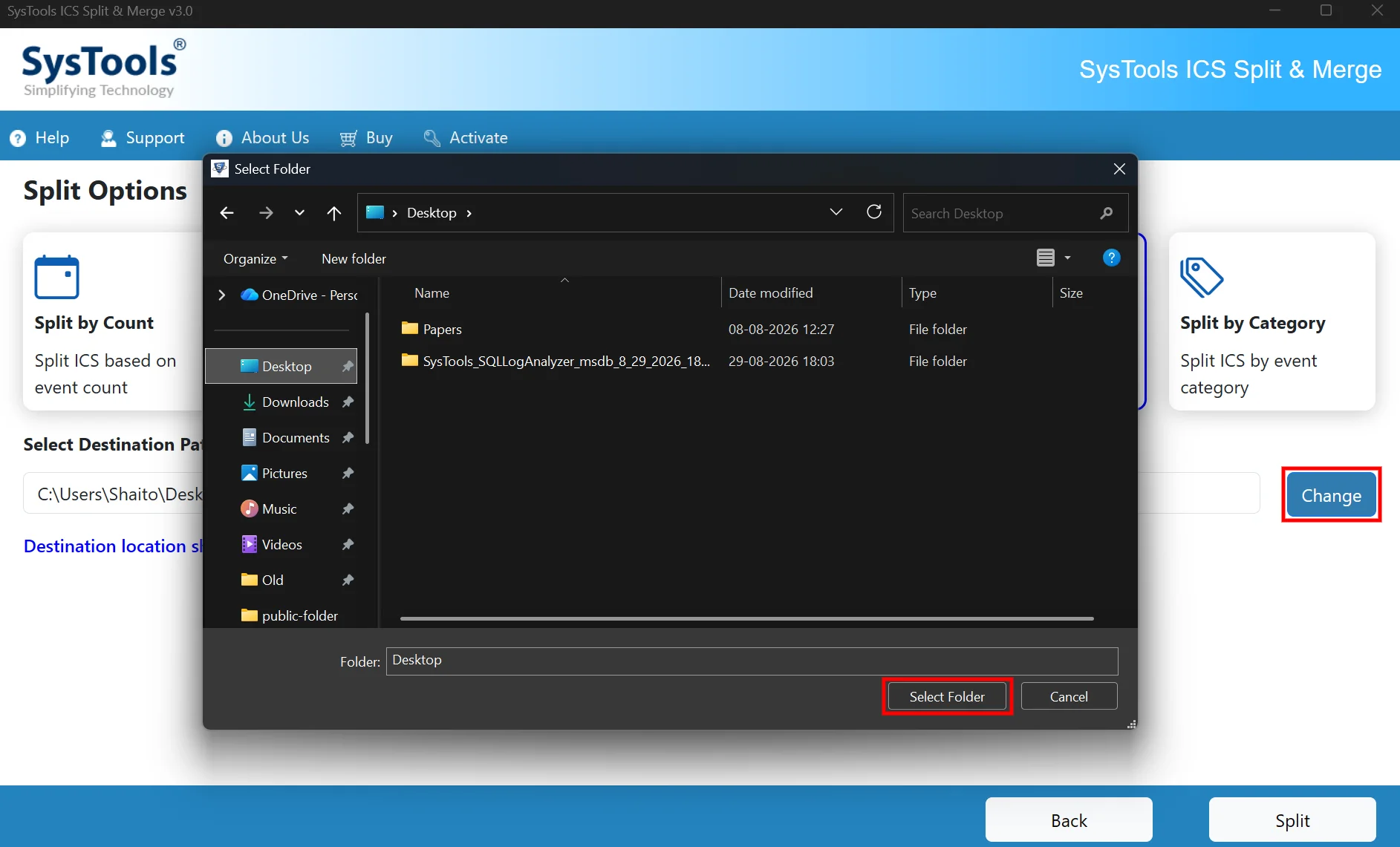
Click Change, select the desired destination folder, and click Select Folder to save the split ICS files there.

browse for output destination

STEP 7

Click Split to start splitting the ICS file based on the organizer.

start splitting

STEP 8

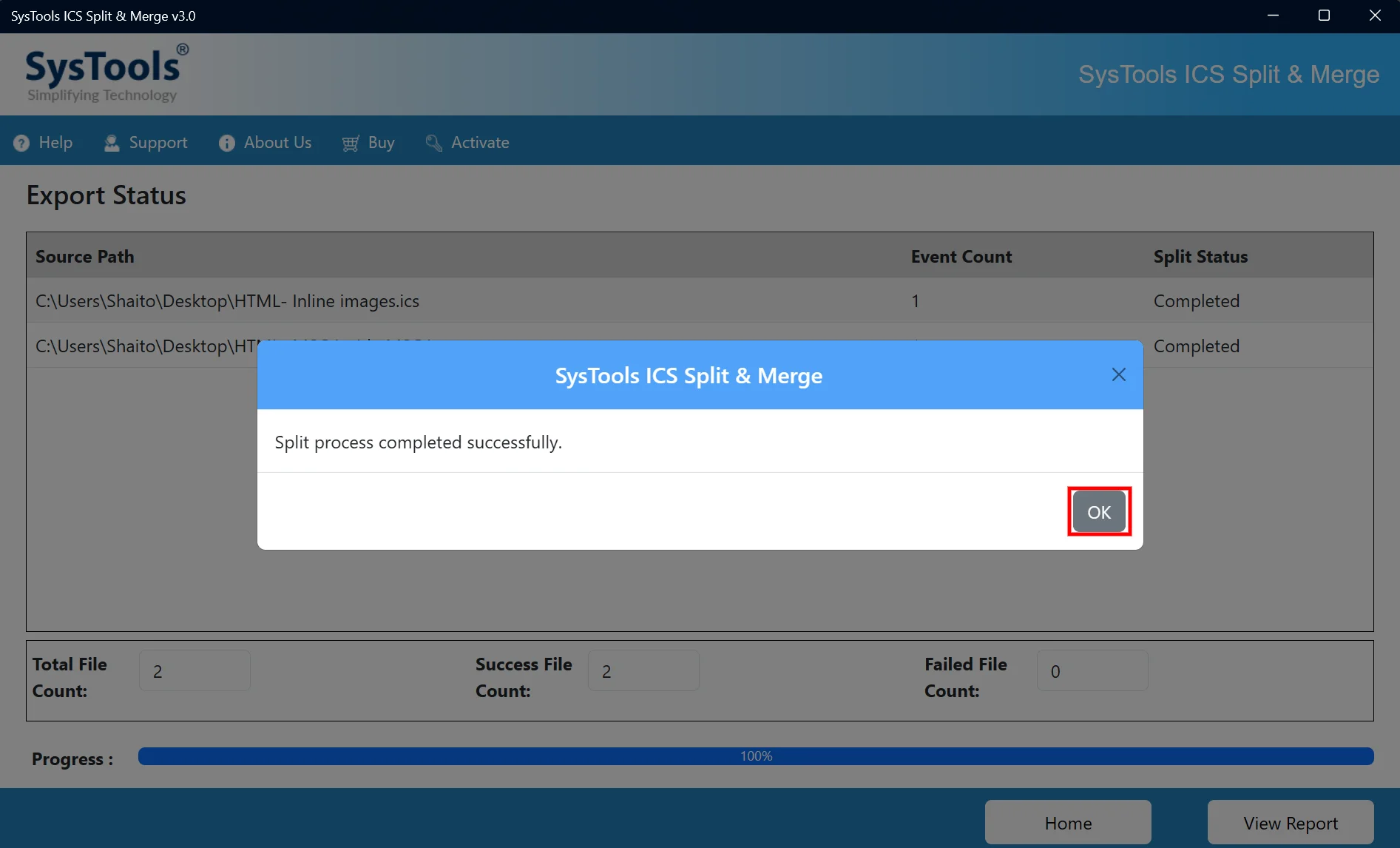
After the split process is completed, a confirmation message appears stating, “Split process completed successfully.” Click OK to close it and proceed to the Export Status screen.

splitting completed

STEP 9

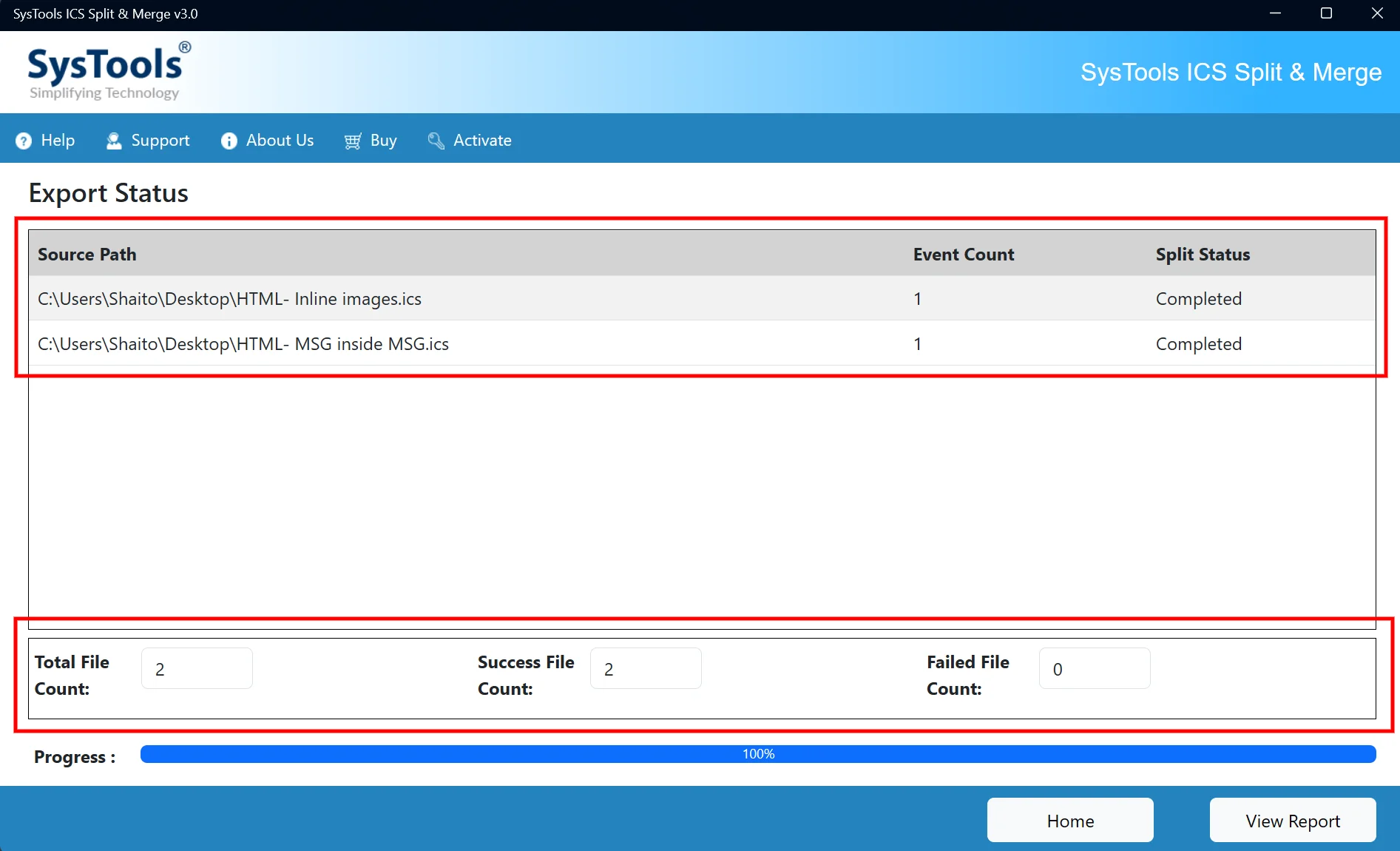
Review the export status to verify the processed files, event count, and split status. You can check the total file count as well as the success and failed file counts.

export status

STEP 10

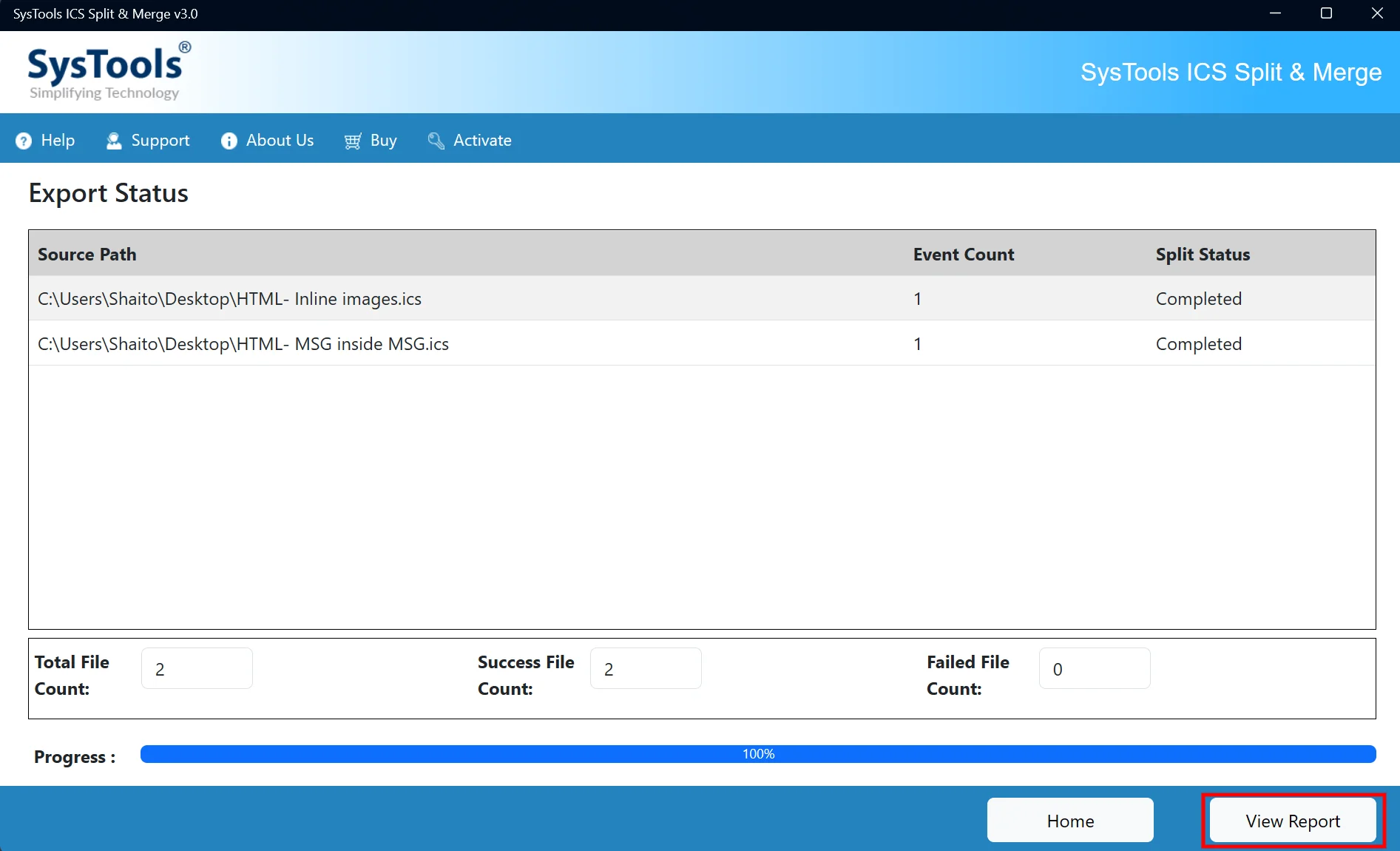
Click View Report to review the detailed report of the completed ICS split process.

view report

STEP 11

You will be navigated to the destination path where the output files as well as the report is saved.
destination path

STEP 12

Review the SplitReport.csv file to verify the source path, destination path, event count, and split status of the processed ICS files.

report preview

STEP 5

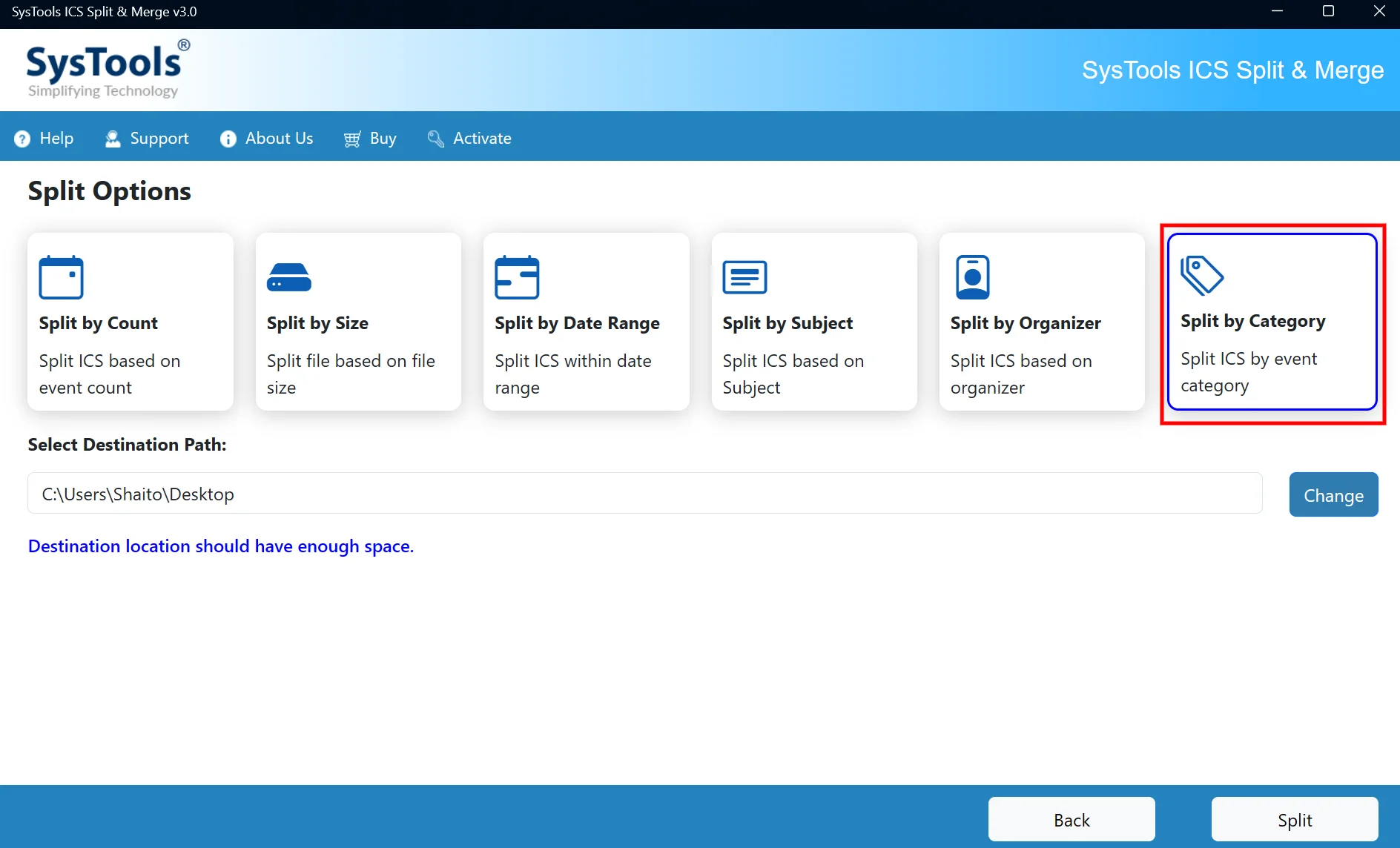
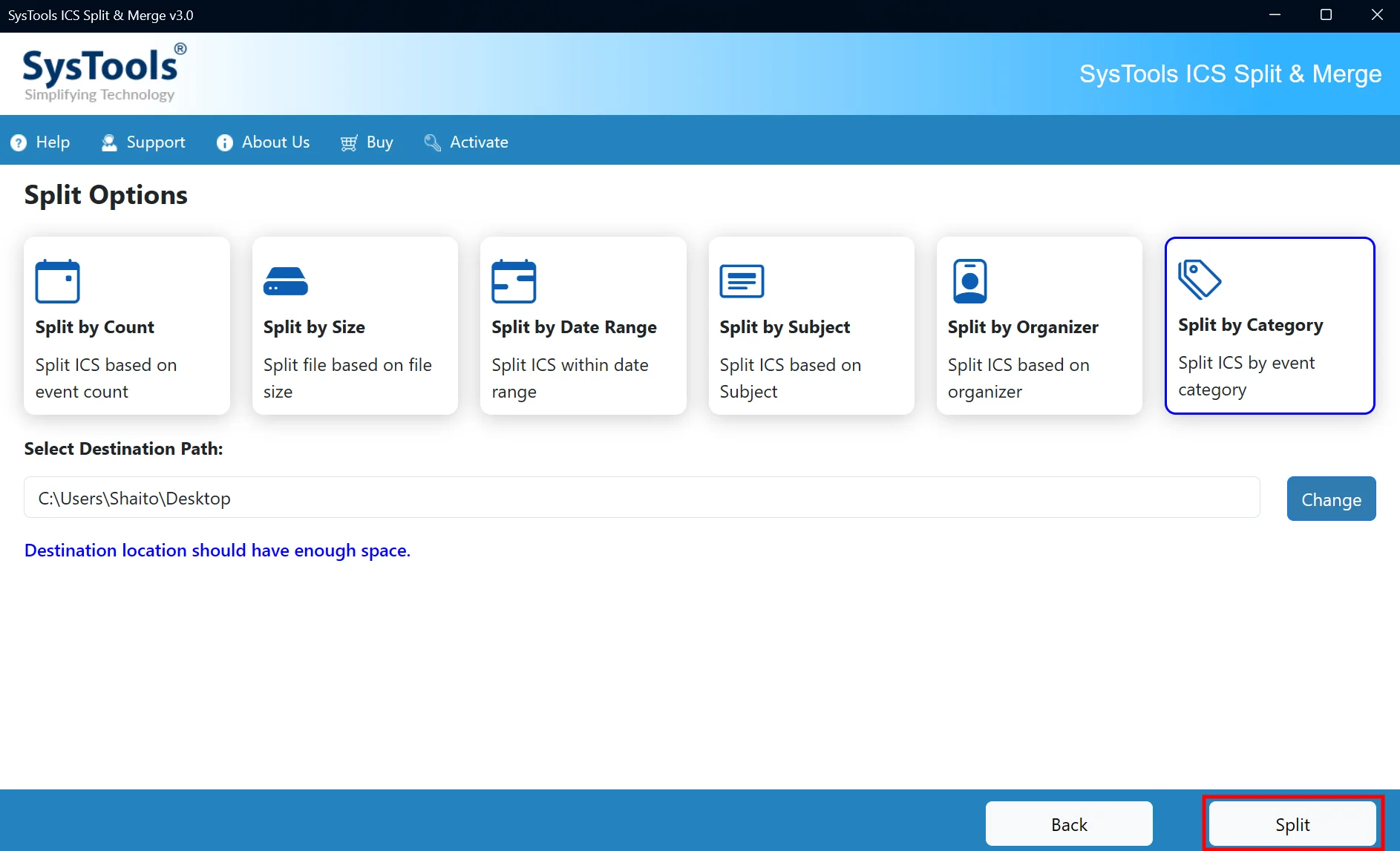
Select Split by Category to split the ICS file based on the event category.

split by category

STEP 6

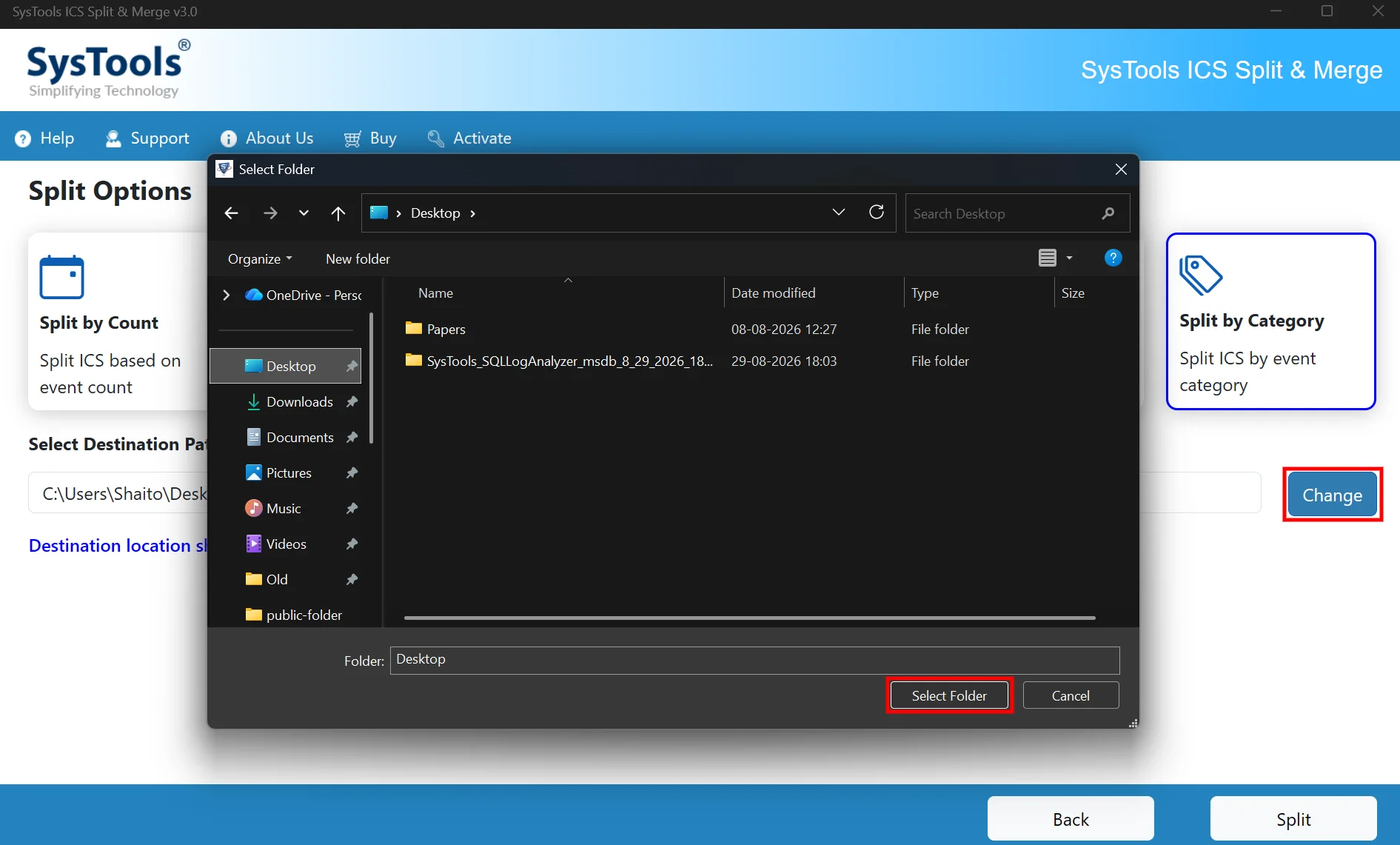
Click Change, select the desired destination folder, and click Select Folder to save the split ICS files there.
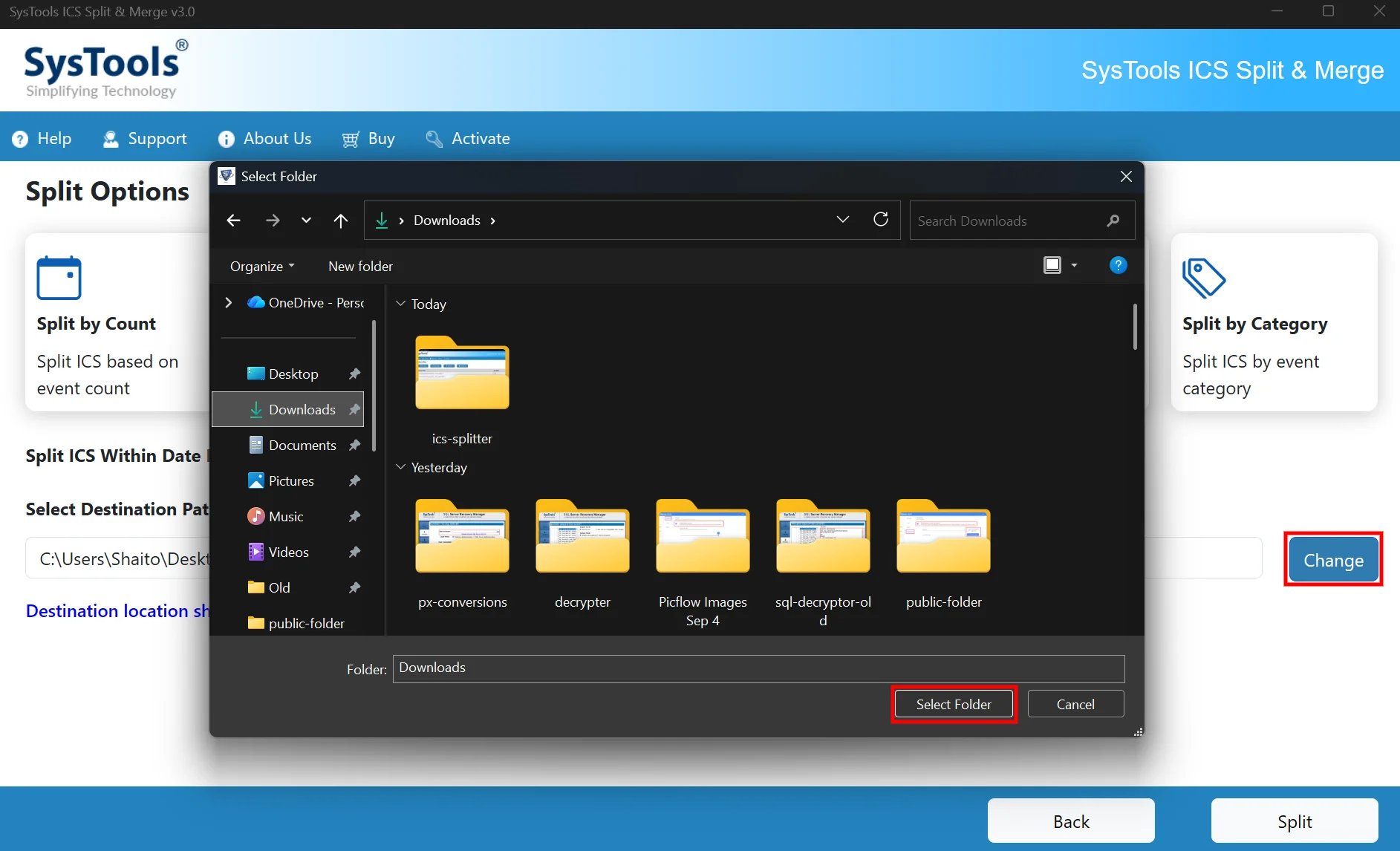
browse for output destination

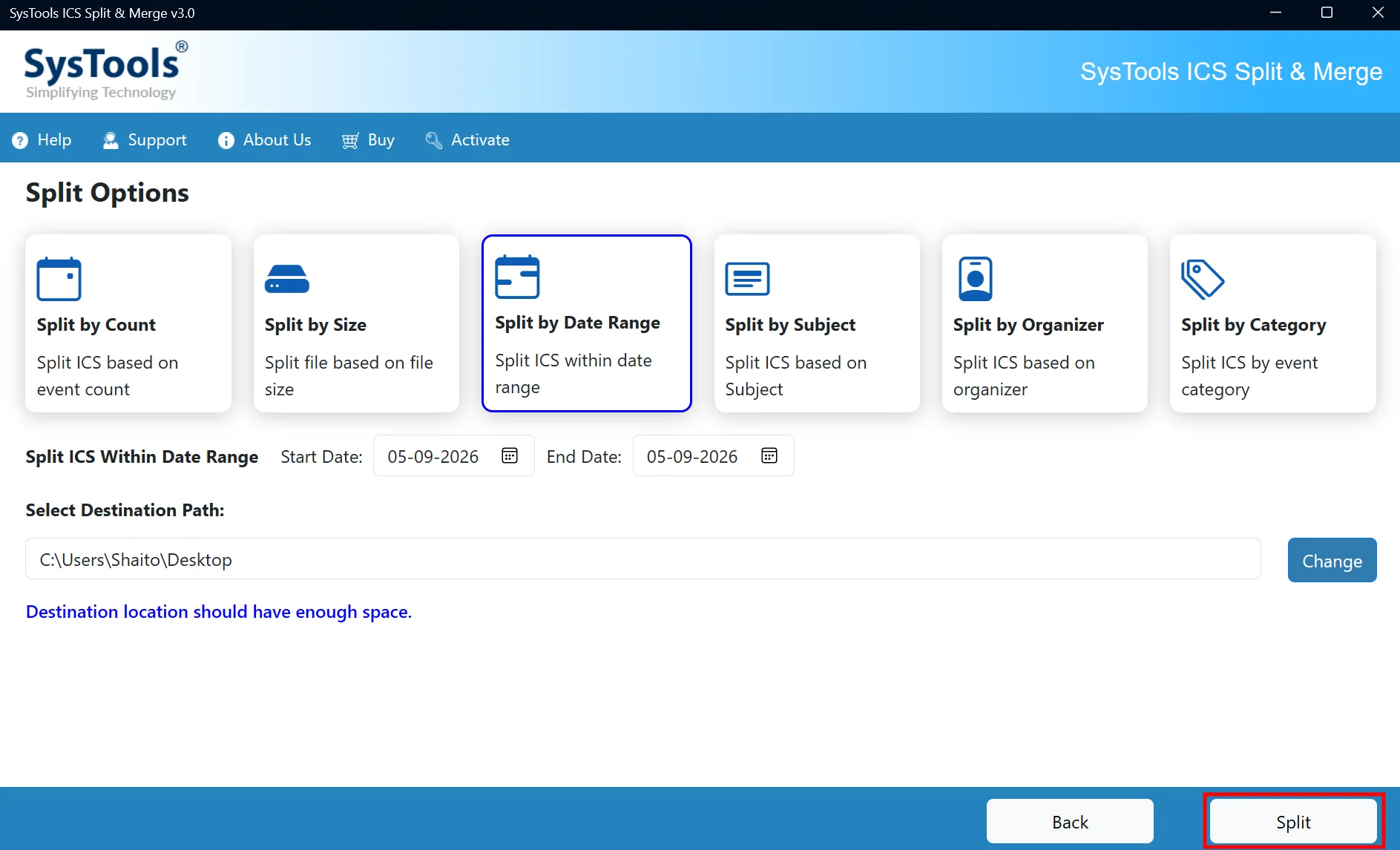
STEP 7

Click Split to start splitting the ICS file based on the category.

start splitting

STEP 8

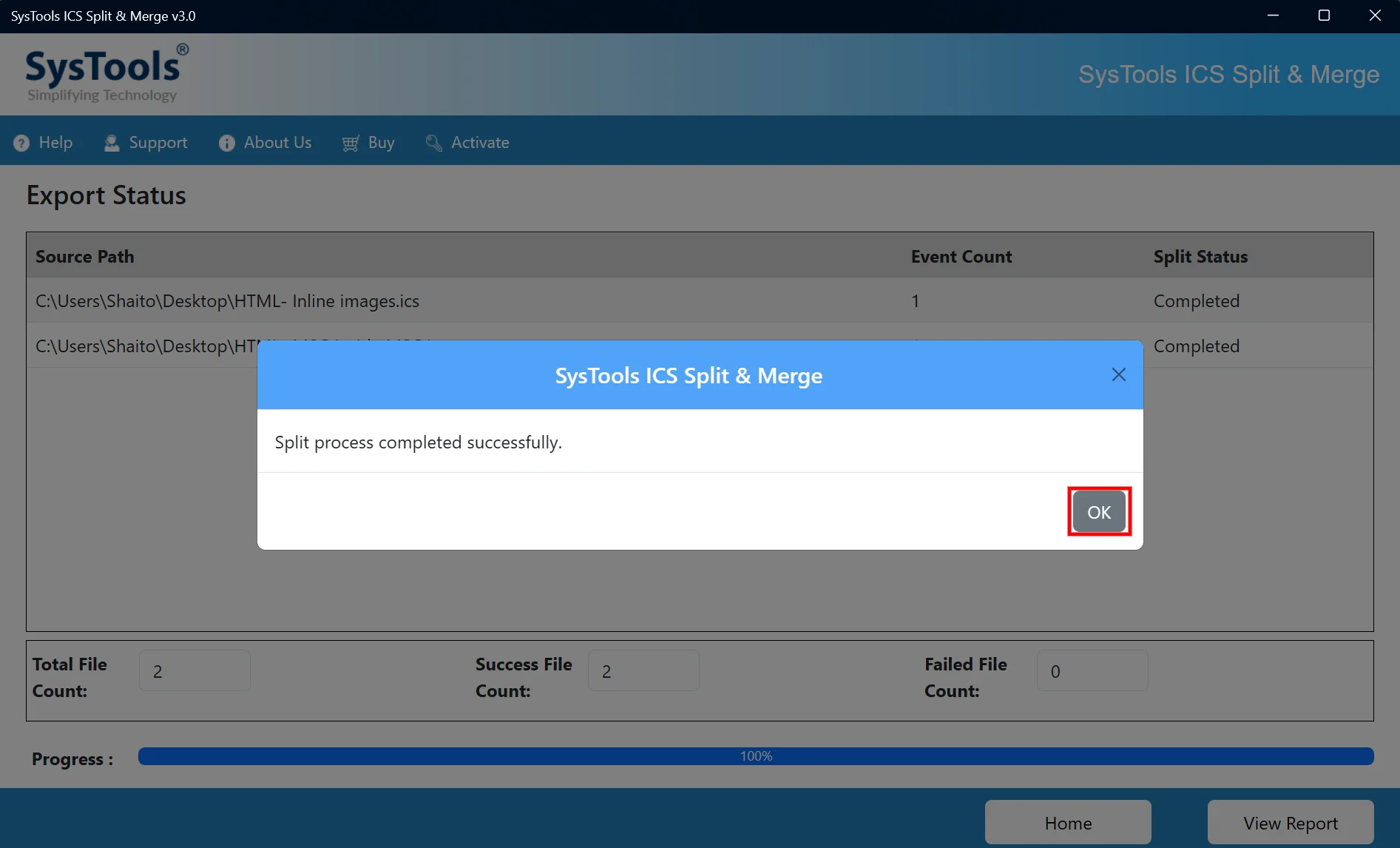
After the split process is completed, a confirmation message appears stating, “Split process completed successfully.” Click OK to close it and proceed to the Export Status screen.
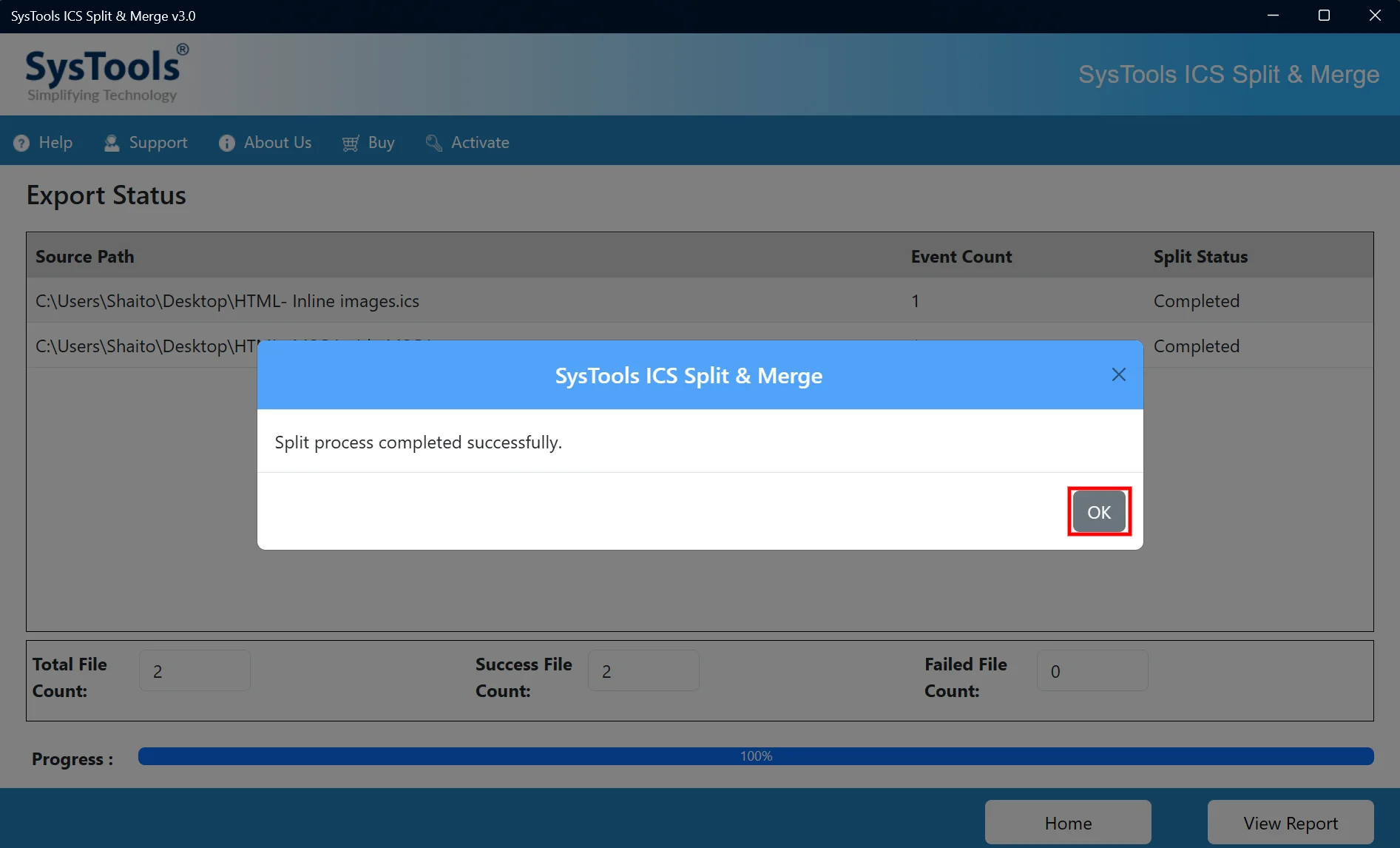
splitting completed

STEP 9

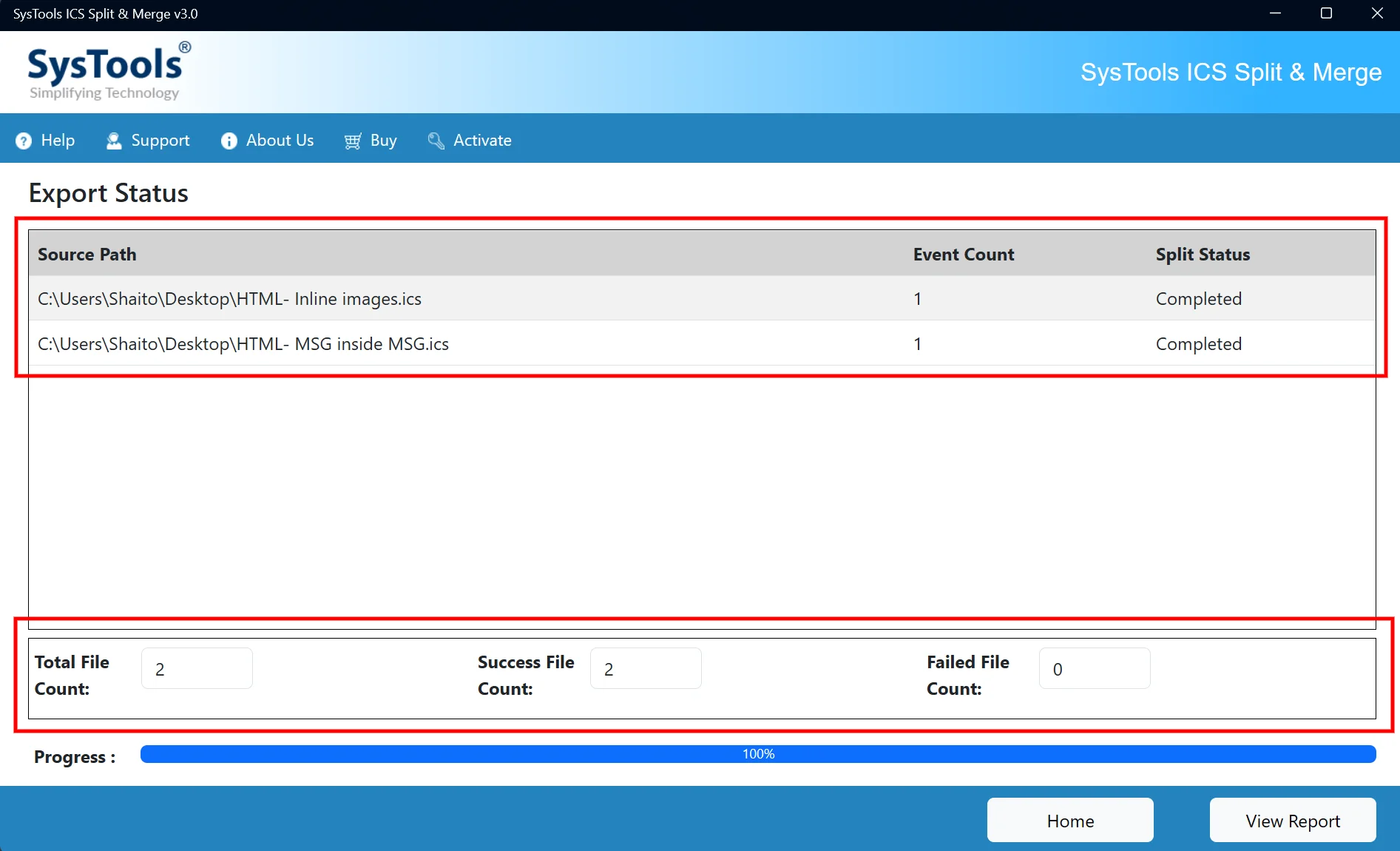
Review the export status to verify the processed files, event count, and split status. You can check the total file count as well as the success and failed file counts.
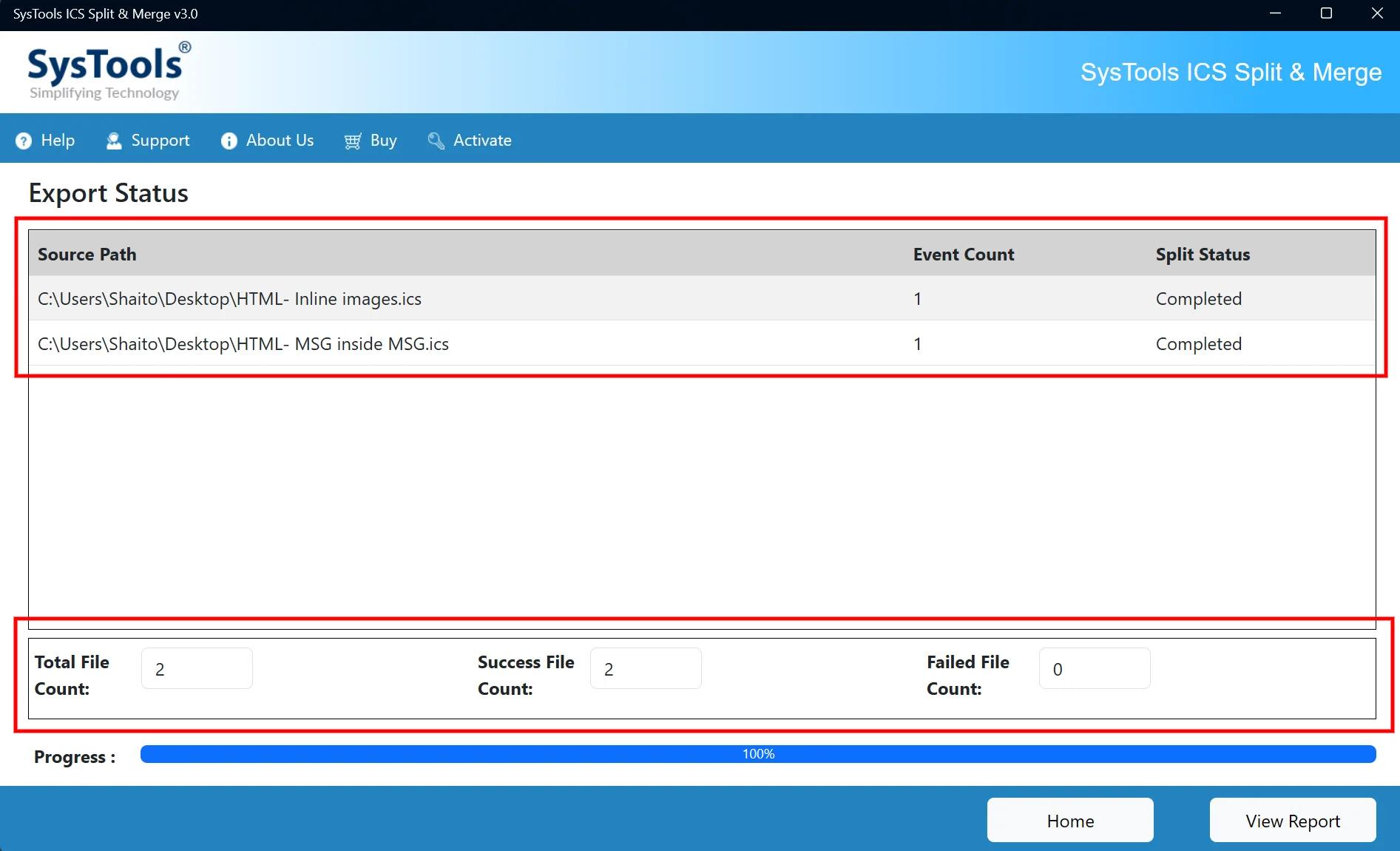
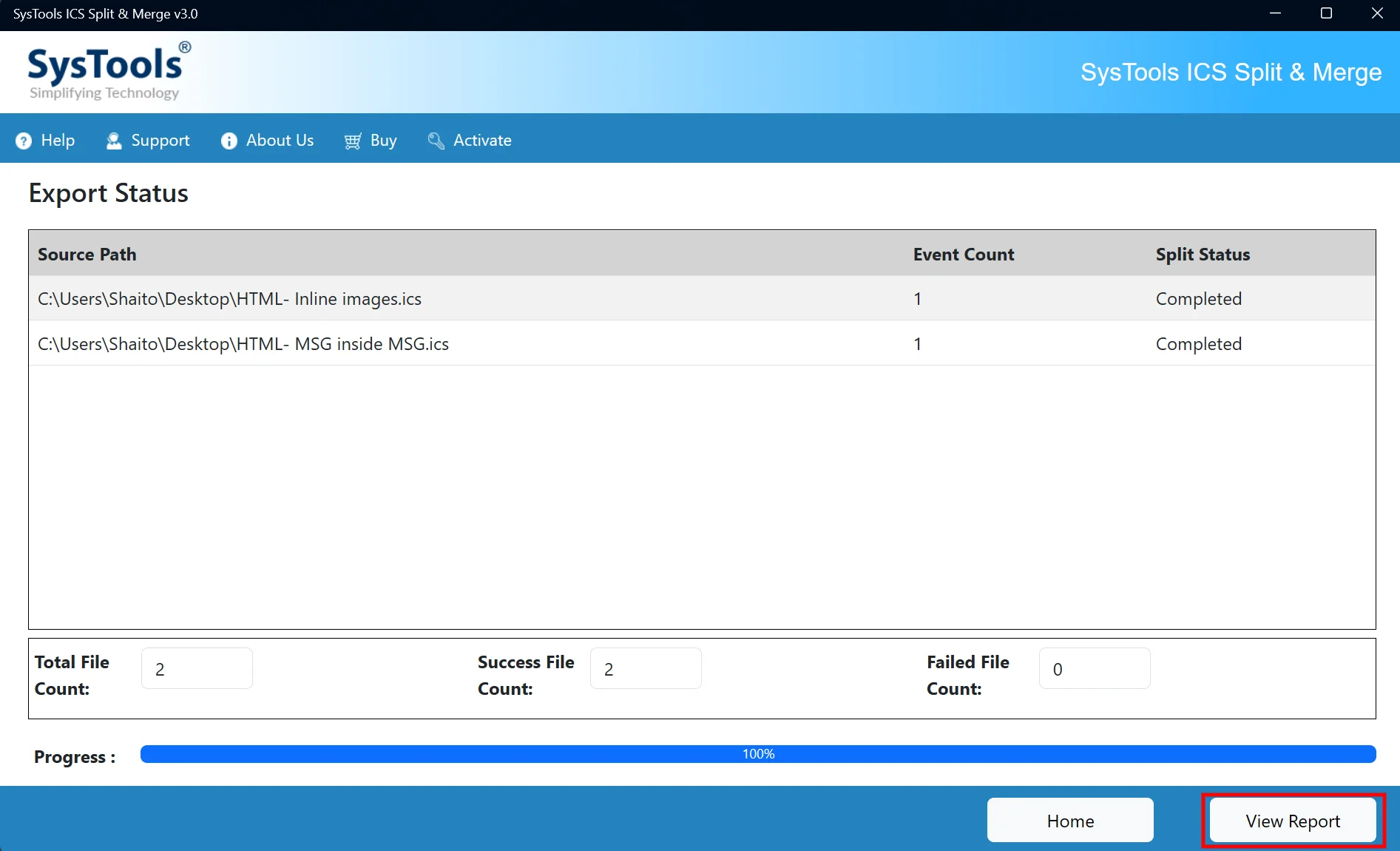
export status

STEP 10

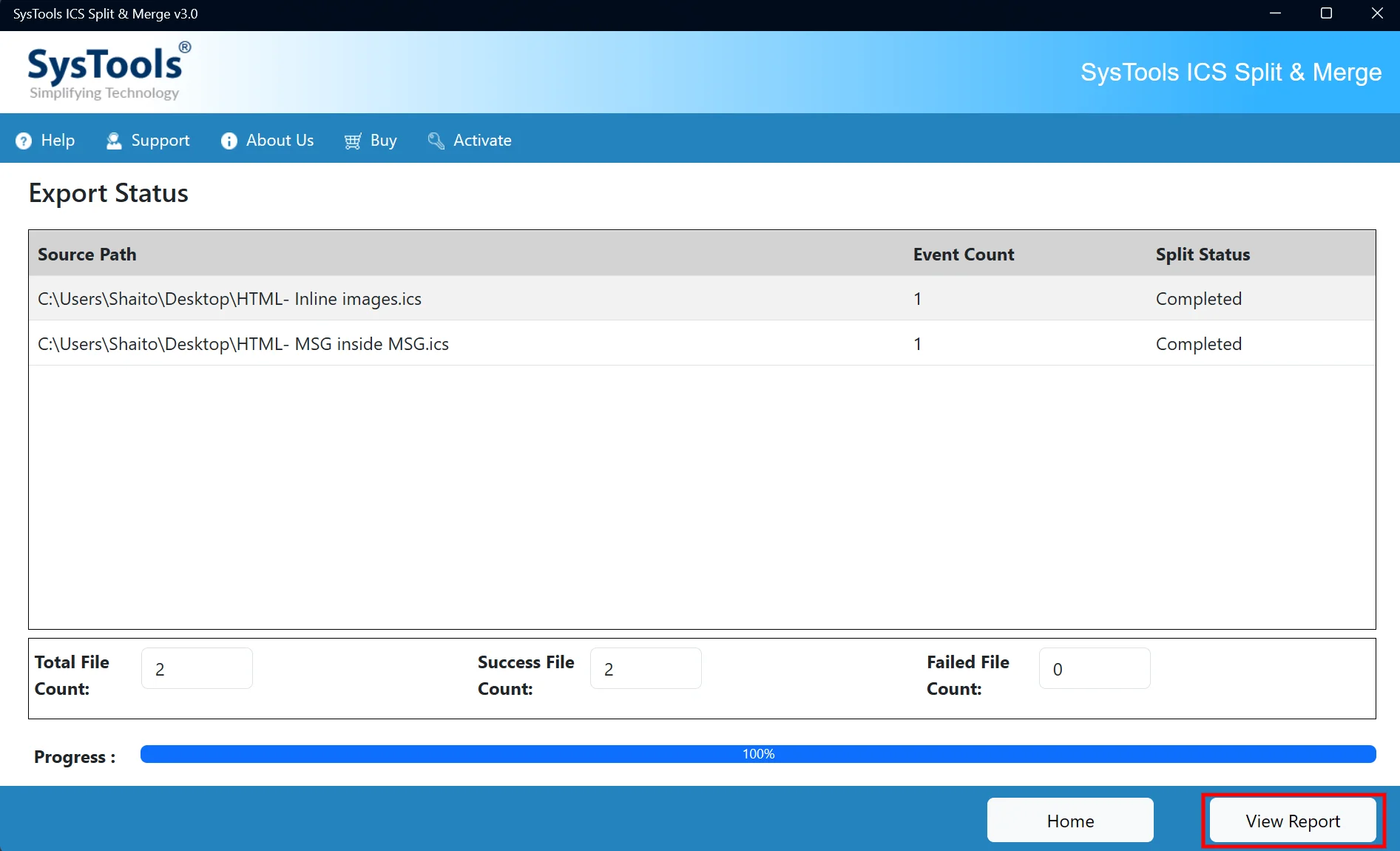
Click View Report to review the detailed report of the completed ICS split process.

view report

STEP 11

You will be navigated to the destination path where the output files as well as the report is saved.
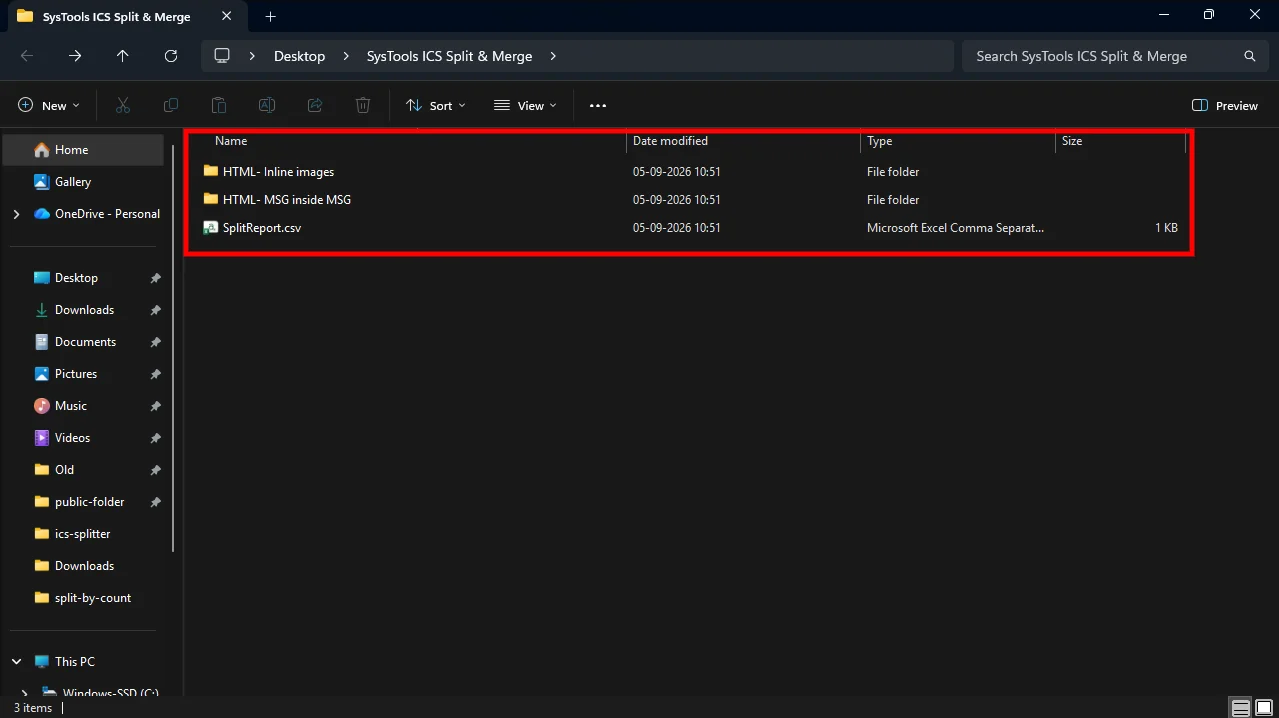
destination path

STEP 12

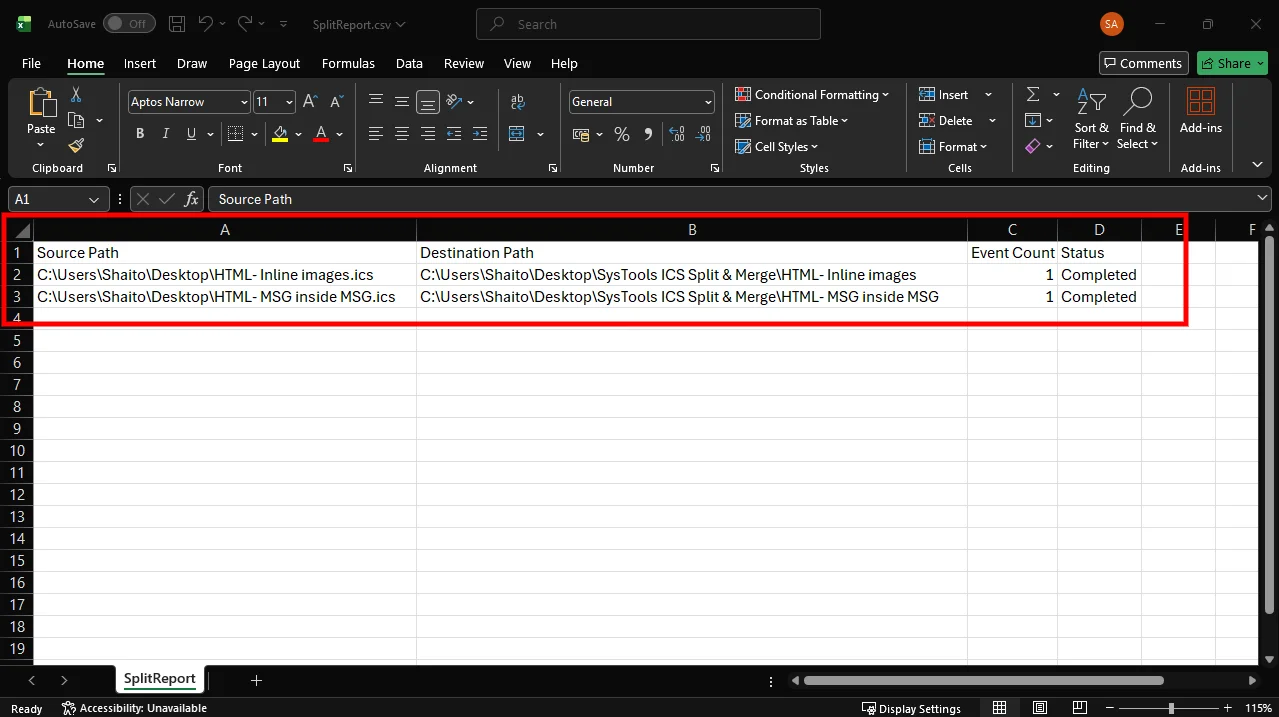
Review the SplitReport.csv file to verify the source path, destination path, event count, and split status of the processed ICS files.

report preview

STEP 1

Install and Run the “SysTools ICS Split & Merge” tool and select Merge ICS Option.

install tool

STEP 2

Click "Add File(s)" to add multiple ICS files or "Add Folder" to add the complete folder containing many ICS files.

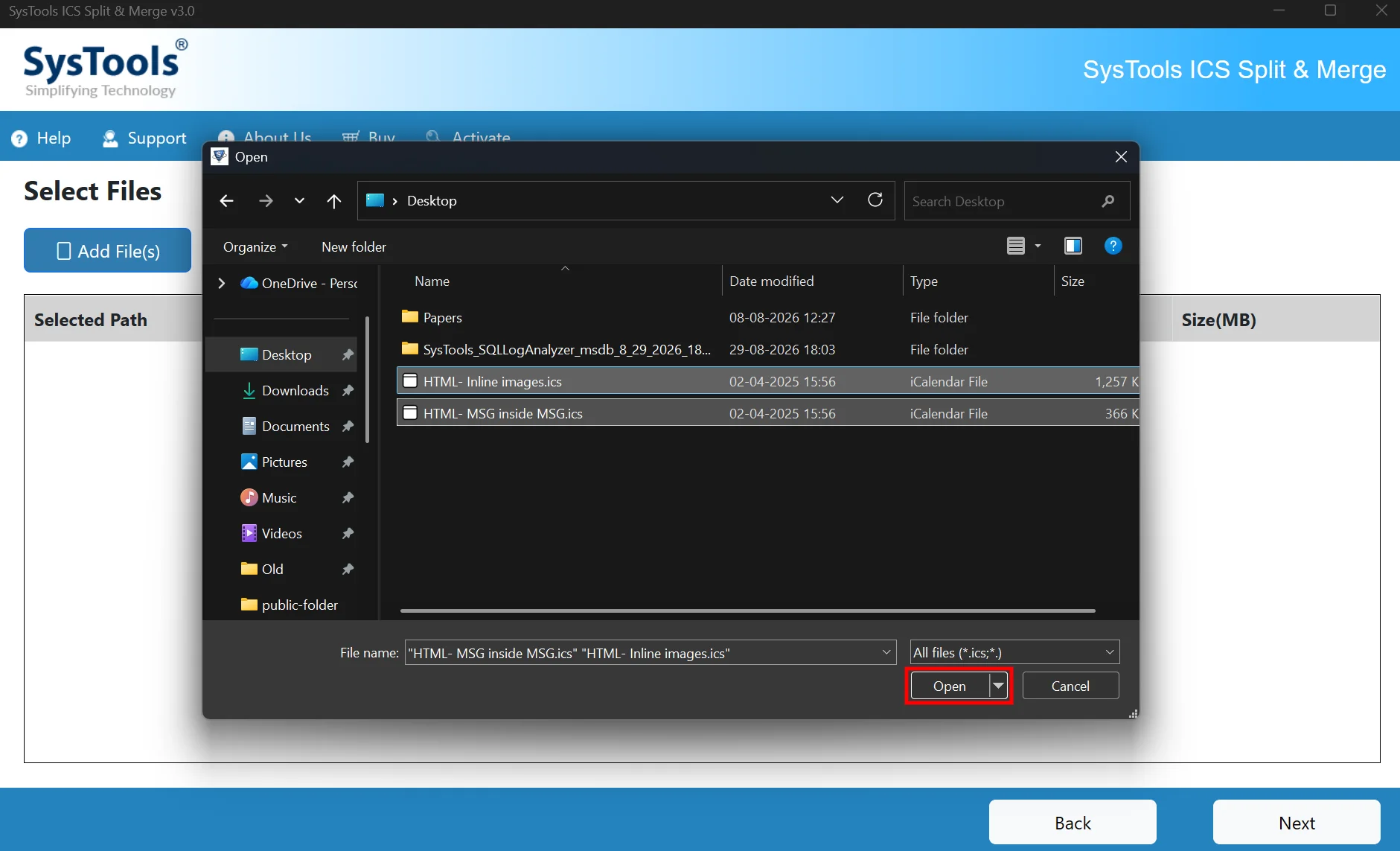
add file(s) or folder(s)

STEP 3

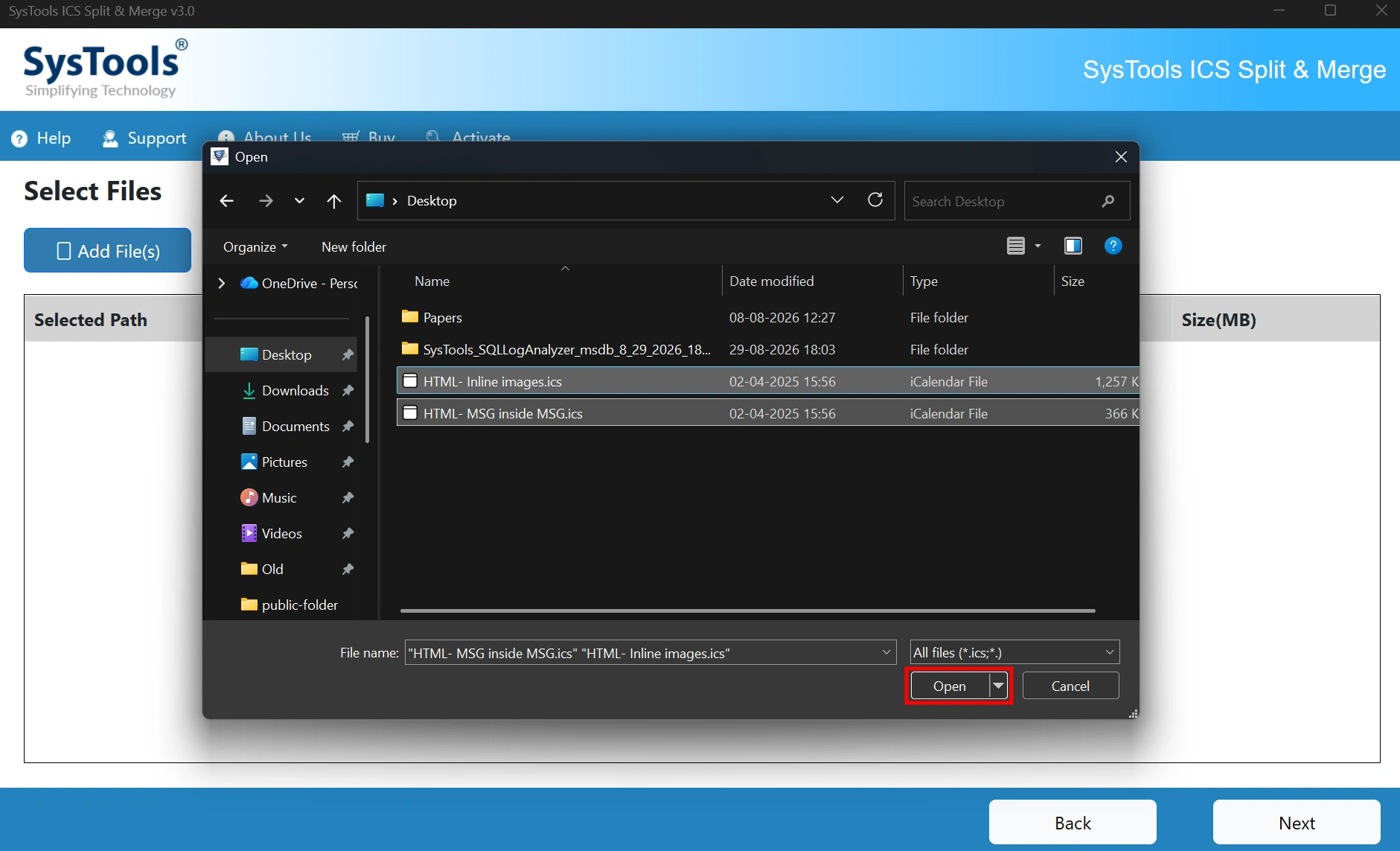
Browse and select the required ICS files, then click Open to add them to the software.

browse file(s) or folder(s)

STEP 4

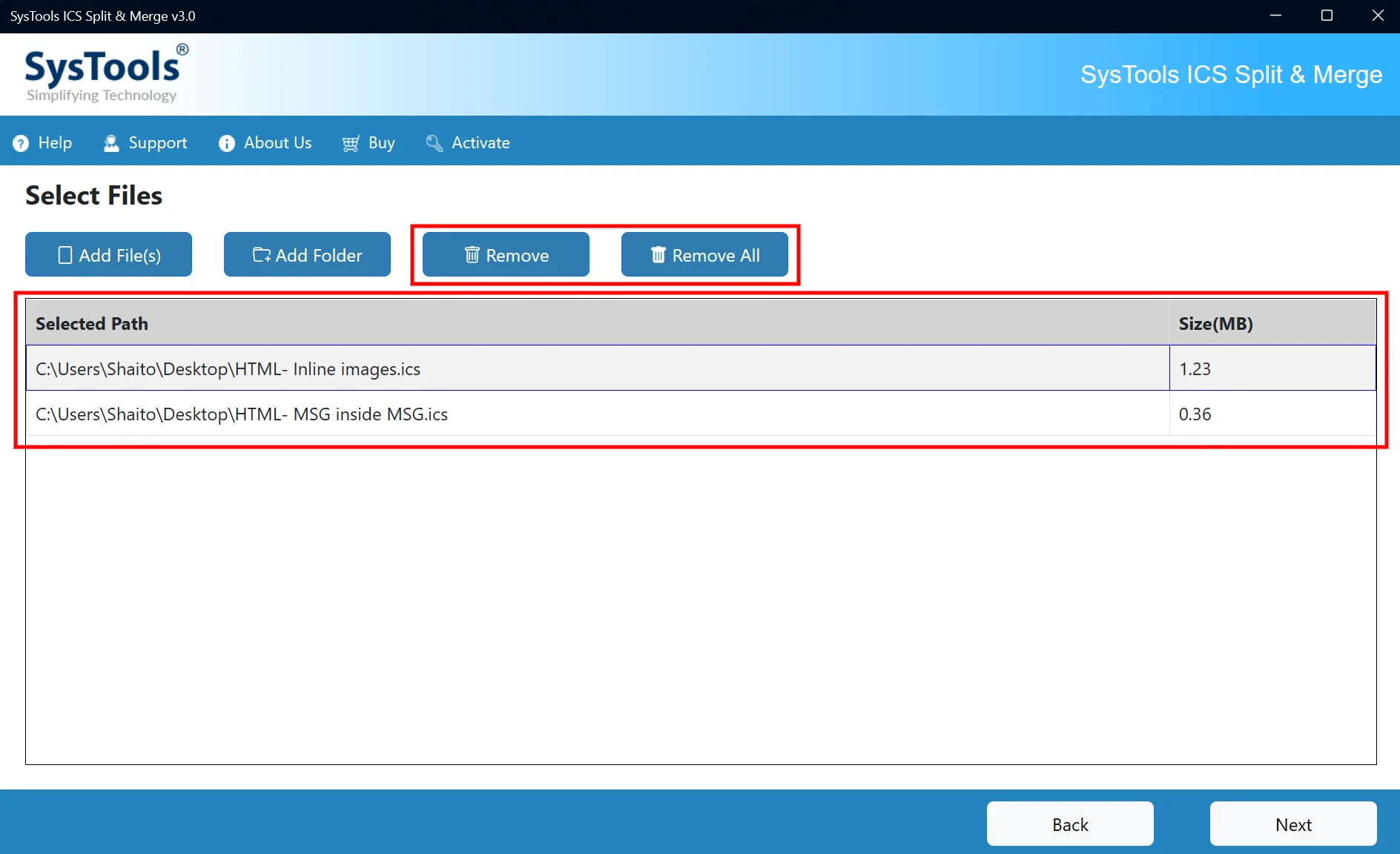
Review the selected ICS files in the list. Use Remove or Remove All to delete unwanted files.
review added file(s)

STEP 5

Click Next to proceed with the selected ICS files.

next

STEP 6

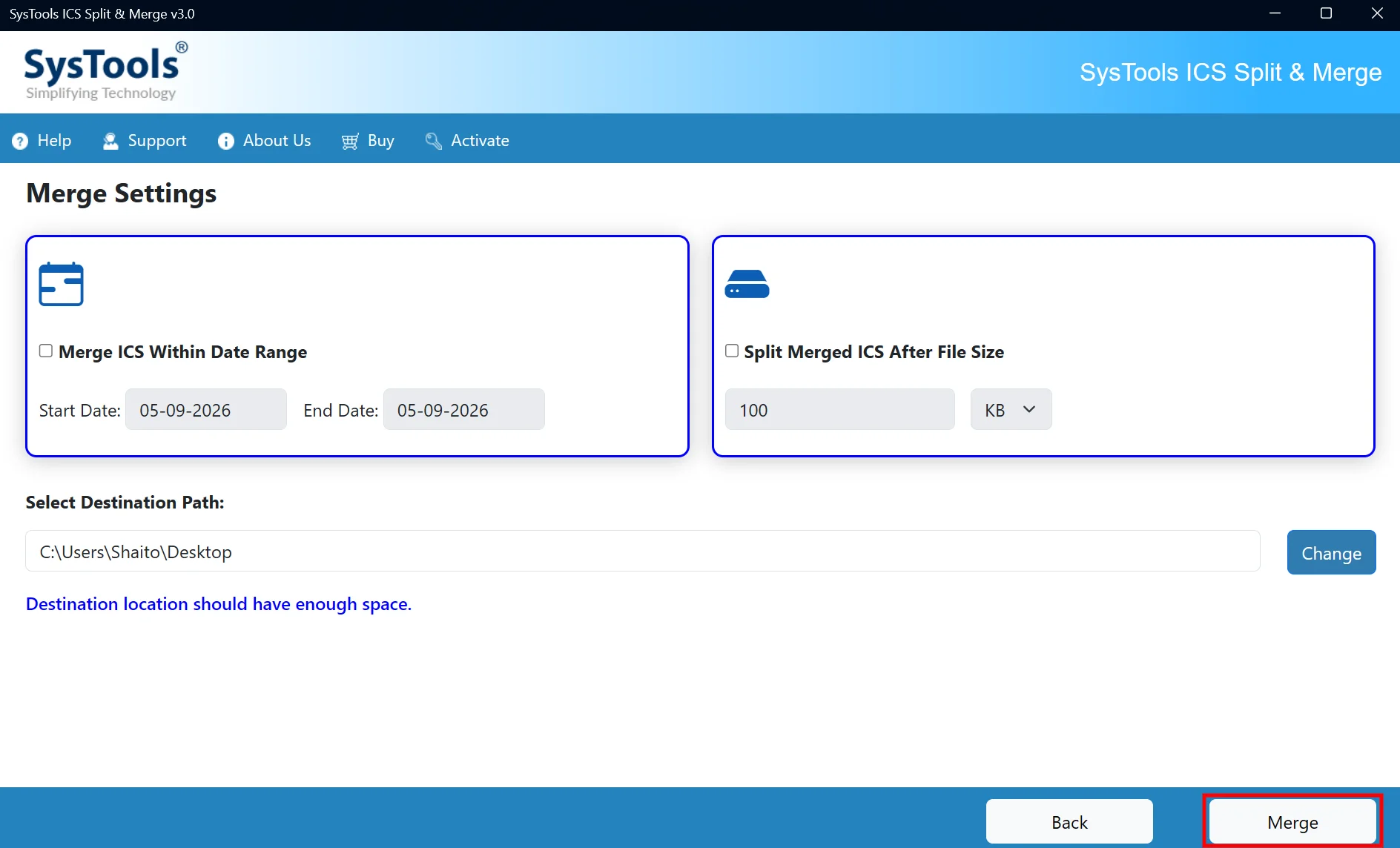
If you wish to, you can set the date range for merging ICS files by checking the Merge ICS Within Date Range option.

date range filter

STEP 7

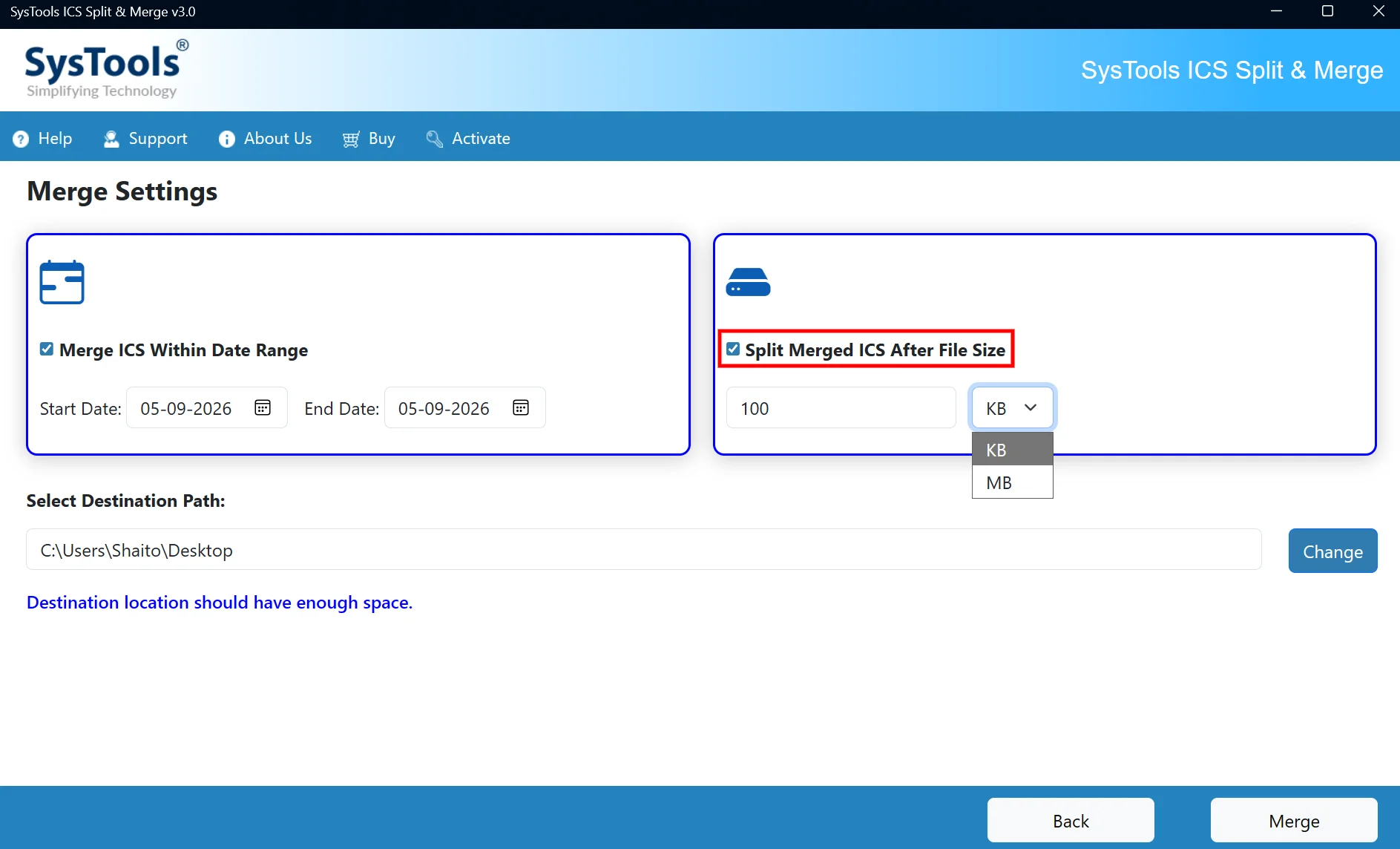
You can also enable Split Merged ICS After File Size and set the required size in KB or MB to split the merged ICS file.
split files after merging

STEP 8

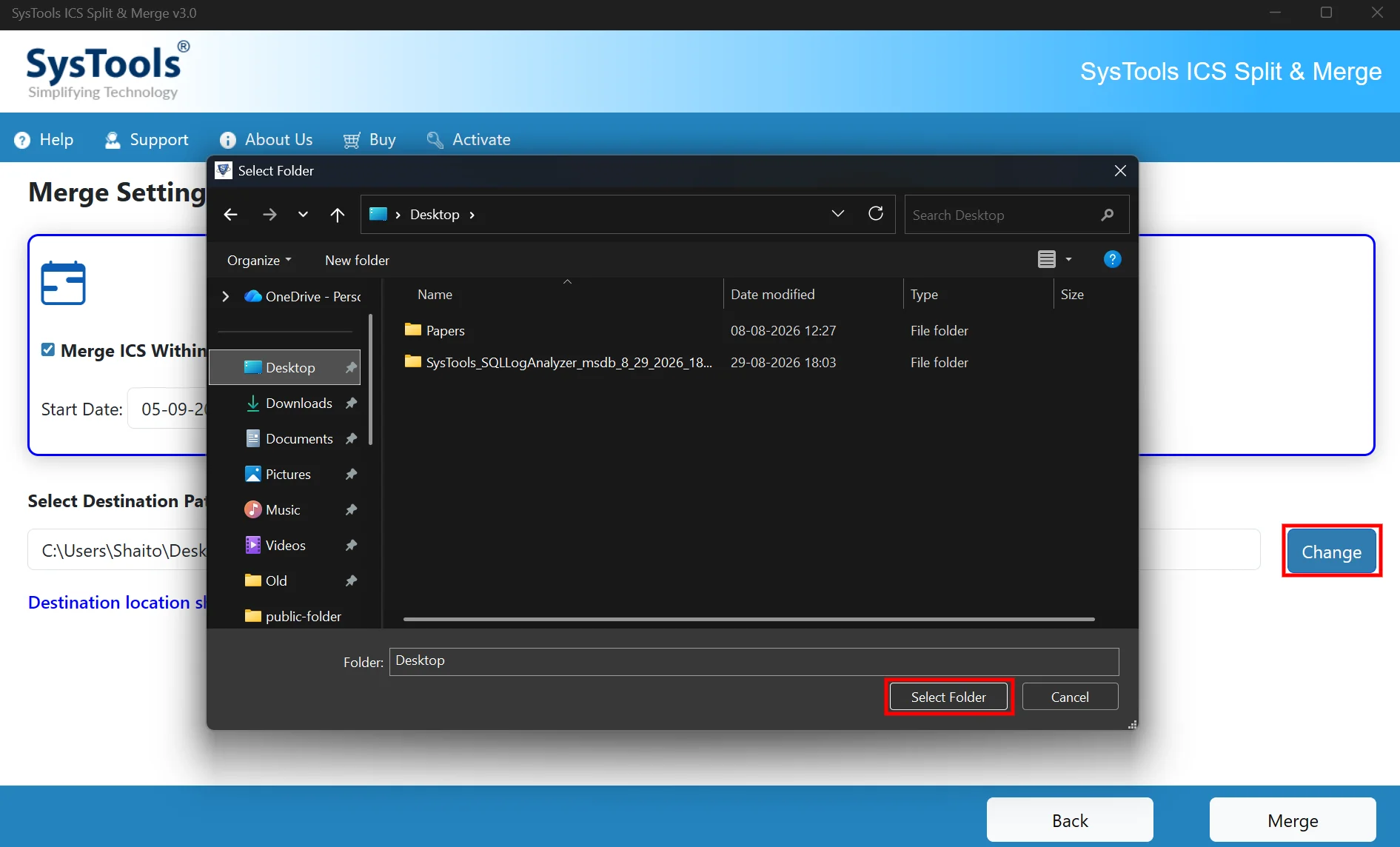
Choose the destination folder for the merged ICS file and click Select Folder.

browse destination

STEP 9

Click Merge to start merging the ICS files.

start merging

STEP 10

Click OK after the merge process is completed successfully.

merge process completed

STEP 11

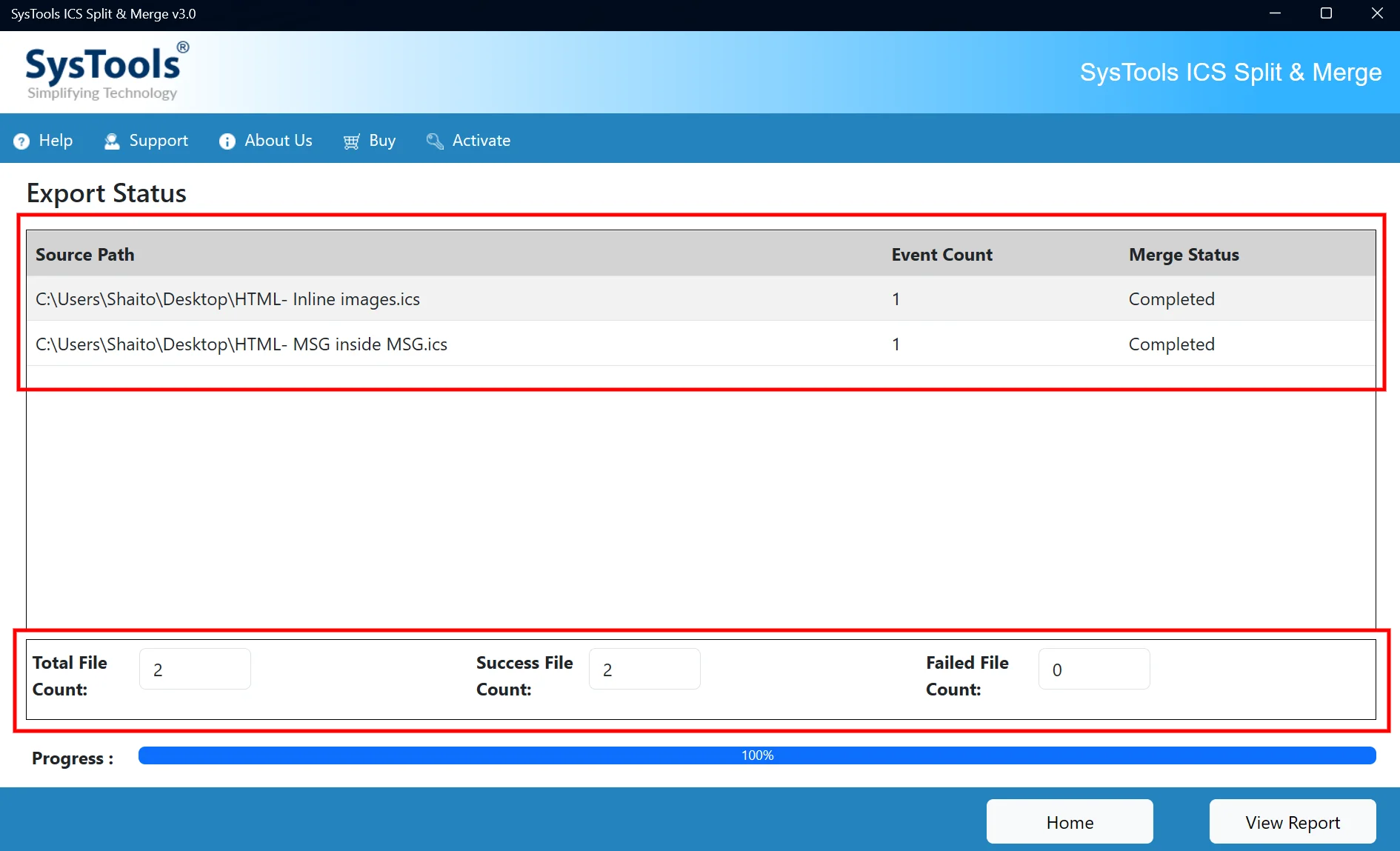
Review the Merge Status and file counts to verify the process completed successfully.

merge status

STEP 12

Click View Report to view the detailed merge results.

view report

STEP 13

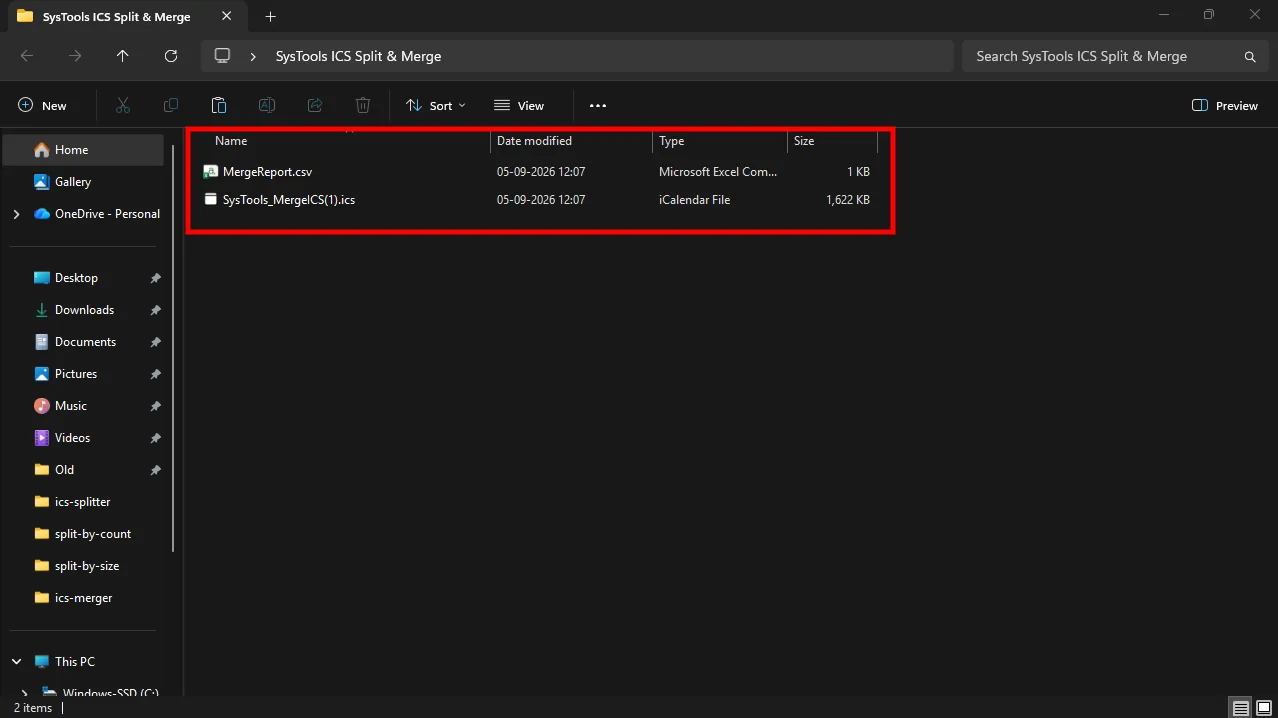
You will be navigated to the destination path where the Merged File(s) and Report is saved.

output files

STEP 14

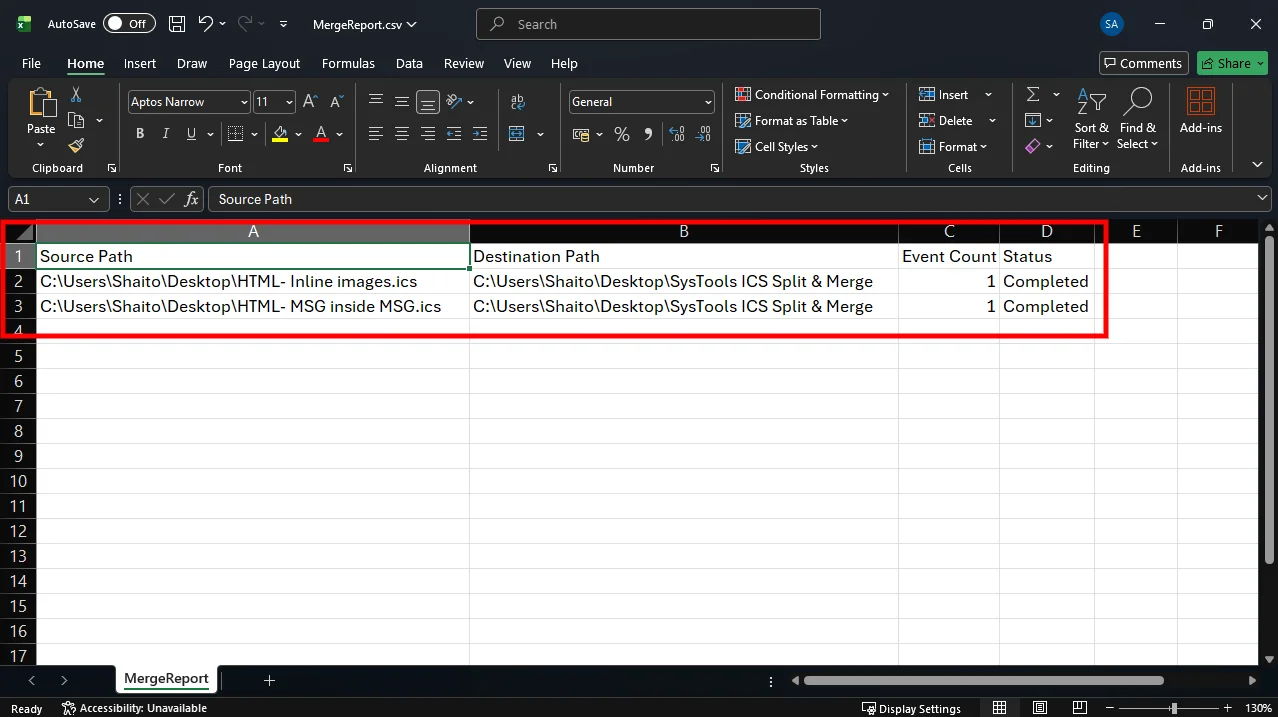
Review the MergeReport.csv file to verify the source paths, destination path, event count, and merge status.

report preview

Free Download ICS Split & Merge Download Now