Prerequisites
- A Mac with Apple silicon (M-series chip).
- An active internet connection.
- The password of your Mac user account.
Method 1: Install Rosetta from the macOS Prompt
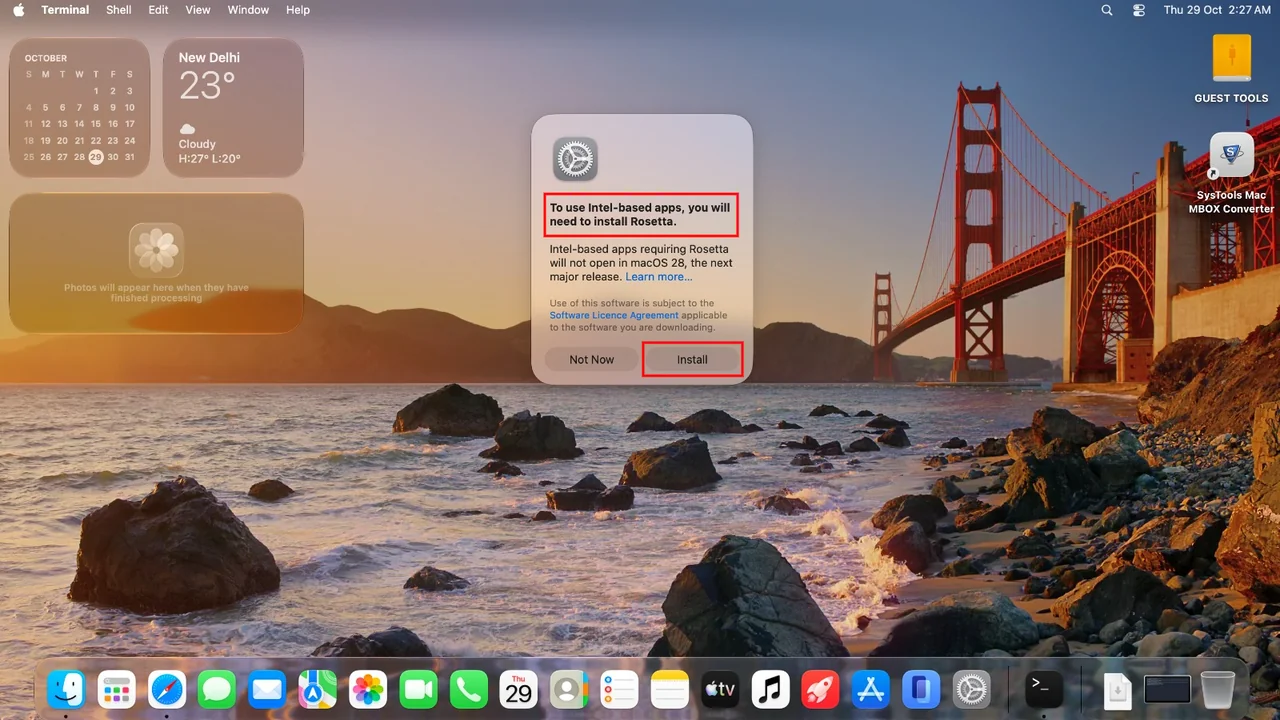
Click Install on the Rosetta Prompt
Open All SysTools Software. If your Mac does not have Rosetta, macOS shows the message To use Intel-based apps, you will need to install Rosetta. Click Install.
Allow macOS to Install the Software
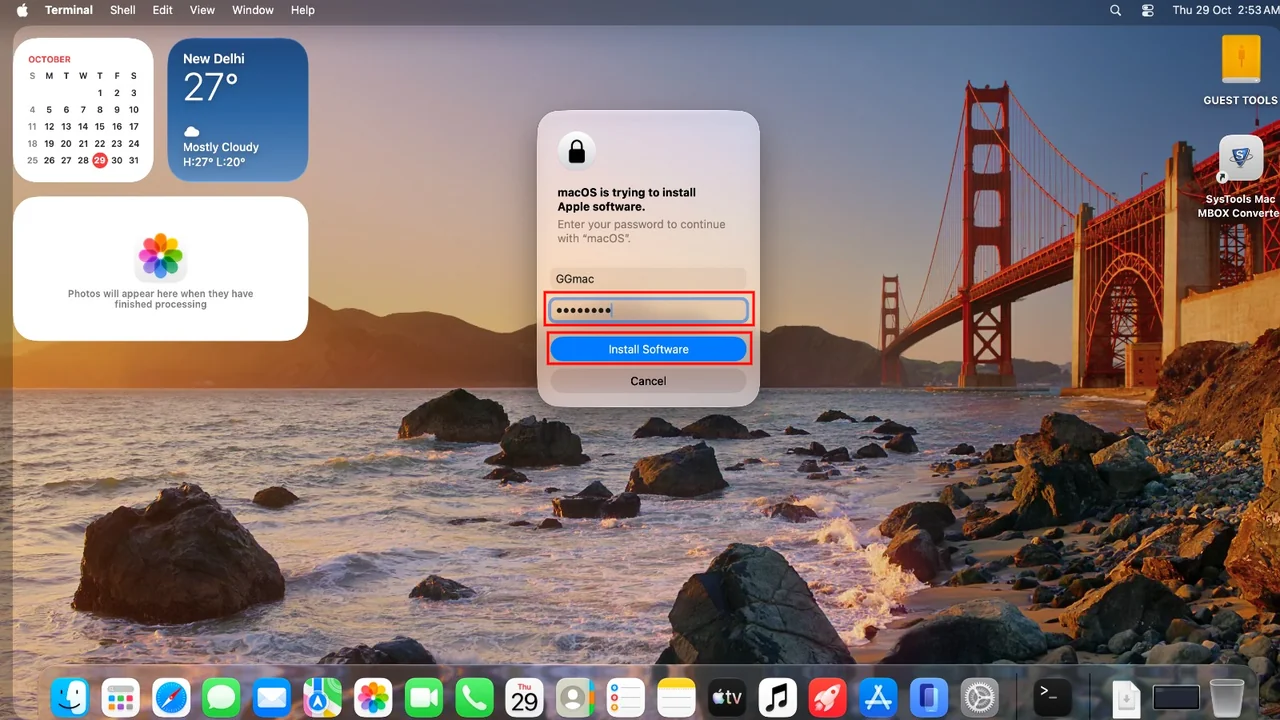
A second window says macOS is trying to install Apple software and asks for your password to continue.
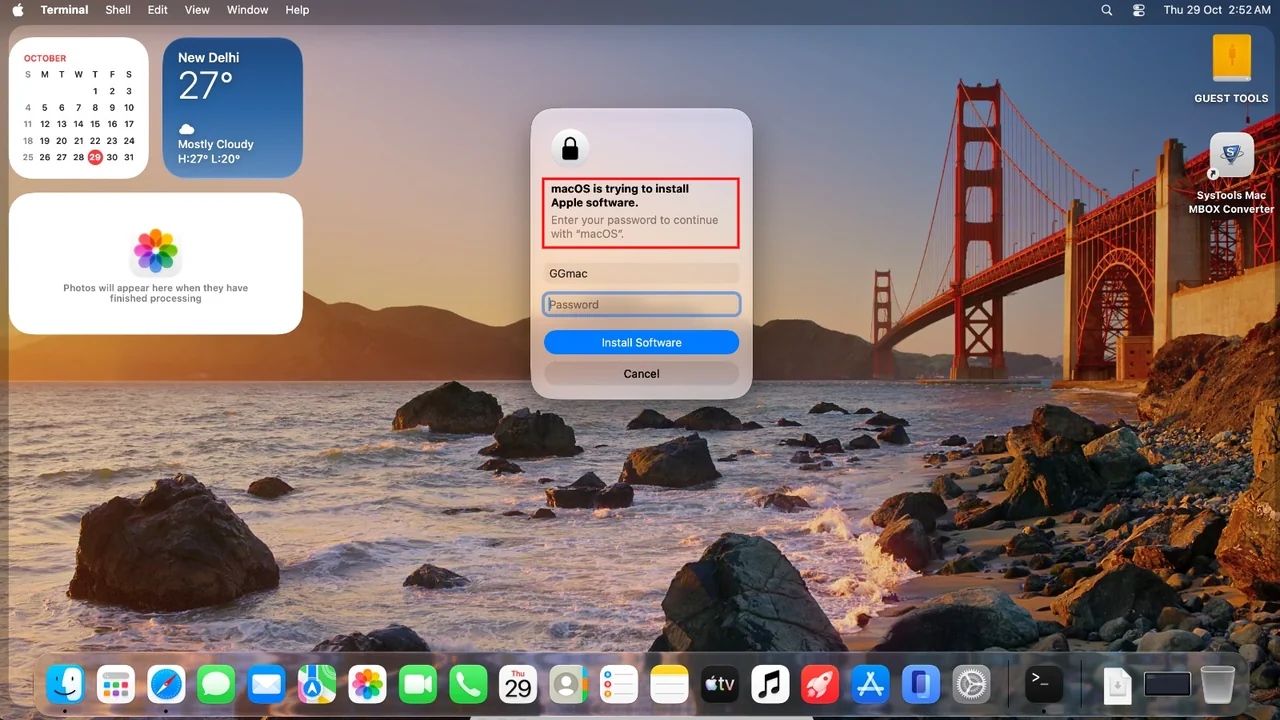
Enter Your Password and Install
Enter your Mac user password in the Password field and click Install Software. Rosetta installs in the background. Once it finishes, open the tool again.
Verify That Rosetta Is Installed
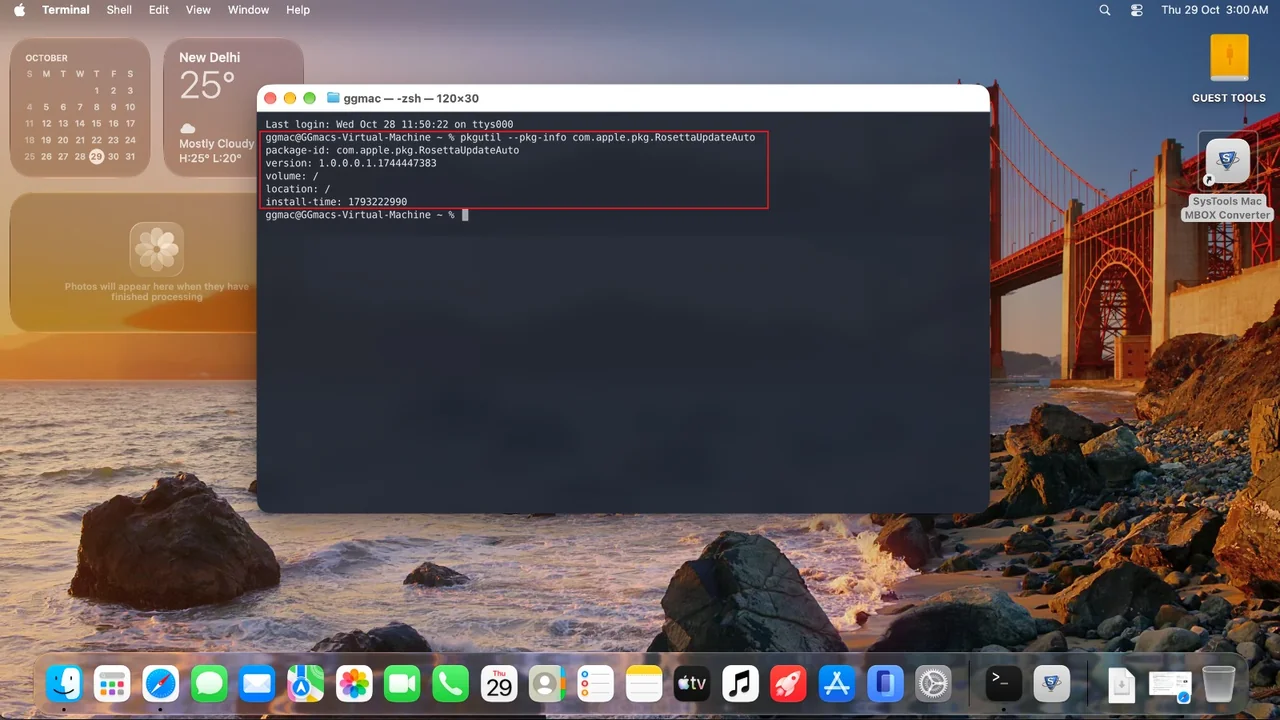
To confirm, type "pkgutil --pkg-info com.apple.pkg.RosettaUpdateAuto"" in Terminal and press Return. Terminal lists the Rosetta package details, including version, volume, location and install-time. If these details appear, Rosetta is installed. If Terminal reports that no receipt was found, repeat the installation.
Method 2: Install Rosetta Using Terminal
Run the Rosetta Install Command
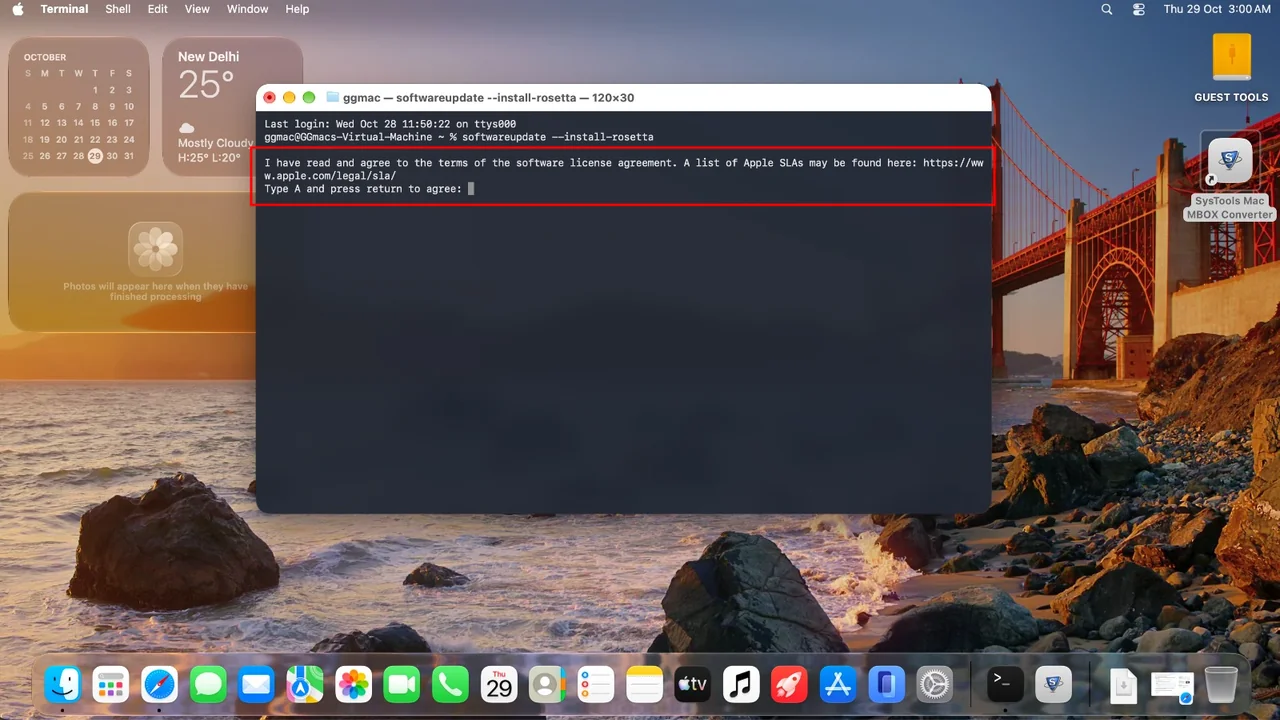
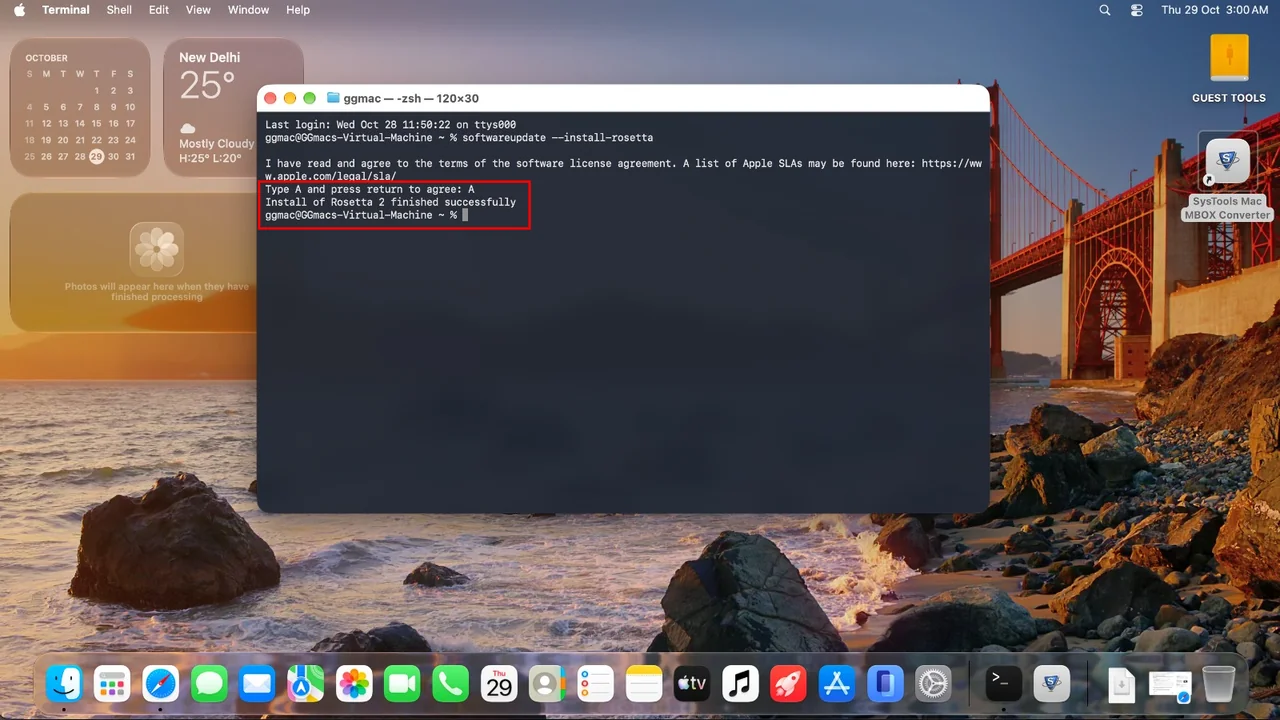
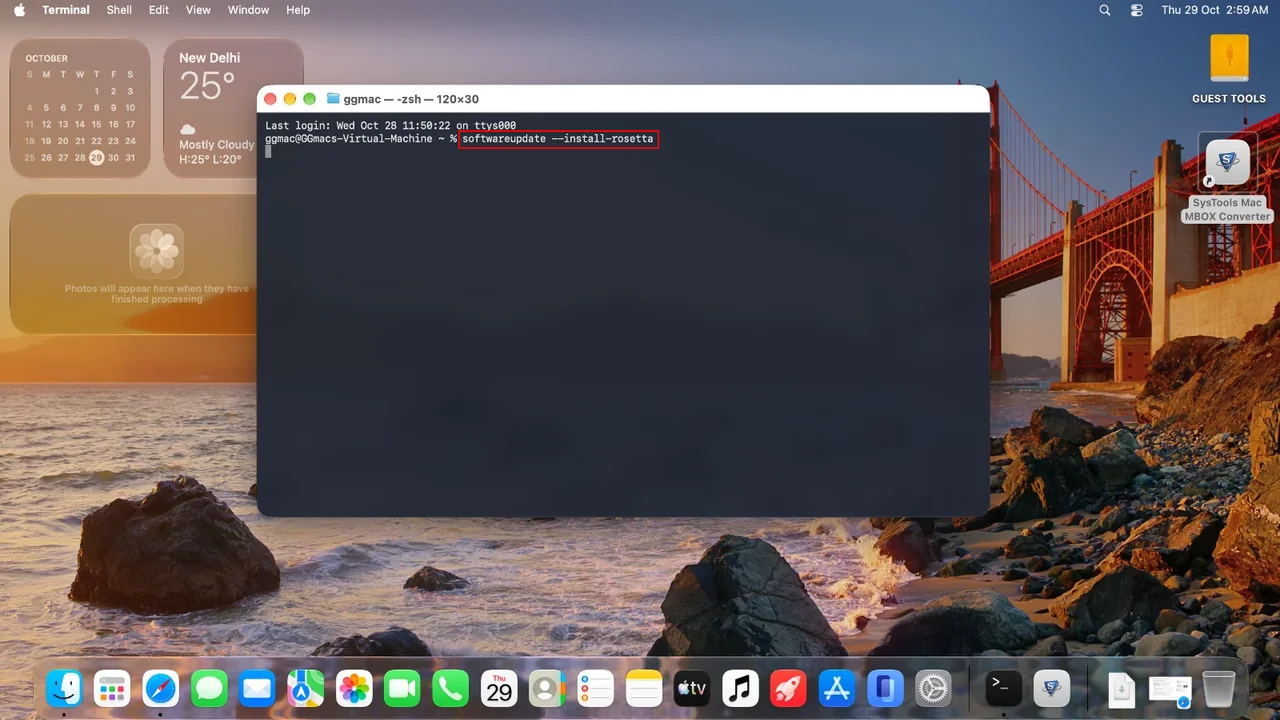
Open Terminal from Launchpad or Spotlight. Type "softwareupdate --install-rosetta"" and press Return.
Agree to the License
Terminal shows the Apple software license agreement. Type A and press Return to agree.