

Quick Answer: The optimal method to migrate OneDrive to SharePoint at an enterprise scale is utlilizing a professional migration utlity such as SysTools Migrator. This corporate-grade software can even handle reverse SharePoint-to-OneDrive migration and other endpoint migrations. It is the ultimate automated solution for “How to Migrate OneDrive to SharePoint.”
“How to migrate OneDrive to SharePoint” is one of the frequently asked queries by end users and enterprise administrators on IT forums. Typically, OneDrive files are migrated to SharePoint to:
- Prevent permanent data loss.
- Centralize projects and restructuring
- Managing permission sprawl
So, whether you’re an IT administrator tasked with migrating bulk OneDrive data to SharePoint Online or an end-user figuring out how to move several files from OneDrive to SharePoint, this guide is especially designed for you!
Stay tuned till the end!
OneDrive For Business vs. SharePoint Online: Why Migrate from OneDrive to SharePoint?
Migrating from OneDrive to SharePoint is typically driven by four critical operational requirements:
#1: Employee Offboarding & Data Loss Prevention
Migrating from OneDrive to SharePoint prevents permanent data loss. See, when an employee resigns or is laid off, their Entra ID account is disabled and flagged for deletion. And according to the standard M365 retention rules, the OneDrive personal site is permanently deleted after 30 days (unless the new ownership is assigned). Hence, moving ex-employee operational files to a persistent SharePoint Document LIbrary permanent data loss.
#2: Project Centralization and Departmental Restructuring
To continue the shared co-authoring, it is imperative to transfer OneDrive files initially drafted by project leads in isolation to a centralized Microsoft Teams document and repository libraries.
#3 Overcoming Permission Sprawl (External/Direct Links)
Sharing files straight from the personal OneDrive drives results in broken links, unmonitored external guest links, and compliance audit failures. And since SharePoint provides structured role-based access control (RBAC: Owners, Members, Visitors), OneDrive to SharePoint migration becomes essential.
Readers Also Explored:
#4: Information Architecture & Custom Metadata
SharePoint supports enterprise taxonomy, content types, custom managed metadata, and automated Power Automate workflows. Whereas OneDrive is mainly a flat, folder-based storage. Therefore, migrating data from OneDrive to SharePoint is important for enterprises.
To understand the architectural and governance differences between OneDrive for Business and SharePoint Online at a glance, check out the quick-comparison table cited below:
|
Feature/Architecture |
OneDrive for Business |
SharePoint Online |
|
Primary Scope |
|
|
|
Default Access |
|
|
|
Ownership Lifecycle |
|
|
|
Storage Quota Model |
|
|
|
Information Governance |
|
|
Related Read: SharePoint vs OneDrive: A Practical Comparison
Pre-Migration Checklist
A frictionless migration from OneDrive to SharePoint requires auditing source data, reviewing file names & path lengths, removing impeding items, verifying target permissions, and more.
So, implement this pre-migration checklist to guarantee an effortless OneDrive to SharePoint transfer:
#1: Inspect Source Data: Before migrating files from OneDrive to SharePoint, it is crucial to determine the precise storage size, total file count, and folder depth. To do so, run a discovery report on the user’s OneDrive.
#2: Clean the Account: For a precise and clutter-free migration between OneDrive and SharePoint, instruct users to delete the obsolete drafts, personal photos, and large duplicate files from their OneDrive drives.
#3: Audit File Names & Path Lengths: Scan for paths exceeding 400 characters and restricted characters (such as ” *: < > ? / \ |).
#4: Verify Target Permissions: To ensure migrated documents inherit the correct organizational permissions, make certain that the target SharePoint has appropriate group memberships (Owners, Members, Visitors).
#5: Notify Stakeholders: Preventing users from editing files during the migration window is a critical step when migrating data from OneDrive to SharePoint Online. So, circulate advance notice to end-users to refrain from editing files.
4 Best Methods to Migrate OneDrive to SharePoint

To migrate OneDrive to SharePoint libraries, there are four industry-standard methods:
- The Native Web Interface
- Microsoft Migration Manager & SPMT
- PowerShell Automation (PnP PowerShell)
- Third-Party OneDrive to SharePoint Migration Tool (Highly Recommended)
Method #1: The Native Web Interface (“Move to”/ “Copy to”)
The native web interface is the quickest way for end-users to manually migrate files from OneDrive to SharePoint. So, if you’re looking for how to migrate OneDrive to SharePoint without third-party software, the built-in web interface is the definitive answer!
Best For: Individual users or small departments migrating under 100 GB and fewer than 30,000 items.
Prerequisites:
- Active Microsoft 365 license for the user executing the migration.
- Read/Write Access to the source OneDrive files.
- Edit or Contribute Permissions to the destination SharePoint Document Library.
- A strong, uninterrupted internet connection.
Step #1: Open OneDrive For Business
- Open any browser >> go to portal.office.com >> open OneDrive for Business.
Step #2: Select the Files or Folder to Migrate
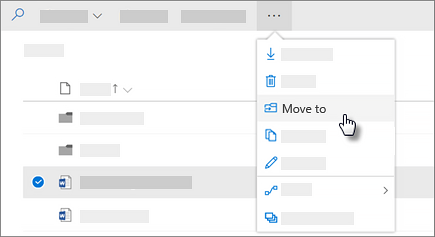
- Click “My Files” to browse >> select the checkboxes (next to the files or folders) to migrate.

- In the top command ribbon, click “Move to” (to cut and transfer) or “Copy to” (to leave a pristine copy in OneDrive).
Step #3: Choose a Destination
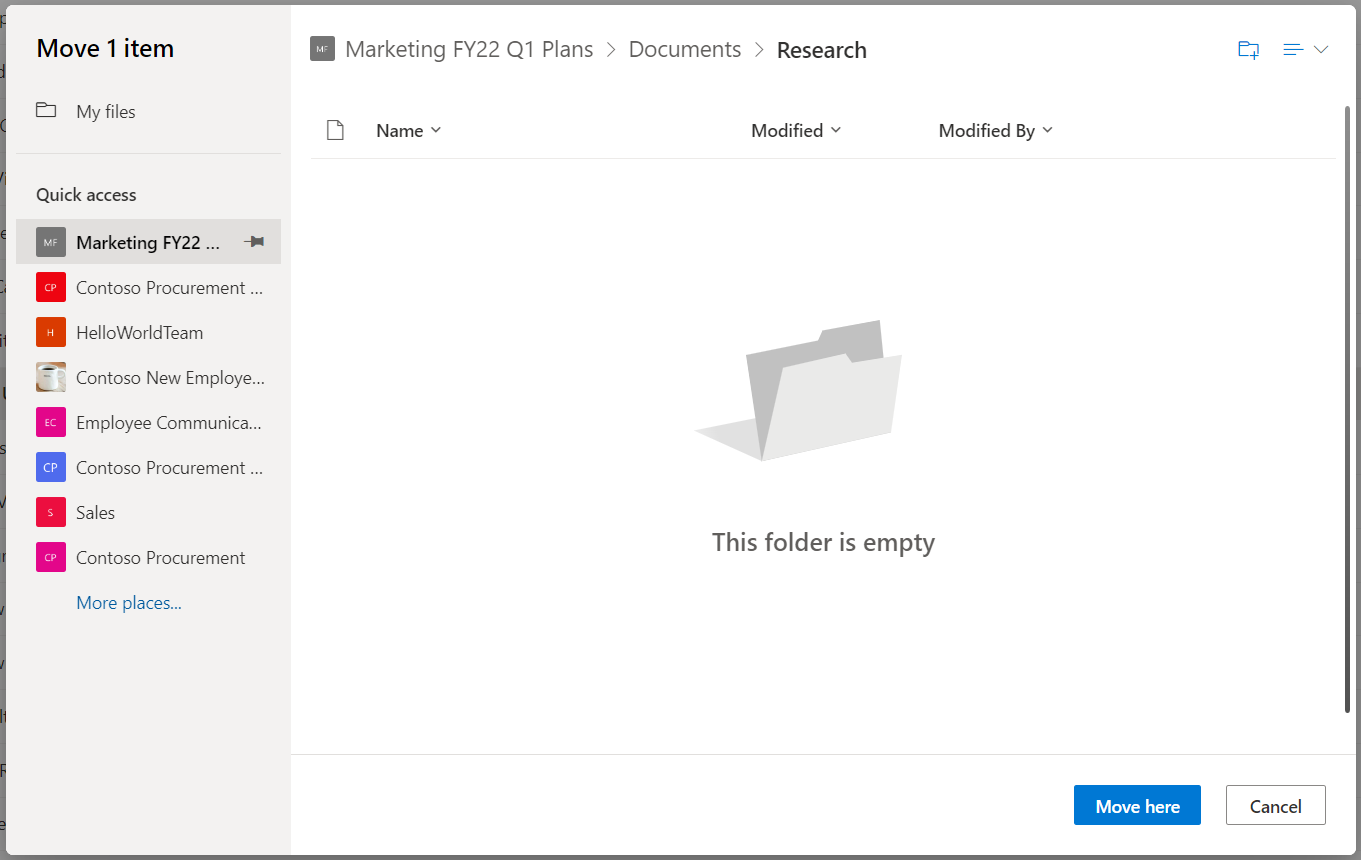
- Under “Choose a destination”, a panel will pop up on the right side.
- In this panel, look for Quick Access >> select the destination SharePoint site/Team.

- Note: If the target site is not listed, click “Browse sites” or search for the site by name.
Step #4: Select the Document Library and Subfolder
- Select the target “Document Library” (such as Documents/Shared Documents).
- Choose the target subfolder >> click “Move here” (or “Copy here”).
Step #5: Monitor the Notification Center
- Lastly, wait until the top-right notification center until the status bar displays “Moved”.
Limitations:
- Browser sessions often time out on massive transfers (Multi-GB migration).
- Maximum file size limit via native browser movement is capped at 100 GB per single file (or 250 GB depending on tenant limits, but vulnerable to timeout).
- The “Copy to” does not capture the version history beyond the latest version.
- Zero audit logs or error reports are generated to specify which particular files failed to transfer.
Method #2: Microsoft Migration Manager & SPMT (Admin-Level)
Microsoft Migration Manager & SharePoint Migration Tool (SPMT) are Microsoft’s native solution to how to migrate data from OneDrive to SharePoint in bulk.
Prerequisites:
- Global Administrator or SharePoint Administrator credentials in Microsoft 365.
- Site Collection Administrator (SCA) rights on both the source OneDrive (requires approving admin access to personal sites) and destination SharePoint site.
- SPMT requires a dedicated Windows Server or PC to run the client software.
Step #1: Access Microsoft Admin Center
- Log in to Microsoft 365 Admin Center (as a Global or SharePoint Administrator).
- In the left navigation, go to “Setup” >> click “Migration”.
- Alternatively, go directly to the SharePoint Admin Center (https://[tenant]-admin.sharepoint.com).
- Under the SharePoint Admin Center, select “Migration” (from the left pane).

Step #2: Launch SharePoint Migration Tool (SPMT)
- Open the SharePoint Migration Tool (SPMT) if migrating from OneDrive sources mapped on local file servers or Azure file shares.

Step #3: Consolidate Internal Tenant File
For tenant-internal file consolidation:
- Select “Add Task”.
- Define the source OneDrive URL: https://[tenant]-my.sharepoint.com/personal/[user_name_tenant_domain].
- Specify the target SharePoint Online site URL and target document library: https://[tenant].sharepoint.com/sites/[SiteName]/[LibraryName].
- Configure migration settings and determine whether to keep file version history (e.g., migrate last 5 versions) and hidden files.
- Run a pre-scan to scan for file name errors, path length violations, and permission warnings.\
- Click “Run” to queue the process across Microsoft’s Azure cloud pipeline.

Limitations:
- Intricate (complex) interface for non-technical users.
- Cross-tenant migrations (company mergers, acquisitions, splits) require comprehensive CSV user-mapping scripts.
- Highly customized SharePoint metadata columns frequently fail to map correctly from standard OneDrive properties.
- Limited automated disaster recovery. If an admin mistakenly overwrites or misconfigures destination ACLs, native rollback options are very few.
Method #3: PowerShell Automation (PnP PowerShell)
PnP PowerShell method furnishes a highly customizable, scriptable way for technical data transfer to the IT professionals who prefer command-line automation to migrate from OneDrive to SharePoint.
Prerequisites:
- Requires the PnP PowerShell Module. To install, run the command: Install-Module -Name “PnP.PowerShell” -Scope CurrentUser
- Configure execution policies to allow running custom scripts. To configure, use the command: Set-ExecutionPolicy RemoteSigned
- SharePoint Administrator credentials. An Azure AD App Registration with Sites.ReadWrite.All API permissions are required for unattended enterprise scripts.
- Basic knowledge of PowerShell scripting and error handling.
#Parameters
$SourceOneDriveUrl = "https://yourtenant-my.sharepoint.com/personal/john_doe_yourtenant_com"
$TargetSharePointUrl = "https://yourtenant.sharepoint.com/sites/Operations"
$SourceFolderPath = "Documents/ProjectApollo"
$TargetLibraryPath = "Shared Documents/ArchivedProjects"
Step #1: Connect to Source OneDrive
Connect-PnPOnline -Url $SourceOneDriveUrl -Interactive
Step #2: Extract Folder Items from Source
$Folder = Get-PnPFolder -Url$SourceFolderPath -Includes Files, Folders
Step# 3: Connect to Target SharePoint Site
Connect-PnPOnline -Url $TargetSharePointUrl -Interactive
Step #4: Execute Move/Copy via Native PnP Cmdlet
Move-PnPFile or Copy-PnPFile handles direct file-level transfers:
Copy-PnPFile -SourceUrl "$SourceOneDriveUrl/$SourceFolderPath/*" `
-TargetUrl "$TargetSharePointUrl/$TargetLibraryPath" `
-OverwriteIfAlreadyExists -Force

Write-Host "Migration completed from $SourceOneDriveUrl to$TargetSharePointUrl" -ForegroundColor Green
Limitations:
- Refrain from running extensive PnP operations concurrently without a deliberate back-off timer to prevent Graph API 429 throttling issues.
- No built-in delta sync. If the script stops halfway, custom logic needs to be written manually to find which files transferred successfully to prevent data duplication upon restart.
- No GUI and reporting; the monitoring process depends completely on command-line outputs. Generating optimized audit reports requires additional complex scripts.
Method #4: Third-Party OneDrive to SharePoint Migration Tool (Highly Recommended)
When handling enterprise-level migrations, rapid project consolidations, or strict compliance requirements, manual copying and native tools often fall short due to:
- Throttling Limits
- Missing Version History & Timestamps
- Absence of Centralized Oversight
To tackle the shortcomings of native solutions, seasoned enterprise administrators count on professional, third-party OneDrive-to-SharePoint migration tools such as SysTools Migrator.
SysTools Migration Wizard is a corporate-ready, Microsoft 365 migration utility. This industry-standard tool guarantees high-speed, fully audited, and zero-downtime bulk transfers.
But what qualifies as a Premier Choice?
- Hyper-Fast Concurrent Migration: Proficient in migrating multiple OneDrive user accounts into SharePoint libraries at the same time, drastically reducing migration windows.
- Metadata & Hierarchy Preservation: Promises 100% preservation of original internal directory trees, original author/editor names (Created By, Modified By), and creation/modification timestamps post-migration.
- Delta/Incremental Migration: This intelligent tool diligently migrates only the new or edited files since the first bulk data cutover. Simply eliminating business downtime.
- Automated Account Mapping: It possesses the ability to fetch source OneDrive accounts. It allows administrators to smoothly map them to their matching target SharePoint libraries using an intuitive CSV interface.
- Throttling-Proof Engine: Dedicatedly engineered to manage Microsoft Graph API rate limits. It intelligently handles API calls to prevent the frustrating HTTP 429 errors that neutralize standard PowerShell scripts.
Steps to Migrate OneDrive to SharePoint Online:
Here are easy steps to move OneDrive files to SharePoint using the SysTools ultimate migration utility:
Step #1: Download and Set Up the Software
- Download, install, and open the migration tool.
- On the “Setup” screen, select “Microsoft 365” as both Source and Destination.

Step #2: Select the “Document” Workload
- Go to the “Resource & Workload Selection” section.
- Check the “Documents” box to migrate.
- Uncheck the other workloads (such as Email, Contact, Calendar) to prevent them from migrating.
- Optional Step: Check the “Date Filter” box next to the document workload to move data created or received within a particular time frame.

Step #3: Authenticate Source and Destination Environment
- On the Source window, enter the Global Admin Email and the Application ID generated from the Azure Portal.

- Click the “Validate” button.
- Once all the permissions are validated (green checkmark), click “Next”.
- Repeat the same process for the Destination environment.

Step #4: Fetch the Source User List
- Go to the “Users” tab.
- Choose the preferred method to add users:
Fetch Users
Import Users
Download Template

Step #5: Review the Populated Users
- Utilize the advanced feature to sort and select the accounts:
Search Bar: To instantly filter and locate specific accounts (by entering an email address or name).
Show Selected Toggle: To hide unselected rows and view only the accounts marked for transfer.
Checkboxes: To manually include or exclude users from the migration.

- Priority (Star) Icon: To prioritise mailboxes and ensure the software migrates them first.
- Hit the “Validate” endpoint to securely verify endpoint permissions.

- Click “OK” to continue.
Step #6: Start the Migration
- Ensure that both the Source and Destination permissions columns are positive (appearing green).
- Click the “Start Migration” button >> Start >> OK.

- The utility will automatically move to the “Migration” tab, displaying the ongoing process.
- Click the “Download Report” dropdown menu >> select “Migration Summary Report”.

- To stop the migration in case of any emergency, click the “Stop Migration” button (top-right of the dashboard) >> Yes >> OK.
Got queries? Check out the dedicated video (attached below) to get a clear, step-by-step tutorial to migrate OneDrive to SharePoint Online. Including different Microsoft 365 workloads (such as Emails, Contacts, Calendars, and Task Categories).
Post-Migration Checklist
To conclude a successful migration from OneDrive to SharePoint, follow the actionable steps shared in this post-migration checklist:
#1: Data Integrity & Spot Check: To confirm version integrity, compare source and target item counts, total byte sizes, and audit key files.
#2: Validate Permissions: Make certain that unidentified users cannot access restricted departmental folders.
#3: Configure Source OneDrive to Read-Only: Prevent users from saving new work in outdated locations. Simply lock or revoke write access to the source OneDrive directory.
#4: Update Shortcuts & Bookmarks: Give users the direct links to the new SharePoint Document Library. And pin the library to the associated Microsoft Teams channel.
#5: Set SharePoint Versioning & Retention: Configure the version history limits (such as 500 major versions). And make sure organisational retention labels are active.
Conclusion
OneDrive to SharePoint migration is a profound step for enterprises that shouldn’t be ignored by IT administrators. This migration practice is beyond migrating files from OneDrive to SharePoint. It is about:
- Establishing structured collaboration.
- Protecting intellectual property against employee turnover.
- Enforcing organisational governance.
So, if you’re figuring out “How to migrate OneDrive to SharePoint” effectively, leverage “Move To” operations or PowerShell scripts for quick, small-scale tasks. And for tenant-wide deployment, cross-tenant acquisitions, and offboarding archives, deploy SysTools advanced enterprise solution.
It guarantees a frictionless, reliable, and auditable OneDrive to SharePoint transfer. This positions it as an ideal resolution for environments requiring complete versioning, original integrity, and regulatory backup compliance.
Still feeling confused? Feel free to get in touch with us at:
- General & Sales Support: [email protected]
- General Inquiries: [email protected]
- Technical Support: [email protected]
People Also Find Helpful:
- How to Move SharePoint Site to Another Tenant? Preserve Permissions, Metadata, and More
- Microsoft Office 365 Tenant to Tenant Migration – Step-by-Step Guide
- Migrate Microsoft Exchange Emails To Other File Formats | Complete Solution
- Transfer Google Docs to Office 365 in Simple Steps
- Migrate Teams from One Tenant to Another Using Most Effectively Way
FAQs (Frequently Asked Questions)
Q.1 Can I migrate OneDrive files directly to a Microsoft Teams channel?
Absolutely yes! Every standard channel in Microsoft Teams is backed by a dedicated folder within the team’s underlying SharePoint site Document Library. So, to migrate OneDrive files directly to a Teams channel:
- Select the target SharePoint site.
- Go to the “Shared Documents” library.
- Select the folder corresponding to the channel’s exact name.
Q.2 What happens to existing sharing links when files are moved to SharePoint?
When files are transferred using native “Move to” within the same tenant, Microsoft generates temporary server redirects for internal users. However, unidentified guest links, external sharing permissions, and formula paths in connected Excel sheets often break. Hence, the optimal approach is to re-share permissions from the new SharePoint location.
Q.3 Will moving files from OneDrive consume my SharePoint storage Quota?
Yes, migrating large user archives from OneDrive to SharePoint directly affects the organization’s pooled tenant storage. This is because SharePoint Online uses the pooled organisational quota (1 TB base + 10 GB per licensed user. Whereas Personal OneDrive storage is allocated separately per user (typically 1 TB to 5 TB).
Q.4 Does native copy preserve version history?
Unfortunately no! The native “Copy to” feature in the OneDrive web UI moves only the latest active version of the file. To retain the complete historical versions (minor and major), utilise the “Move to” function within the same tenant. Or simply deploy an enterprise-grade solution such as SysTools M365 Migration.
Q.5 How do I handle large files over 15 GB?
Because web browser transfers for files over 15 GB often crash due to network drops and SSL timeouts. So, to migrate large video archives, CAD files, or database backups from OneDrive to SharePoint Online, use PowerShell scripts, SPMT, or a professional enterprise utility with an automated resume feature.