How to Combine PST Files Without Duplicates? Instant Guide


Are you facing difficulty in merging PST files because duplicates appear in the mailbox? If yes, then in this article, we will discuss how to combine PST files without duplicates using effective and quick solutions. Due to an upgrade in Outlook, your data becomes large, which leads to an Outlook mailbox full. So, without deleting important data, it’s important to combine multiple PST files without duplicates. Before jumping to solutions for merging Outlook PST files, let’s see a query by a genuine user of MS Outlook to understand more about the problem.
User Query – How Can I Combine PST Files Without Duplicates in Outlook?
“I have multiple accounts configured in my Outlook Application. Some of my emails & contacts, as well as calendars, are saved twice in these folders. I want to merge multiple Outlook PST files and eliminate duplicates, but not getting any reliable solution. The main problem while combining these Outlook files is removing duplicates. Can anybody suggest a technique so that my work becomes easier?”
It’s very clear from the user query why users need a reliable solution to combine Outlook emails, contacts, calendars and other items without duplicates. Not to worry, we’re going to tell some of the best ways and tips to solve the merge PST files without duplicates problem using both manual and automated approaches.
Advanced Solution to Combine PST Files Without Duplicates
If you want to merge PST files without duplicates effectively and reliably. We recommend using the SysTools PST Merge Tool. It’s the best professional software which comes with advanced features, as it can easily combine large Outlook files without losing any important data.
This tool offers a very simple and easy-to-operate user interface, which helps both technical and non-technical users to use the software seamlessly without learning any technical skills. It effectively manage multiple PST files in Outlook, such as 2021, 2019, 2016, 2013, and other versions by merging the files into one.
Let’s walk through its working guide.
Step-By-Step Guide to Merge PST Files Without Duplicates
Follow these simple steps to resolve the problem:
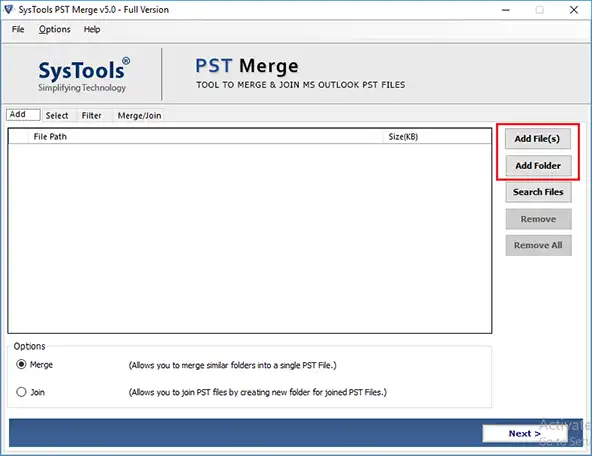
- Install and run the tool and upload PST File and Folder.
- Choose the Merge Option and click Next button.
- Select Merge All Folders or Selected Folders as per the needs.
- Choose Merge in New PST, Existing PST, or Outlook Profile.
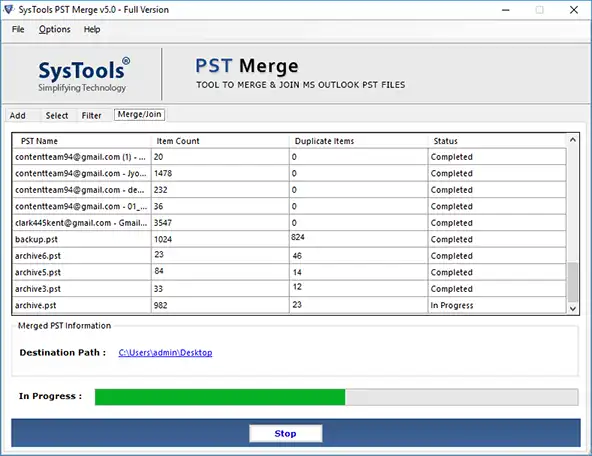
- Tick Skip Duplicate Items to eliminate duplicates from the mailbox data.
- Finally, press Next button.


Advanced Features of this Professional Tool
Here are other interesting features mentioned below:
- Option to Consolidate Password-Protected Outlook PST.
- Easily Fetches Data from Complex PST Files.
- Only Merge Duplicate Contacts in Outlook.
- Supports Multiple File and Folders with N no. of PST.
- Maintains Data Structure Integrity.
- Offer Dual Options: Merge and Join PST
- Split PST option to break data into small sizes.
- Supports all versions of Outlook and Windows OS.
- Able to Combine Outlook Archive files.
Manual Solution to Combine PST Files Without Duplicates
If you want a money-less approach, then choose manual solutions. You can follow the steps mentioned below to combine multiple Outlook PST files and to eliminate duplicates.
This manual method involves a two-step process:
- Create a PST file
- Transfer the data into the file
Let’s go through each step one by one.
1) Create Blank PST
- Navigate to your “Microsoft Outlook Profile” and click on “New items”.
- A drop-down list will be displayed. Select “More Items”.
- A dialogue box will appear, select “Outlook Data File”.
- A new desired location will arrive to save a new blank PST to the desired location.
- In the end, select OK button.


2) Move Old PST to Newly Created PST
Go for the below-mentioned steps to complete the task to combine PST files without duplicate emails, contacts & calendars.
- Open Outlook 2021 or any other version again and go to File menu.
- Select Open & Export button after going to Import/Export.
- A new window of Import–Export wizard will be displayed. You have to select Import from another program.
- After select Next button to combine PST files without duplicates.
- Go to File type, choose Outlook Data File (PST) to import from your local storage.
- Reach to location of the file where you have saved your PST that needs to be merged.
- In the next window, select the “Do Not Import Duplicates” option so that no duplicates will be created during the process.
- Then, go to Next button.
- Select the Destination Location where you want to save your combined folder
- Finally, navigate to Finish button.


Note: You can consider this a limitation, as you need to repeat the same process for each PST file, which you need to merge along with the mailbox data item.
Conclusion
In the above article, you have understood how a user can easily merge PST files without duplicates using both professional-suggested and manual solutions. Users can opt for any approach according to their requirements. But it is highly suggested by an expert to use the aforementioned advanced software for more accuracy and reliability. It’s specially developed for combining Outlook emails, contacts, calendars, notes, and other data items.
FAQs on Combine PST Files Without Duplicates
Q.1 Can I Merge Data Files Along with Removing Duplicates?
A. Yes, you can join multiple PST files using the automated tool mentioned above. Also, for eliminating duplicates, you can use SysTools Outlook Duplicate Remover Software.
Q.2 How to Manually Combine Multiple Outlook PST Files?
A. One can easily combine several Outlook data files using manual methods. First, create a new empty file and then import all existing data into the new PST file.
Q.3 Does this Tool Join Duplicate Contact Entries?
A. Yes, this tool combines all duplicate contacts in Outlook version whether it’s 2019, 2016, 2013, 2010, or 2007.